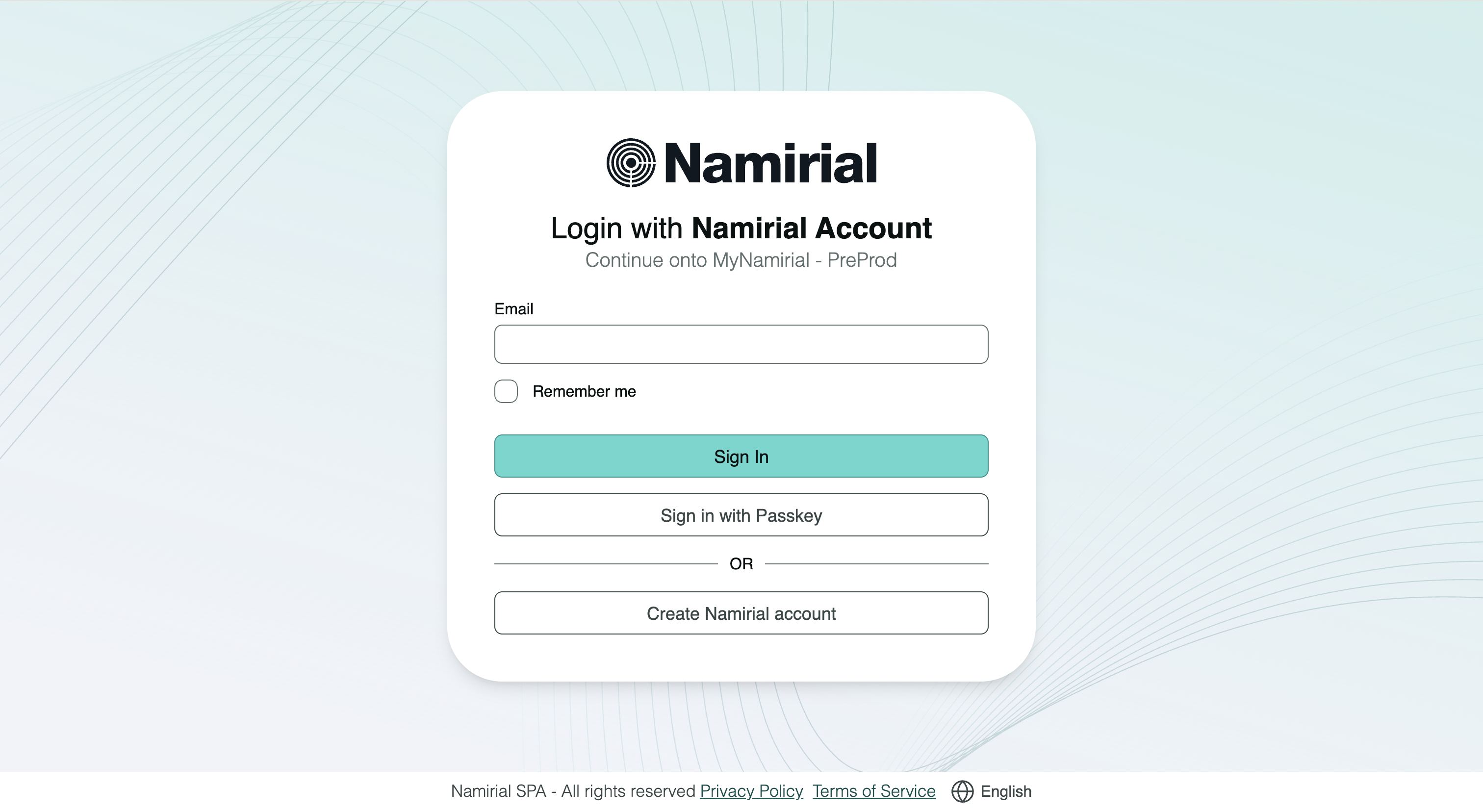
If your organisation uses a federated Identity Provider, entering your work email on the MyNamirial sign-in page redirects you automatically to your organisation's sign-in page. No additional selection is required on your side.
Open MyNamirial. You need your organisation's credentials — the ones you use for your work account. On your first sign-in you also need access to the email inbox associated with your MyNamirial account.
The screenshots show the English interface in the demo environment. The organisation's sign-in page in these examples belongs to a Microsoft account — your organisation's provider and screens may look different. Select an image to view it at full size.
Enter your work email address on the MyNamirial sign-in page and select Sign In. MyNamirial detects your domain and redirects you to your organisation's sign-in page automatically.
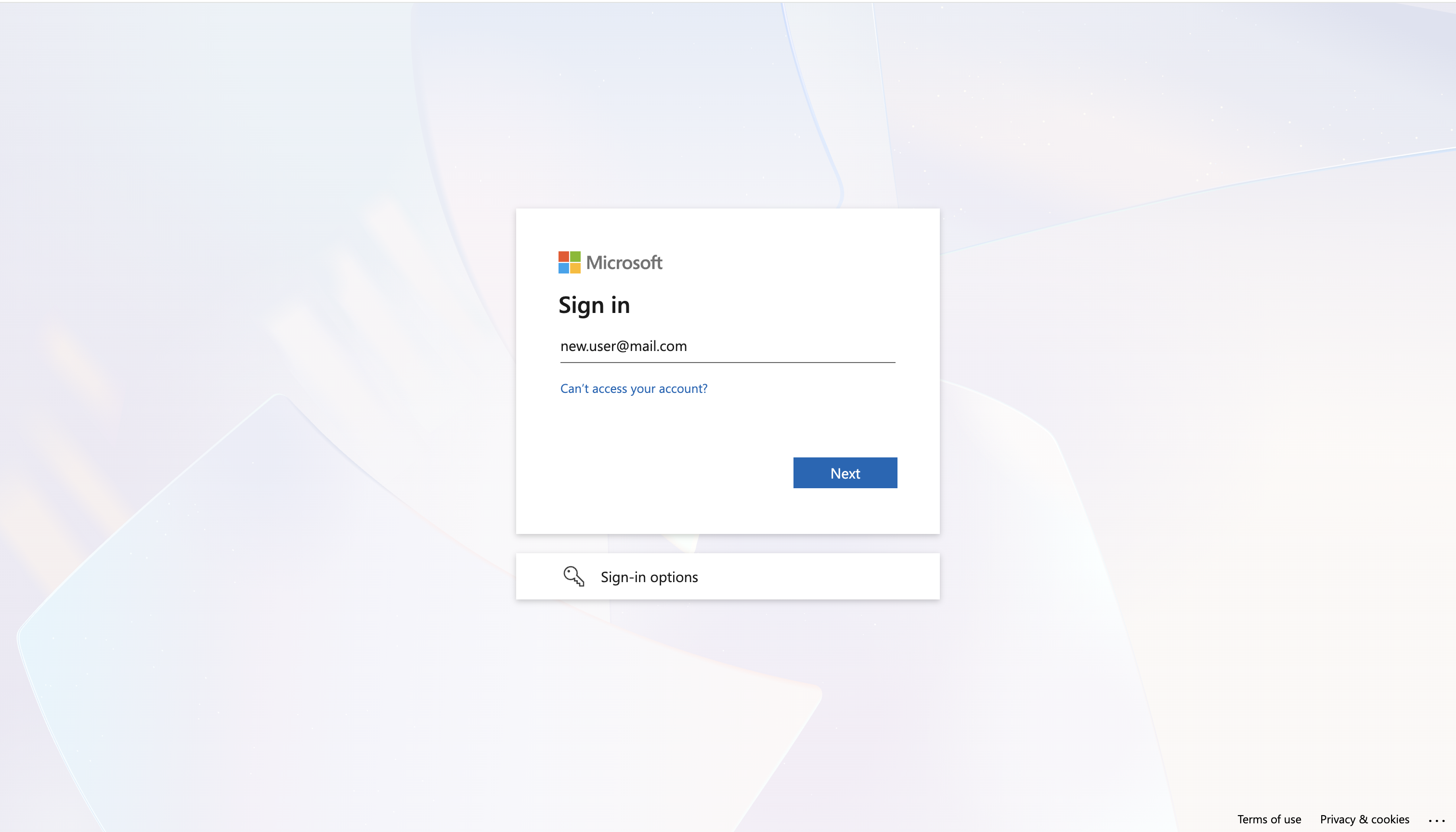
Complete sign-in on your organisation's page. The exact screens and steps depend on your provider's configuration.
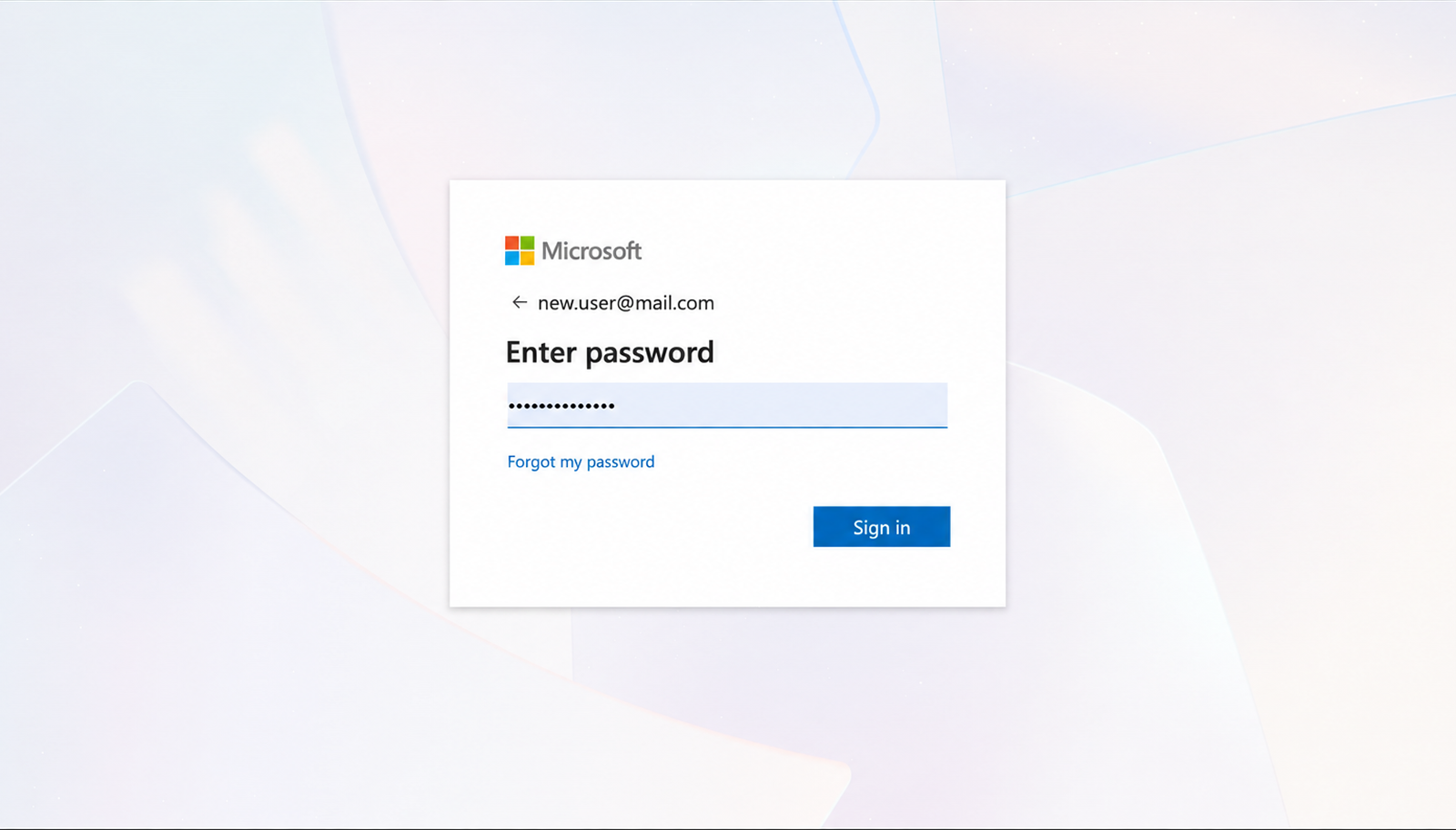
After successful authentication your provider redirects you back to MyNamirial.
The steps below occur only on your first sign-in. Once your account is linked, subsequent sign-ins skip directly to access after step 2.
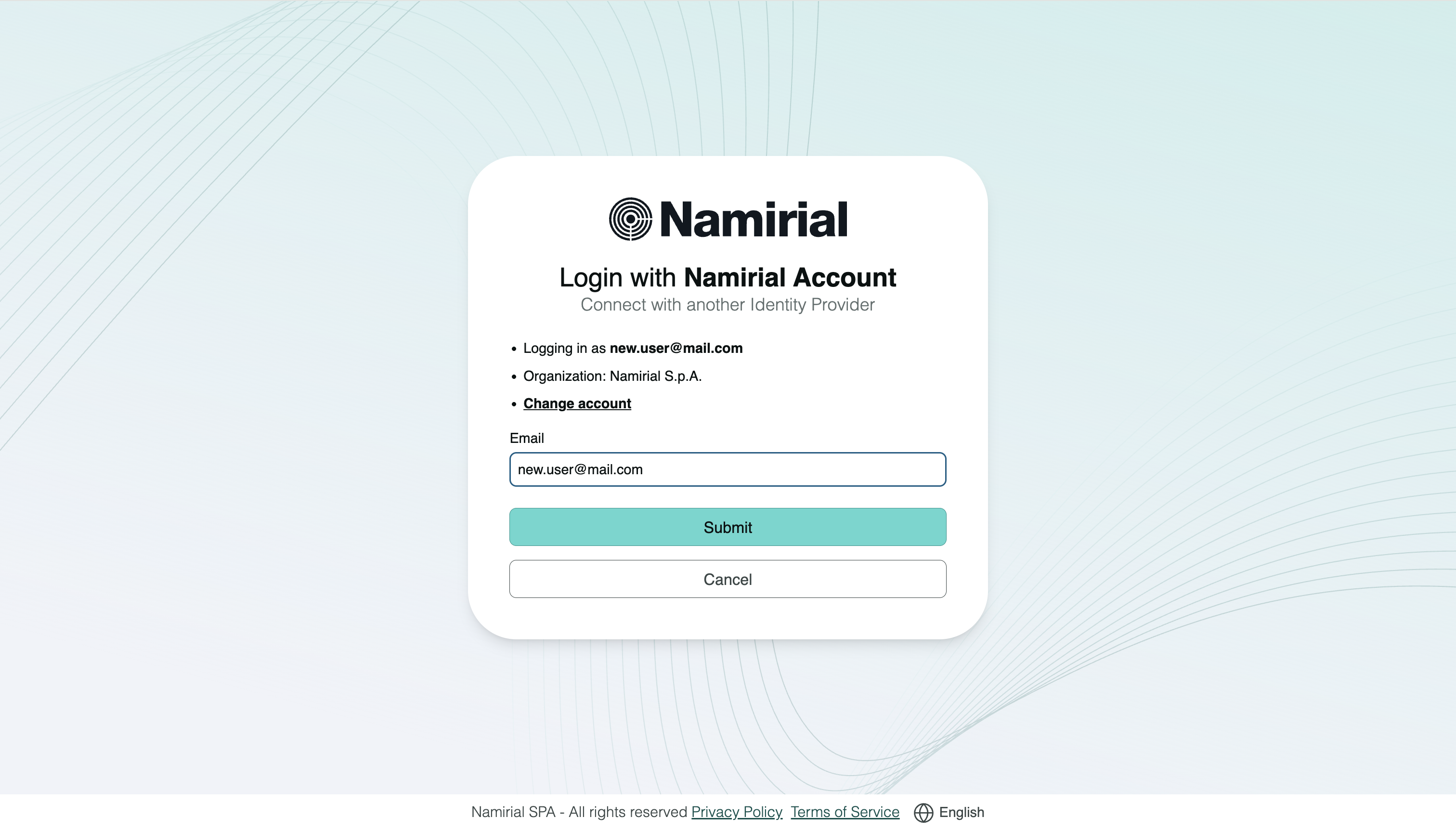
MyNamirial shows your organisation and the email address where the verification code will be sent. Check the address and select Submit.
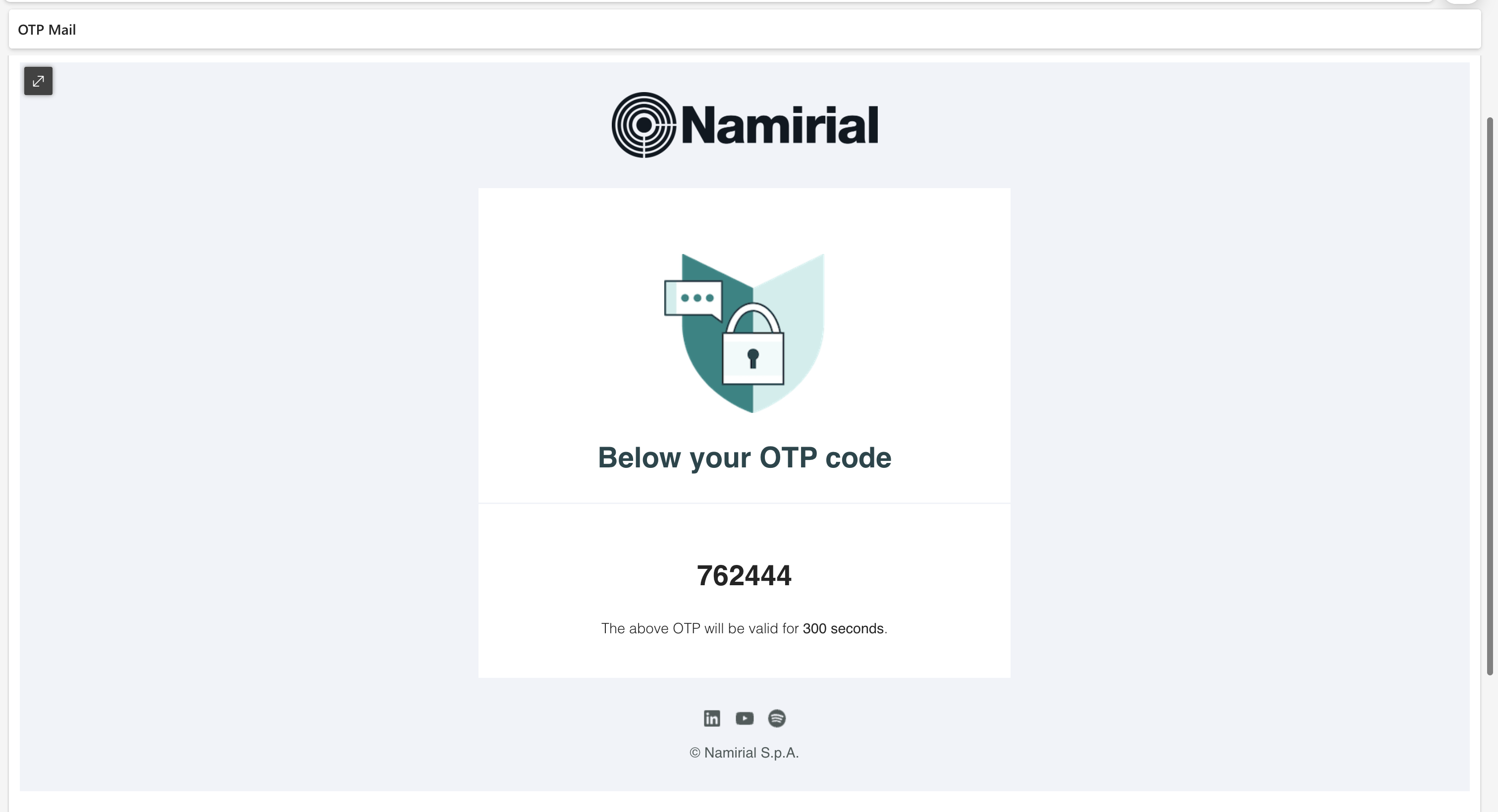
Open the email sent by Namirial. The message contains a six-digit code valid for 300 seconds. Keep the browser tab open while you retrieve it.
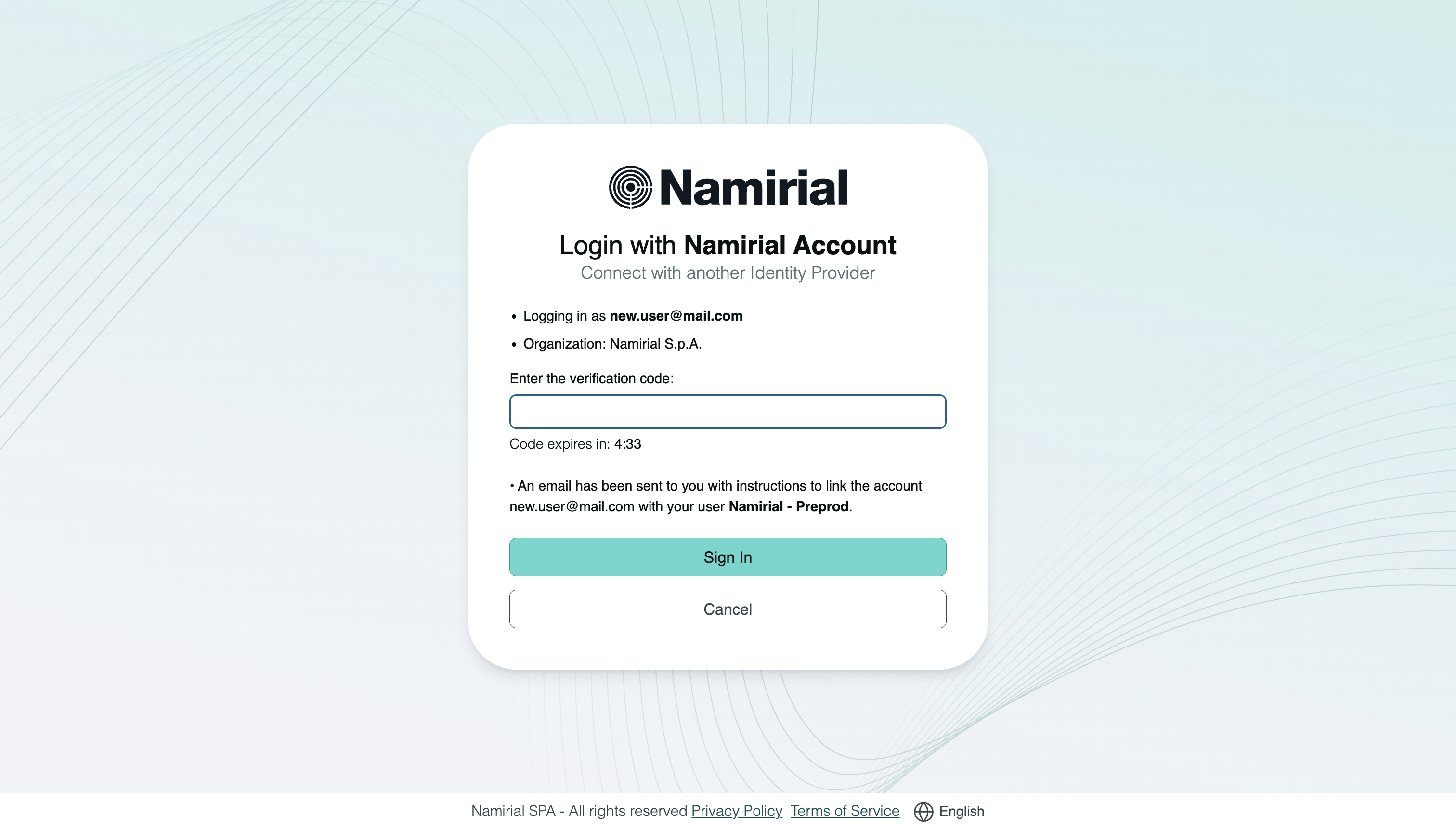
Return to MyNamirial and enter the code in Enter the verification code, then select Sign In. Enter the code before it expires — the remaining time is shown on screen.
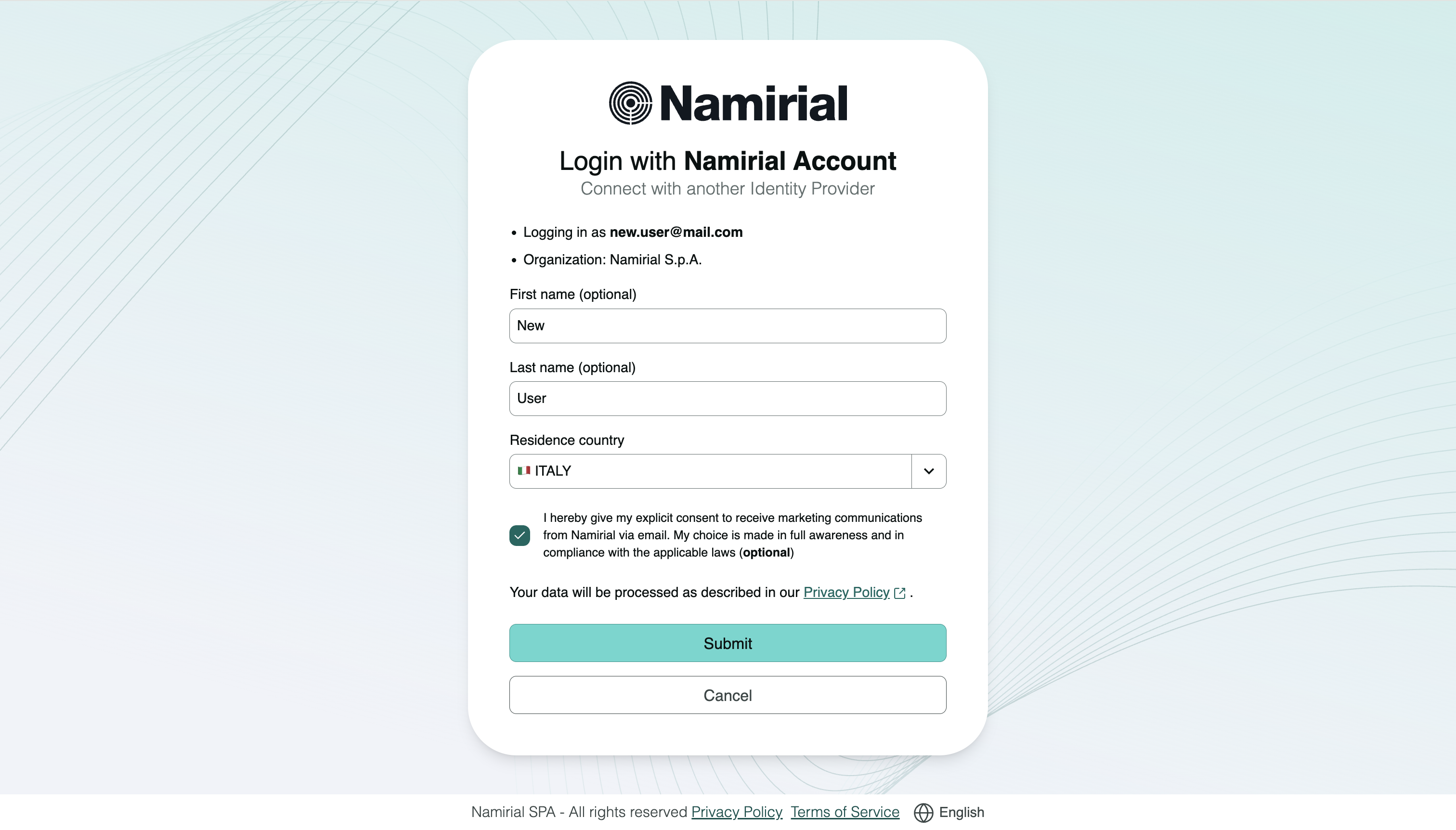
Review the pre-filled information. Update any fields if needed, then select Submit to complete the link.
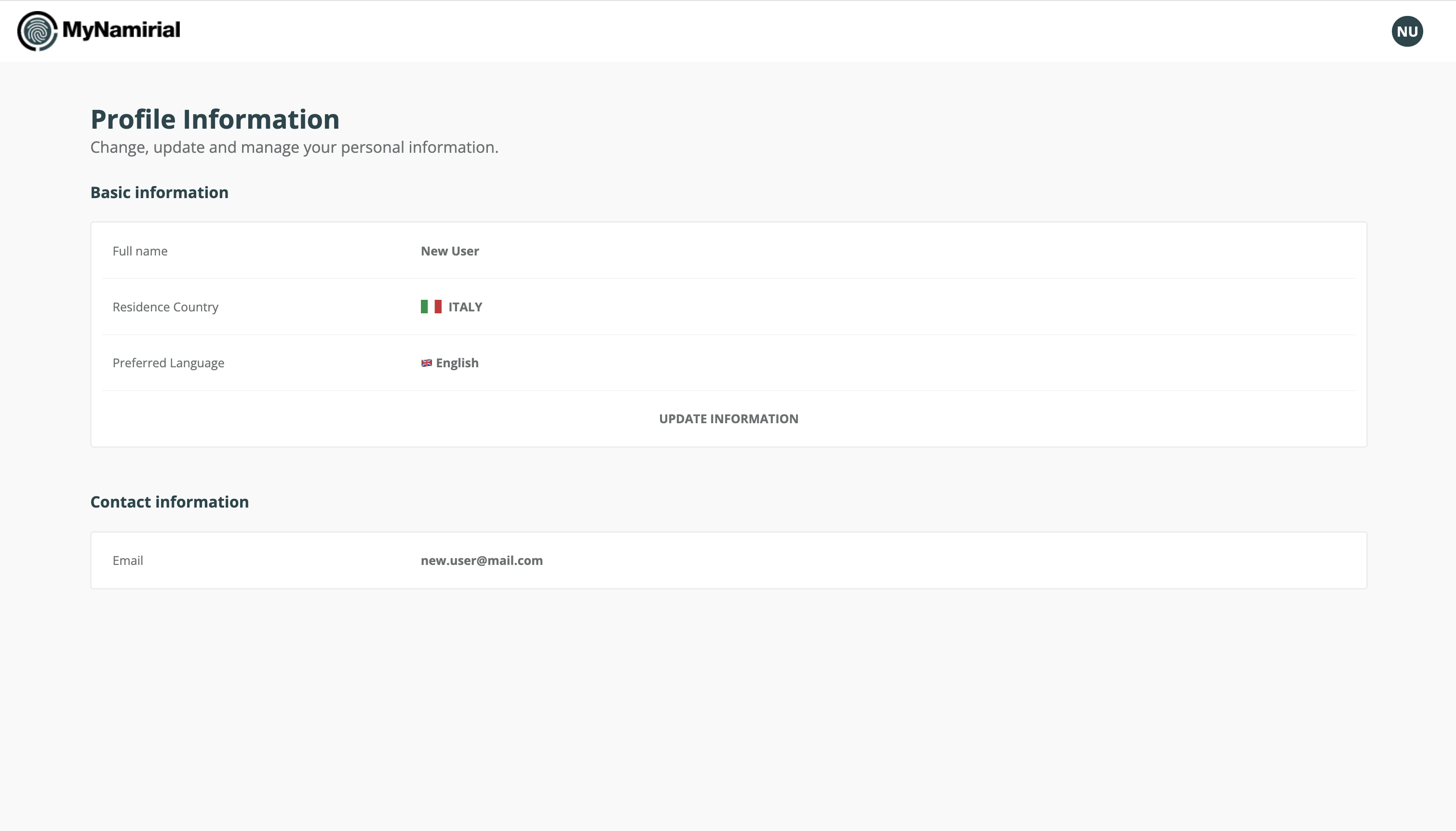
You reach your MyNamirial profile once access is granted. The account linking step does not appear again on future sign-ins.
| Situation | What to do |
|---|---|
| Redirected to the wrong organisation's page | Select Change account on the MyNamirial screen and enter the correct email. |
| Code not received | Check the inbox and spam folder for the address shown on screen. |
| Code rejected or expired | Select Cancel and start the sign-in again to request a new code. |
| Organisation's page not available | Contact your organisation's IT support. |