This guide covers the password-related areas currently exposed in the Namirial Notify administration UI: the signed-in user's password-change form and the organization password-policy settings.
- you are signed in to Namirial Notify
- you can access the user profile area if you need to change the signed-in user's password
- you have site administrator permissions if you need to change organization password policies
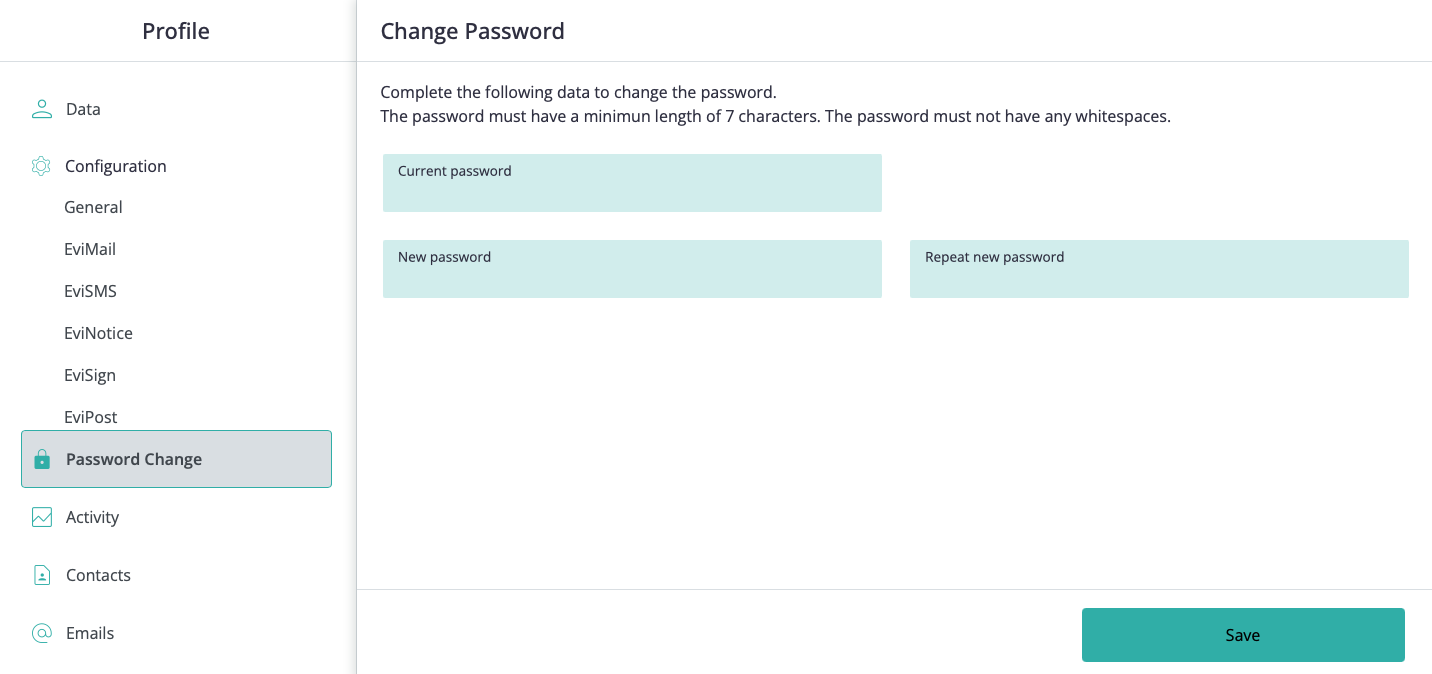
The profile area includes a password-change section for updating the current user's password.
The current UI indicates that the password must not contain whitespace. The minimum length shown is the value configured in the site password policy, which defaults to 7 characters but can be changed by a site administrator from Organization > Configuration > Security.
To change the password:
- Open the profile area.
- Select Password Change in the left sidebar.
- Enter the current password.
- Enter the new password.
- Repeat the new password.
- Select Save.
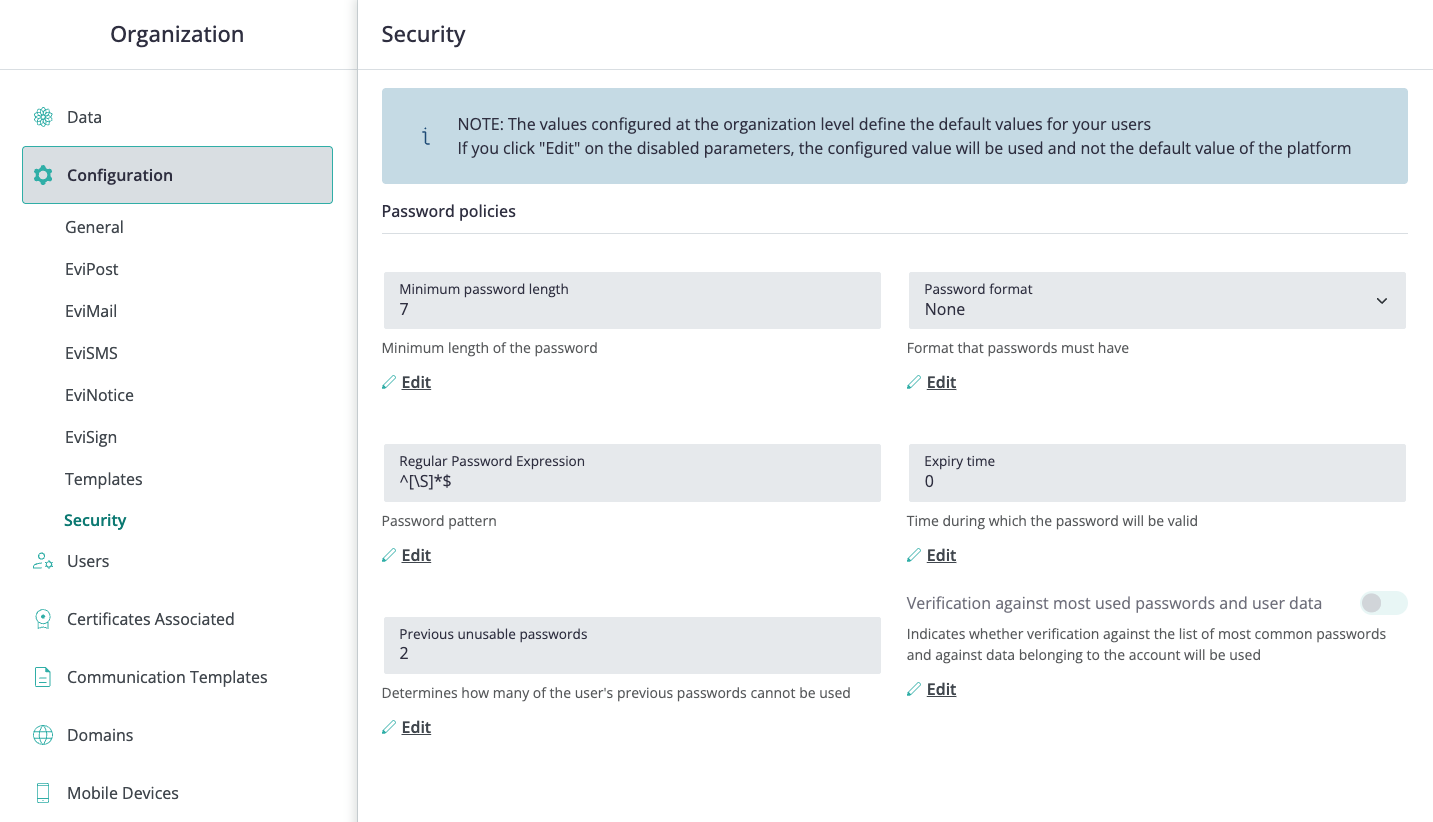
Site password policies are configured from Organization > Configuration > Security.
Password-policy settings can include:
- minimum password length
- password format
- regular password expression
- password expiry time
- number of previous unusable passwords
- verification against most used passwords and user data
To update password policies:
- Open the site settings area.
- Select Configuration in the left sidebar.
- Select Security.
- Review the current password-policy values.
- Change the parameters required by your organization.
- Select the save action.
- Review whether users also need a forced password change so the new policy is applied consistently.
If the site policy changes or a password must be reset operationally, a site administrator can force a user to set a new password at the next sign-in.
- Open Organization > Users.
- Locate the user in the list.
- Open the row action menu for that user.
- Select the password-change or force-password-change action exposed by the UI.
- Confirm the action if the interface asks for confirmation.
- Inform the user that the next sign-in will require a new password that complies with the current site policy.
Before changing password settings, confirm:
- whether you are changing a single user's password or the site-wide password policy
- whether the new policy should affect existing users immediately
- whether selected users must be forced to change their password at next sign-in
- whether integrations or service accounts have password requirements that must be coordinated before expiry policies change
- whether users need communication before a stricter policy is enforced
The user can update their own password from the profile area, and site administrators can maintain organization-level password rules from Configuration > Security and force individual users to change their password when needed.