This guide explains where site administrators manage organization-level settings in Namirial Notify. Use it as the entry point for organization data, site-wide web form defaults, associated certificates, mobile devices, and the focused administration guides linked from the site settings area.
The defaults under Configuration are primarily used to prefill the web forms for creating EviMail, EviSMS, EviNotice, EviSign, or EviPost transactions. API and web service requests have service-specific required fields and omission behaviour; omitted optional values can be resolved from configured defaults at one or more levels. For the APIs currently documented in this portal, use the API reference overview to find the relevant service contract instead of assuming every value must be supplied explicitly.
- you are signed in with site administrator permissions
- you can access the site or organization area for the tenant you want to manage
- the relevant services are enabled on the site if you need to configure service-specific defaults
Namirial Notify can apply sending defaults at different levels:
- Site settings define organization data and site-wide defaults.
- User profile settings define personal data and per-user defaults for one account.
- Transaction settings selected while creating a communication apply only to that transaction.
When the same option exists at more than one level, the value chosen for the individual transaction normally takes precedence over the user default, and the user default takes precedence over the site default.
For per-user defaults, see User profile settings.
- Sign in to Namirial Notify with a site administrator account.
- In the top-right toolbar, select the organization settings icon immediately to the left of the user icon.
- In the menu that opens, select Organization.
- In the left sidebar, select the section you want to review.
Top-level organization sections include Data, Configuration, Users, Certificates Associated, Communication Templates, Domains, and Mobile Devices. Under Configuration, the current UI includes General, EviPost, EviMail, EviSMS, EviNotice, EviSign, Templates, and Security.
Menu labels can vary slightly by tenant and UI version. The current UI exposes organization settings from the icon next to the user menu.
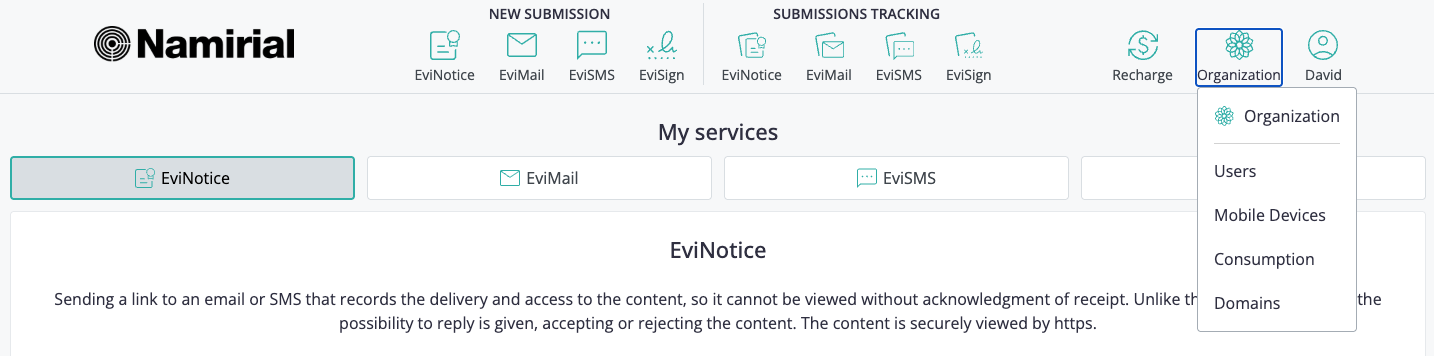
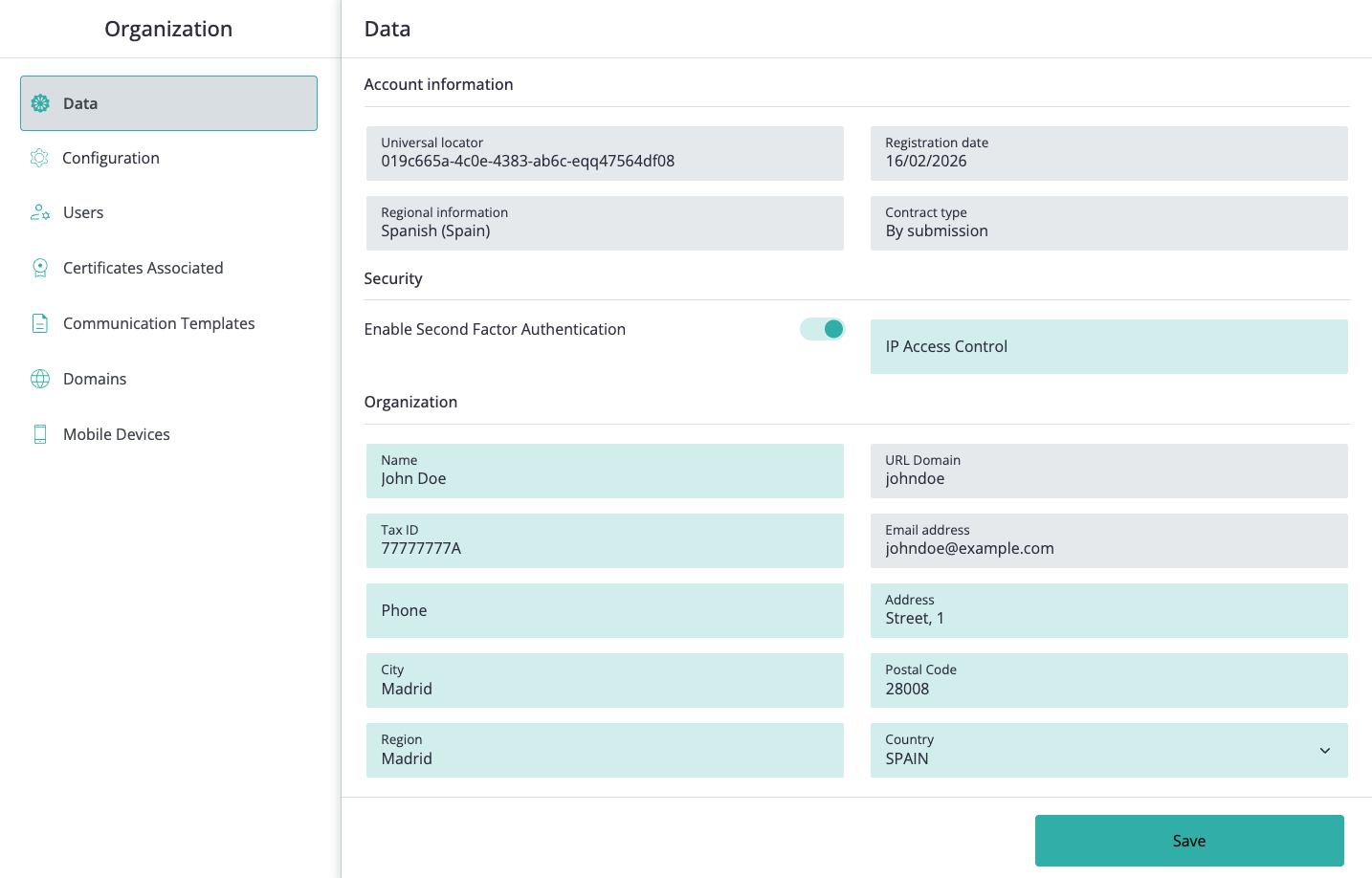
The Data section contains account information, security controls, and editable organization details for the site.
The Account information area shows site-level details such as:
- universal locator
- registration date
- regional information
- contract type
These fields identify the site and its contract context. Depending on the tenant configuration, they may be informational rather than directly editable from the Data section.
The Security area can include controls such as:
- Enable Second Factor Authentication
- IP Access Control
Use these controls only after confirming the expected access policy for the site.
The Organization area lets a site administrator review and update information such as:
- organization name
- URL domain
- tax identification
- email address
- telephone number
- address
- city
- postal code
- region
- country
To update organization data:
- Open the site settings area.
- Select Data in the left sidebar.
- Review the account information and security controls.
- Edit the organization fields you need to update.
- Select the save action.
- Confirm that the updated values are shown in the organization profile.
These values apply at site level.
The Configuration section defines the default behaviour proposed in the web sending forms for users on the site. The values configured at organization level define the default values for users. If an administrator selects Edit on a disabled parameter, the configured organization value is used instead of the platform default.
To update site-wide defaults:
- Open the site settings area.
- Select Configuration in the left sidebar.
- Select the service or configuration entry you want to update.
- Change the default values that should be proposed to users.
- Select the save action.
- Create a new web-based transaction later if you need to verify that the updated defaults are being proposed correctly.
Configuration entries are organized as follows:
- General - logos, default SMTP message type, and default application language. Logo-related options are covered in Site customization.
- EviPost - postal evidence defaults, including cost centres, sending and certification options, custody options, additional fields, and notifications.
- EviMail - certified email defaults, including sending and certification options, cost centres, commitment options, custody options, notifications, and push notifications.
- EviSMS - certified SMS/RCS defaults, including sending and certification options, cost centres, custody options, delivery channels, notifications, and push notifications.
- EviNotice - reliable electronic notification defaults, including language-specific options, signing process settings, commitment options, reminders, delivery channels, notifications, and template identifiers.
- EviSign - signature evidence defaults, including language-specific options, signing process settings, information texts, attachment options, commitment options, custody options, geolocation, reminders, notifications, and template identifiers.
- Templates - organization-level template identifiers not configured inside a specific service tab. See Communication templates.
- Security - password-policy defaults for organization users. See Password management.
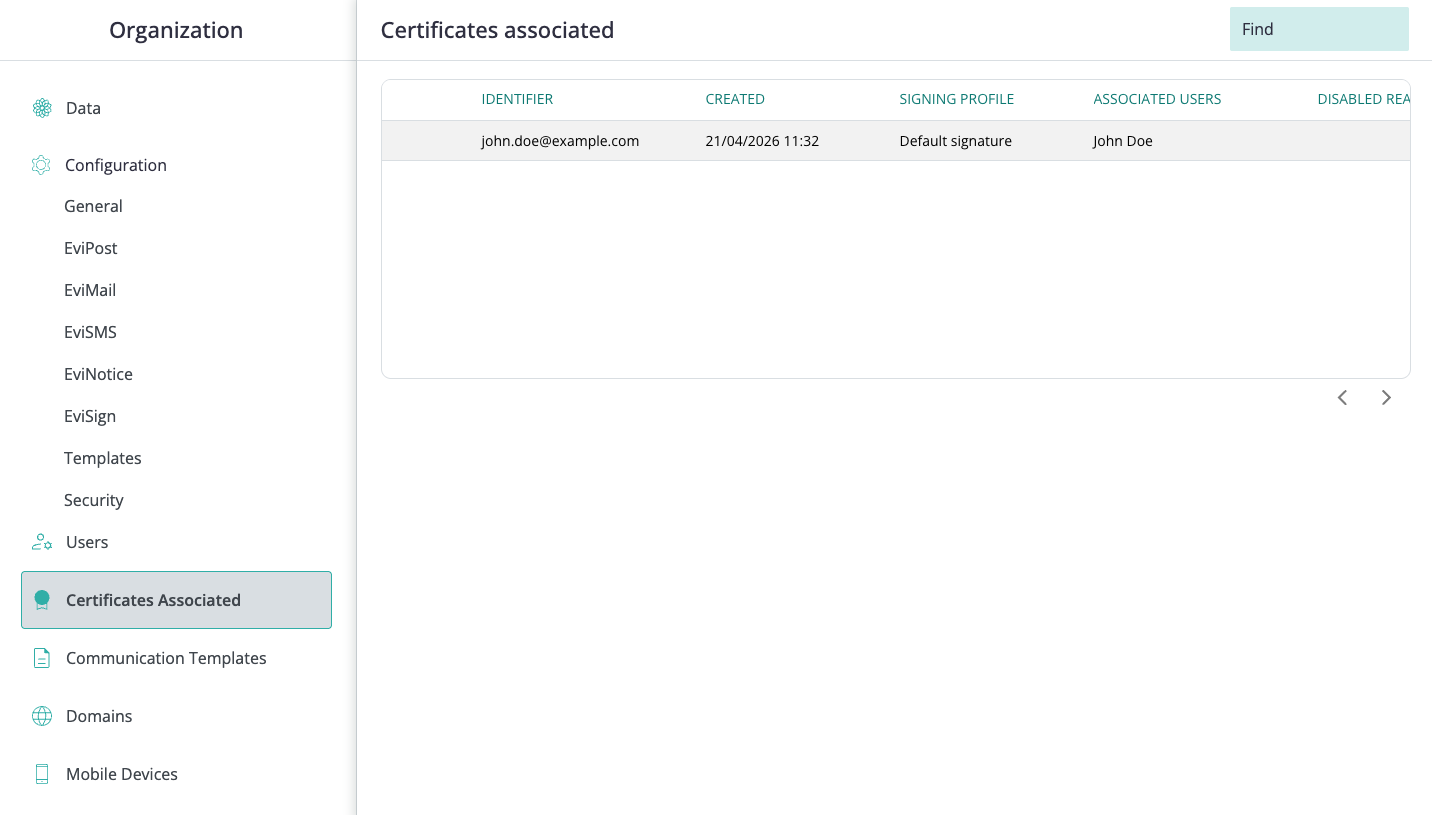
The Certificates Associated section lists signing certificates associated with the organization. The current list view includes a search field, pagination, and columns for:
- identifier
- created date
- signing profile
- associated users
- disabled reason
Use this section to review which certificates are available and which users they are associated with. If no certificates match the current search, the table shows No matching records found.
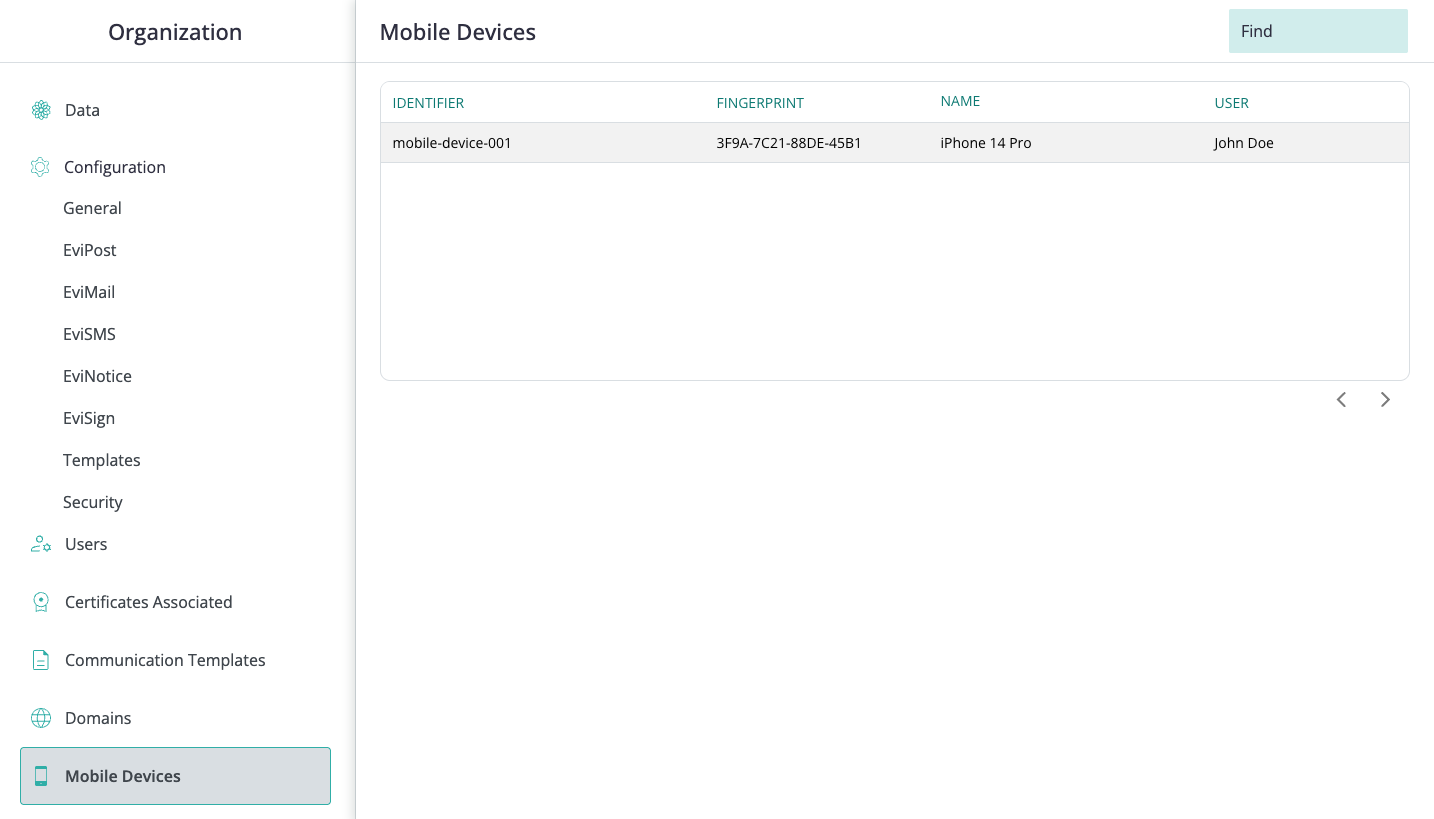
The Mobile Devices section lists mobile devices associated with organization users. The current list view includes a search field, pagination, and columns for:
- identifier
- fingerprint
- name
- user
If no mobile devices match the current search, the table shows No matching records found.
Several organization sections have their own focused guides:
- Users management - review the user list and user administration entry points.
- User registration - add a new user.
- Roles and permissions - understand assignable roles.
- Password management - manage site password policies and profile password changes.
- Communication templates - manage reusable communication templates and template identifiers.
- Forwarding domains - register and verify sending domains.
- Archiving - understand retention, custody, and LTA storage defaults.
- What is Namirial Archive - the long-term archive where LTA-stored evidence is preserved.
Before changing site settings, confirm that:
- you are editing the correct site or organization
- you are in the correct sidebar area for the type of change
- the change should apply at organization level rather than only to a single user or transaction
- the expected behaviour is not already being controlled at user or transaction level
- the services, roles, domains, templates, or archiving options you are configuring are enabled for the site
- API or web service integrations that omit optional values have been reviewed against the relevant service contract, because configured defaults can affect the resulting transaction
You can maintain organization-level data, site-wide web form defaults, associated certificates, and mobile devices from the site settings area. Focused user, password, template, domain, and archiving workflows are documented in their dedicated admin guides.