This guide explains the two template-related areas exposed in the organization UI:
- Communication Templates - reusable communication template records.
- Configuration > Templates - organization-level template identifiers that are not configured inside a specific service tab.
- you are signed in with site administrator permissions
- you can access the organization settings area
- you know which template kind or identifier you need to manage
- communication template management is enabled for the tenant
- Open Organization from the settings icon in the top-right toolbar.
- Select Communication Templates in the left sidebar.
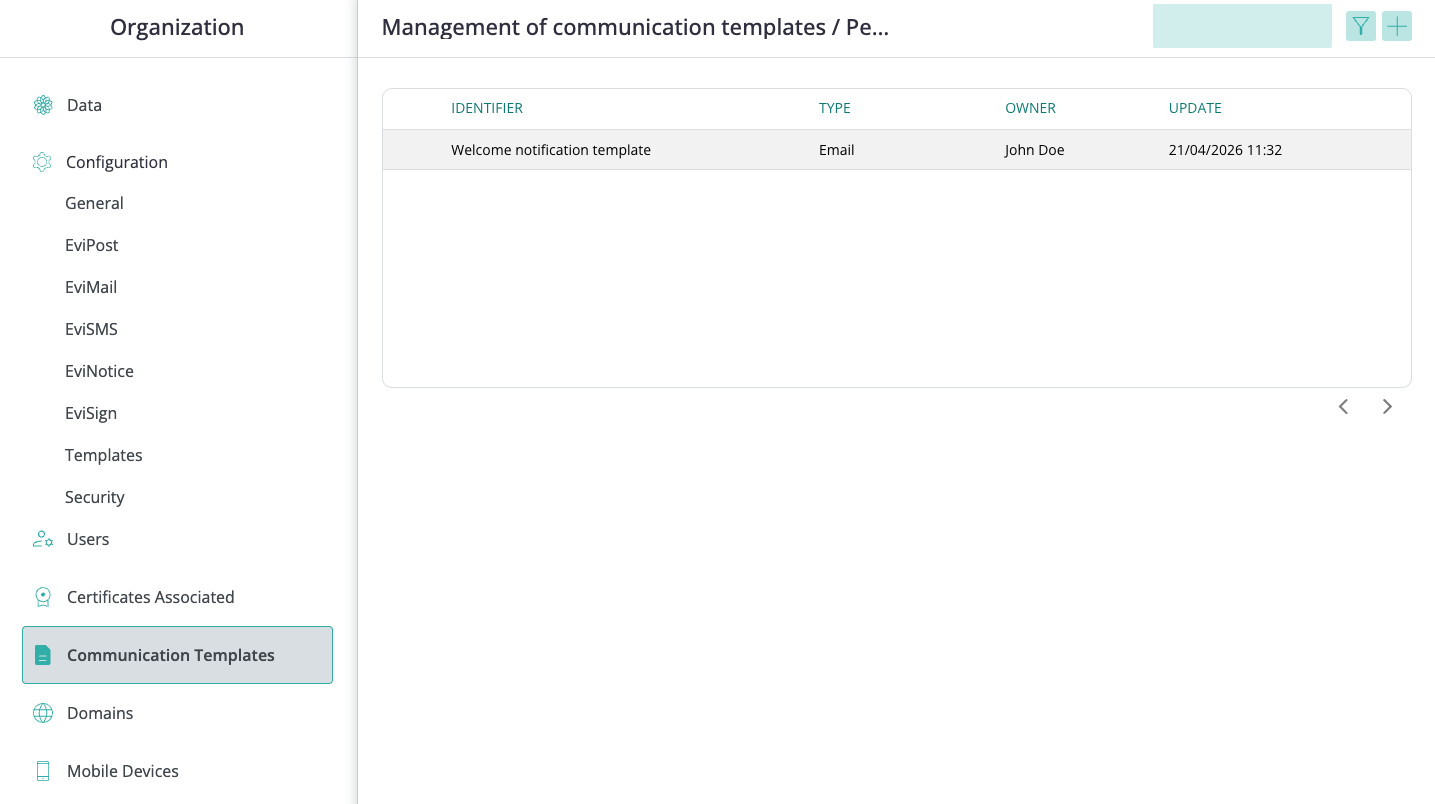
The template list includes a search field, filter action, add-template action, pagination, and columns for:
- identifier
- type
- owner
- update
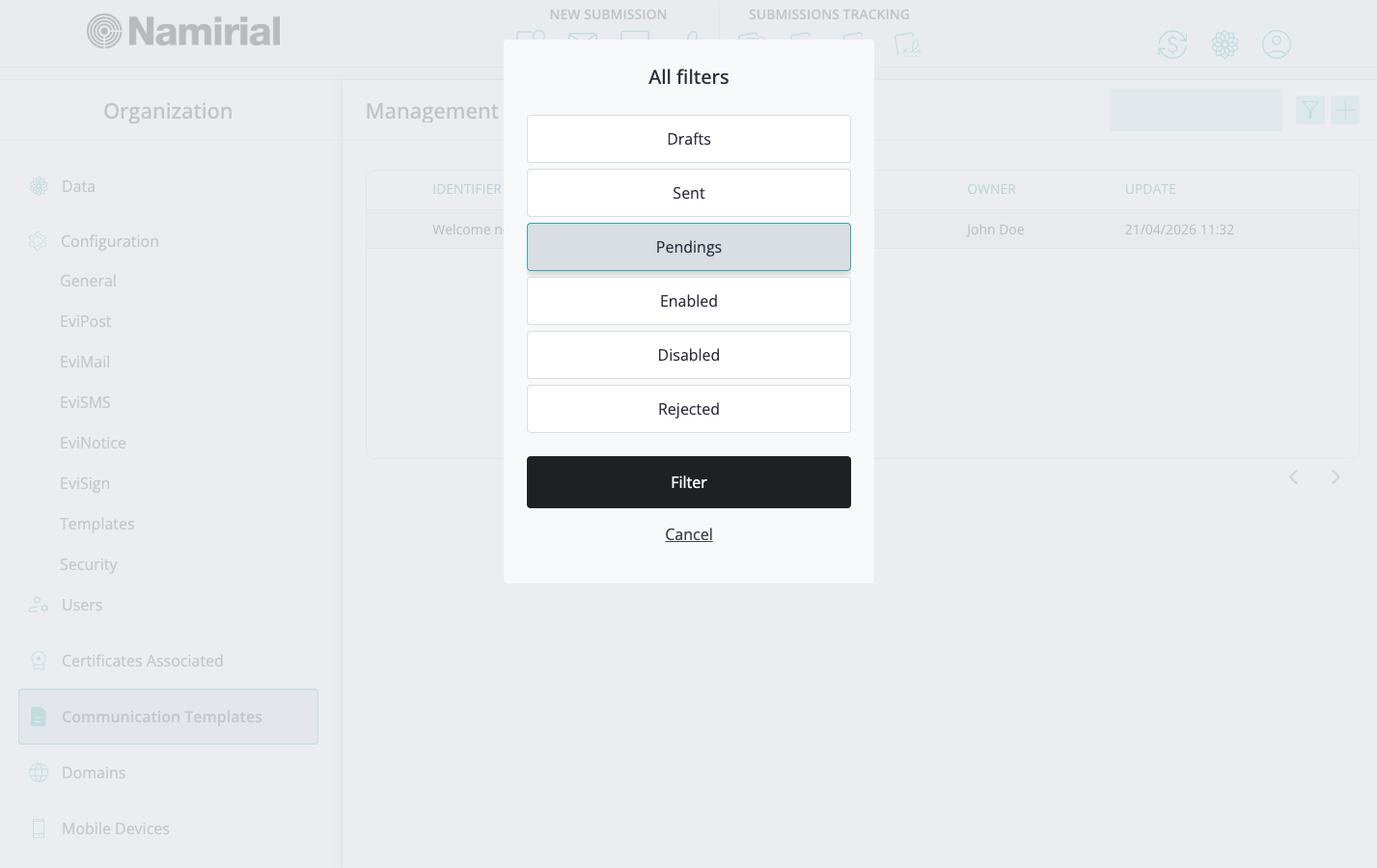
The filter action opens All filters, where you can filter templates by status:
- Drafts
- Sent
- Pendings
- Enabled
- Disabled
- Rejected
Template availability depends on its state.
The lifecycle includes distinct phases: Draft, Submitted (often shown as Sent), Pending, Enabled, Disabled, and Rejected. Use Submitted/Sent for templates already sent for approval processing, and Pending for templates waiting in the review step.
- Drafts - the template is being prepared and is not available for use.
- Sent - the template was submitted and sent for approval processing.
- Pendings - the template is waiting for review or approval.
- Enabled - the template was approved and is available for use.
- Disabled - the template was approved in the past but was later deactivated.
- Rejected - the template did not pass approval and cannot be used until it is revised.
The columns and available row actions can vary by state.
Note: The UI displays the Submitted state as Sent.
- Open Communication Templates.
- Select the add-template action.
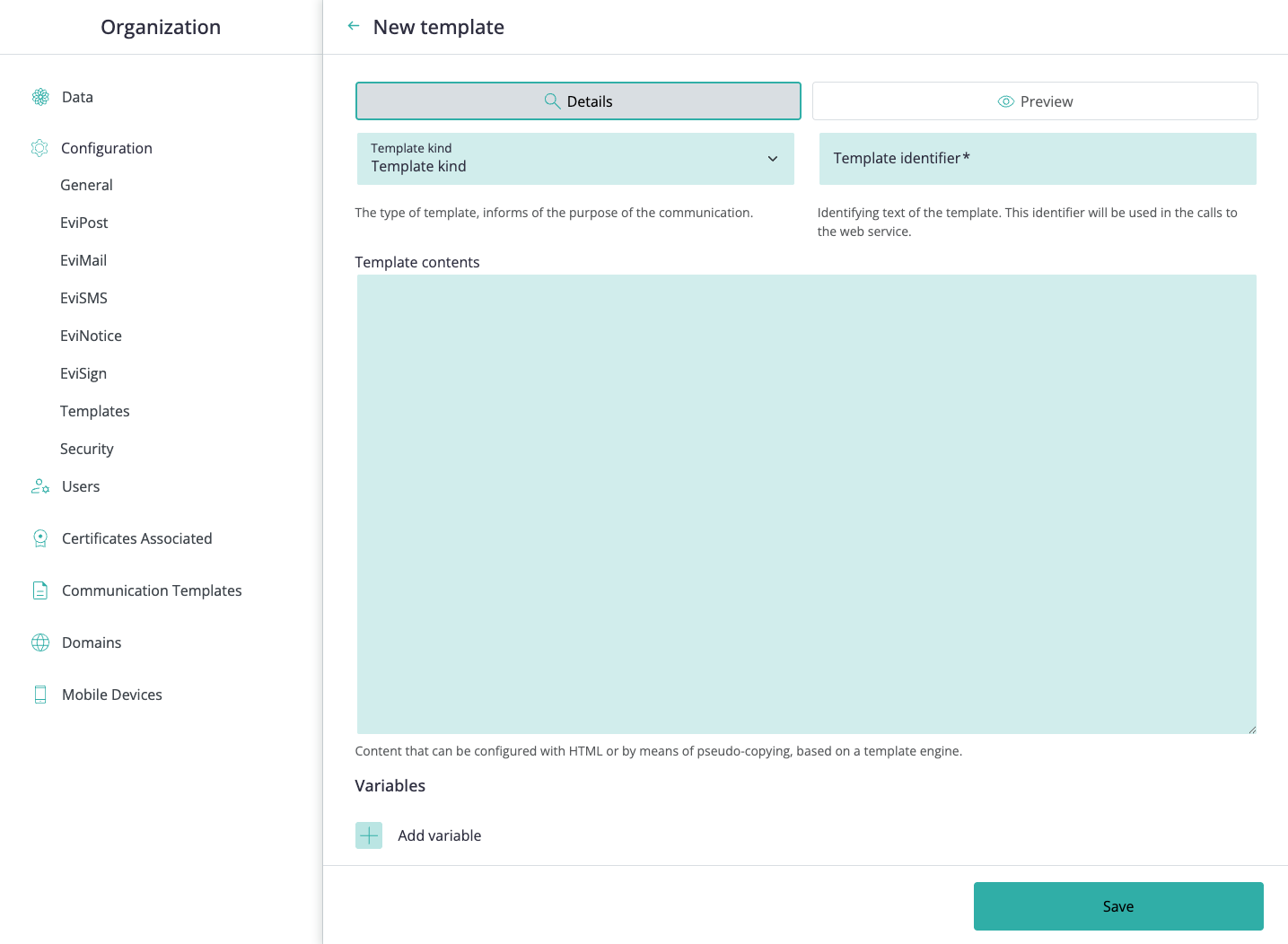
- In New template, use the Details tab to choose the Template kind and enter the required Template identifier.
- Add the Template contents.
- Add variables if the template needs reusable placeholders.
- Use Preview to review the template output when needed.
- Select Save.
| Kind | Internal identifier | Use |
|---|---|---|
| Signature Request | EviSign:Email:SignatureRequest | Sent to EviSign signers requesting a signature. |
| Signature Reminder | EviSign:Email:SignatureReminder | Sent as a follow-up reminder to signers. |
| Final Notification | EviSign:Email:FinalNotification | Sent at the end of an EviSign process with evidence access details. |
| Progress Notification | EviSign:Email:ProgressNotification | Sent when an EviSign changes status (signed, rejected, or expired). Supports Liquid conditional logic. |
| Notification Template | EviNotice:Email:Notification | Customizes EviNotice notification emails. |
The identifier is unique per site and is used to reference the template from the API. No two templates on the same site can share the same identifier.
- Maximum 100 characters.
- Allowed characters: letters, digits, colon (
:), dot (.), and dash (-).
Template content is HTML and can include Liquid template language for conditional or dynamic output. See Liquid language below.
Template content can include two types of variables:
- Environment variables — provided by the platform from the evidence data. See the Environment variables reference below.
- User variables — declared by the administrator during template creation. User variables can only be added while the template is in Draft state.
To add a user variable:
- In the Details tab, open the variables table.
- Add a row and enter a name, a default value (used during preview), and whether the variable is required in each API call.
- Reference the variable in the template content using the
{{variables.VariableName}}prefix syntax — for example,{{variables.PostalCode}}.
Constraints:
- Maximum 30 user variables per template.
- Variable names: alphanumeric only, maximum 30 characters.
- Default values: maximum 500 characters.
User variables can be deleted while the template is still in Draft state.
After saving a template, use the preview flow to confirm that the output is correct before requesting approval.
- Open the saved draft template.
- Select Preview.
- Review the mandatory system variables and any user variables.
- Enter sample values where the preview flow allows it.
- Generate the preview and review the rendered output.
- Select Request approval when the template is ready.
Template approval typically includes:
- Automatic validation to check that the content is structurally valid and uses the required variables correctly.
- Manual validation to review whether the content is appropriate for the selected template kind.
If the template passes validation, it can move to the enabled state and become available for use.
The columns and row actions shown in the template list vary by the active state tab.
| State | Columns | Available actions |
|---|---|---|
| Draft | Type, Identifier, Last modification | Edit, Delete |
| Pending | Type, Identifier, Approval request date | View (read-only) |
| Enabled | Type, Identifier, Activation date | View (read-only), Deactivate |
| Disabled | Type, Identifier, Deactivation date | View (read-only), Activate, Delete (after 60 days) |
| Rejected | Type, Identifier, Rejection date | View (read-only), Convert to Draft, Delete (after 60 days) |
Template lifecycle actions depend on the current state:
- Enabled templates can be deactivated when they should no longer be available for use.
- Disabled templates can be reactivated if they should become available again.
- Draft templates can be deleted at any time.
- Disabled templates can only be deleted after they have been deactivated for at least 60 days.
- Rejected templates can be converted back to Draft to revise the content and resubmit for approval.
- Rejected templates can also be deleted after the rejection has passed the 60-day grace period.
Use the row actions exposed in the current state tab to perform the lifecycle action supported by that state.
Environment variables are populated by the platform from the evidence or service data. Reference them in template content using {{VariableName}} syntax.
| Variable | Description |
|---|---|
{{Subject}} | EviSign subject |
{{Issuer}} | Issuer name |
{{PartyName}} | Name of the signer, reviewer, or interested party |
{{PartyEmail}} | Participant email address |
{{PartyDisplayName}} | Full name of the recipient |
{{PartyRole}} | Role of the recipient (signer, reviewer, or interested party) |
{{Recipient}} | Name of the notification recipient |
{{RecipientEmail}} | Email of the notification recipient |
{{SupportEmail}} | Platform support team email address |
{{ServiceName}} | Service name as configured on the platform |
{{ServiceLegalName}} | Legal company name of the service |
{{ServiceLegalId}} | Service legal identifier |
{{ServiceUrl}} | Service website |
{{ServiceLogoUrl}} | Link to the platform logo |
{{ServiceLogo}} | Platform logo as base64 for inline <img> use |
{{SupportUrl}} | Support page URL |
{{GDPRUrl}} | GDPR policy page URL |
{{LegalTermsUrl}} | Legal terms URL |
{{DeliveryUrl}} | URL to access the signature or notification process |
{{EvidenceUrl}} | URL to access the documents generated during signing |
{{UnsubscribeUrl}} | URL for the unsubscribe process |
{{CbUrl}} | URL that records when a notification is opened |
{{InfoText}} | Text reported by the web service |
{{ReminderNumber}} | Signature request retry number |
{{SubmittedOn}} | Date of issue |
{{OwnerFullName}} | Full name of the issuing user |
{{OwnerName}} | Name of the issuing user |
{{OwnerEmail}} | Email address of the issuing user |
{{IssuerLogoHtml}} | HTML <img> tag with the embedded issuer logo |
{{AdditionalInfo}} | Text indicating whether the email is a reminder |
{{ActionName}} | Whether the email is a Signature or a Validation email |
{{ActionText}} | Button label for accessing the notification content |
{{Outcome}} | Final result of the evidence (signed, rejected, expired) |
{{State}} | Current status of the evidence |
{{Language}} | Notification language |
{{CopyrightDate}} | Platform copyright date |
{{CertificationLevel}} | Certification level of the notification |
{{ServiceLegalTextTemplate}} | Legal text accompanying the email |
Not all variables are available for every template kind. The Preview tab shows which variables are mandatory for the selected kind.
Template content can include Liquid template language for conditional or dynamic output. This is especially useful in Progress templates, where a single template can handle signed, rejected, and expired statuses using if blocks.
Reference: Shopify Liquid · DotLiquid
Templates go through automatic and manual validation before they can be enabled. Following these guidelines reduces rejection risk.
- Convert images to base64 inline to reduce rendering overhead.
- Maximum 3 images larger than 48×48 px per template.
- Maximum 8 images at or smaller than 48×48 px (typically social icons).
- Total file size of images and content must not exceed 1 MB.
The following cannot be used in templates, as mail clients may block emails that contain them:
- JavaScript
- Animated GIFs (whenever possible, avoid)
<iframe>- Embedded audio
- Embedded video
- Forms
- CSS links (external stylesheets)
Suspicious links should also not be included.
EviSign — Signature Request and Signature Reminder
- Text must refer to the issuer's request for a signature.
- Must include a clearly visible button linking to the signature process.
- Must also include the signature process access link as plain text (not only as a button).
- Must include the mandatory variables for this kind.
EviSign — Final Notification
- Text must clearly indicate it is a final notification of the signing process.
- Must include steps for accessing the generated evidence.
- Must include a link to the generated evidence.
- Must include the mandatory variables for this kind.
EviSign — Progress Notification
- Uses Liquid code to handle the three possible statuses in a single template:
- Rejected: text must clearly state that a signatory rejected the document.
- Signed: text must clearly state that a signatory accepted the document.
- Expired: text must clearly state that the signature process expired without being completed.
- Must include the mandatory variables for each status.
EviNotice — Notification Template
- Text must state that a notification has been sent and provide a button or link to access it.
- Must include the mandatory variables for this kind.
Templates must include a GDPR notice that identifies the data controller role. The notice should reference the service's GDPR policy URL using the {{GDPRUrl}} variable rather than hardcoding a link.
Use clear, plain language. Avoid sensationalist wording, misleading subject-like phrases, or anything that could be interpreted as phishing. Mail clients flag templates that use deceptive patterns.
The Configuration > Templates entry is separate from Communication Templates. It contains organization-level template identifiers that are not configured inside a specific service tab.
In the current UI, this section includes PIN signature templates, such as the email signature verification code template identifier for EviSign and EviNotice.
Service-specific template identifiers can also appear in service configuration tabs, such as EviNotice and EviSign custom template identifiers.
Before changing templates, confirm:
- whether you need a reusable communication template record or a configuration template identifier
- the template kind matches the intended communication purpose
- the template identifier is unique and matches any integration references
- the template content uses supported variables
- preview output has been reviewed before requesting approval or enabling the template
- the current template state allows the action you want to perform
Administrators can search, filter, create, submit, activate, deactivate, and maintain reusable communication templates, and can review organization-level template identifiers from Configuration > Templates.
Download a sample template to use as a starting point. Each file is a working HTML template that includes the mandatory system variables for its kind and a GDPR notice section.
| Language | EviSign Signature Request | EviSign Signature Reminder | EviSign Final Notification | EviSign Progress Notification | EviNotice Notification |
|---|---|---|---|---|---|
| English | HTML | HTML | HTML | HTML | HTML |
| Spanish | HTML | HTML | HTML | HTML | HTML |
| Catalan | HTML | HTML | HTML | HTML | HTML |
| German | HTML | HTML | HTML | HTML | HTML |
| French | HTML | HTML | HTML | HTML | HTML |
| Italian | HTML | HTML | HTML | HTML | HTML |
| Portuguese | HTML | HTML | HTML | HTML | HTML |
| Romanian | HTML | HTML | HTML | HTML | HTML |