# Communication templates
This guide explains the two template-related areas exposed in the organization UI:
- **Communication Templates** - reusable communication template records.
- **Configuration > Templates** - organization-level template identifiers that are not configured inside a specific service tab.
## Prerequisites
- you are signed in with site administrator permissions
- you can access the organization settings area
- you know which template kind or identifier you need to manage
- communication template management is enabled for the tenant
## Open communication templates
1. Open **Organization** from the settings icon in the top-right toolbar.
2. Select **Communication Templates** in the left sidebar.
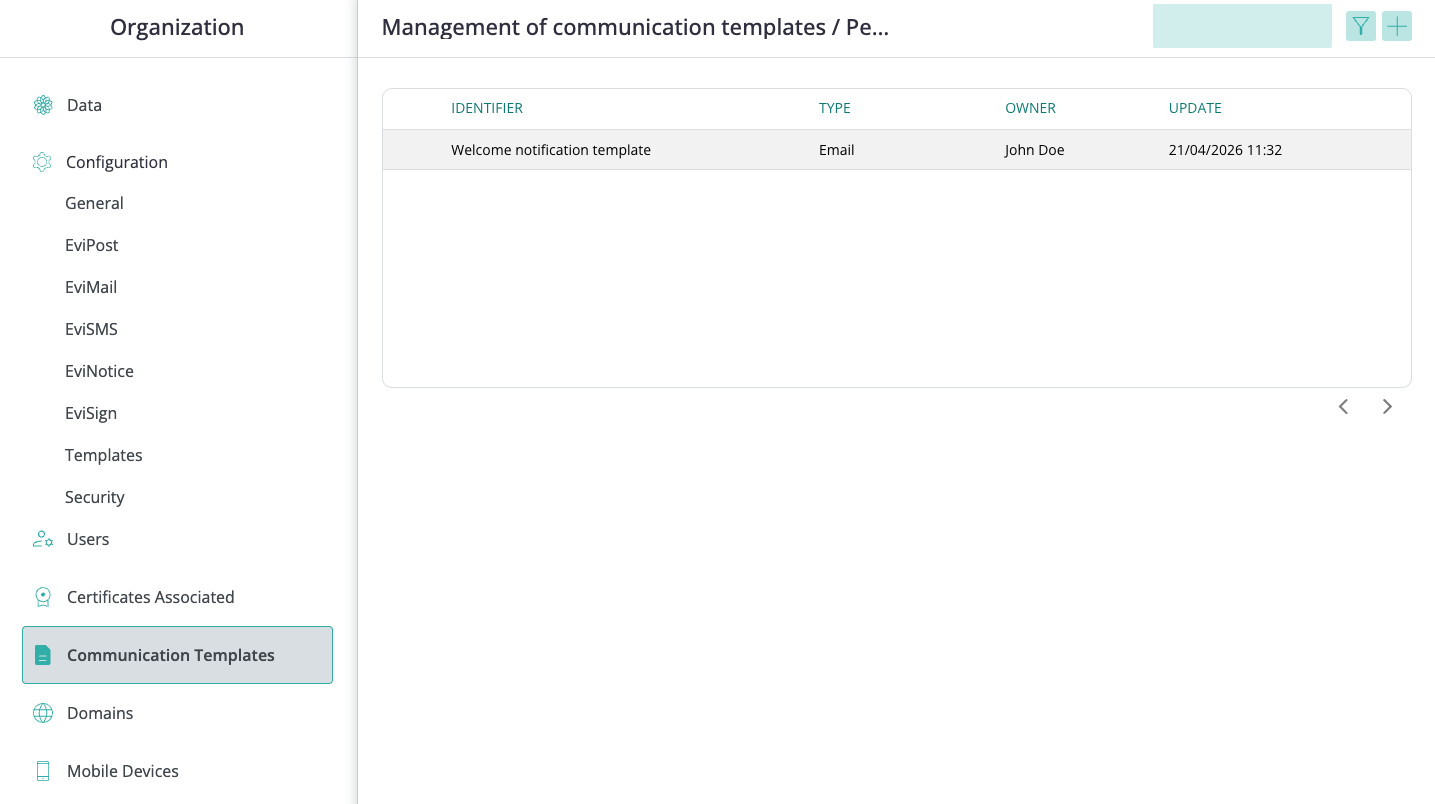
The template list includes a search field, filter action, add-template action, pagination, and columns for:
- identifier
- type
- owner
- update
## Filter templates
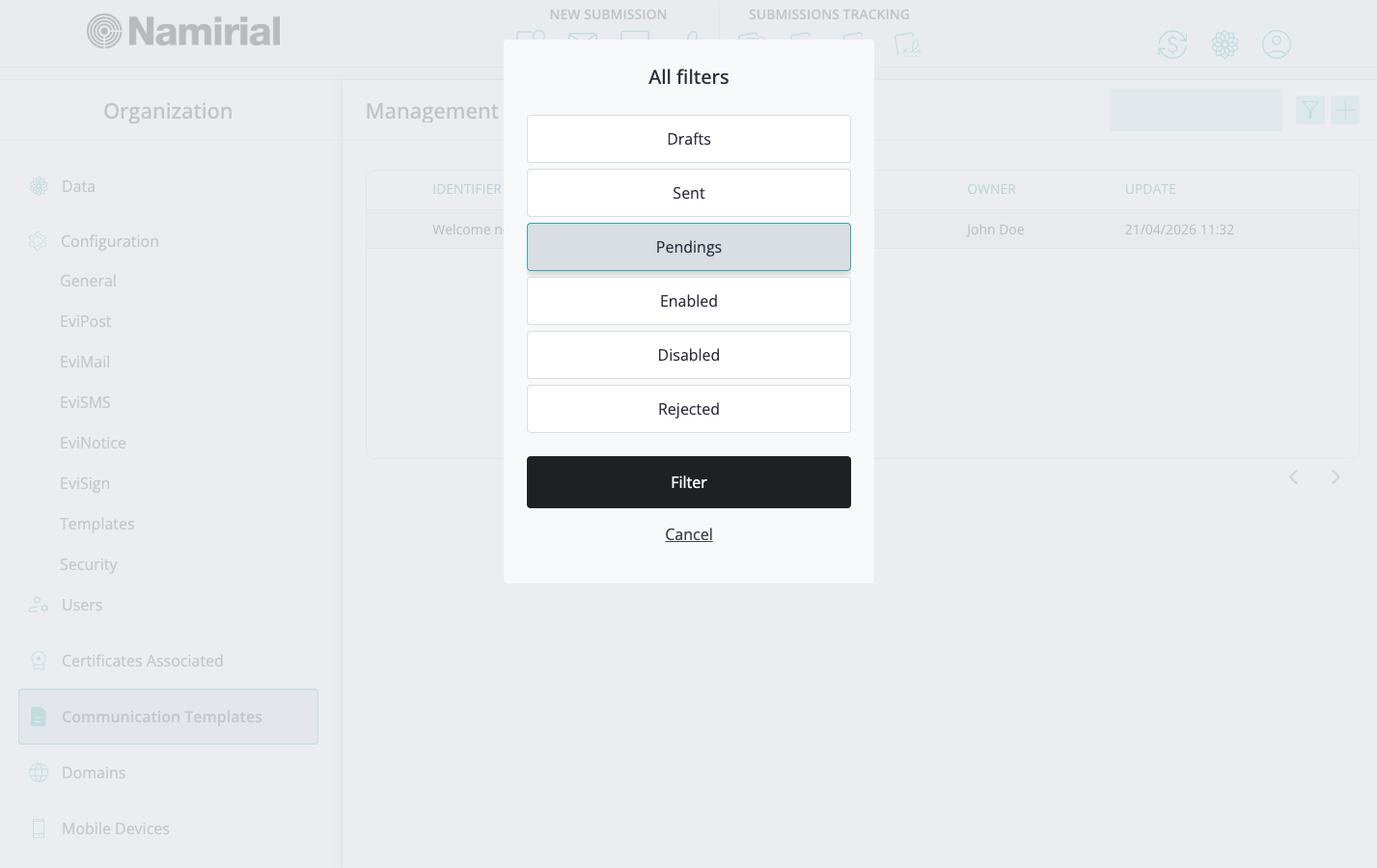
The filter action opens **All filters**, where you can filter templates by status:
- **Drafts**
- **Sent**
- **Pendings**
- **Enabled**
- **Disabled**
- **Rejected**
## Template states
Template availability depends on its state.
The lifecycle includes distinct phases: **Draft**, **Submitted** (often shown as **Sent**), **Pending**, **Enabled**, **Disabled**, and **Rejected**.
Use **Submitted/Sent** for templates already sent for approval processing, and **Pending** for templates waiting in the review step.
- **Drafts** - the template is being prepared and is not available for use.
- **Sent** - the template was submitted and sent for approval processing.
- **Pendings** - the template is waiting for review or approval.
- **Enabled** - the template was approved and is available for use.
- **Disabled** - the template was approved in the past but was later deactivated.
- **Rejected** - the template did not pass approval and cannot be used until it is revised.
The columns and available row actions can vary by state.
```mermaid
%%{init: {'theme': 'base', 'themeVariables': {'primaryColor': '#E4F2F2', 'primaryBorderColor': '#006660', 'primaryTextColor': '#0A1111', 'lineColor': '#047C76', 'secondaryColor': '#CDDBDB', 'tertiaryColor': '#f5fafa', 'edgeLabelBackground': '#f5fafa', 'transitionColor': '#047C76'}}}%%
stateDiagram-v2
[*] --> Draft : Create
Draft --> Submitted : Submit for approval
Submitted --> Pending : Automatic validation
Submitted --> Enabled : Approved
Pending --> Enabled : Approved
Enabled --> Disabled : Deactivate
Disabled --> Enabled : Reactivate
Submitted --> Rejected : Rejected
Pending --> Rejected : Rejected
Enabled --> Rejected : Rejected
Disabled --> Rejected : Rejected
Rejected --> Draft : Convert to Draft
```
> **Note:** The UI displays the **Submitted** state as **Sent**.
## Add a communication template
1. Open **Communication Templates**.
2. Select the add-template action.
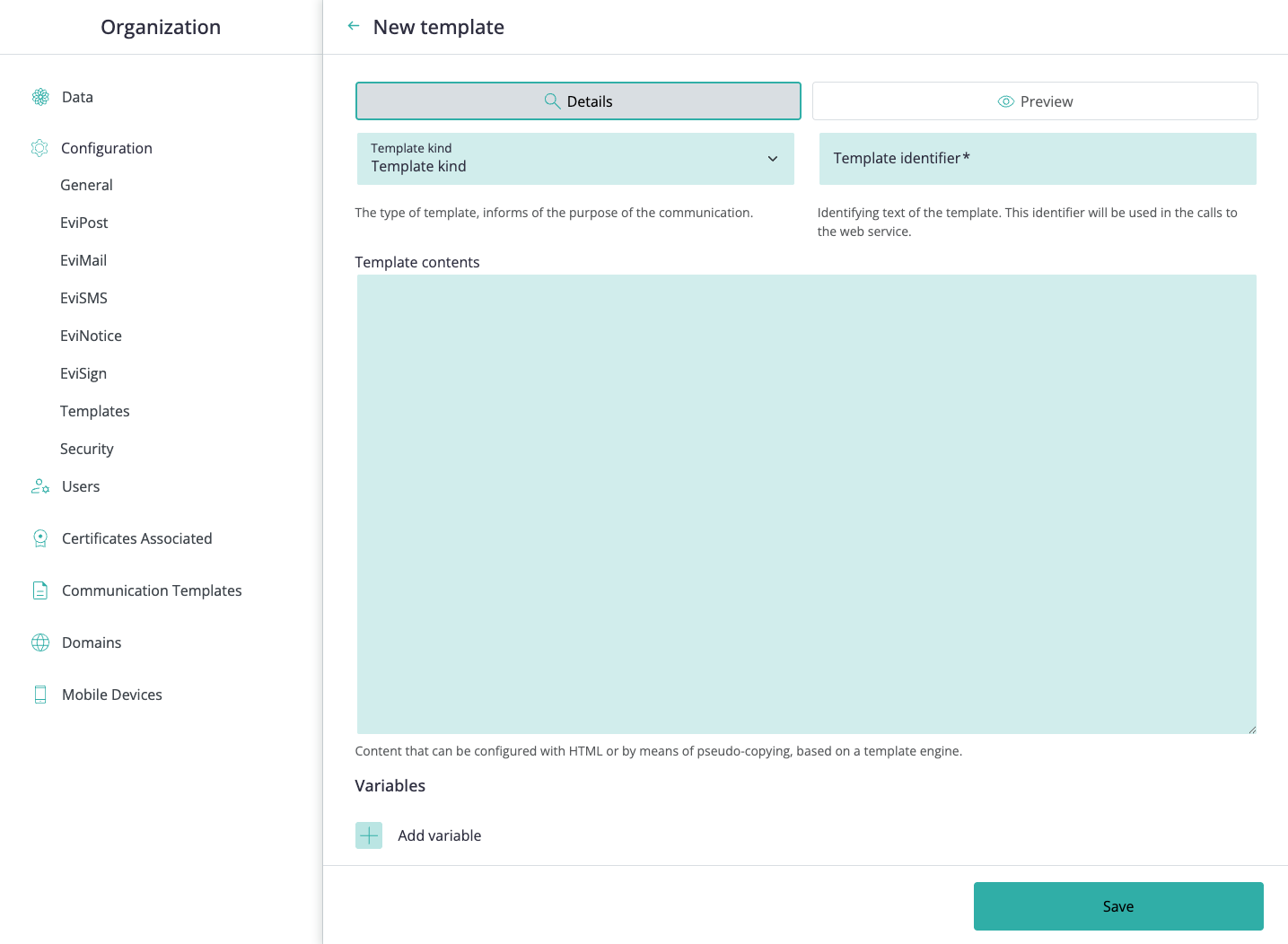
3. In **New template**, use the **Details** tab to choose the **Template kind** and enter the required **Template identifier**.
4. Add the **Template contents**.
5. Add variables if the template needs reusable placeholders.
6. Use **Preview** to review the template output when needed.
7. Select **Save**.
### Template kinds
| Kind | Internal identifier | Use |
| --- | --- | --- |
| Signature Request | `EviSign:Email:SignatureRequest` | Sent to EviSign signers requesting a signature. |
| Signature Reminder | `EviSign:Email:SignatureReminder` | Sent as a follow-up reminder to signers. |
| Final Notification | `EviSign:Email:FinalNotification` | Sent at the end of an EviSign process with evidence access details. |
| Progress Notification | `EviSign:Email:ProgressNotification` | Sent when an EviSign changes status (signed, rejected, or expired). Supports Liquid conditional logic. |
| Notification Template | `EviNotice:Email:Notification` | Customizes EviNotice notification emails. |
### Template identifier
The identifier is unique per site and is used to reference the template from the API. No two templates on the same site can share the same identifier.
- Maximum 100 characters.
- Allowed characters: letters, digits, colon (`:`), dot (`.`), and dash (`-`).
### Template content
Template content is HTML and can include Liquid template language for conditional or dynamic output. See [Liquid language](#liquid-language) below.
### Variables
Template content can include two types of variables:
- **Environment variables** — provided by the platform from the evidence data. See the [Environment variables](#environment-variables) reference below.
- **User variables** — declared by the administrator during template creation. User variables can only be added while the template is in **Draft** state.
To add a user variable:
1. In the **Details** tab, open the variables table.
2. Add a row and enter a **name**, a **default value** (used during preview), and whether the variable is **required** in each API call.
3. Reference the variable in the template content using the `{{variables.VariableName}}` prefix syntax — for example, `{{variables.PostalCode}}`.
Constraints:
- Maximum **30** user variables per template.
- Variable names: alphanumeric only, maximum 30 characters.
- Default values: maximum 500 characters.
User variables can be deleted while the template is still in Draft state.
## Request approval and validation
After saving a template, use the preview flow to confirm that the output is correct before requesting approval.
1. Open the saved draft template.
2. Select **Preview**.
3. Review the mandatory system variables and any user variables.
4. Enter sample values where the preview flow allows it.
5. Generate the preview and review the rendered output.
6. Select **Request approval** when the template is ready.
Template approval typically includes:
- **Automatic validation** to check that the content is structurally valid and uses the required variables correctly.
- **Manual validation** to review whether the content is appropriate for the selected template kind.
If the template passes validation, it can move to the enabled state and become available for use.
## State actions and available columns
The columns and row actions shown in the template list vary by the active state tab.
| State | Columns | Available actions |
| --- | --- | --- |
| **Draft** | Type, Identifier, Last modification | Edit, Delete |
| **Pending** | Type, Identifier, Approval request date | View (read-only) |
| **Enabled** | Type, Identifier, Activation date | View (read-only), Deactivate |
| **Disabled** | Type, Identifier, Deactivation date | View (read-only), Activate, Delete (after 60 days) |
| **Rejected** | Type, Identifier, Rejection date | View (read-only), Convert to Draft, Delete (after 60 days) |
## Activate, deactivate, and delete templates
Template lifecycle actions depend on the current state:
- **Enabled** templates can be deactivated when they should no longer be available for use.
- **Disabled** templates can be reactivated if they should become available again.
- **Draft** templates can be deleted at any time.
- **Disabled** templates can only be deleted after they have been deactivated for at least **60 days**.
- **Rejected** templates can be converted back to **Draft** to revise the content and resubmit for approval.
- **Rejected** templates can also be deleted after the rejection has passed the **60-day** grace period.
Use the row actions exposed in the current state tab to perform the lifecycle action supported by that state.
## Environment variables
Environment variables are populated by the platform from the evidence or service data. Reference them in template content using `{{VariableName}}` syntax.
| Variable | Description |
| --- | --- |
| `{{Subject}}` | EviSign subject |
| `{{Issuer}}` | Issuer name |
| `{{PartyName}}` | Name of the signer, reviewer, or interested party |
| `{{PartyEmail}}` | Participant email address |
| `{{PartyDisplayName}}` | Full name of the recipient |
| `{{PartyRole}}` | Role of the recipient (signer, reviewer, or interested party) |
| `{{Recipient}}` | Name of the notification recipient |
| `{{RecipientEmail}}` | Email of the notification recipient |
| `{{SupportEmail}}` | Platform support team email address |
| `{{ServiceName}}` | Service name as configured on the platform |
| `{{ServiceLegalName}}` | Legal company name of the service |
| `{{ServiceLegalId}}` | Service legal identifier |
| `{{ServiceUrl}}` | Service website |
| `{{ServiceLogoUrl}}` | Link to the platform logo |
| `{{ServiceLogo}}` | Platform logo as base64 for inline `![]() ` use |
| `{{SupportUrl}}` | Support page URL |
| `{{GDPRUrl}}` | GDPR policy page URL |
| `{{LegalTermsUrl}}` | Legal terms URL |
| `{{DeliveryUrl}}` | URL to access the signature or notification process |
| `{{EvidenceUrl}}` | URL to access the documents generated during signing |
| `{{UnsubscribeUrl}}` | URL for the unsubscribe process |
| `{{CbUrl}}` | URL that records when a notification is opened |
| `{{InfoText}}` | Text reported by the web service |
| `{{ReminderNumber}}` | Signature request retry number |
| `{{SubmittedOn}}` | Date of issue |
| `{{OwnerFullName}}` | Full name of the issuing user |
| `{{OwnerName}}` | Name of the issuing user |
| `{{OwnerEmail}}` | Email address of the issuing user |
| `{{IssuerLogoHtml}}` | HTML `
` use |
| `{{SupportUrl}}` | Support page URL |
| `{{GDPRUrl}}` | GDPR policy page URL |
| `{{LegalTermsUrl}}` | Legal terms URL |
| `{{DeliveryUrl}}` | URL to access the signature or notification process |
| `{{EvidenceUrl}}` | URL to access the documents generated during signing |
| `{{UnsubscribeUrl}}` | URL for the unsubscribe process |
| `{{CbUrl}}` | URL that records when a notification is opened |
| `{{InfoText}}` | Text reported by the web service |
| `{{ReminderNumber}}` | Signature request retry number |
| `{{SubmittedOn}}` | Date of issue |
| `{{OwnerFullName}}` | Full name of the issuing user |
| `{{OwnerName}}` | Name of the issuing user |
| `{{OwnerEmail}}` | Email address of the issuing user |
| `{{IssuerLogoHtml}}` | HTML `![]() ` tag with the embedded issuer logo |
| `{{AdditionalInfo}}` | Text indicating whether the email is a reminder |
| `{{ActionName}}` | Whether the email is a Signature or a Validation email |
| `{{ActionText}}` | Button label for accessing the notification content |
| `{{Outcome}}` | Final result of the evidence (signed, rejected, expired) |
| `{{State}}` | Current status of the evidence |
| `{{Language}}` | Notification language |
| `{{CopyrightDate}}` | Platform copyright date |
| `{{CertificationLevel}}` | Certification level of the notification |
| `{{ServiceLegalTextTemplate}}` | Legal text accompanying the email |
Not all variables are available for every template kind. The **Preview** tab shows which variables are mandatory for the selected kind.
## Liquid language
Template content can include [Liquid](https://shopify.github.io/liquid/) template language for conditional or dynamic output. This is especially useful in **Progress** templates, where a single template can handle signed, rejected, and expired statuses using `if` blocks.
Reference: [Shopify Liquid](https://shopify.github.io/liquid/) · [DotLiquid](https://github.com/dotliquid/dotliquid/)
## Best practices for template approval
Templates go through automatic and manual validation before they can be enabled. Following these guidelines reduces rejection risk.
### Image limits
- Convert images to base64 inline to reduce rendering overhead.
- Maximum **3 images** larger than 48×48 px per template.
- Maximum **8 images** at or smaller than 48×48 px (typically social icons).
- Total file size of images and content must not exceed **1 MB**.
### Restricted components
The following cannot be used in templates, as mail clients may block emails that contain them:
- JavaScript
- Animated GIFs (whenever possible, avoid)
- `
` tag with the embedded issuer logo |
| `{{AdditionalInfo}}` | Text indicating whether the email is a reminder |
| `{{ActionName}}` | Whether the email is a Signature or a Validation email |
| `{{ActionText}}` | Button label for accessing the notification content |
| `{{Outcome}}` | Final result of the evidence (signed, rejected, expired) |
| `{{State}}` | Current status of the evidence |
| `{{Language}}` | Notification language |
| `{{CopyrightDate}}` | Platform copyright date |
| `{{CertificationLevel}}` | Certification level of the notification |
| `{{ServiceLegalTextTemplate}}` | Legal text accompanying the email |
Not all variables are available for every template kind. The **Preview** tab shows which variables are mandatory for the selected kind.
## Liquid language
Template content can include [Liquid](https://shopify.github.io/liquid/) template language for conditional or dynamic output. This is especially useful in **Progress** templates, where a single template can handle signed, rejected, and expired statuses using `if` blocks.
Reference: [Shopify Liquid](https://shopify.github.io/liquid/) · [DotLiquid](https://github.com/dotliquid/dotliquid/)
## Best practices for template approval
Templates go through automatic and manual validation before they can be enabled. Following these guidelines reduces rejection risk.
### Image limits
- Convert images to base64 inline to reduce rendering overhead.
- Maximum **3 images** larger than 48×48 px per template.
- Maximum **8 images** at or smaller than 48×48 px (typically social icons).
- Total file size of images and content must not exceed **1 MB**.
### Restricted components
The following cannot be used in templates, as mail clients may block emails that contain them:
- JavaScript
- Animated GIFs (whenever possible, avoid)
- `