This guide explains how issuers find sent transactions in Namirial Notify. Transaction lists are grouped by service, and each list lets you search for a specific communication or signature workflow, review its status, and open its details.
Menu labels and available filters can vary slightly by tenant, service, and UI version. This guide covers the common search tools shared across issuer transaction lists.
- You are signed in as an issuer.
- You have permission to view the relevant transactions for your user or organization.
- You know which service was used for the transaction you want to find.
- Sign in to Namirial Notify.
- Open the transaction list for the service you want to review.
- Review the current grid and its header tools.

In many lists, the default view shows active transactions for the current organization or the currently selected role. Use the service-specific pages linked below when you need the exact navigation path or service-specific list behavior.
- Enter a keyword in the search bar.
- Open the filter panel.
- Select the relevant scope, role, or folder.
- Select the status tab or folder you want to review.
- Apply a date range if the list provides one.
- Apply the filters.
- Use Refresh if you need to reload the latest status updates.
Common search inputs include:
- recipient name
- recipient email address
- recipient phone number
- subject
- internal reference, if your tenant uses one
Common filter behavior includes:
- Delivery-service lists often let you switch between
OwnerandOrganization. - EviSign can also expose role-based folders such as owner, signer, or notified views.
- Status tabs vary by service. Typical examples include
Draft,Active,Sent,Delivered,Closed, or service-specific outcome folders.
- Apply the filters you want to use for the report.
- Select the report action.
- Choose the immediate or scheduled report option available in your environment.
- Complete the fields shown in the page or dialog that opens.
- Submit the report request.
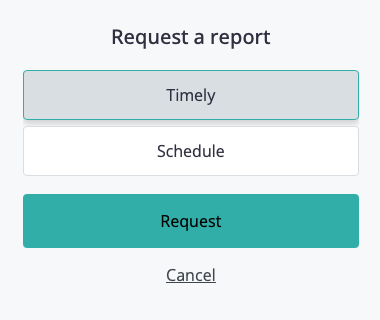
If report generation is enabled for your environment, the report is typically produced asynchronously and delivered through the reporting flow configured for your tenant. The available fields and output handling can vary by tenant.
- Find the transaction you want to inspect.
- Open the row actions menu.
- Select Details.
- Review the transaction history, content, details, and available affidavits.
For the details view and affidavit downloads, continue to Transaction details and affidavit downloads.
Use the service-specific pages when you need details about filters, tabs, columns, or role behavior for one service:
- EviNotice transactions
- EviMail transactions
- EviSMS transactions
- EviSign transactions
- EviPost transactions
You can locate the transaction you need, narrow the results with filters, refresh the list when needed, generate a report if the feature is available, and open the transaction details for further review.
Problem: You expect to find a transaction, but it does not appear in the current list.
Cause: The current service list, scope, role, folder, tab, or date range may exclude the transaction.
Solution:
- Confirm that you opened the correct service list.
- Clear or widen the current filters.
- Switch between
OwnerandOrganizationif that option is available. - Review the available tabs or folders.
- Extend the date range if the current window is too narrow.
Problem: The transaction appears, but the list does not show the latest status.
Cause: The list may not have refreshed since the last event update.
Solution:
- Use Refresh if the list provides it.
- Reload the page if needed.
- Open the transaction details if you need to inspect the recorded events directly.
Problem: A keyword search does not return the expected transaction.
Cause: The selected keyword may not match the searchable fields exposed by that service, or another active filter may be excluding the result.
Solution:
- Try recipient data such as email, phone number, or name.
- Try the subject or internal reference if available.
- Clear additional filters and search again.
- Switch tabs or folders if the list separates active and closed transactions.
Problem: You do not see the report option in the transaction list.
Cause: Reporting may not be enabled for your tenant or available for your role.
Solution:
- Confirm whether report generation is enabled in your environment.
- Confirm that your user has the required reporting permissions.
- Contact your administrator if you need access to reports.