This guide describes the end-to-end portal flow used by an organization user to activate French eInvoice for a final customer.
The screenshots use the MASSON CONSULTING & FORMATION SAS partner organization and the final customer VIDAL SOLUTIONS INFORMATIQUES SAS.
- Log in to the organization portal.
- Open the partner organization dashboard.
- Search the final customer.
- Create the final customer when it does not exist, using the correct French customer type.
- Create or reuse the legal representative as a private individual.
- Open contracts.
- Create an indirect contract and fill in the Service Activation Group (SAG) information.
- Add the French eInvoice contract item.
- Confirm the Service Activation Group (SAG).
- Verify the pending contract and contract item.
- The partner organization is selected in the left organization switcher.
- A Distribution / resell contract is available for French eInvoice.
- The final customer fiscal data is available: legal name, country, SIREN, SIRET, VAT, address, city, state, postal code, customer type, and email.
- The legal representative or delegate data is available: full name, first name, last name, country, temporary SIREN (
taxCode2), customer type, and email. - The Portail DT technical contact data is available when the service must collect it: email, first name, and last name.
- The recipient email that will receive or complete the activation is known.
Open the One Platform portal and log in with an organization user authorized to manage customers, contracts, and service activation.
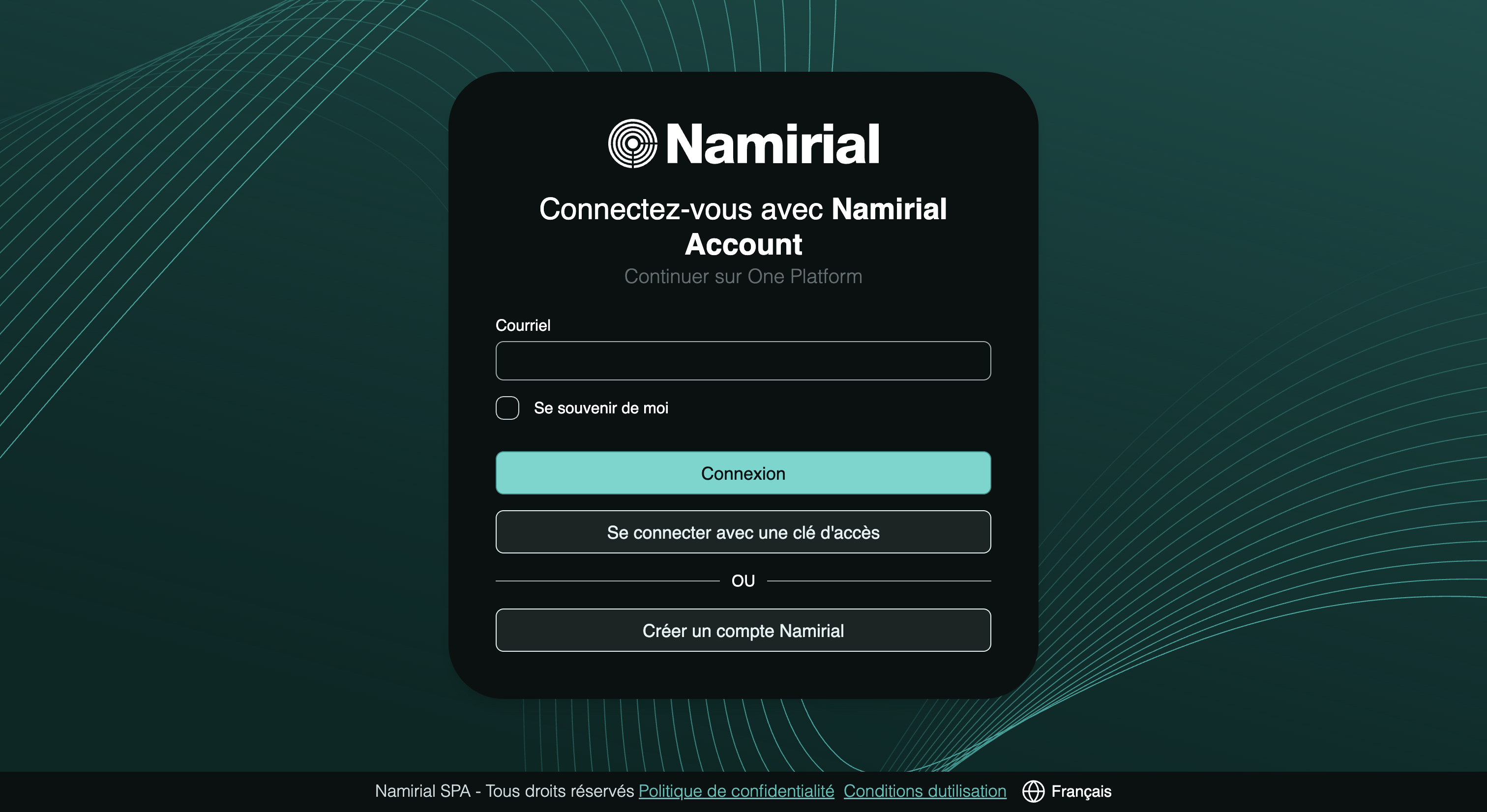
The home page confirms the active organization context and exposes the two menu areas used by this flow:
- Consumers > Customers for final customers and legal representatives.
- Business Assets > Contracts for contracts, contract items, and service activation.
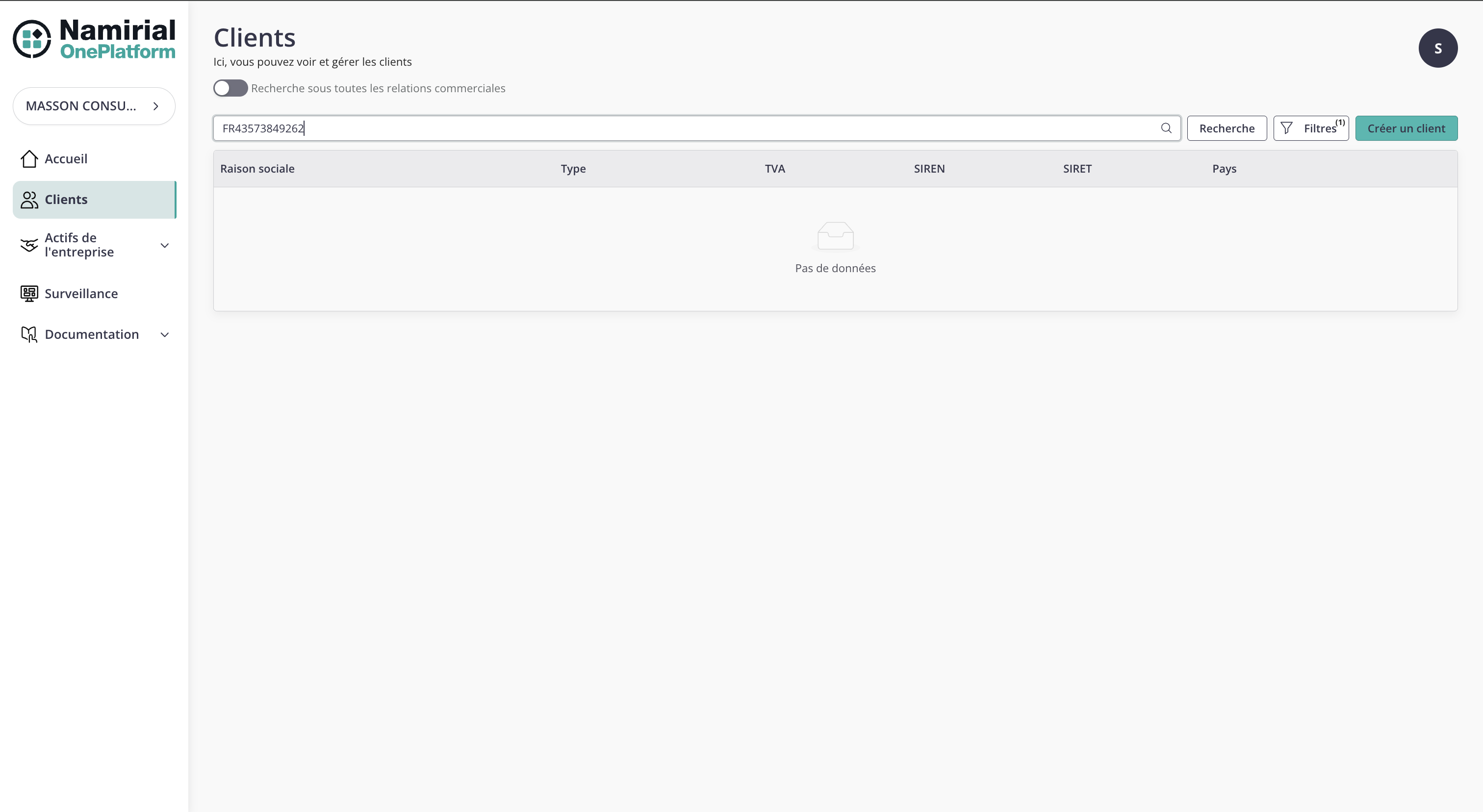
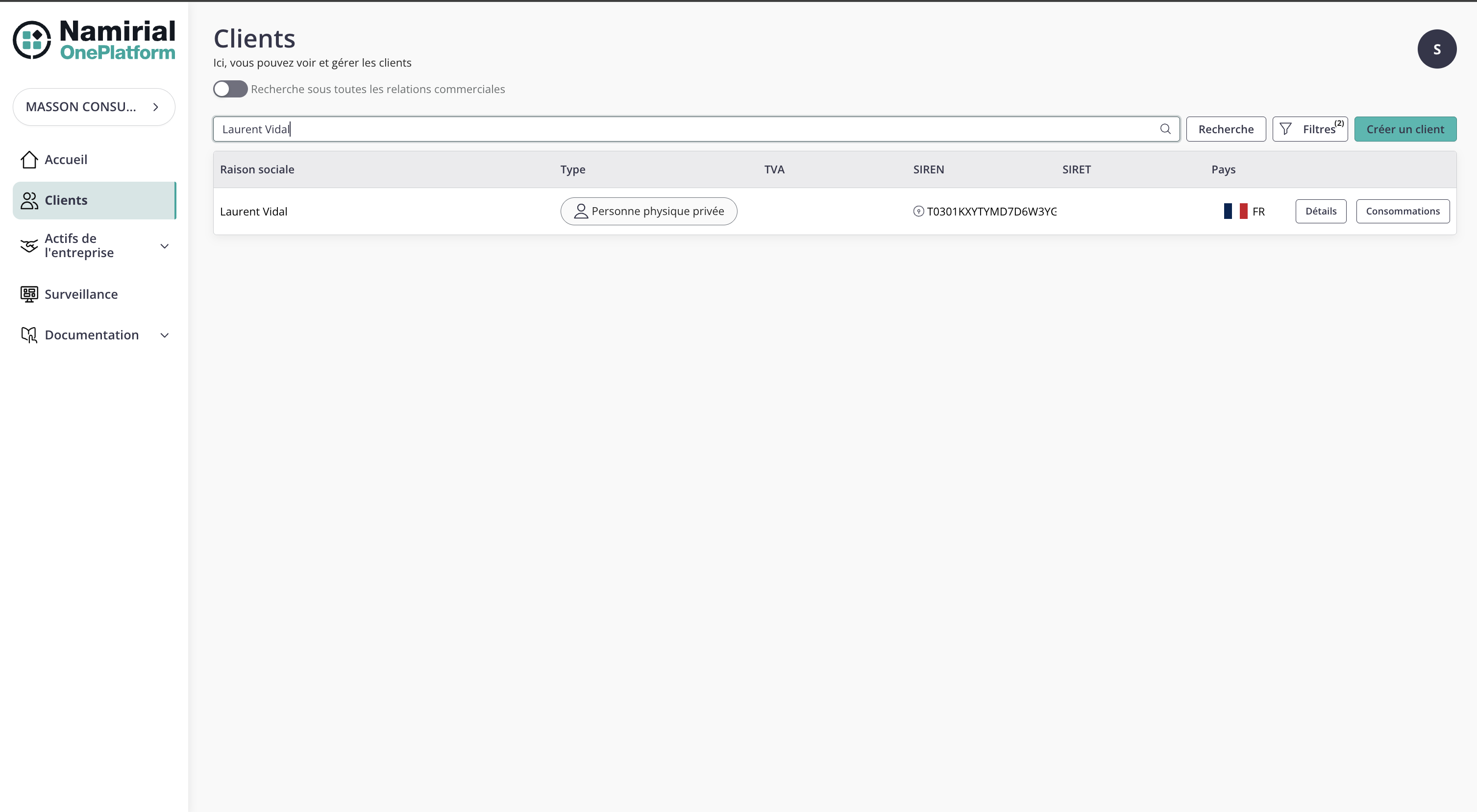
Open Consumers > Customers. Search by legal name, VAT, tax number, PA number, or another available identifier.
Use the customer list to avoid creating duplicates. In this example the first search returns no data.
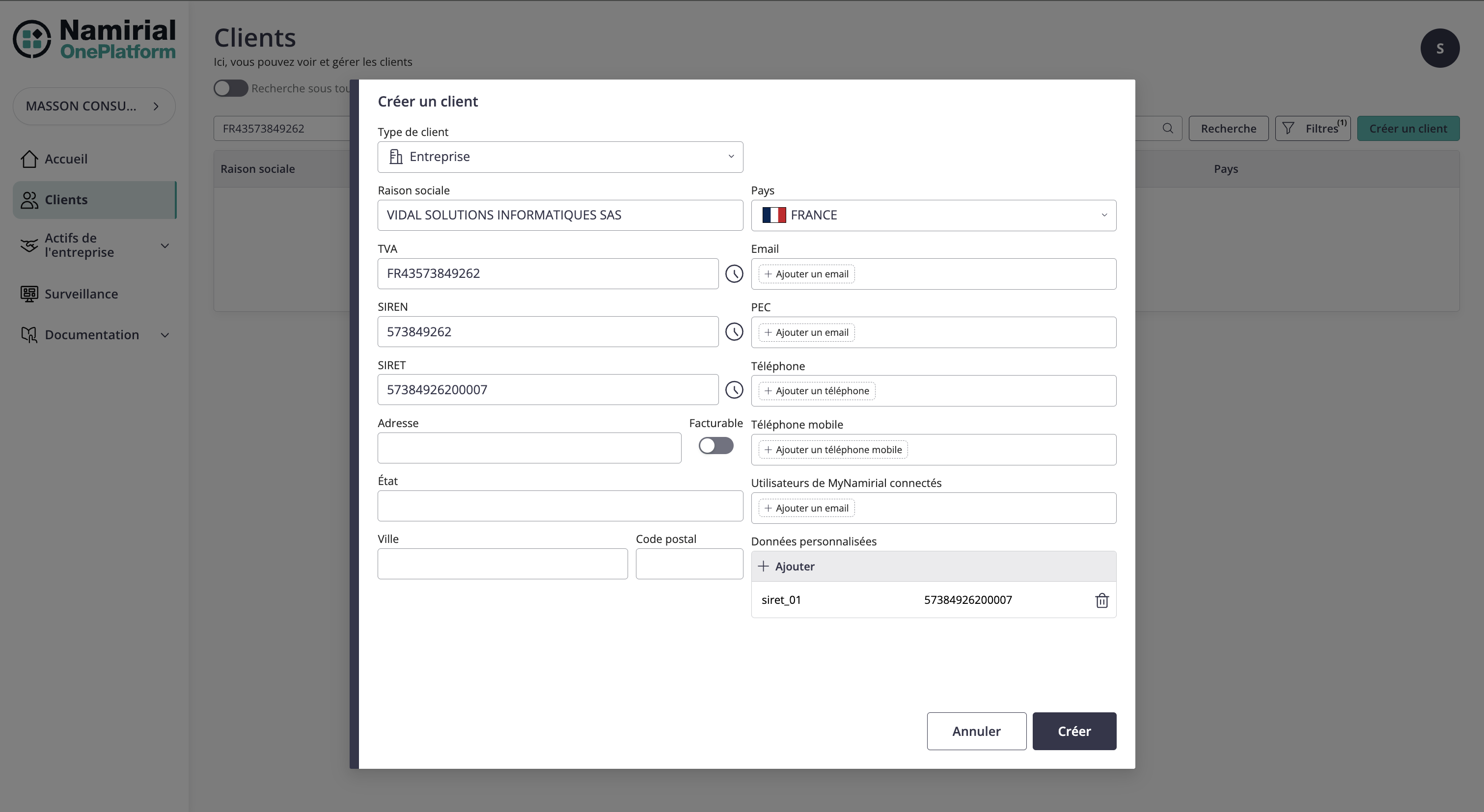
Click Create customer and select the customer type that matches the French subject.
For the company flow shown here, select Corporate / Persona giuridica. The portal also exposes PrivateIndividual and ProfessionalIndividual; do not leave French customers in automatic or legacy Individual mode.
Fill in:
| Field | Example | Notes |
|---|---|---|
| Legal name | VIDAL SOLUTIONS INFORMATIQUES SAS | Official company name. |
| Country | FRANCE | French eInvoice requires a French customer. |
| Customer type | Corporate | Required for the final customer company. |
| SIREN | 573849262 | French company identifier; stored as taxCode2. |
| SIRET | 57384926200007 | Establishment identifier; stored as taxCode3. |
| VAT / TVA | FR43573849262 | Intra-community VAT number; stored as taxCode1. |
contact@vidal-solutions.fr | Contact email. | |
| Billable | Enabled | Enable this option to enter the customer's billing address. |
| Address | 12 RUE DES ARCHIVES, 75004 PARIS, ILE-DE-FRANCE | Registered office address. |
| Custom data | siret_01 = 57384926200007 | Stored as additional metadata. You can add an arbitrary number of SIRET values using the siret_nn pattern, for example siret_01, siret_02, siret_03. |
For French consumers, One Platform uses taxCode1 for the VAT / TVA number, taxCode2 for SIREN, and taxCode3 for SIRET.
When more than one identifier is provided, they must refer to the same SIREN: the first 9 digits of SIRET and the last 9 digits of TVA must match the SIREN.
When the final customer has multiple SIRET values, store the additional establishments in Custom data using composed keys with the siret_nn pattern, such as siret_01, siret_02, siret_03, and so on. taxCode3 contains the primary SIRET, while the custom data entries preserve the full SIRET list needed by the activation flow.
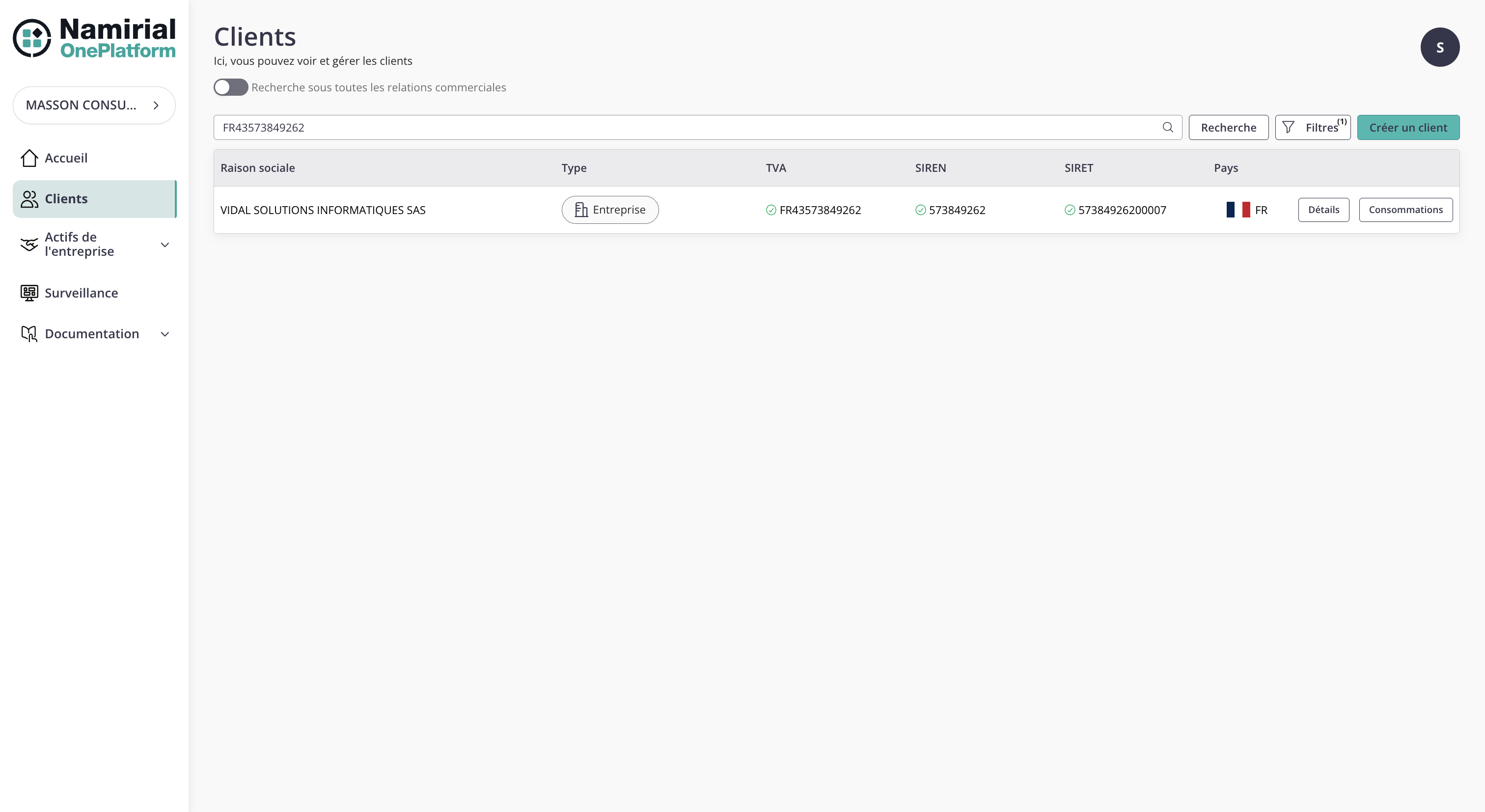
After creation, the customer appears in the list with its type, tax codes, and country.
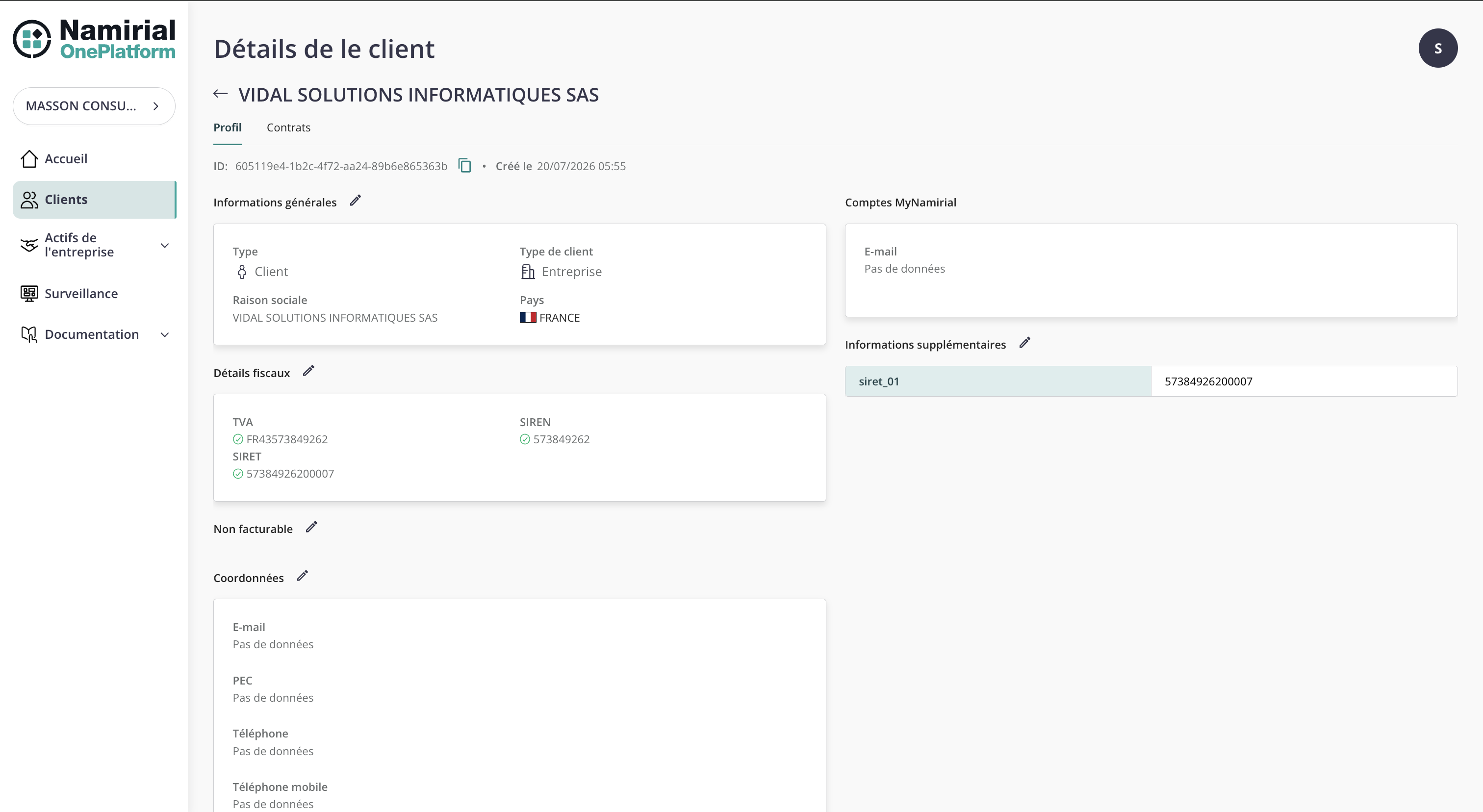
Open Details to verify the stored profile, tax details, billing details, contact information, and additional metadata.
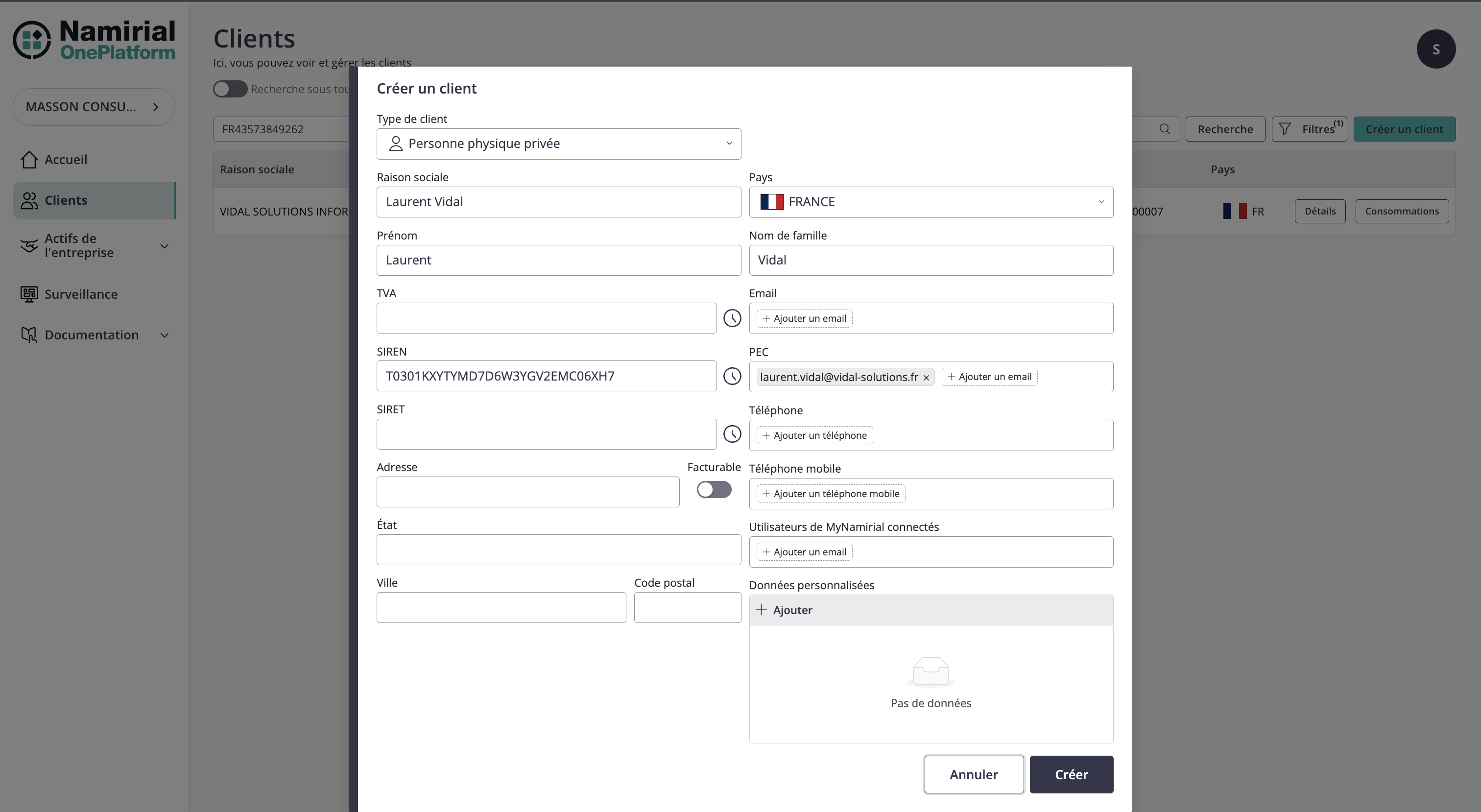
The legal representative is also managed from Consumers > Customers, but the customer type is PrivateIndividual / Persona fisica privata.
Fill in:
| Field | Example | Notes |
|---|---|---|
| Legal name | Laurent Vidal | Full display name. |
| First name | Laurent | Required for the person profile. |
| Last name | Vidal | Required for the person profile. |
| Country | FRANCE | Representative country. |
| Customer type | PrivateIndividual | Required by the v2 Organizations API for the representative in this flow. |
| Tax code | T0301KW15PGCJYHGWWYMJZGMK1MNH | Temporary SIREN generated for this contract flow and stored as taxCode2. Do not send taxCode1 or taxCode3 for a French PrivateIndividual. |
laurent.vidal@vidal-solutions.fr | Recipient or representative email. |
For the French eInvoice legal representative, the portal currently generates taxCode2 (temporary SIREN) as T03 followed by a ULID, for example T0301KW15PGCJYHGWWYMJZGMK1MNH.
After creation, both the corporate customer and the legal representative are available in the customer list.
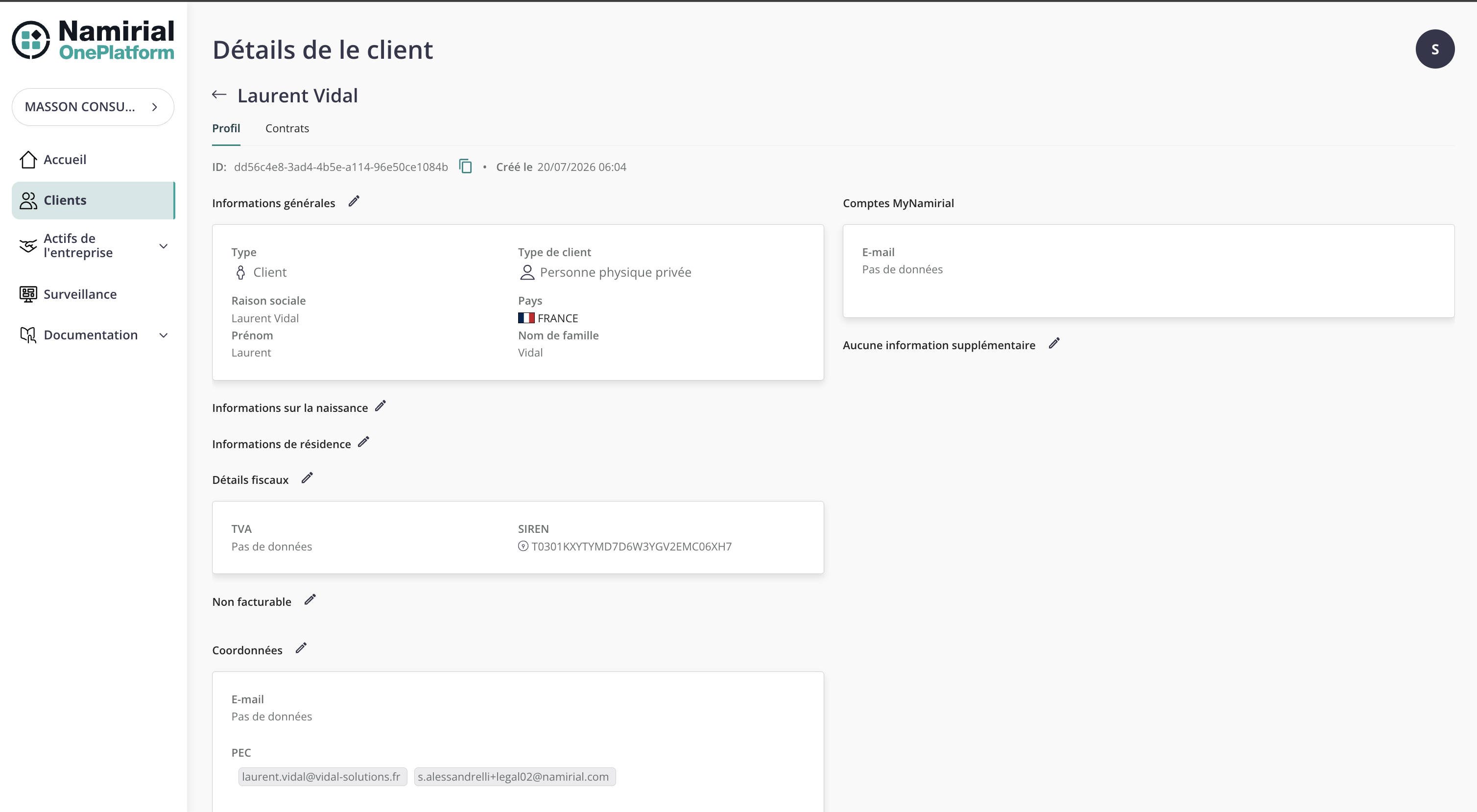
Open the legal representative detail page to verify type, country, tax details, residence information, and email.
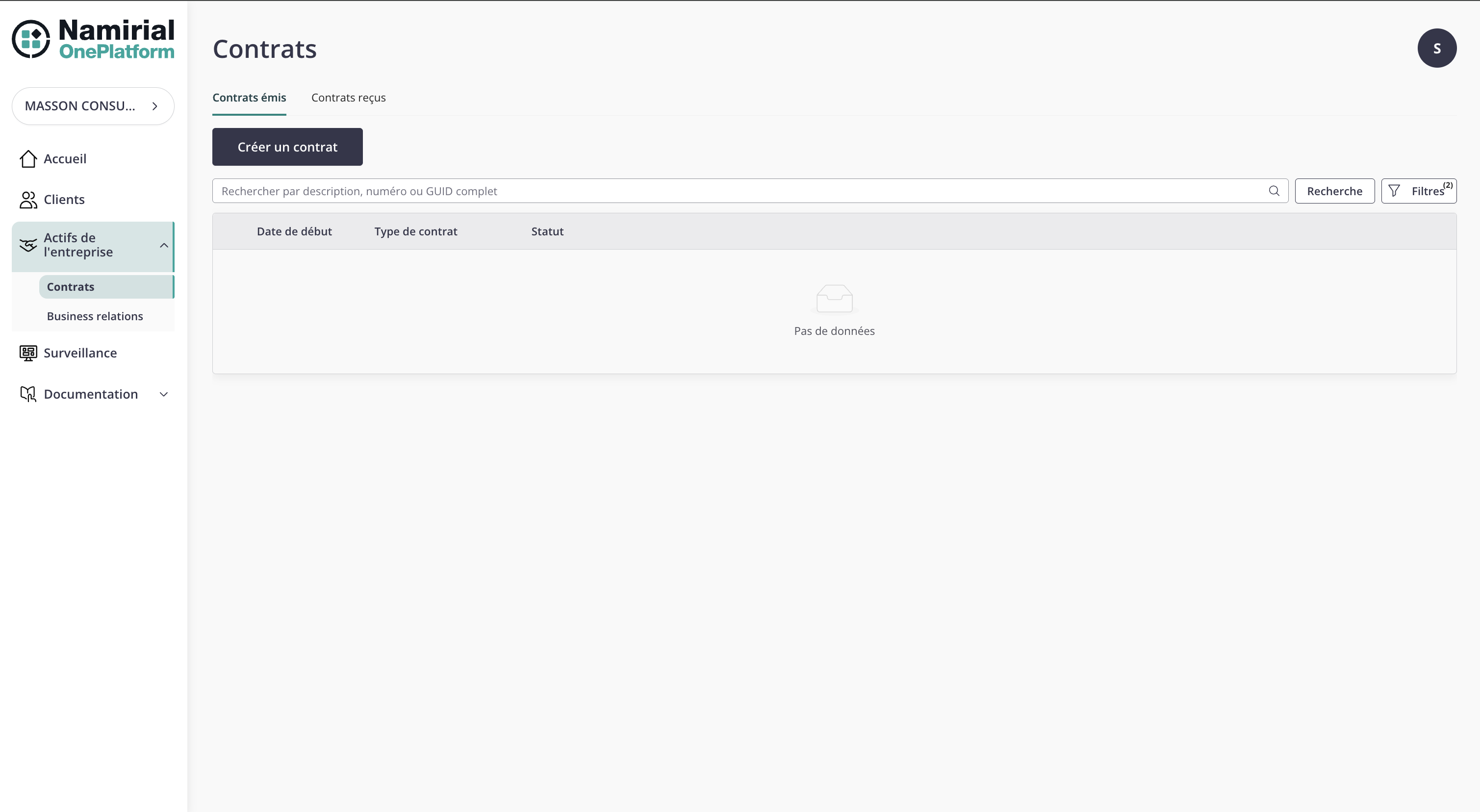
Open Business Assets > Contracts. Use Issued contracts for contracts created by the selected partner organization.
Search the existing contracts before creating a new one.
Click Create contract and create an Indirect contract.
| Field | Example | Notes |
|---|---|---|
| Contract type | Indirect | The partner issues a final customer contract. |
| Issuer | MASSON CONSULTING & FORMATION SAS | Auto-filled from the selected organization. |
| Start date | 2026-06-23 | Contract start date. |
| Contract number | VIDAL-FR-EINV-01 | Partner reference. |
| Description | French eInvoice activation - VIDAL SOLUTIONS INFORMATIQUES SAS | Free text. |
| SAG description | French eInvoice activation - VIDAL SOLUTIONS INFORMATIQUES SAS | Description of the Service Activation Group created with the contract. |
| Resell contract | Distribution (DF1234) | Distribution contract used as source. |
| Legal representative | Laurent Vidal | PrivateIndividual created in the previous step. |
| Recipient's email | laurent.vidal@vidal-solutions.fr | Email used for the activation flow. |
| Customer | VIDAL SOLUTIONS INFORMATIQUES SAS | Final customer. |
| Create new organization | Off | Enable only when a customer-side organization must be created. |
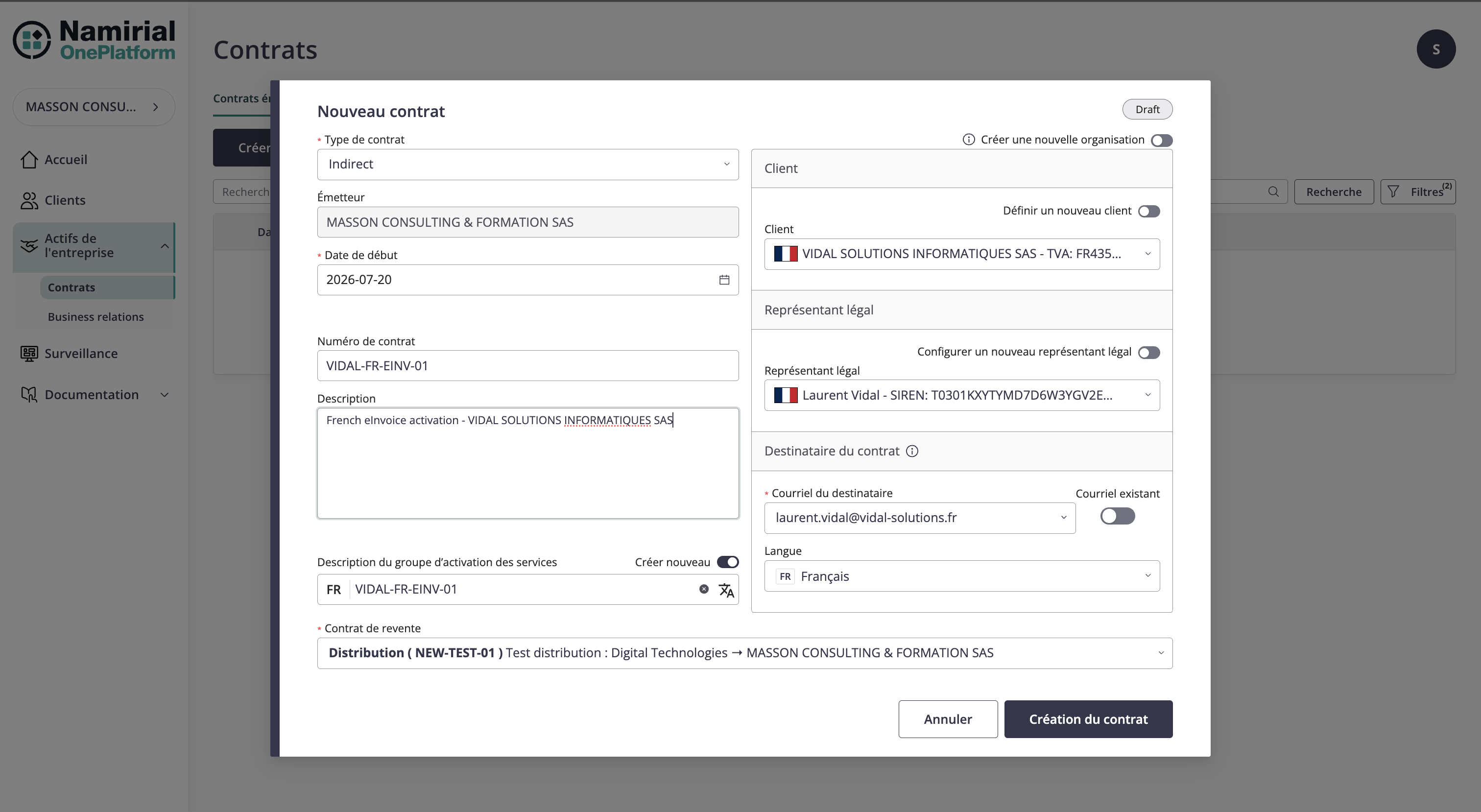
The contract can now carry the SAG activation information at creation time. You no longer need to open a separate action to update the SAG afterwards.
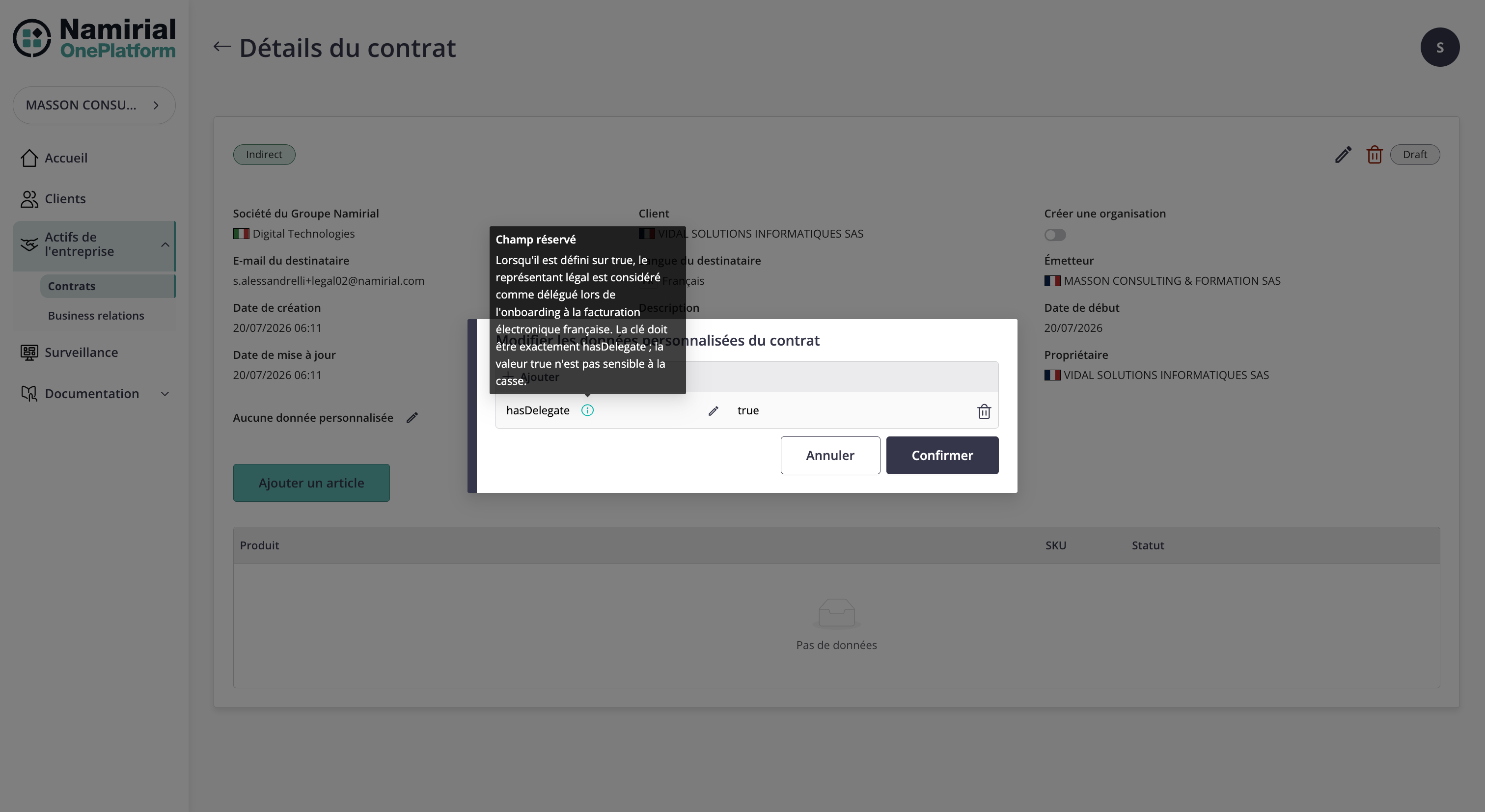
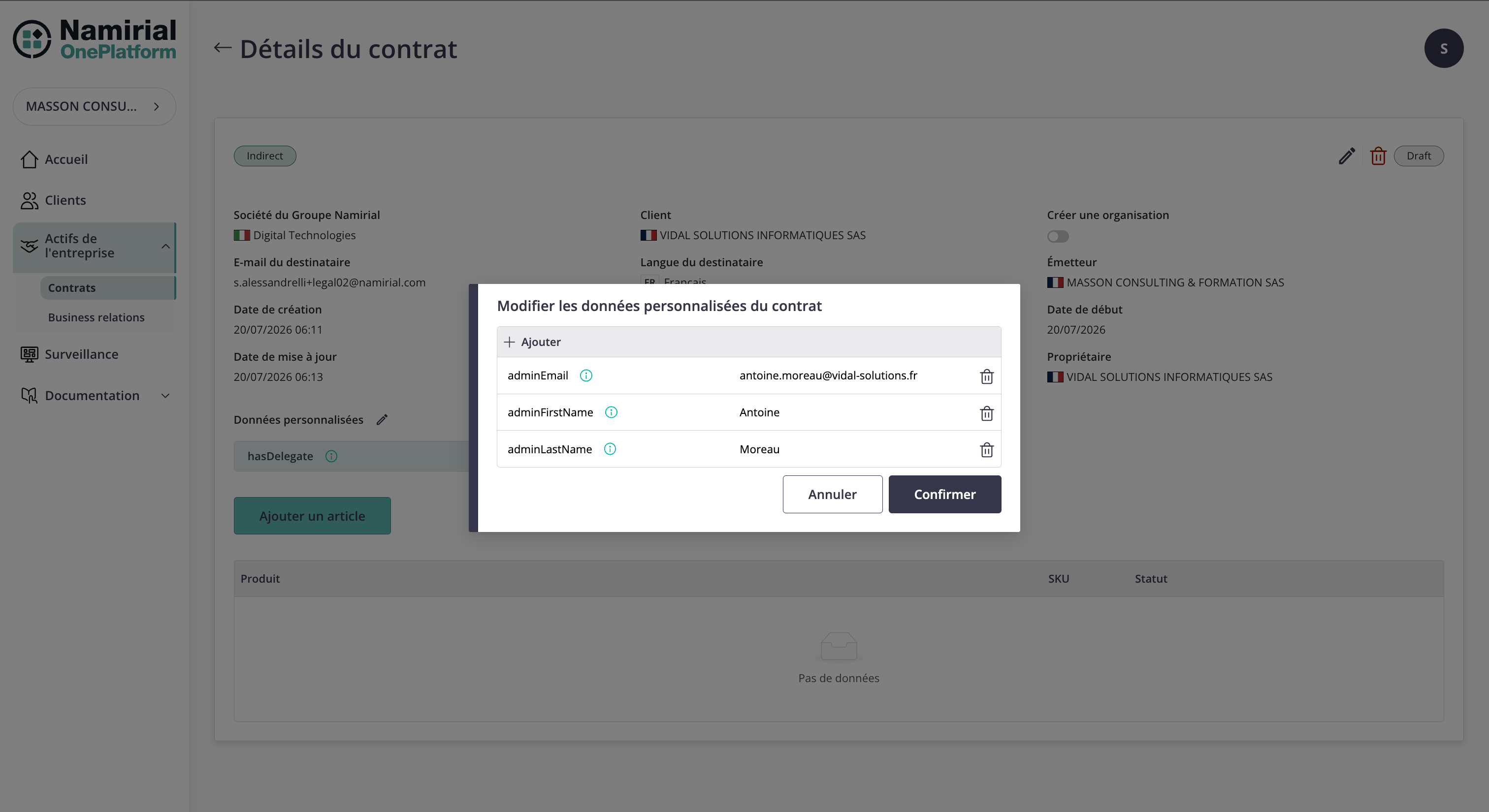
Use hasDelegate: true when the person involved in onboarding is a delegate rather than the legal representative. In the legal representative sub-screen, also fill in the technical contact with adminEmail, adminFirstName, and adminLastName only when the contract item includes the dt-portal feature.
The conditional rules are:
| Configuration | Effect in onboarding |
|---|---|
hasDelegate disabled or absent | The person displayed and verified during onboarding is the legal representative. |
hasDelegate: true | The person displayed and verified during onboarding is a delegate. Labels and expected data must therefore match the delegate. |
dt-portal feature selected in the contract item | adminEmail, adminFirstName, and adminLastName must be filled in to identify the Portail DT administrator. |
dt-portal feature not selected | Portail DT administrator data is not required. |
When hasDelegate is enabled, verify that the onboarding data correctly identifies the delegated person.
If the dt-portal feature is present in the contract item, fill in the technical contact who will use the Portail DT, for example Camille Martin with camille.martin@vidal-solutions.fr. If dt-portal is not selected, these fields are not required.
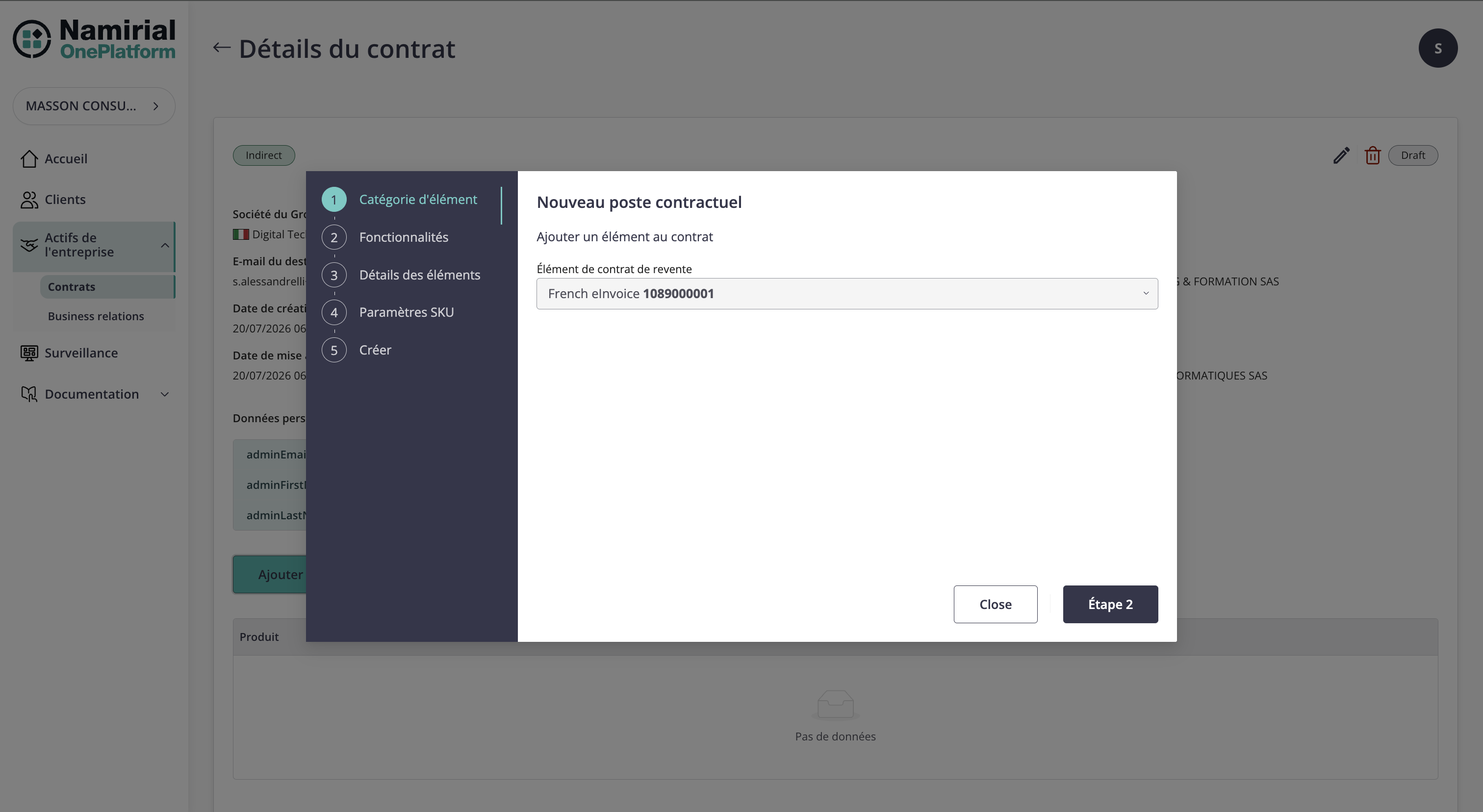
From the contract detail page, click Add item. The wizard is split into five steps.
Select the available resell contract item. In the example the item is Fatturazione elettronica francese 1089000001.
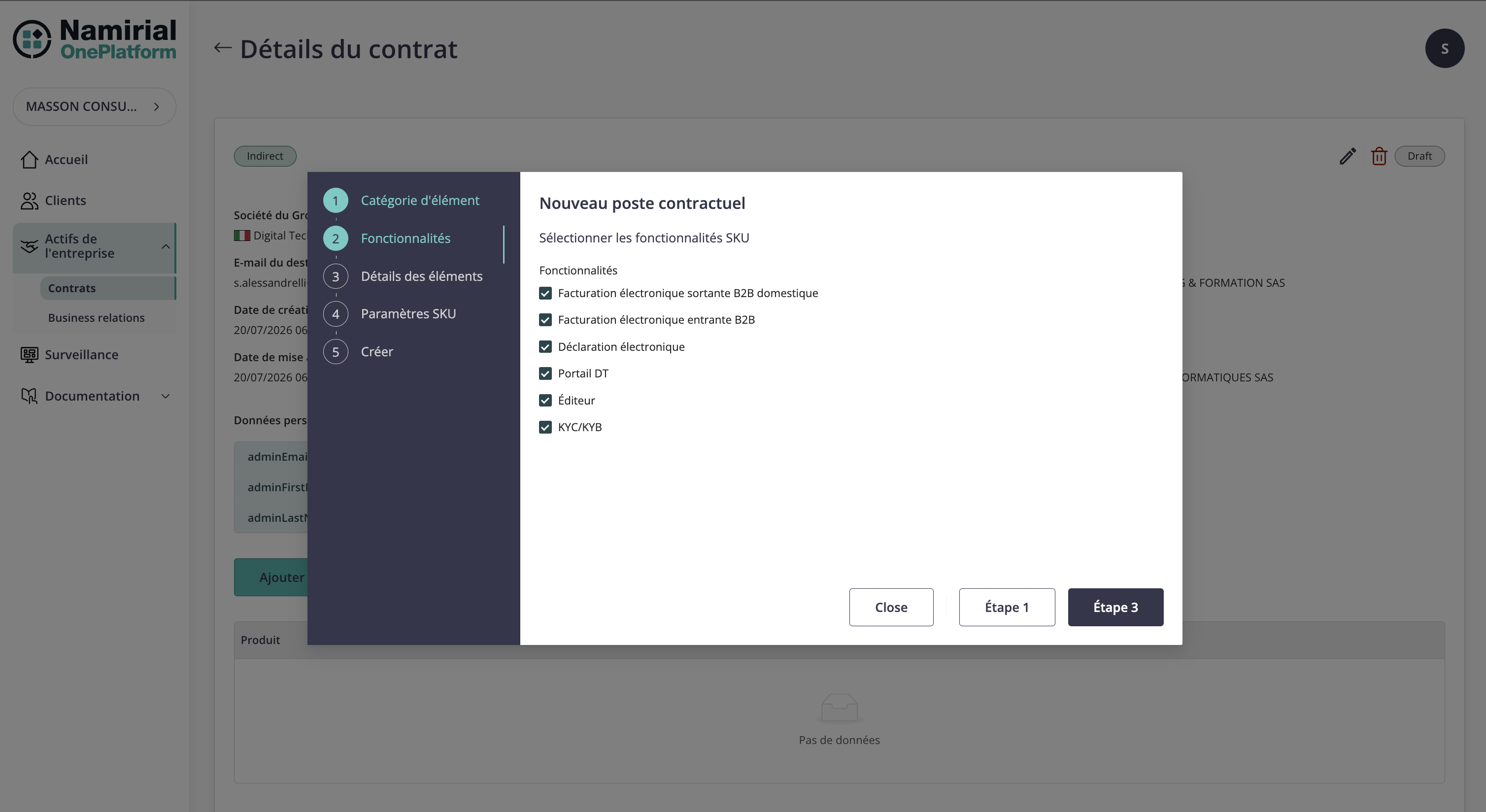
Select the required service features. The French eInvoice SKU (1089000001) enables the core B2B and eReporting capabilities by default, and lets you add optional portal, editor, identification, and mandate capabilities when needed.
| Feature ID | English label | Italian label | French label | Default | Notes |
|---|---|---|---|---|---|
out-b2b | Out-B2B Domestic | Fatturazione attiva B2B | Facturation electronique sortante B2B domestique | Yes | Enables outgoing domestic B2B e-invoicing. |
in-b2b | In B2B | Fatturazione passiva B2B | Facturation electronique entrante B2B | Yes | Enables incoming B2B e-invoicing. |
e-reporting | eReporting | Reportistica elettronica | Declaration electronique | Yes | Enables electronic reporting. |
dt-portal | Portal DT | Portale DT | Portail DT | No | Requires at least one of in-b2b, out-b2b, or e-reporting. |
editor | Editor | Editor | Editeur | No | Requires dt-portal. |
identification | KYC/KYB | KYC/KYB | KYC/KYB | No | Requires dt-portal. |
multiple-mandate | Multiple mandate | Mandato multiplo | Mandat multiple | No | Requires in-b2b. |
The default feature set is:
out-b2bin-b2be-reporting
Feature dependencies:
dt-portal has an Any dependency rule: it can be selected when at least one among out-b2b, in-b2b, and e-reporting is selected. editor and identification require dt-portal; multiple-mandate requires in-b2b.
Confirm the customer and set the item start date. The end date can be left empty when the item has no planned end.
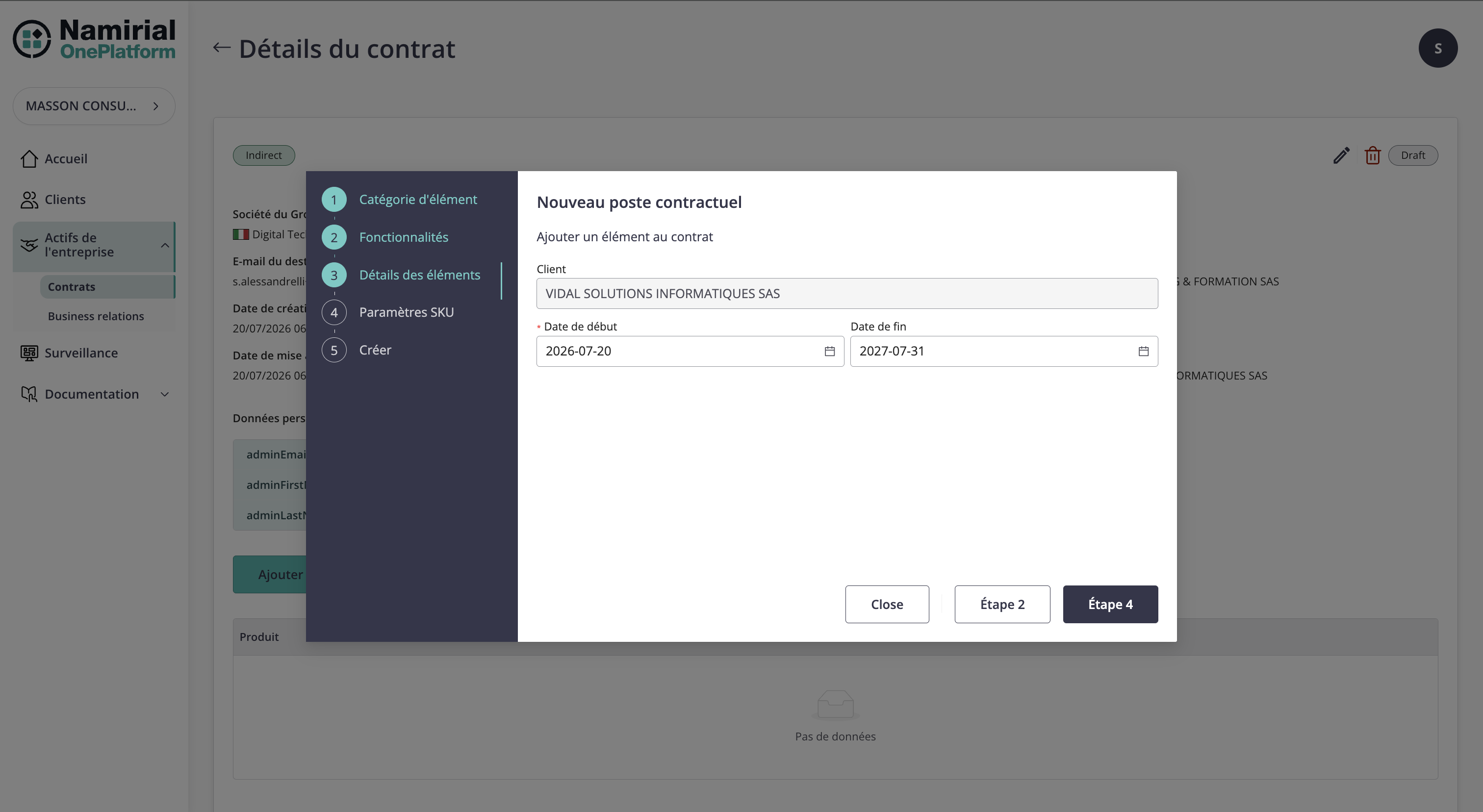
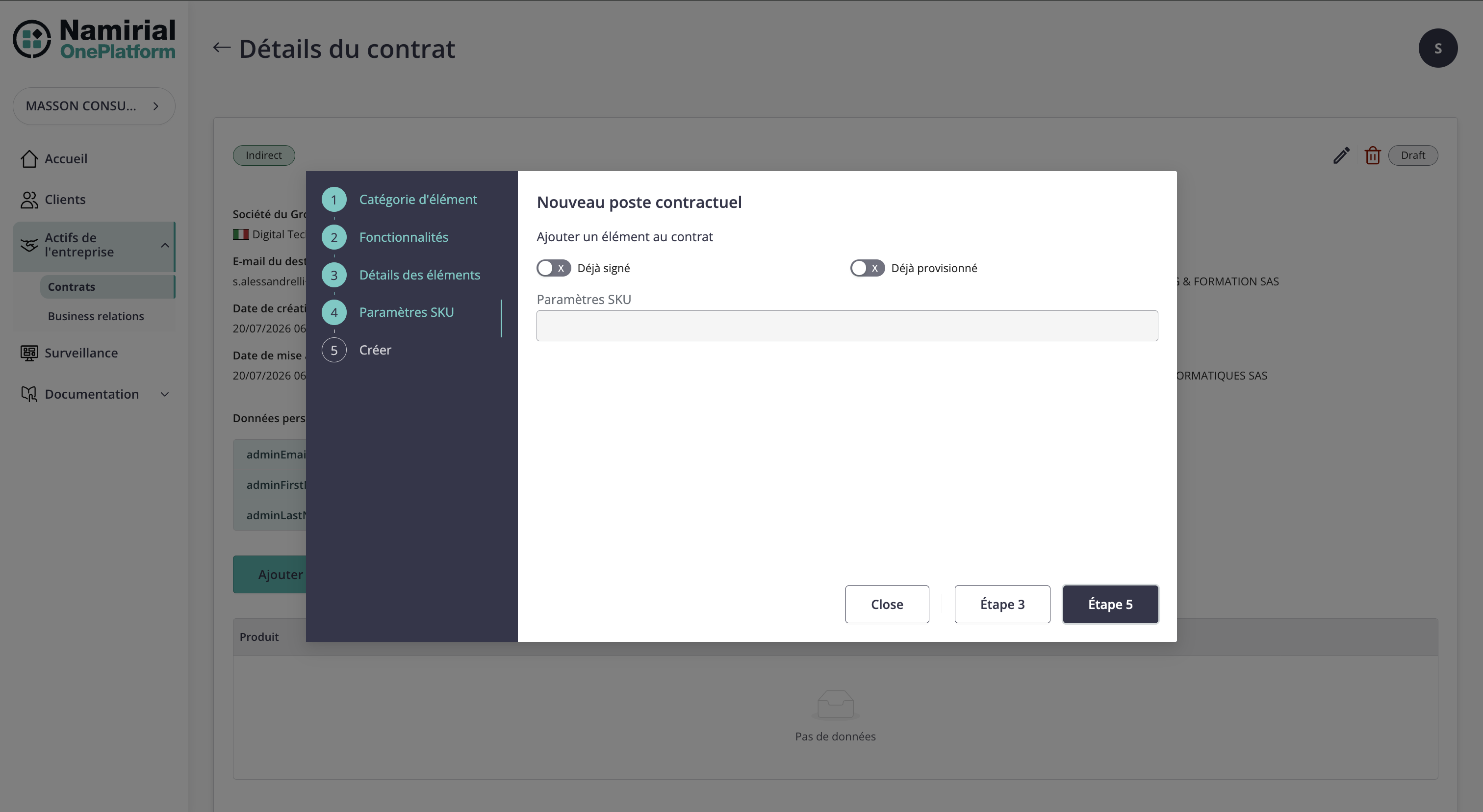
Set item-level activation flags and SKU parameters.
| Control | Meaning |
|---|---|
| Already signed | Enable only when the contract item is already signed outside the platform. |
| Already provisioned | Enable only when provisioning has already been completed outside the platform. |
| SKU parameters | Optional structured parameters required by the selected SKU or feature set. |
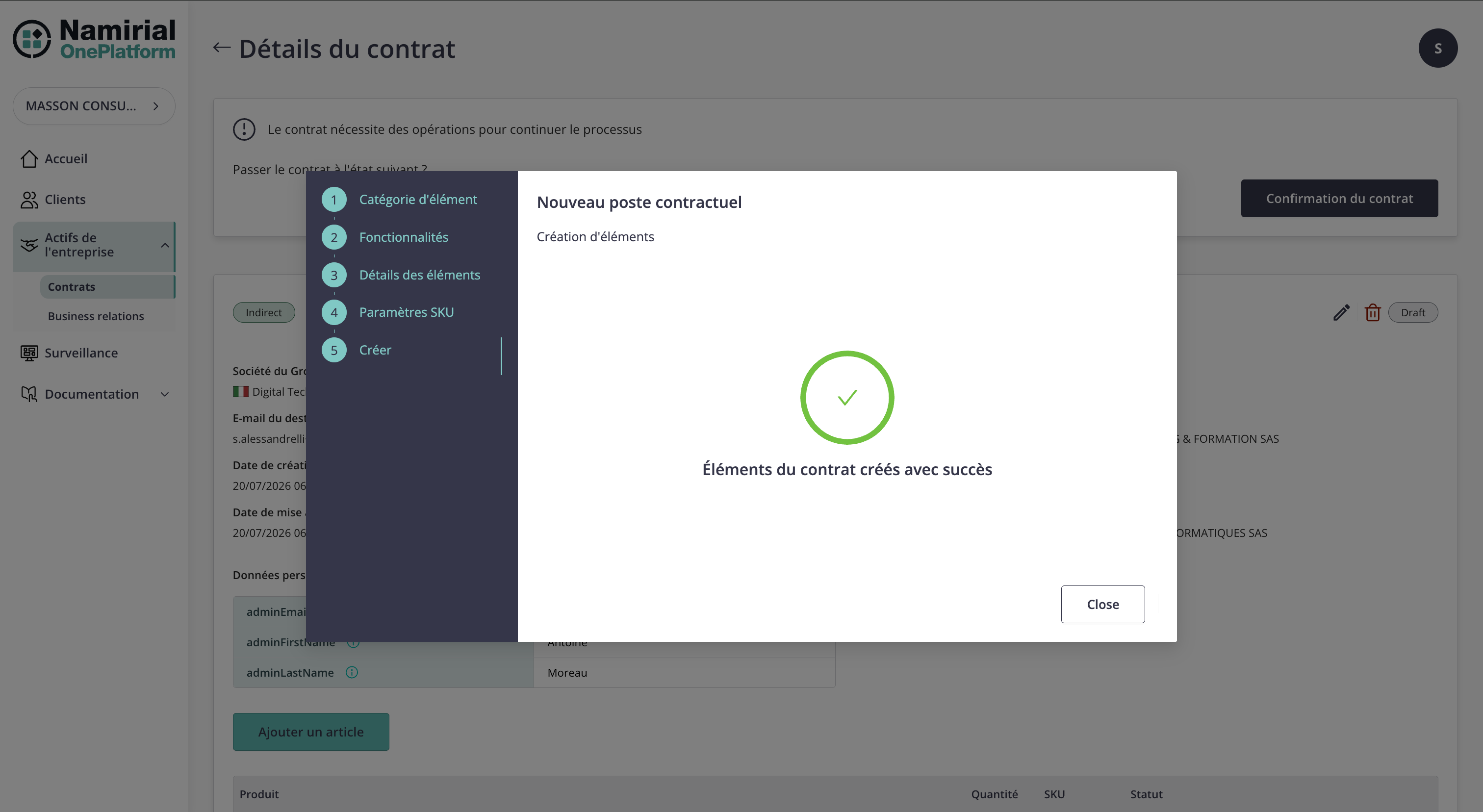
The success screen confirms that the contract item has been created.
Click Contract Confirmation. The portal asks for confirmation before allowing the recipient to view the contract and fill in any missing fields.
Confirm the action to move the contract out of Draft.
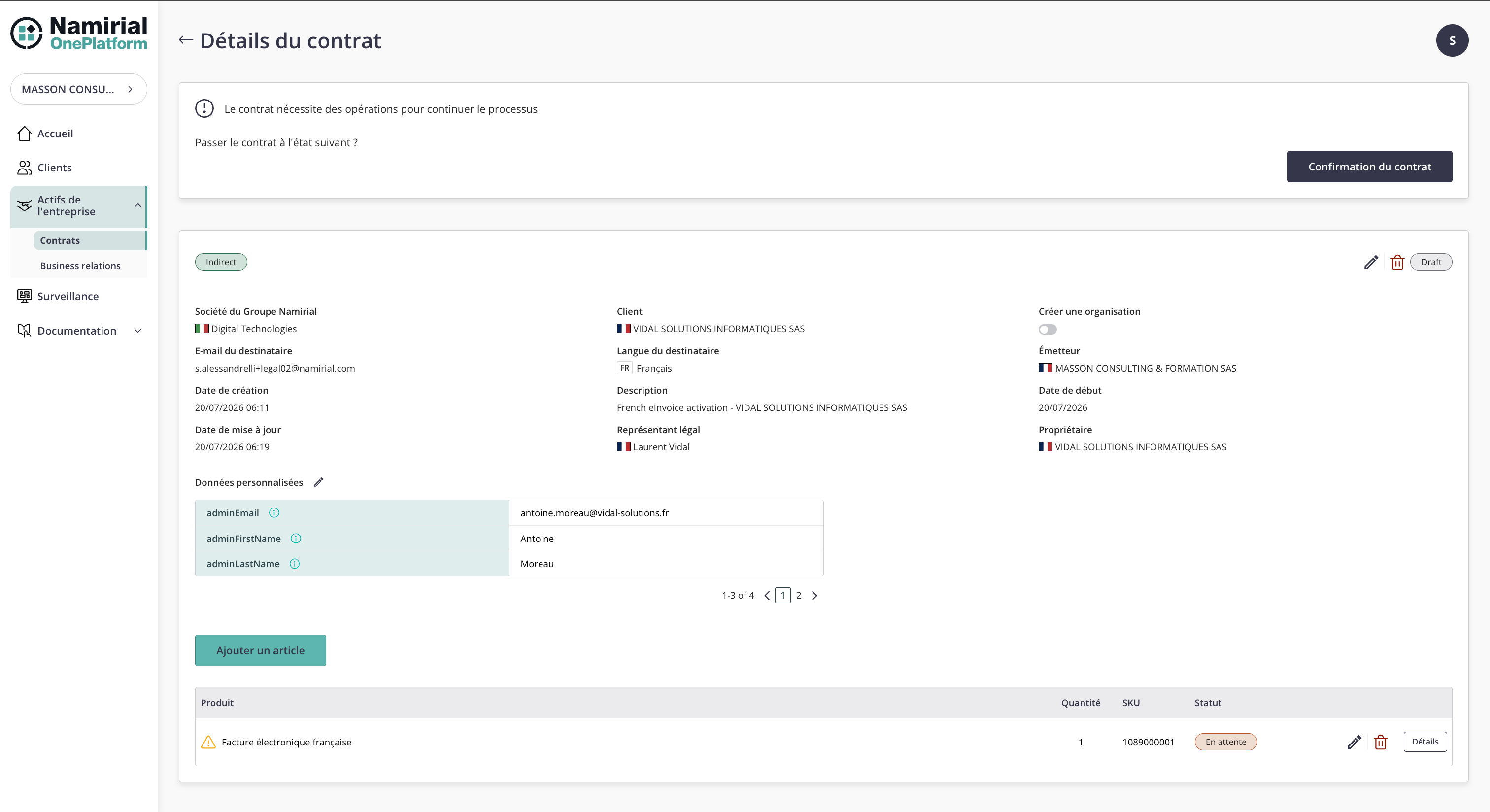
After confirmation, the contract can be Pending while data completion or provisioning is still required.
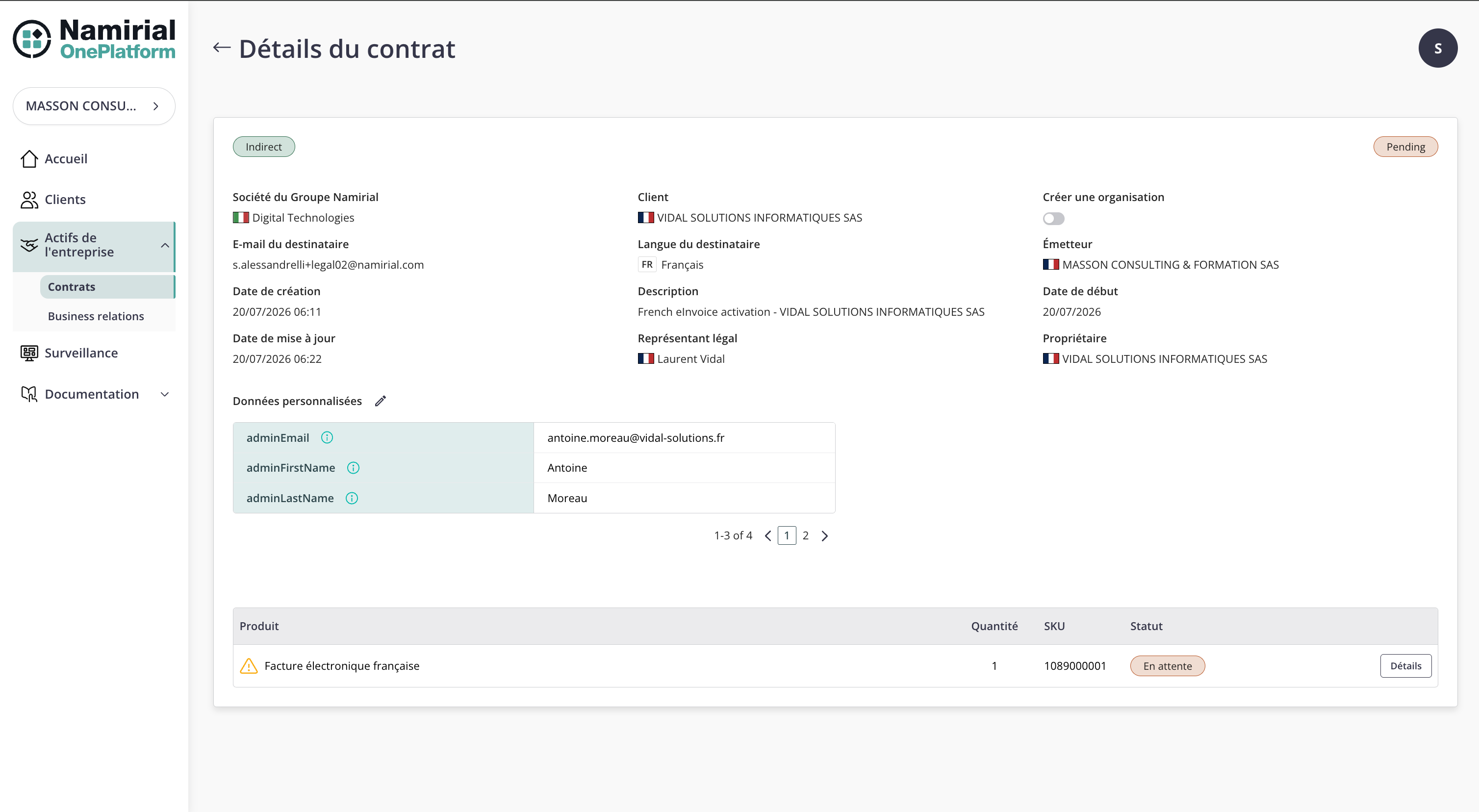
The contract remains Pending until the recipient completes the required activation information and downstream provisioning finishes. The Completed status therefore belongs to the recipient/provisioning phase and is not produced by the organization-side steps in this guide.
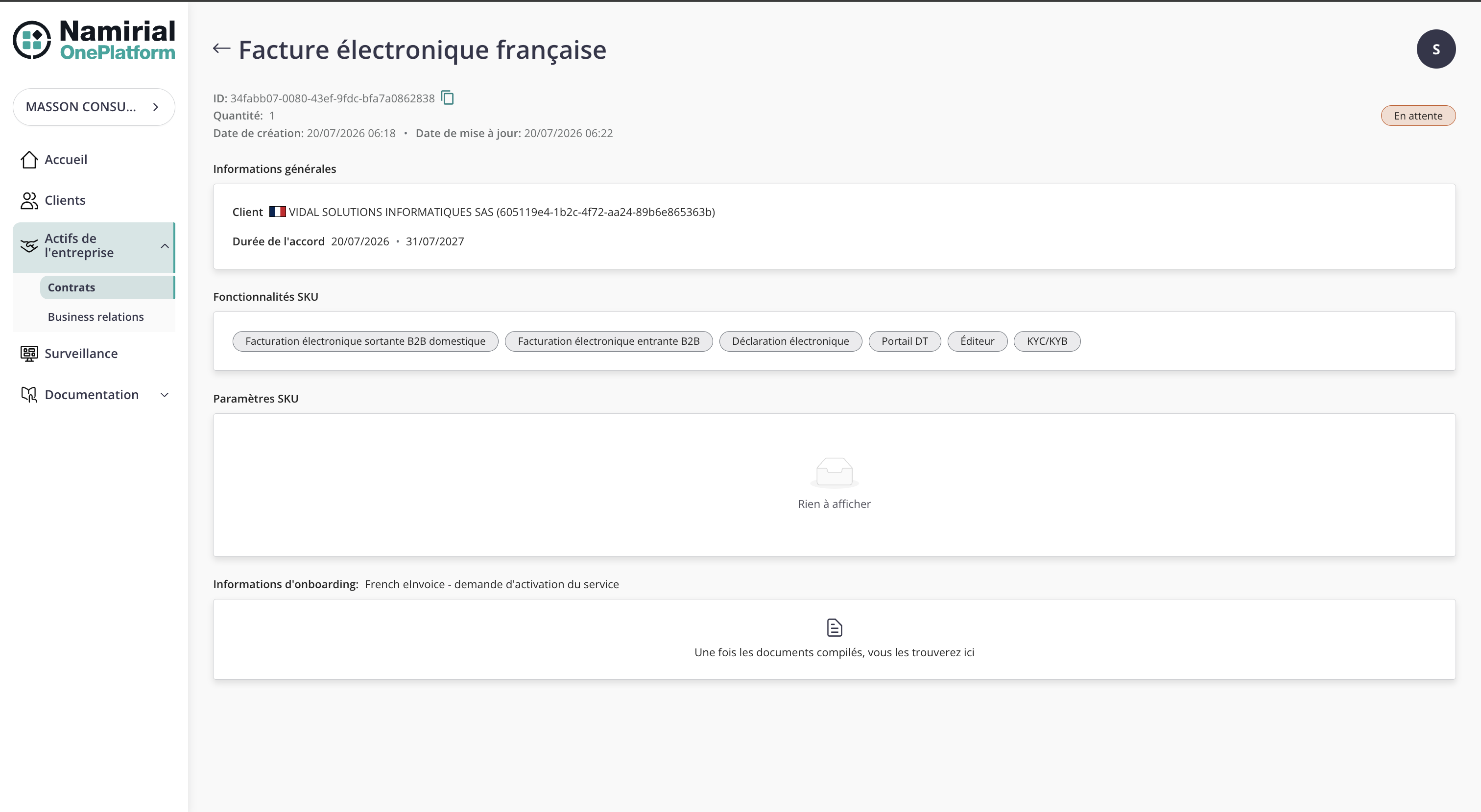
Open the item details to verify:
- customer and duration;
- active features;
- SKU parameters;
- onboarding documents, when generated.
At this stage, the example item is Pending and contains the selected features Out-B2B Domestic, In B2B, and eReporting.