This guide explains the appearance-related options currently exposed from Organization > Configuration > General.
- you are signed in with site administrator permissions
- you can access Organization > Configuration > General
- you have the approved logo files required by your organization
- Open Organization from the settings icon in the top-right toolbar.
- Select Configuration in the left sidebar.
- Select General.
The values configured at organization level define the default values for users. If an administrator selects Edit on a disabled parameter, the configured organization value is used instead of the platform default.
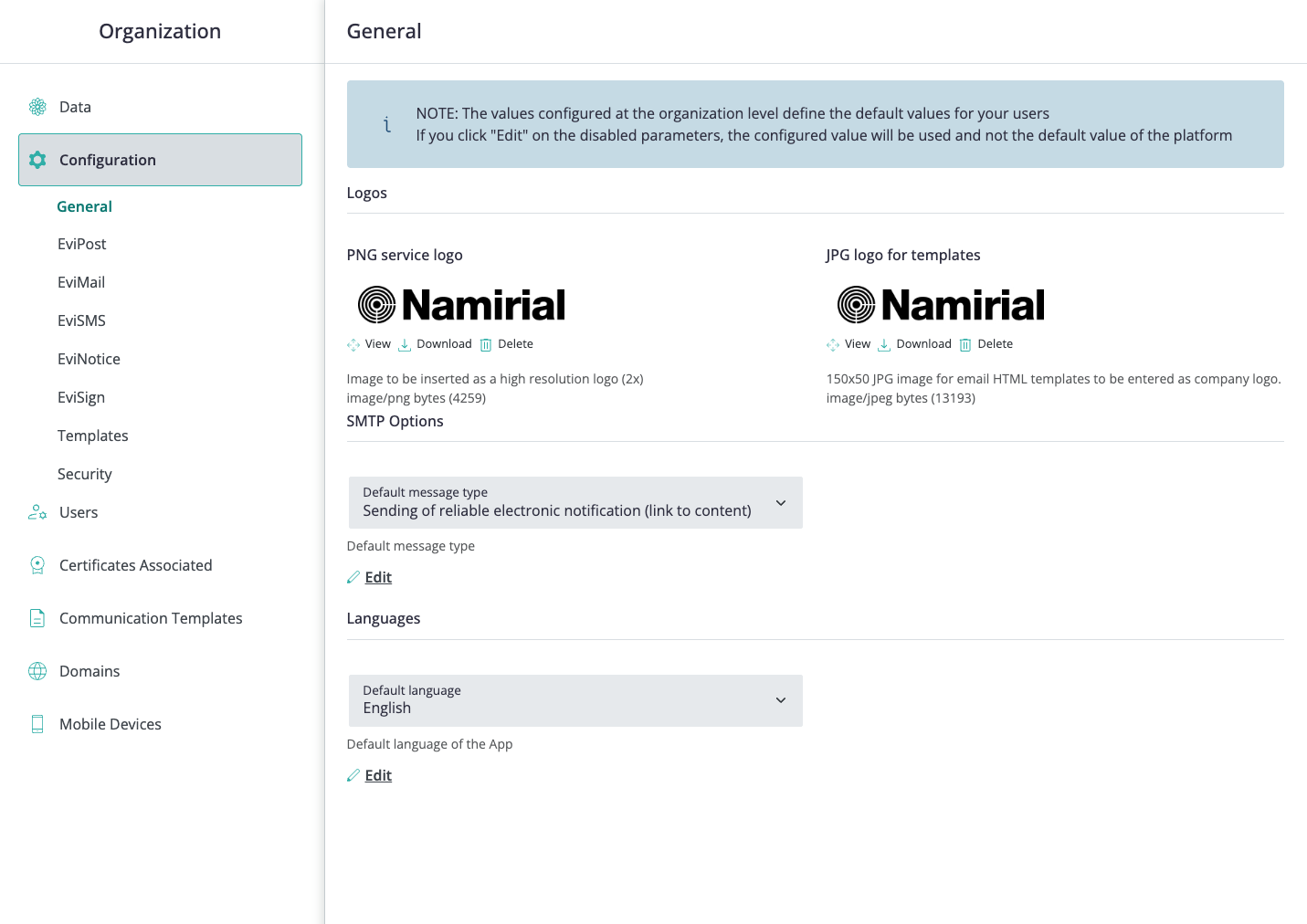
The current General tab can include:
- PNG service logo - image used as the high-resolution service logo.
- JPG logo for templates - image used as the company logo in email HTML templates.
Logo entries can expose actions such as View, Download, and Delete.
The same tab can also include shared defaults such as:
- Default message type - default SMTP message type, such as reliable electronic notification with a link to content.
- Default language - default language of the application.
These are organization-level defaults rather than visual customization, but they are located in the same General configuration tab.
Before changing logo or shared defaults, confirm:
- the logo file format matches the expected field
- the logo has been approved for the organization
- changing the template logo is intended for email HTML templates
- changing the default language or message type should apply to the organization default
The organization uses the configured service and template logos, and shared defaults are applied as organization-level defaults for users.