This guide explains how issuers create and send an EviSMS from Namirial Notify. EviSMS sends certified mobile communications through SMS or RCS while recording the delivery evidence supported by the selected channel and configuration.
Available fields can vary slightly by tenant, enabled features, and permissions. The standard EviSMS flow is organized into tabs: Content, Configuration, Advanced, and Preview. RCS is available only when it is enabled for your tenant.
- You are signed in as an issuer.
- You know the recipient mobile number and country prefix.
- You have the message text ready.
- If you want to use RCS, confirm that it is enabled for your tenant.
- Sign in to Namirial Notify.
- Select New EviSMS in the issuer area.
- Open the EviSMS form.
- Enter the recipient mobile number in
Destination. - Review the value shown in
Issuer (phone). - Enter
Legal identification of the issuer (company name, identity document, full name...). - Enter the message in
Message content.
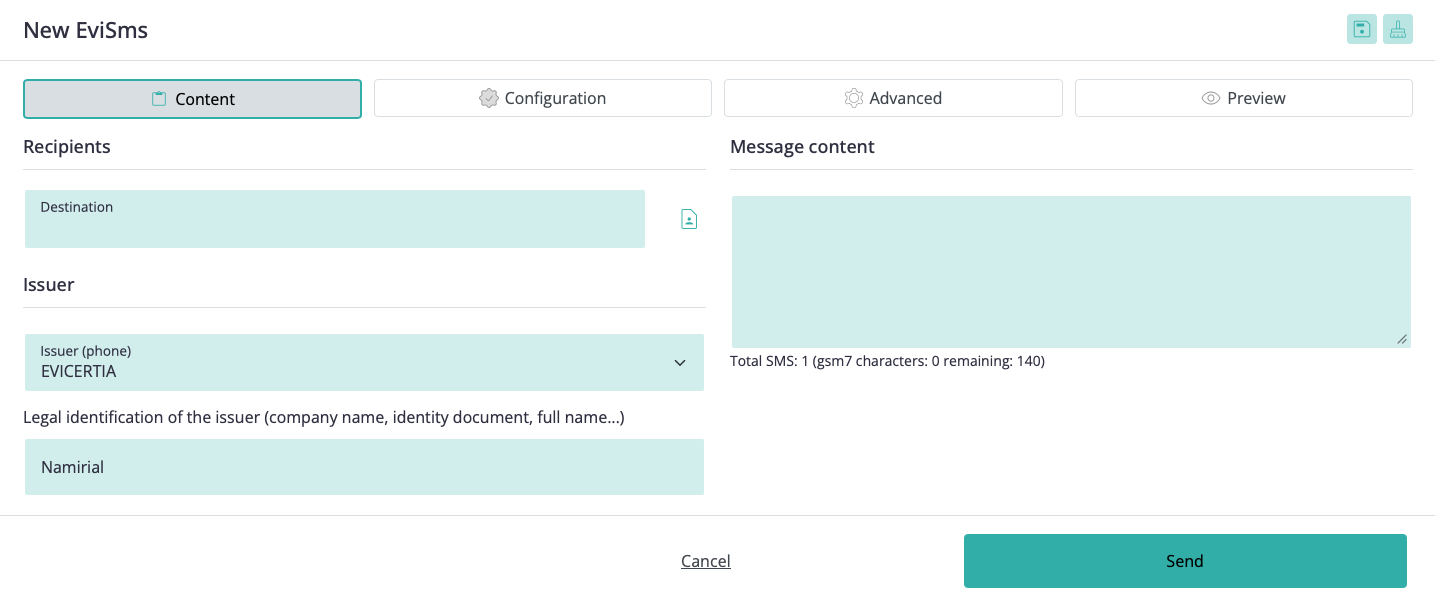
Key fields in this section:
Destinationis where the recipient mobile number is entered.Issuer (phone)identifies the sender phone configuration used in the workflow.Legal identification of the issuer (company name, identity document, full name...)defines the issuer identification shown in the communication.Message contentis the text sent to the recipient.- Multiple SMS segments can be concatenated into one communication.
- SMS length depends on the text encoding and configured segment limit. RCS allows up to 3,072 UTF-16 code units. If you select both channels, the text must fit both limits.
- Open the channel configuration for the recipient you added.
- Review the recipient data shown in
Phone number,Name, andLegal entity. - Enable the delivery channels you want to use, such as
SMSandRCS, depending on what is available in your environment. - Save the channel configuration and return to the EviSMS form.
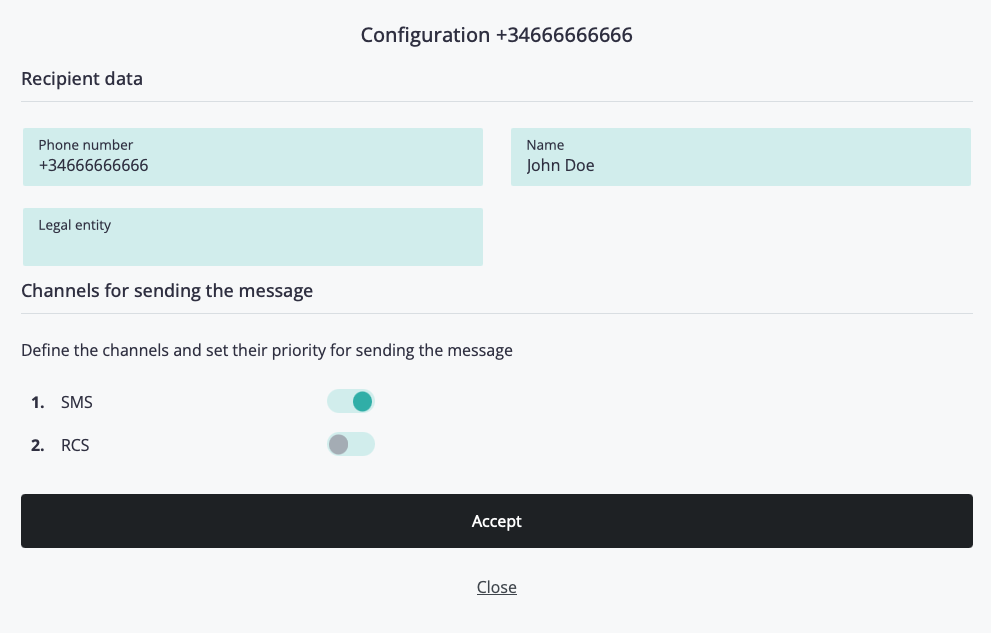
Key fields in this section:
- The channel configuration is opened for the selected recipient or destination.
SMSandRCScan be enabled independently when they are available in your environment.RCSmust be enabled for your tenant and supported by the configured flow.
RCS availability depends on tenant configuration and recipient-side support. If your process requires wider reach, configure SMS as the fallback channel.
- Open the configuration section.
- Set
Tracking untilto define how long the message remains tracked. - Review the
Appearancesetting. - Select the required
Certification and security level. - Select the
Affidavit Language. - Review the selected
Affidavits. - Select the
Notification language.
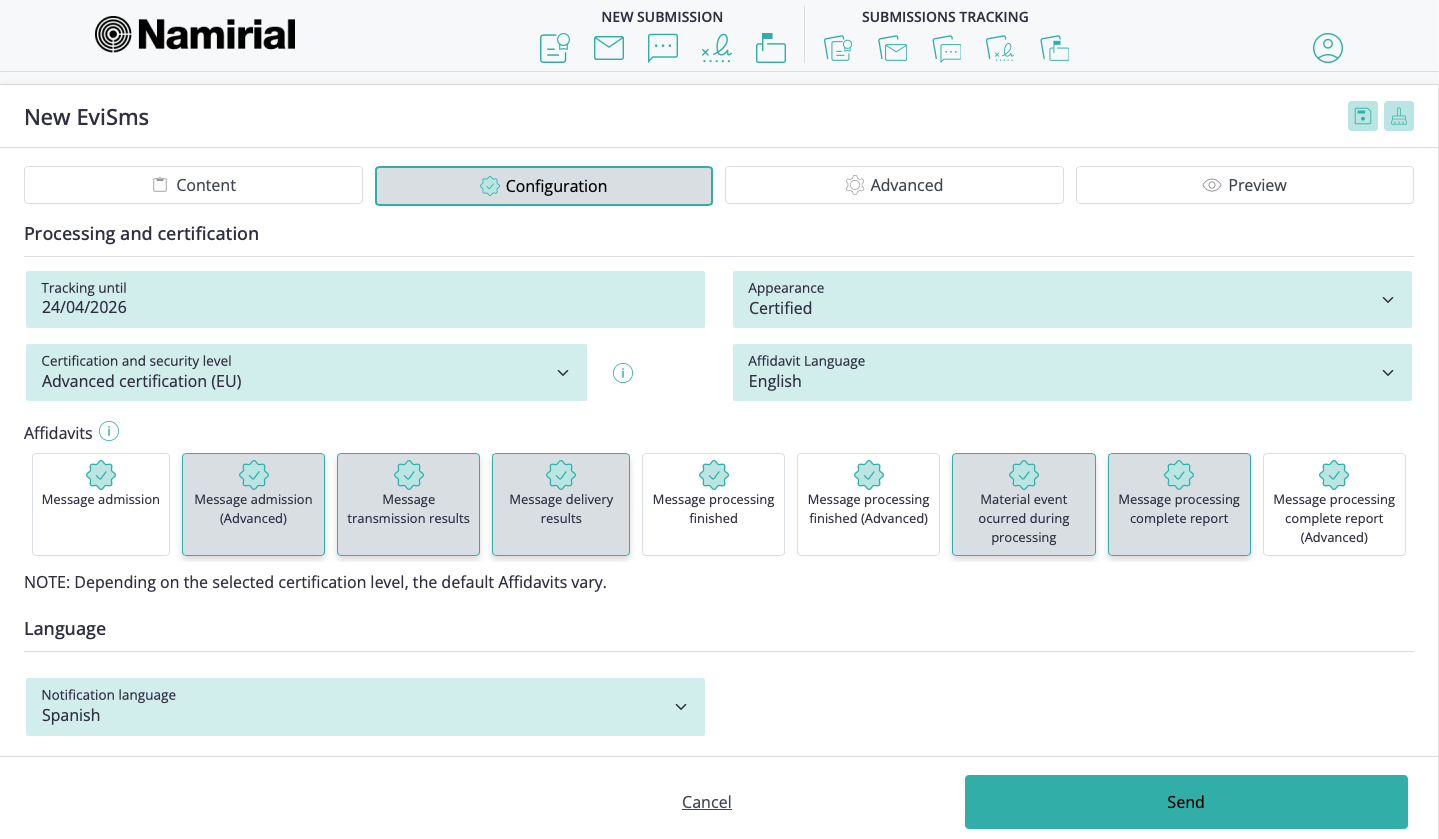
Key fields in this section:
Tracking untildefines when delivery attempts stop.Certification and security levelaffects how evidence is certified.Affidavitsare selected through the cards shown in the UI, and the default set can vary according to the selected certification level.Appearanceadds the certificate banner when supported by the selected channel and configuration.Notification languagecontrols the language used in recipient-facing notifications.
For more detail on generated evidence and affidavit kinds, see Evidence and affidavits.
- Review any additional options shown in your environment.
- Select the
Custody access controlmethod if it is shown. - Set the
Retention periodif it is shown. - Enter the
Cost centerif your organization uses internal allocation codes and that field is available. - Enable
Notarial depositand select theNotary profileif this feature is available for your tenant and territory.
Key fields in this section can include:
Custody access control, when shown, defines who can access evidence by link.Retention period, when shown, determines how long the evidence remains accessible and can affect billing.Notarial depositis available only in certain territories and only when enabled for your tenant.
- Open the preview section.
- Review the recipient numbers, message content, selected channels, and configuration.
- Confirm that the tracking and certification settings are correct.
- Click Send.
Namirial Notify creates the EviSMS and starts tracking it according to the selected configuration. The transaction then appears in the issuer area, where you can monitor its status and retrieve the available evidence and affidavits.
Problem: The form does not accept the recipient mobile number.
Cause: The number format may be invalid or the country prefix may be missing.
Solution:
- Confirm that the number includes the country prefix with
+. - Confirm that each number is complete and valid.
- If you entered multiple numbers, review the separators and use only
,or;.
Problem: You want to send through RCS, but the option does not appear or cannot be used as expected.
Cause: RCS may not be enabled for your tenant, or the selected delivery setup may not support it.
Solution:
- Confirm that RCS is enabled for your tenant.
- Review the configured channel priority.
- Use SMS if you need a supported fallback channel.
- Contact your administrator or sales contact if you need RCS enabled.
Problem: The form does not let you complete the submission.
Cause: One or more required fields may be missing, invalid, or blocked by a validation error.
Solution:
- Confirm that the recipient number is valid.
- Confirm that the message content is complete.
- Review the selected channels and configuration settings.
- Check the form for validation messages and correct the reported issue.