A Virtual Token is created from scratch card credentials:
- TokenID
- TokenPassword
Stored in DB as:
TokenID + PBKDF2(TokenPassword)Token initially disabled.
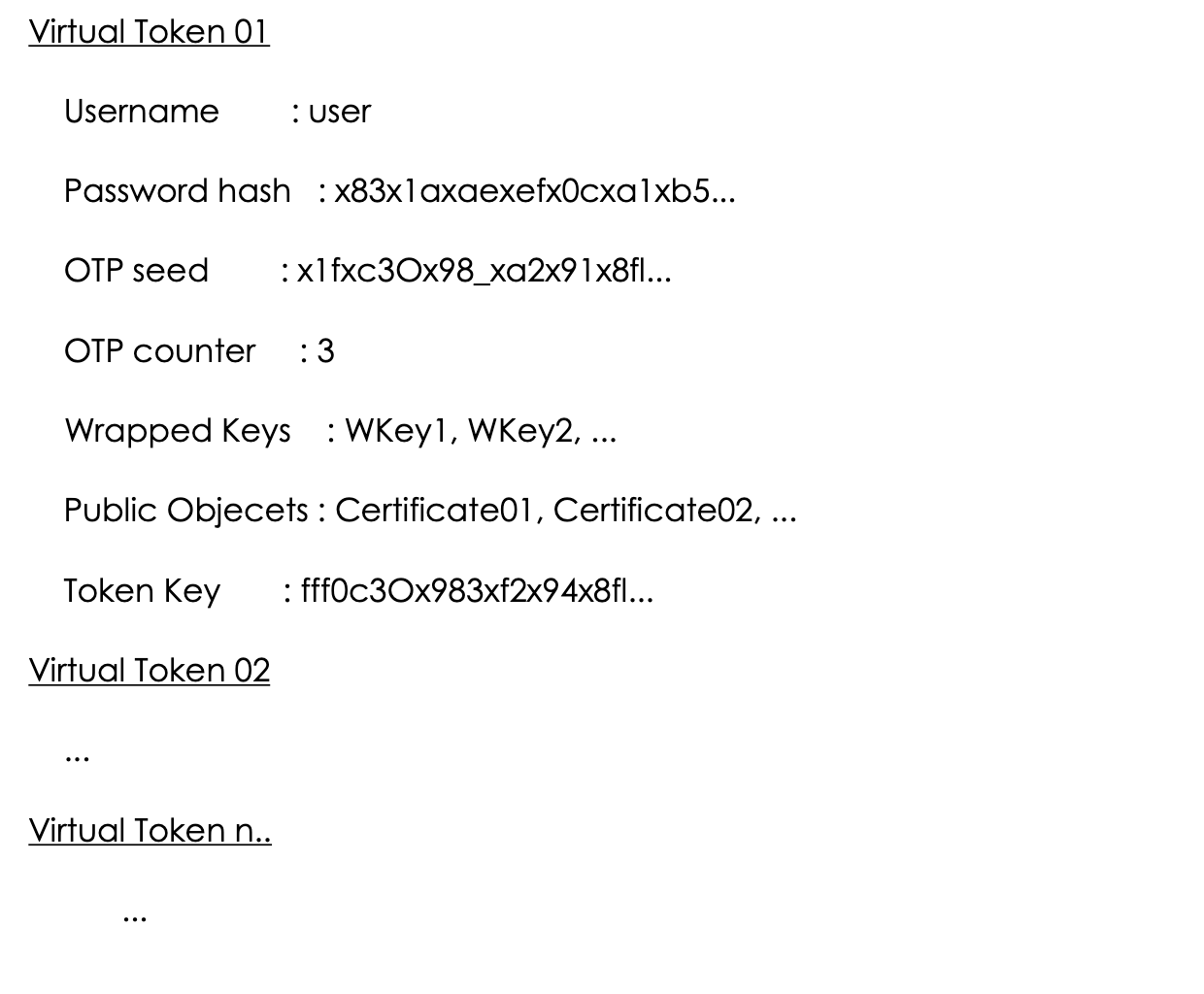
At the creation each Virtual Token is Disabled; in this state any operation that could be performed by the user, including access, is inhibited. During the first activation, the end-user sets PIN (TokenPIN) and PUK (TokenPUK) codes for his/her Virtual Token, enabling it to be used. The two values, TokenPIN and TokenPUK, are used in the HSM for the key-pair generation and for signing/deciphering processes; they are never stored inside SignCloud, but only cryptographically verified during each operation within the HSM. It means that if the codes provided by the user are wrong, the HSM won’t be able to use the keys belonging to the users.
- The user accesses the SignCloud server, using First Emission application with the provided credentials TokenID and TokenPassword, requesting the first activation of the Virtual Token.
- SignCloud verifies that the Virtual Token doesn’t already have a TokenPIN and TokenPUK, otherwise it shows an error message to the user, because the token could have been compromised by someone else.
- The app requests to choose the secret codes [PIN and PUK] (asking to type both of them twice to avoid errors).
- The app sends the data to the server using a secure HTTPS connection.
- The SignCloud server checks that the codes are compliant with the security policies in place on the system. If the checks are successful the activation continues, otherwise an error message is sent back to the user.
- SignCloud generates a casual AES-256 key for the Virtual Token inside the HSM (𝐾vt0). This key is only usable as part of a logic XOR with another key or exported by wrapping it using the SignCloud server key 𝐾wapp
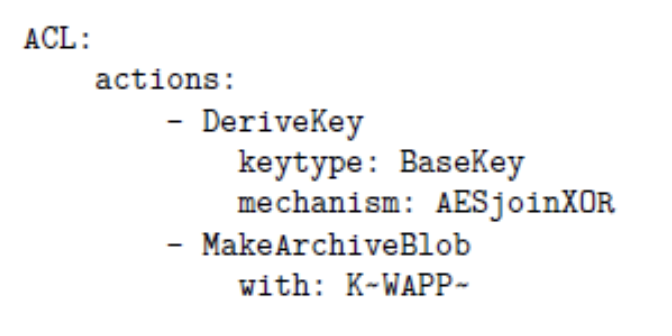
- SignCloud creates an AES-256 key from the TokenPIN and imports it in the HSM module (𝐾vt1). This key is created as not-exportable and is only usable as part of a logic XOR with another key.
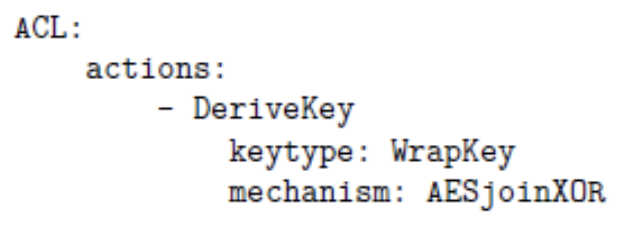
- SignCloud creates an AES-256 key (𝐾wvt) from a logic XOR between the keys 𝐾vt0 and 𝐾vt1. This key is created as not-exportable and is usable to wrap other keys or as part of a logic XOR with another key.
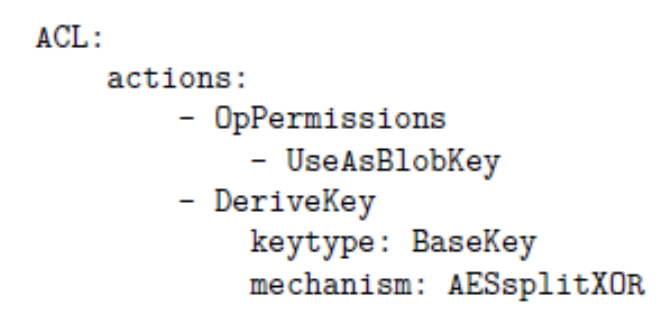
- SignCloud creates an AES-256 key from the TokenPUK and imports it in the HSM module (𝐾vt2). This key is created as not-exportable and is only usable as part of a logic XOR with another key.
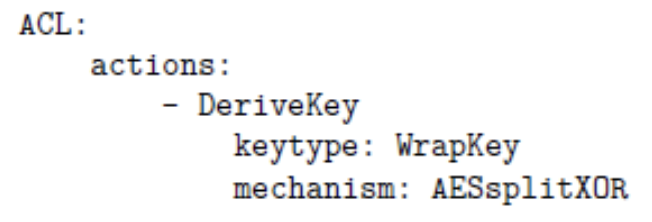
- SignCloud creates an AES-256 key (𝐾vtr) from a logic XOR between the keys 𝐾wvt and 𝐾vt2. This key is only usable as part of a logic XOR with another key or exported by wrapping it using the SignCloud servers 𝐾app.
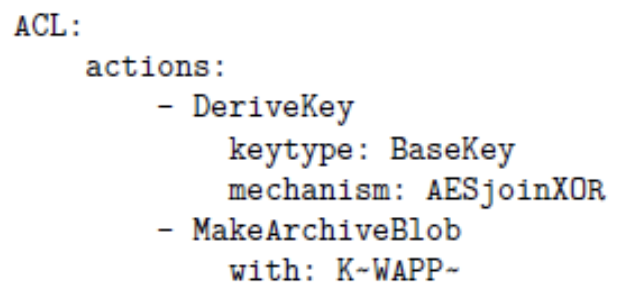
- The key 𝐾vt0 is protected using 𝐾app and saved in the DB in the record related to the Virtual Token
- The hash of the 𝐾wvt key (ℎkwvt) is saved in the DB in the record related to the Virtual Token in use.
- The user accesses the SignCloud server using the UKC (Universal Key Chain) application with the provided credentials TokenID and TokenPassword.
- The user, using an enrolment software, requests the creation of a key-pair to the UKC cryptographic module.
- The software requests the TokenPIN to the user.
- The software requests to the UKC cryptographic module (which exposes the standard interfaces PKCS#11 and CSP) to generate an RSA key-pair for a Virtual Token, attaching the TokenPIN and additional info about the needed key.
- The UKC sends the collected data to the SignCloud server using a secure HTTPS connection.
- SignCloud verifies the credentials (TokenID, TokenPassowrd) and, only if they are correct, it proceeds to the following steps. In case the credentials are wrong, it sends an error message to the user. After 3 errors in a row, the system won’t accept any other request for 5 minutes. This interval is increased every time, up to a maximum of 1 hour for each error.
- SignCloud checks that the errors counter is greater than zero. In case it is equal or lower than 0, the virtual token is blocked and a notification will be sent to the user.
- SignCloud retrieves the key 𝐾vt0, which was associated to the virtual token and protected with the key 𝐾wapp, from the DB and imports it in the HSM.
- SignCloud creates an AES-256 key from the TokenPIN and imports it in the HSM module (𝐾vt1).
- SignCloud creates an AES-256 key (𝐾wvt) from a logic XOR between the keys 𝐾vt0 and 𝐾vt1.
- SignCloud checks that the hash of the key 𝐾wvt is equal to the ℎkwvt stored in the DB in the record related to the Virtual Token in use. If it doesn’t match, SignCloud decrements the PIN errors counter and produces an error message.
- SignCloud creates an RSA key for the Virtual Token in the HSM module (𝐾rsa). The public component of the RSA key is exported in clear from the HSM, while the private component is wrapped using the key kwvt.
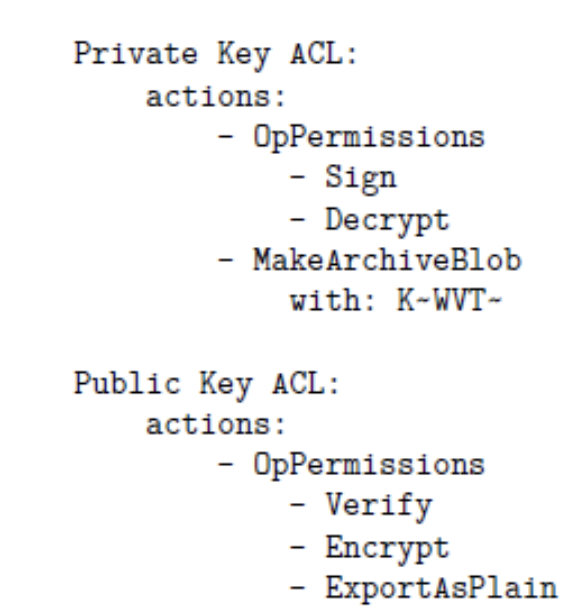
- The wrapped RSA key is saved in the DB, in the record related to the Virtual Token
- The user accesses the SignCloud server using the UKC with the provided credentials TokenID and TokenPassword.
- The user, using a software for the digital signature, requests the usage of the private key for a signing operation.
- The software requests the TokenPIN to the user.
- The software sends a request to the UKC cryptographic module (which exposes the standard interfaces PKCS#11 and CSP) to apply the private RSA key of the Virtual Token to a buffer, which is attached to the request together with the TokenPIN.
- The UKC sends the collected data to the SignCloud server using a secure HTTPS connection.
- SignCloud verifies the credentials (TokenID, TokenPassowrd) and, only if they are correct, it proceeds to the following steps. In case the credentials are wrong, it sends an error message to the user. After 3 errors in a row, the system won’t accept any other request for 5 minutes. This interval is increased every time, up to a maximum of 1 hour for each error.
- SignCloud checks that the errors counter is greater than zero. In case it is equal or lower than 0, the virtual token is blocked and a notification will be sent to the user.
- SignCloud retrieves the key 𝐾vt0, which was associated to the virtual token and protected with the key K-wapp, from the DB and imports it in the HSM.
- SignCloud creates an AES-256 key from the TokenPIN and imports it in the HSM module (𝐾vt1).
- SignCloud creates an AES-256 key (𝐾wvt) from a logic XOR between the keys 𝐾vt0 and 𝐾vt1.
- SignCloud checks that the hash of the key 𝐾wvt is equal to the ℎ𝐾wvt stored in the DB, in the record related to the Virtual Token in use. If it doesn’t match, SignCloud decrements the PIN errors counter and produces an error message.
- SignCloud retrieves from the DB the key 𝐾rsa associated to the virtual token and protected with 𝐾wvt, and imports it in the HSM.
- SignCloud signs the provided buffer with the private key 𝐾rsa.
- The user accesses the SignCloud server using the UKC with the provided credentials TokenID and TokenPassword.
- The user, by the mean of the UKC, requests to start a PIN replacement operation.
- The UKC requests to the user to insert the old PIN (TokenOldPin) and the new PIN (TokenNewPin, asking to type the latter twice to avoid errors).
- The 2 PIN codes are sent to the SignCloud server using a secure HTTPS connection.
- SignCloud verifies the credentials (TokenID, TokenPassowrd) and, only if they are correct, it proceeds to the following steps. In case the credentials are wrong, it sends an error message to the user. After 3 errors in a row, the system won’t accept any other request for 5 minutes. This interval is increased every time, up to a maximum of 1 hour for each error.
- SignCloud checks that the errors counter is greater than zero. In case it is equal or lower than 0, the virtual token is blocked and a notification will be sent to the user.
- SignCloud retrieves the key 𝐾vt0, which was associated to the virtual token and protected with the key 𝐾wapp, from the DB and imports it in the HSM.
- SignCloud creates an AES-256 key from the TokenOldPin and imports it in the HSM module (𝐾vt1).
- SignCloud creates an AES-256 key (𝐾wvt) from a logic XOR between the keys 𝐾vt0 and 𝐾vt1.
- SignCloud checks that the hash of the key 𝐾wvt is equal to the ℎ𝐾wvt stored in the DB, in the record related to the Virtual Token in use. If it doesn’t match, SignCloud decrements the PIN errors counter and produces an error message.
- SignCloud creates an AES-256 key from the TokenNewPin and imports it in the HSM module (𝐾vtn1).
- SignCloud creates an AES-256 key (𝐾vtn0) from a logic XOR between the keys 𝐾wvt and 𝐾vtn1.
- The key 𝐾vtn0, wrapped using 𝐾wapp, is saved in the DB in the record relative to the Virtual Token in use, replacing the old 𝐾vt0.
- The user accesses the SignCloud server using the UKC with the provided credentials TokenID and TokenPassword.
- The user, by the mean of the UKC, requests to start a PUK replacement operation.
- The UKC requests to the user to insert the old PUK (TokenOldPuk) and the new PUK (TokenNewPuk, asking to type the latter twice to avoid errors).
- The 2 PUK codes are sent to the SignCloud server using a secure HTTPS connection.
- SignCloud verifies the credentials (TokenID, TokenPassowrd) and, only if they are correct, it proceeds to the following step. In case the credentials are wrong, it sends an error message to the user. After 3 errors in a row, the system won’t accept any other request for 5 minutes. This interval is increased every time, up to a maximum of 1 hour for each error.
- SignCloud checks that the PUK code errors counter is greater than zero. In case it is equal or lower than 0, the virtual token is blocked and a notification will be sent to the user.
- SignCloud retrieves the key 𝐾vtr, which was associated to the virtual token and protected with the key 𝐾wapp, from the DB and imports it in the HSM.
- SignCloud creates an AES-256 key from the TokenOldPuk and imports it in the HSM module (𝐾vt2).
- SignCloud creates an AES-256 key (𝐾wvt) from a logic XOR between the keys 𝐾vtr and 𝐾vt2.
- SignCloud checks that the hash of the key 𝐾wvt is equal to the ℎ𝐾wvt stored in the DB, in the record related to the Virtual Token in use. If it doesn’t match, SignCloud decrements the PUK errors counter and produces an error message.
- SignCloud creates an AES-256 key from the TokenNewPuk and imports it in the HSM module (𝐾vtn2).
- SignCloud creates an AES-256 key (𝐾vtrn) from a logic XOR between the keys 𝐾wvt and 𝐾vtn2.
- The key 𝐾vtrn, wrapped using 𝐾wapp, is saved in the DB in the record relative to the Virtual Token in use, replacing the old 𝐾vtr.
- The user accesses the SignCloud server using the UKC with the provided credentials TokenID and TokenPassword.
- The user, by the mean of the UKC, requests to start a PIN replacement operation.
- The client-side application requests to the user to insert the PUK (TokenPuk) and the new PIN (TokenNewPin, asking to type the latter twice to avoid errors).
- The 2 codes are sent to the SignCloud server using a secure HTTPS connection.
- SignCloud verifies the credentials (TokenID, TokenPassowrd) and, only if they are correct, it proceeds to the following step. In case the credentials are wrong, it sends an error message to the user. After 3 errors in a row, the system won’t accept any other request for 5 minutes. This interval is increased every time, up to a maximum of 1 hour for each error.
- SignCloud checks that the PUK code errors counter is greater than zero. In case it is equal or lower than 0, the virtual token is blocked and a notification will be sent to the user.
- SignCloud retrieves the key 𝐾vtr, which was associated to the virtual token and protected with the key 𝐾wapp, from the DB and imports it in the HSM.
- SignCloud creates an AES-256 key from the TokenOldPuk and imports it in the HSM module (𝐾vt2).
- SignCloud creates an AES-256 key (𝐾wvt) from a logic XOR between the keys 𝐾vtr and 𝐾vt2.
- SignCloud checks that the hash of the key 𝐾wvt is equal to the ℎ𝐾wvt stored in the DB in the record related to the Virtual Token in use. If it doesn’t match, SignCloud decrements the PUK errors counter and produces an error message.
- SignCloud creates an AES-256 key from the TokenNewPin and imports it in the HSM module (𝐾vtn1).
- SignCloud creates an AES-256 key (𝐾vtn0) from a logic XOR between the keys 𝐾wvt and 𝐾vtn1.
- The key 𝐾vtn0, wrapped using 𝐾wapp, is saved in the DB in the record relative to the Virtual Token in use, replacing the old 𝐾vt0.
- PIN error counter
- PUK error counter
- Token blocked if threshold exceeded
- User notified
This guarantees strong lifecycle control.