- Introduction
- Minimum Requirements
- Installation
- How can i see the logs file?
- How can i manage my SWS instance?
- How can i manage the sws service?
- How can i upgrade to latest version?
The version of SWS Standalone is based on a Docker image of SWS.
If you don't have an orchestrator in your infrastructure, it is still possible to install it directly on a Linux server without problems.
The supported Linux servers are listed below.
The Linux server requires at least:
- 4 GB of RAM
- 2 CPU
- 20 GB of Disk space
- AlmaLinux 8+
- RockyLinux 8+
- RedHat 8+
- AmazonLinux 2023+
NOTE: If you already have SWS installed on CentOS 7, it is still possible to install SWS on this OS. However, Namirial advises upgrading the OS because CentOS 7 reached End of Life in June 2024.
To install SWS On-Premise, log in to your server and run the following command:
curl -s -L https://sws.firmacerta.it/download/sws-onpremise/install_sws3x.sh | sudo bash -sAt the end of this command, SWS will be ready and available on port 8080.
You can verify that the installation completed successfully using this command:
curl -i -X GET http://<IP-APPLIANCE>:8080/SignEngineWeb/rest/server-admin/sys-infoWill be displayed a JSON with all configuration of SWS instance like this:
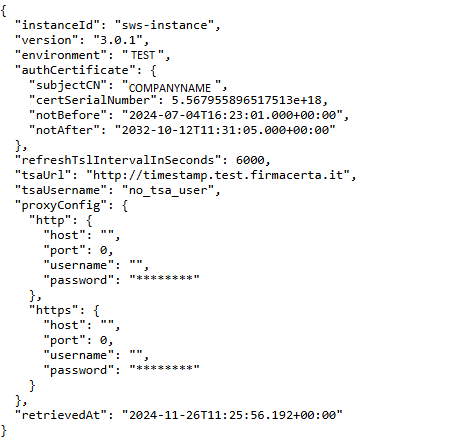
At the end of this command, will be create a service named “sws” (it will run at startup)
IMPORTANT: you can run this command in the OS which is already installed sws 2x
NOTE: if you are migrating from old SWS 2x configurated with PROD environment, the installation will migrate the environment (with the correct JKS certificate uploaded in past), and in the previous command sys-info the environment is PROD.
You can found the log files on this folder:
/opt/sws/log/sws-instanceAfter the installation is complete, the adminstration methods are the same of installation via Docker image, therefore you can see the section Docker to manage your sws instance
Once complete the installation, will be create a service “sws”, you can manage the service using this command:
sudo service sws [start | stop | restart | status]To upgrade to the last version, you can run the same command used for installation