This procedure allows you to remove or add new second authentication factors or 2FA.
Open your profile management from here:
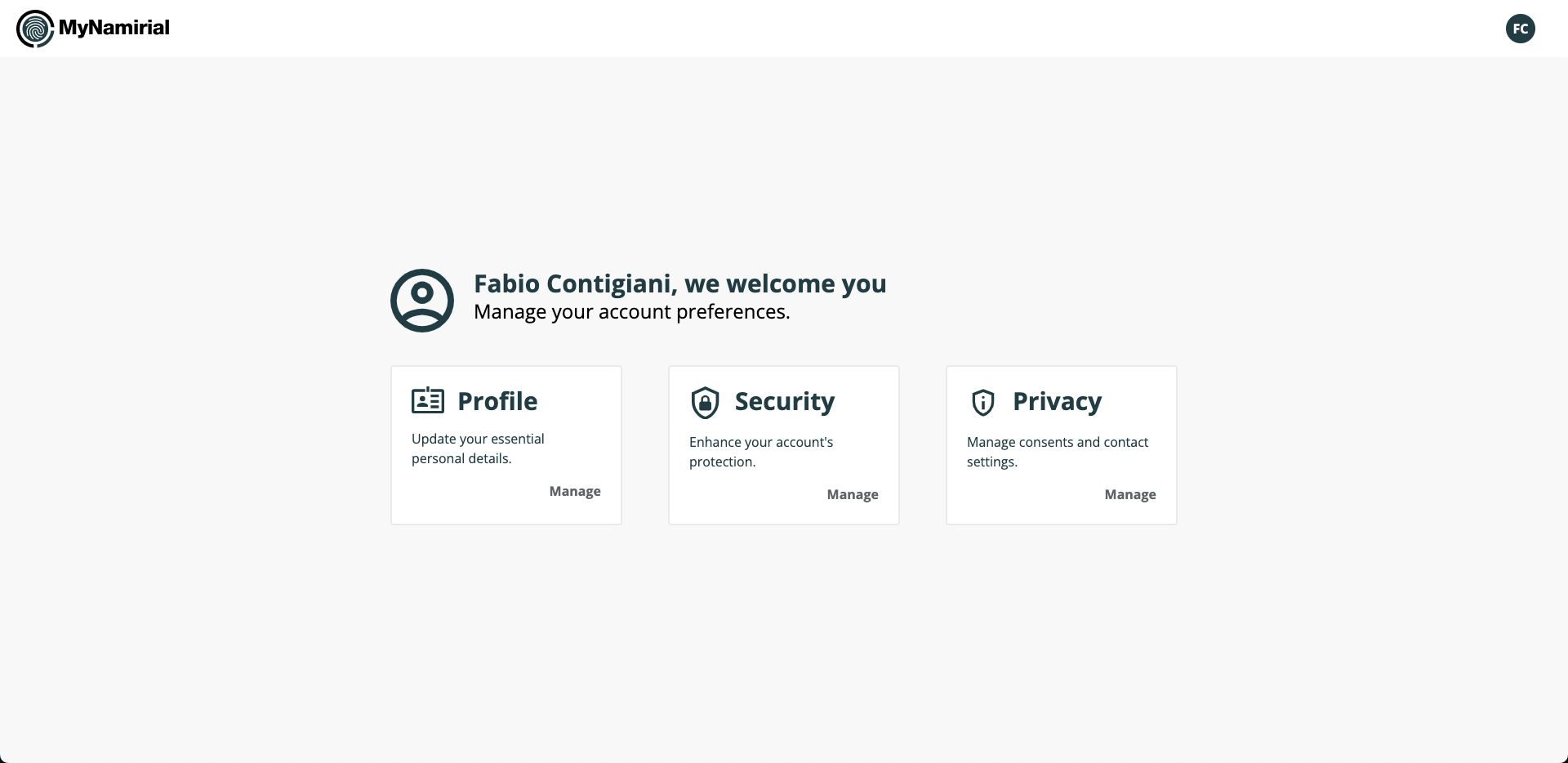
Click the Manage button in the "Security" section.
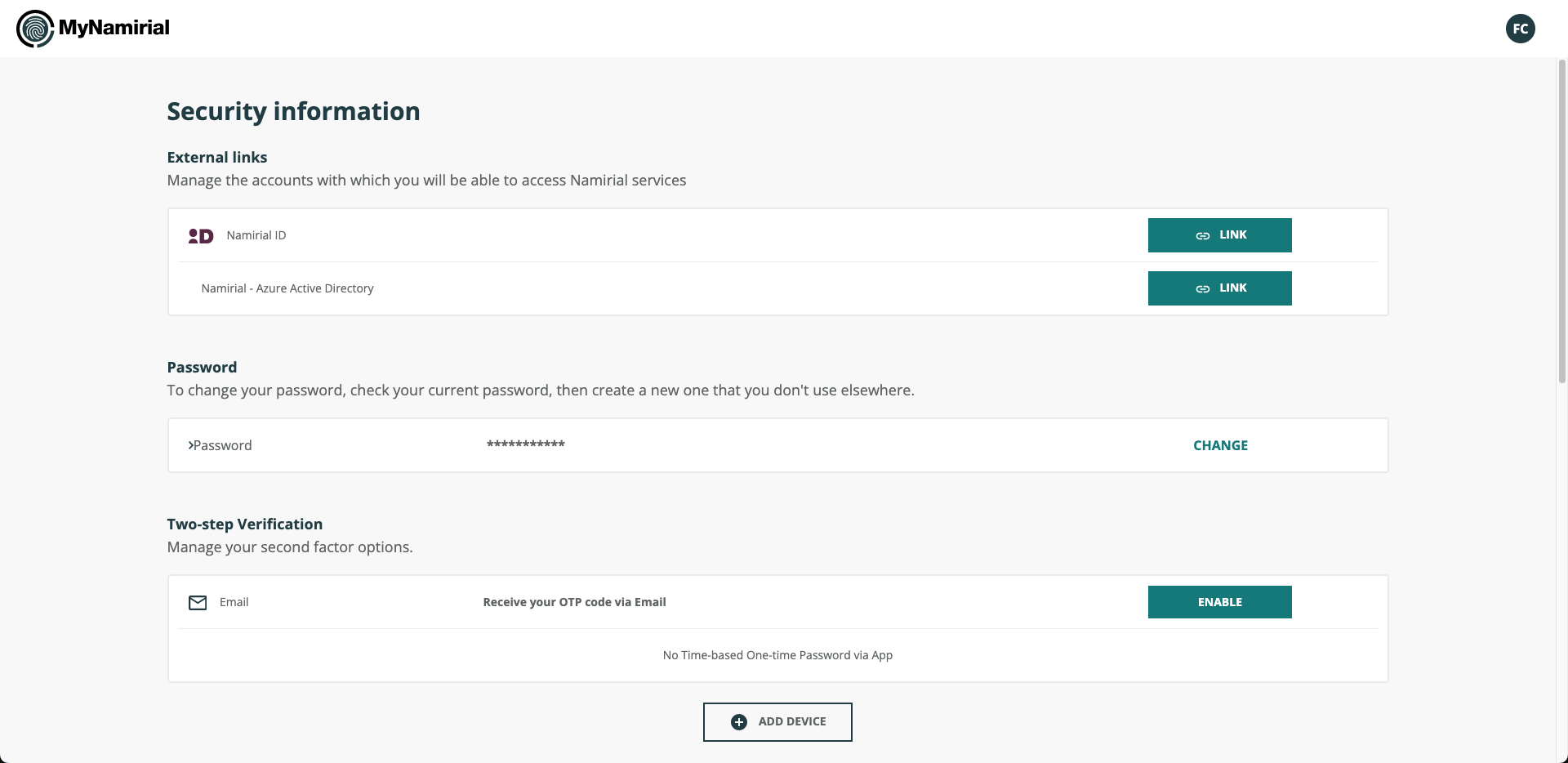
From the "Two-Step Verification" section you can:
In the "Two-Step Verification" section, click the ENABLE button next to "Email" to enable 2FA via email.
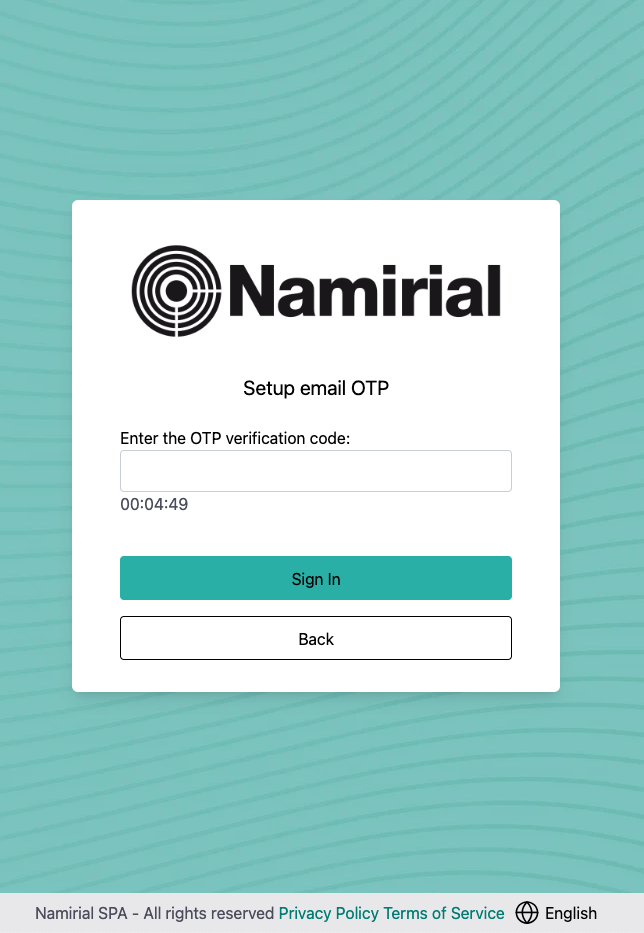
Enter the security code that will be sent to you via email.
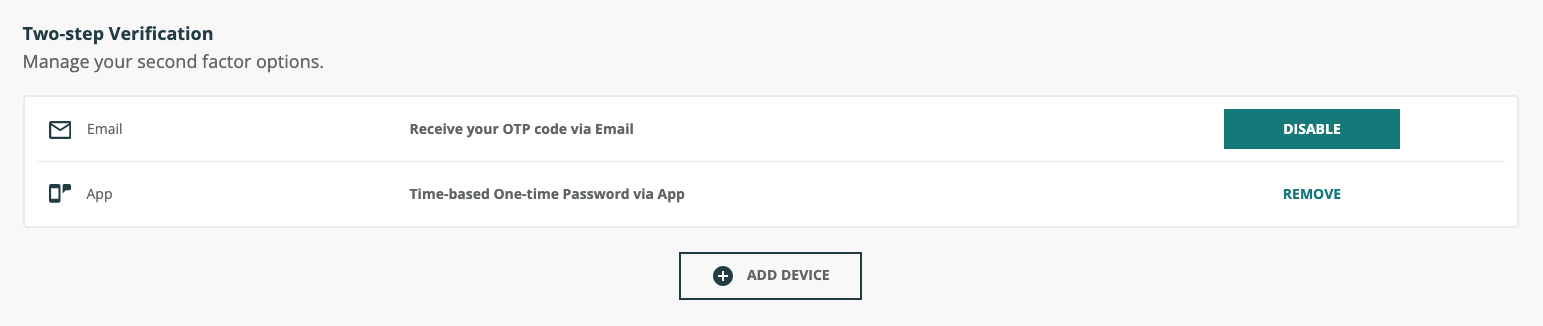
In the "Two-Step Verification" section, click the DISABLE button next to "Email" and confirm with the REMOVE button.
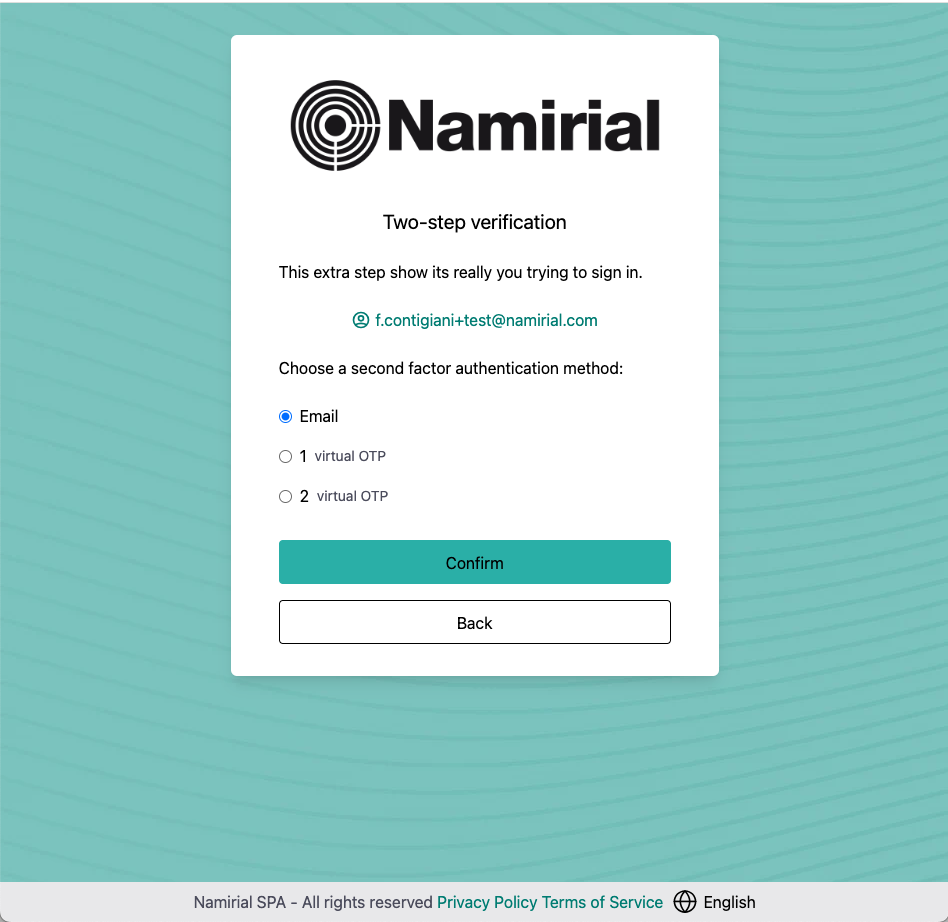
Removing a 2FA requires a login with second authentication factor. In case of multiple 2FAs, choose the authentication factor to remove.
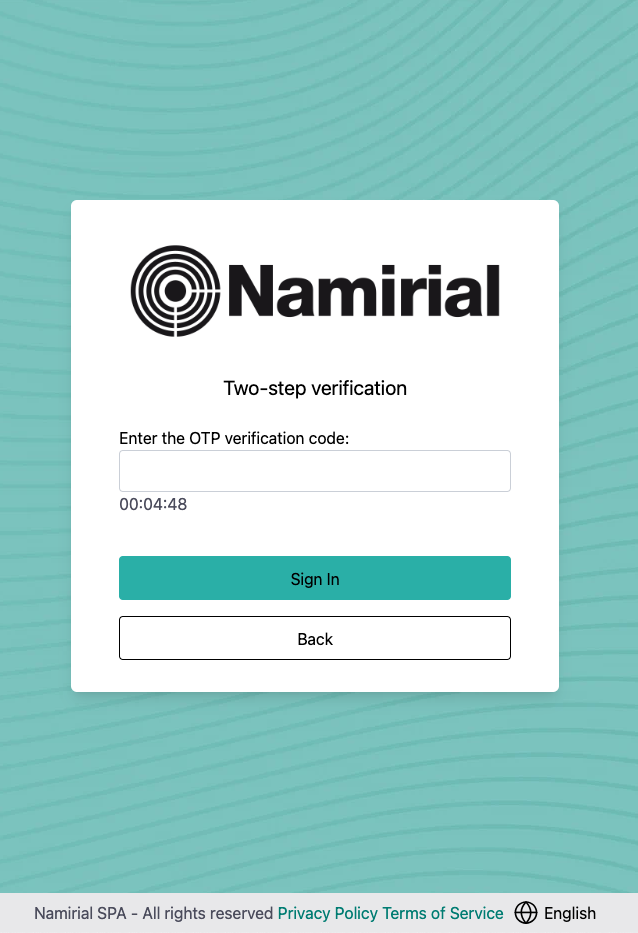
Enter the OTP code and click Sign in.
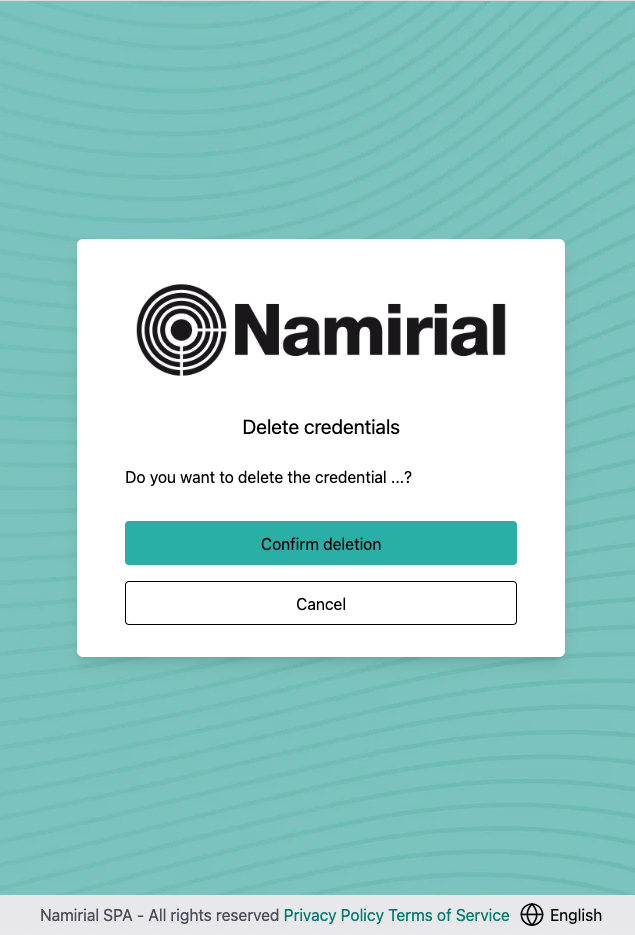
Click the Confirm deletion button.
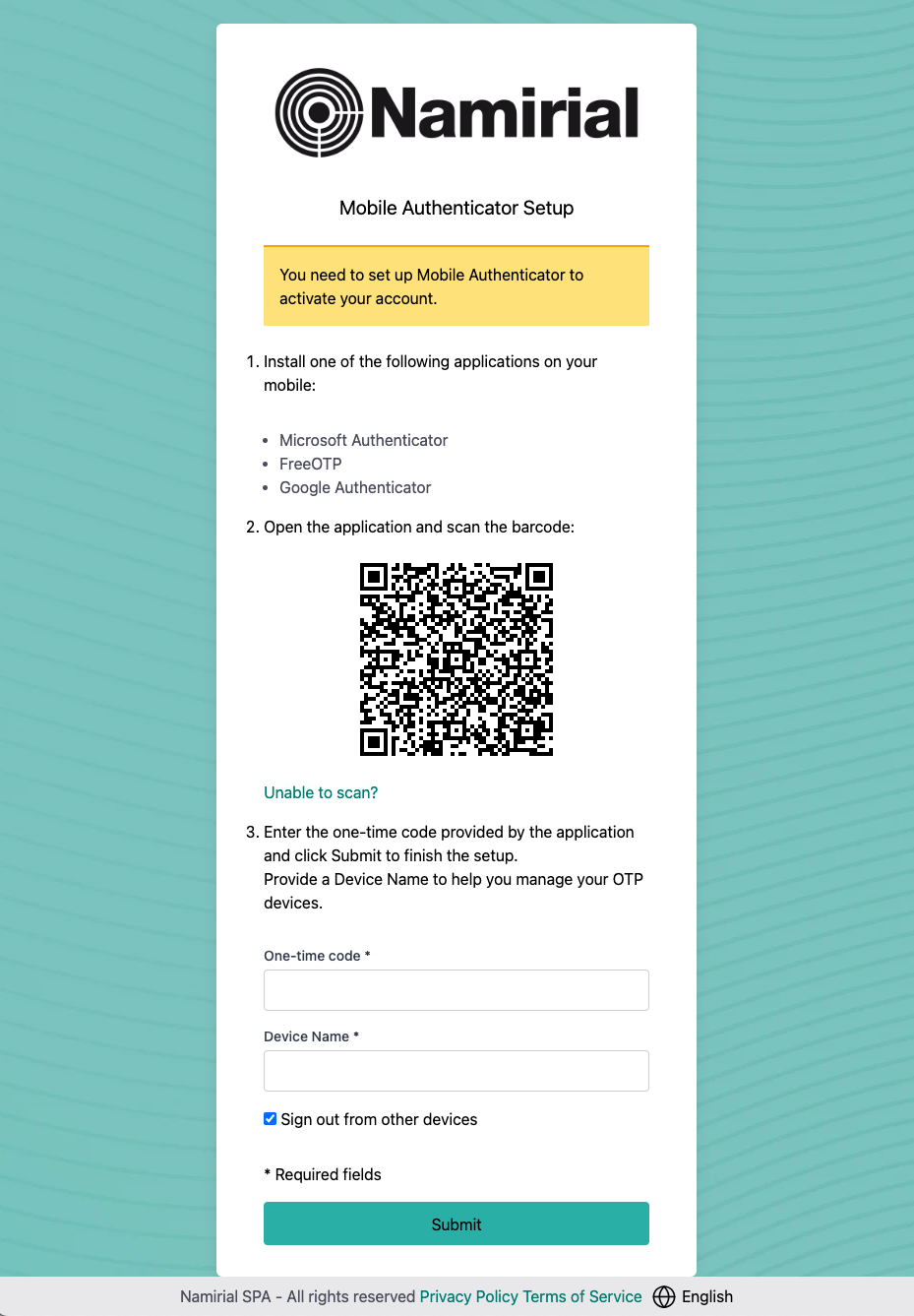
In the "Two-Step Verification" section, click the ADD DEVICE button to enable 2FA via app. You will be able to access the security code through an application on your phone. Follow the instructions on the page that opens.
In the "Two-Step Verification" section, click the DISABLE button next to the "app" type device (in the figure above, the one named "1") and confirm with the REMOVE button.
Removing a 2FA requires a login with second authentication factor. In case of multiple 2FAs, choose the authentication factor to remove.
Enter the OTP code and click Sign in.
Click the Confirm deletion button.