Back-office reviewer: approves/rejects verifications or whole requests with scoped privileges.
Views requests and performs actions such as approving or rejecting. Used by clients or internal teams.
Once logged in, this is the home page.
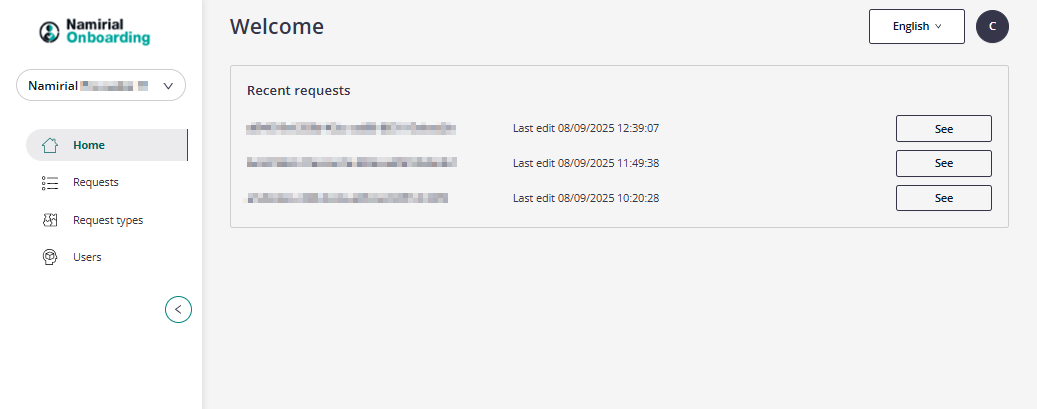
In the left part you have a menu. First of all, you see the organization you are working in. If you have access to different organizations, by clicking the arrow, you can see the list of organizations you have access to and choose the one where you want to work.
Below the organization, you have some options.
In the "Requests" tab, you can see all the created requests and their actual status.
You can filter the request by the following fields, such as Status, Waiting for Operator, and Reference ID, among others.
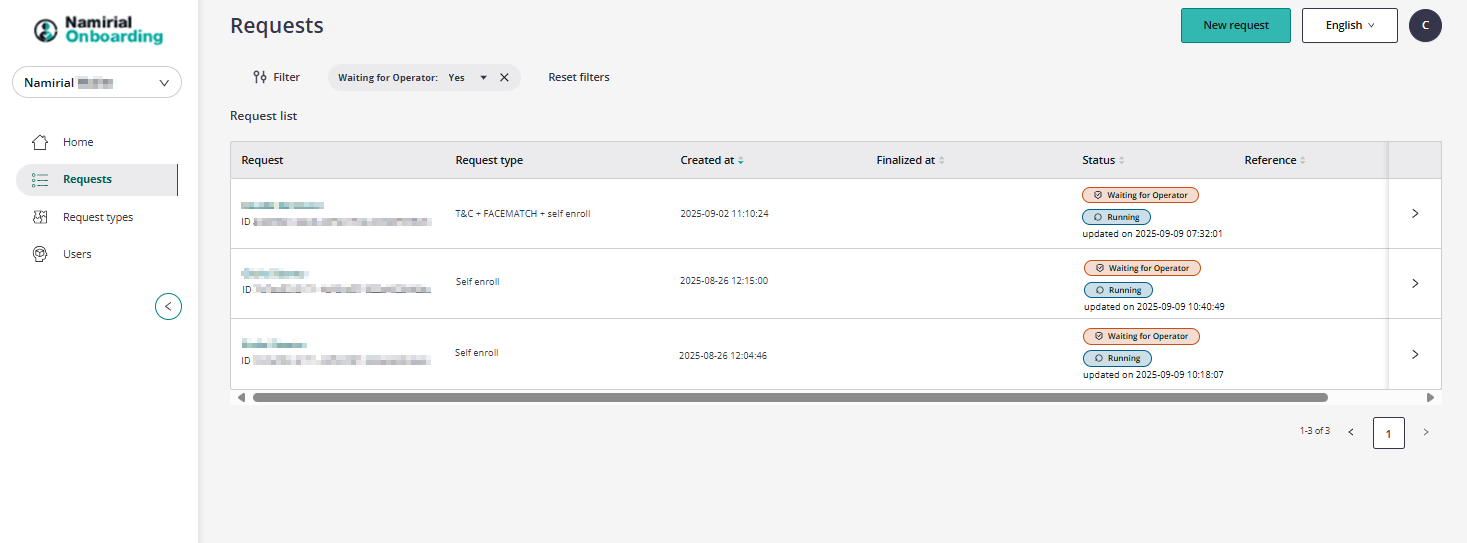
If you click on a request, the details of the request will open
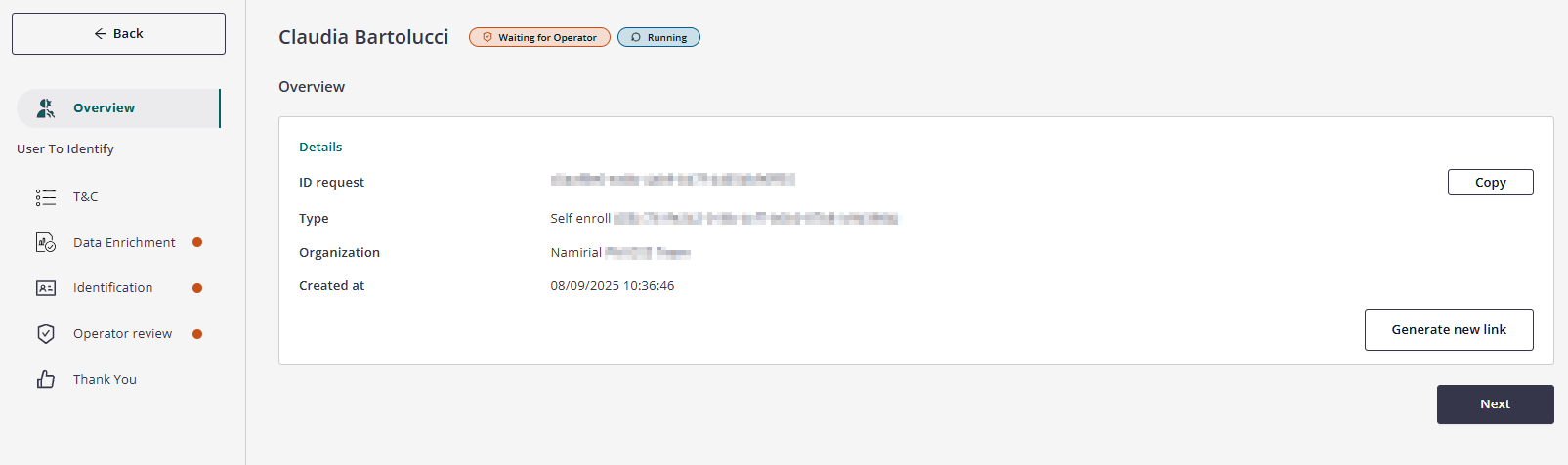
Like before, in the left part, you have a list of possible choices:
- Overview > there are the general details of the request
- Audit Trail: In this section, you can download a documented and chronological track of all the operations performed on a specific request.
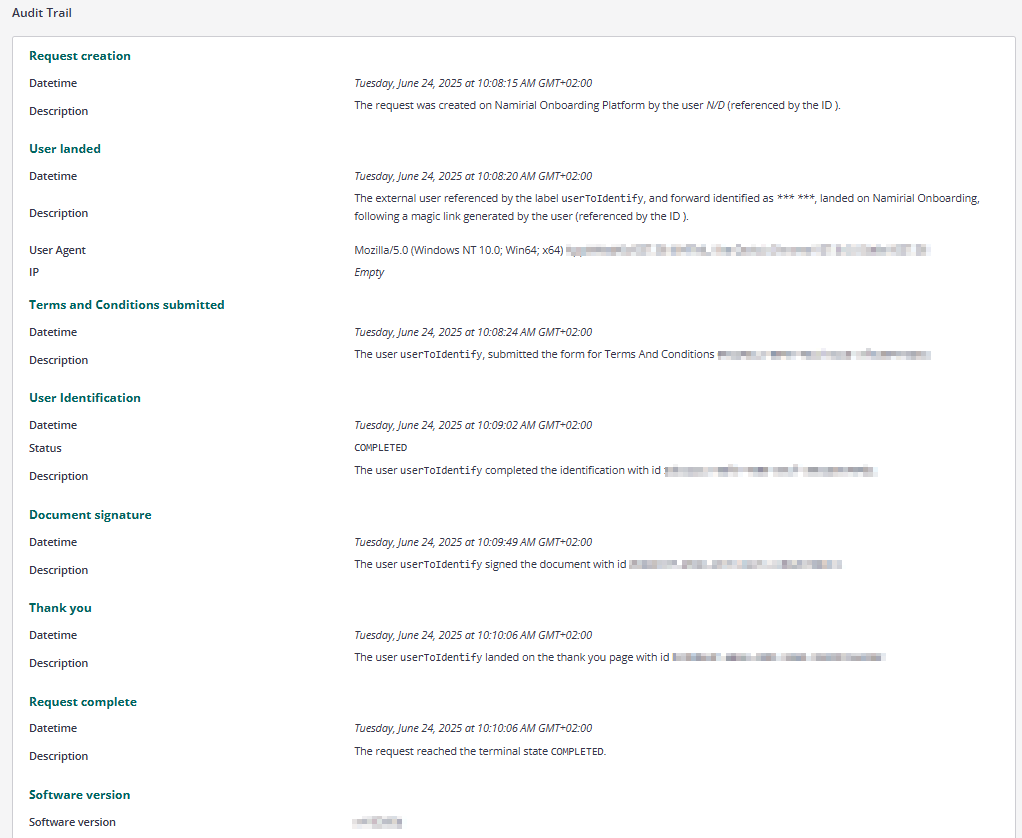
- User To Identify: In this section, you can view in detail the outcome of each phase of the workflow, such as the steps related to the Terms and Conditions or the details of the identification:
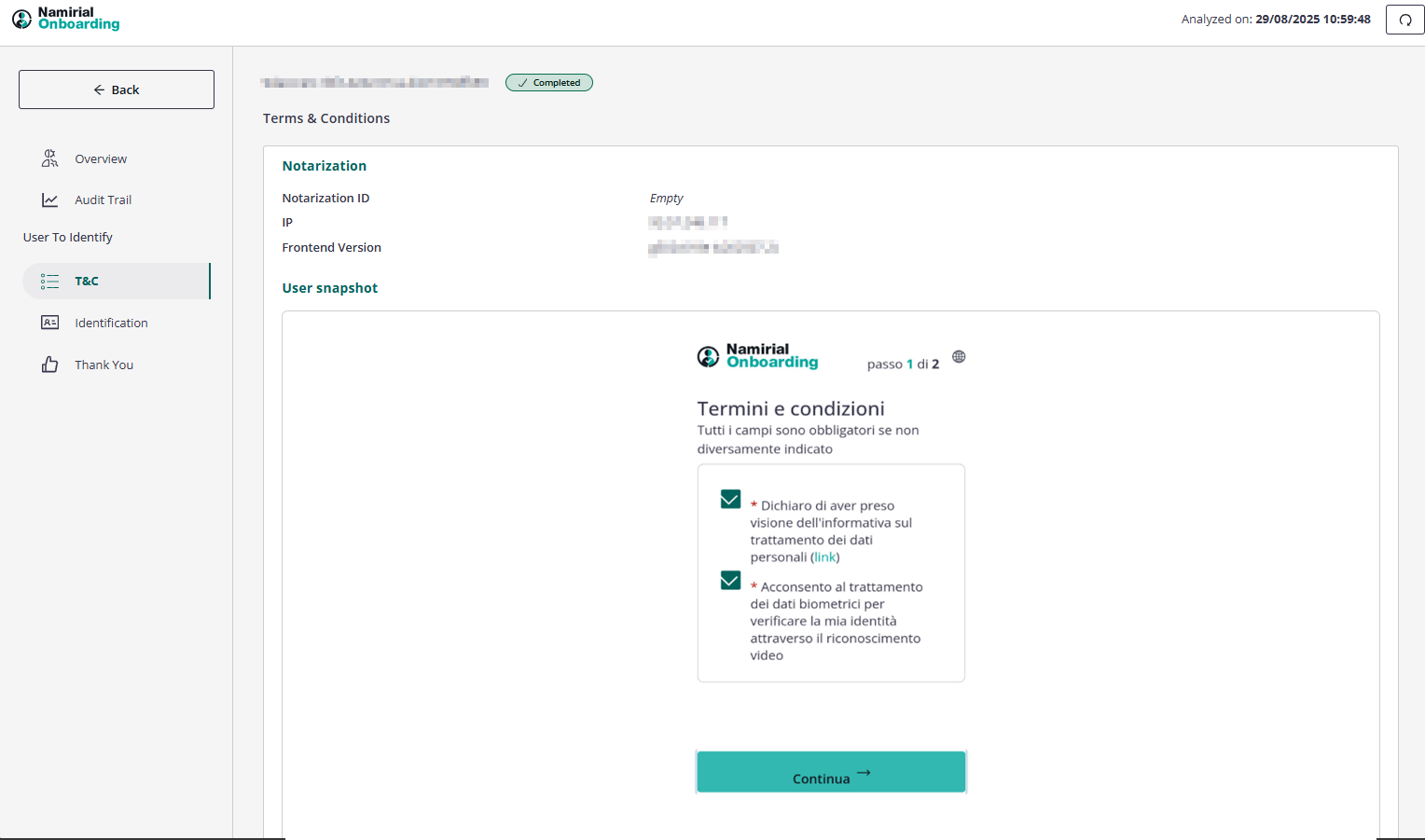
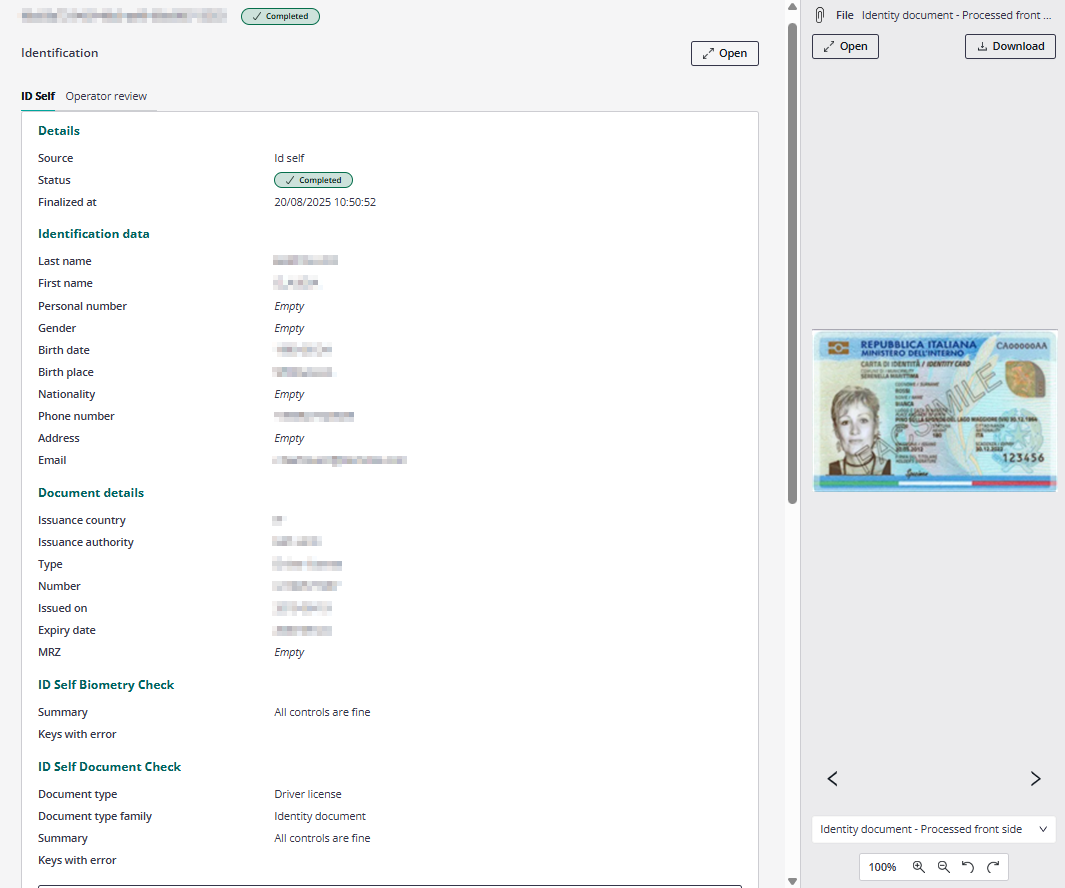
Compared to the "request creator", the operator will also see dots next to the various steps in the menu. These dots indicate whether the operator needs to take action (orange dot) or if the check has already been completed or is not necessary (green dot).
The operator, based on how the request is configured, can review a single field. He has different options:
- Revised: It is active only in some cases, and the operator can modify the content of the field
- Approved: The operator approves what has been entered in that field
- Rejected: The operator rejects what has been entered in that field
- Not reviewed: The operator doesn't review the content of the field
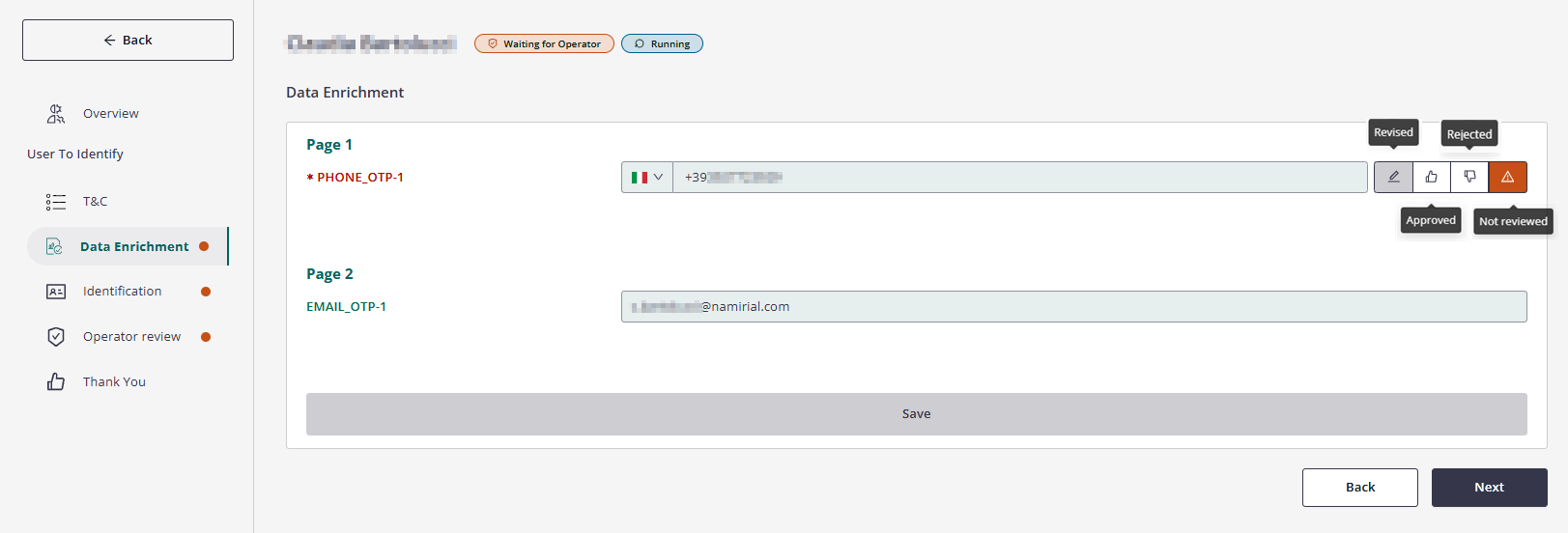
The approval or rejection of a single field is not a hindrance. Ultimately, what matters is the approval or rejection of the request.
When the operator has evaluated all the fields, so all the dots have become green, they will need to proceed with the overall assessment of the request.
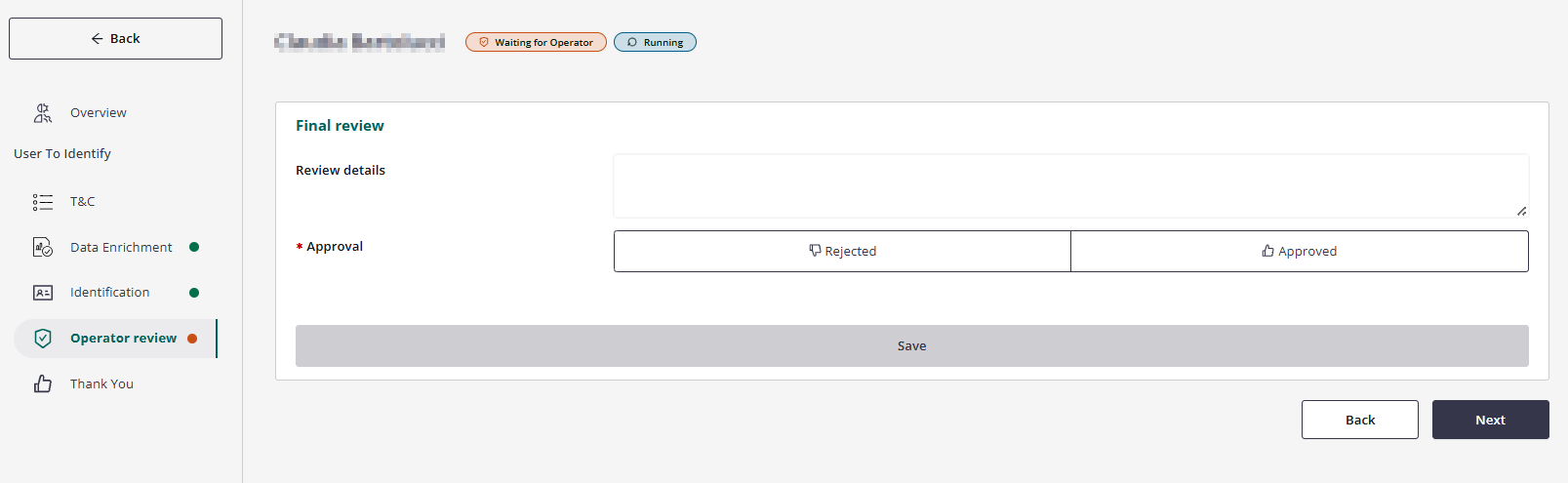
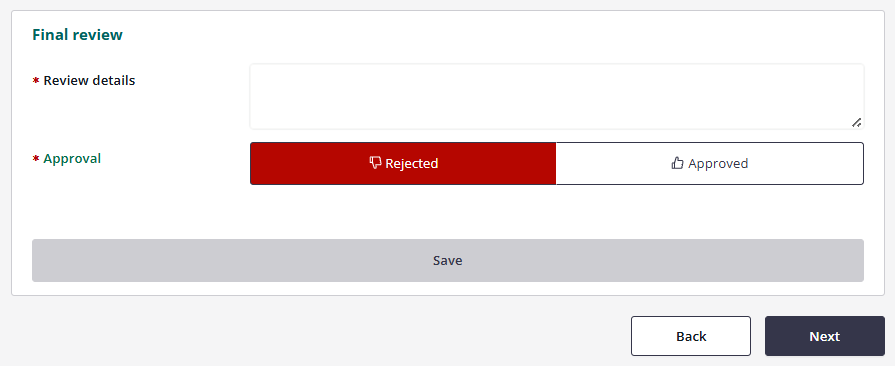
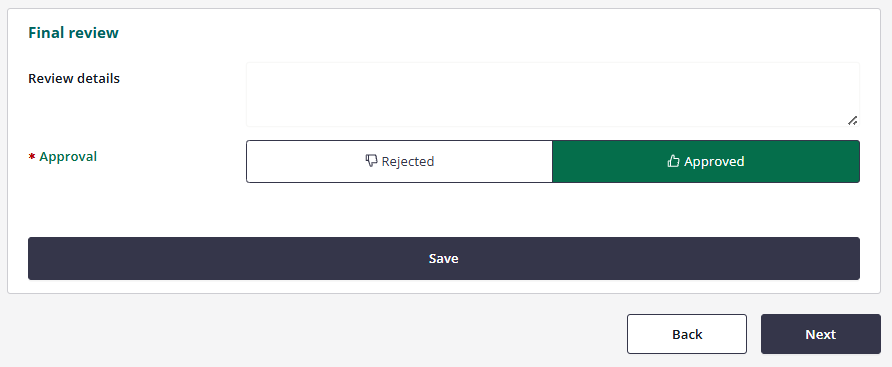
If the Operator wants to reject a request, they need to write some notes in the review details. He cannot reject without writing something (the "Save" button is inactive). He can instead approve without writing any notes.
After the final validation by the operator, all the dots are green, indicating that there are no further activities to be done, so the workflow moves to the Completed state.