This guide explains how to review the activity recorded for a Namirial Notify user account. Use it when you need to inspect recent operations, source channel, IP-related details, session information, or user-agent details.
- you are signed in to Namirial Notify
- you can access the profile area for the user account you want to review
- viewing another user's activity requires Admin permissions; non-admin users can review only their own activity
- Sign in to Namirial Notify.
- Open the profile or user details area for the account.
- Select Activity in the left sidebar.
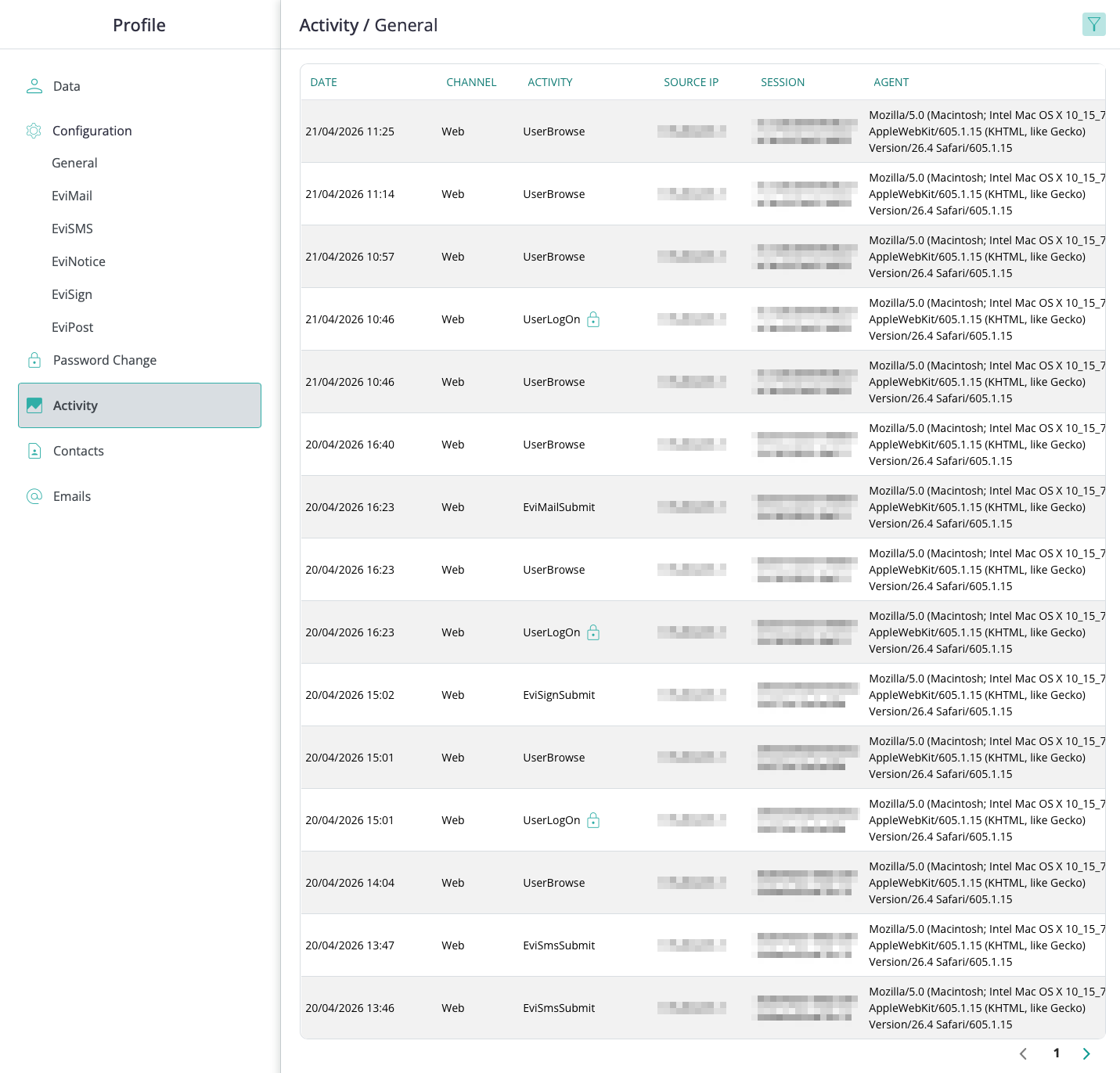
The current page title shows the active activity scope, such as Activity / General.
The activity table includes columns for:
- Date
- Channel
- Activity
- Source IP
- Session
- Agent
Use these columns to understand when an action happened, which channel recorded it, which operation was performed, and which browser or client agent was associated with the operation.
Use the filter action in the top-right area of the activity page to narrow the activity list.
The activity filter can show:
- All
- Website
- Webservice
- Smtp
Select the filter value, apply the filter, and confirm the table reflects the selected channel.
When reviewing activity, confirm:
- you are looking at the correct user account
- the date and time range match the event you are investigating
- the channel matches the expected source of the action
- repeated operations from the same session or source IP are expected
- the browser or client agent is consistent with the user's environment
You can review the user's recorded activity and narrow the list by channel when needed.