This guide explains how site administrators add a new user from the organization Users section and how the initial activation flow typically completes after the account is created.
- you are signed in with site administrator permissions
- you can access Organization > Users
- you know which roles the new user needs
- Open the site settings area.
- Select Users in the left sidebar.
- Select the add-user action.
- Complete the required fields: Name, Surnames, E-mail, and Company.
- Complete any optional document kind, identity, phone, language, safety tag, or notes fields required by your organization.
- Enable Service account only when the account is intended for service or integration use.
- Select the required roles, such as Sender, ReportAdmin, SiteUser, BatchSender, or SiteAdmin.
- Select Save.
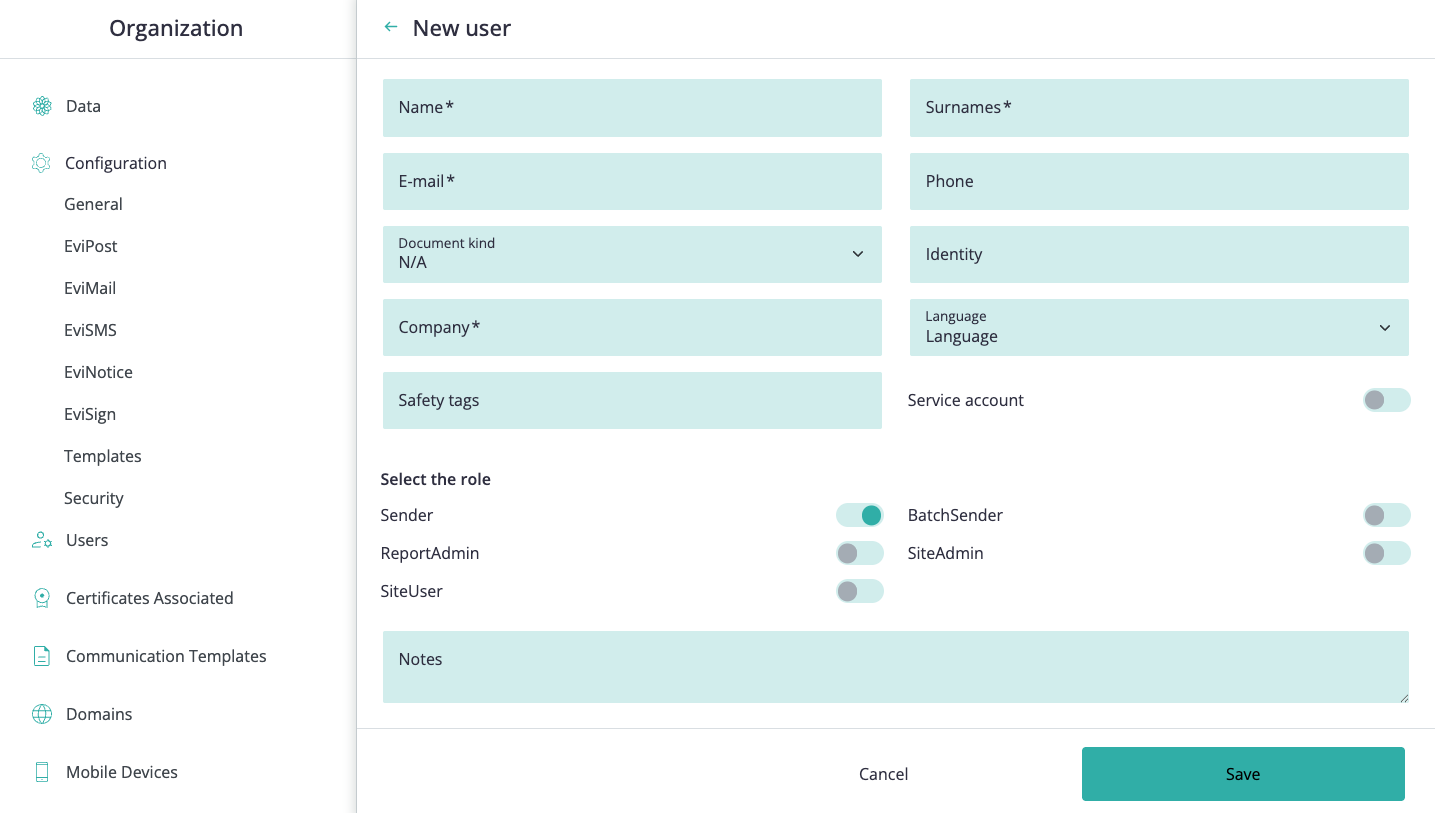
The current form separates identity information, role assignment, and notes.
Required fields include:
- Name
- Surnames
- Company
Optional fields can include:
- document kind
- identity
- phone
- language
- safety tags
- notes
The available fields can vary by tenant configuration.
After the user is created, the platform typically sends an activation email to the new user's email address.
To complete the first access setup:
- Confirm that the new user appears in the Users list.
- Ask the user to open the activation email sent by Namirial Notify.
- Ask the user to open the activation page from the email.
- Ask the user to enter the activation code if the page requests it.
- Ask the user to set the initial password.
- Ask the user to accept the required terms or portal-activation checks if they are shown.
- Ask the user to complete the first sign-in.
Depending on tenant configuration and the current stage of the account lifecycle, a newly created user can appear with statuses such as:
- NEW while activation or validation is still pending
- ACTIVE once the account is operational
- LOCKEDOUT if a site administrator blocks the account later
For blocking or reactivating an account after registration, see Users management.
Before saving a new user, confirm:
- the email address is correct
- the user can access that email inbox to receive the activation message
- the user is assigned only the roles required for their work
- the account should be a normal user account or a service account
- the selected language and identity fields match the organization policy
The new user is created in the organization, appears in the Users list with the expected identifying details and role assignment, and can complete first access from the activation email and activation page.