The email notification system allows administrators to receive automatic updates about system status, anomalies, and operational summaries.
SmartTSA provides an integrated email notification mechanism that supports:
- Real-time alert messages
- Periodic system reports
The feature requires configuration of an SMTP server and at least one recipient.
Proper email configuration ensures proactive monitoring of the TSA infrastructure.
SmartTSA supports two categories of email messages:
Alert messages are sent when:
- Unexpected system behavior occurs
- Services go offline
- HSM issues are detected
- NTP synchronization problems arise
- Other operational anomalies occur
Alerts are event-driven and sent immediately when a condition is triggered.
Report messages provide a summarized overview of system status.
Reports may include:
- Online/Offline timestamping services
- NTP configuration details
- HSM status
- Number of timestamps issued
- General operational health indicators
Reports are sent at configurable intervals.
To configure email settings:
- Log in to the SmartTSA Administrative Console
- From the left navigation menu, select:
Email alert configurationThis opens the email configuration panel.
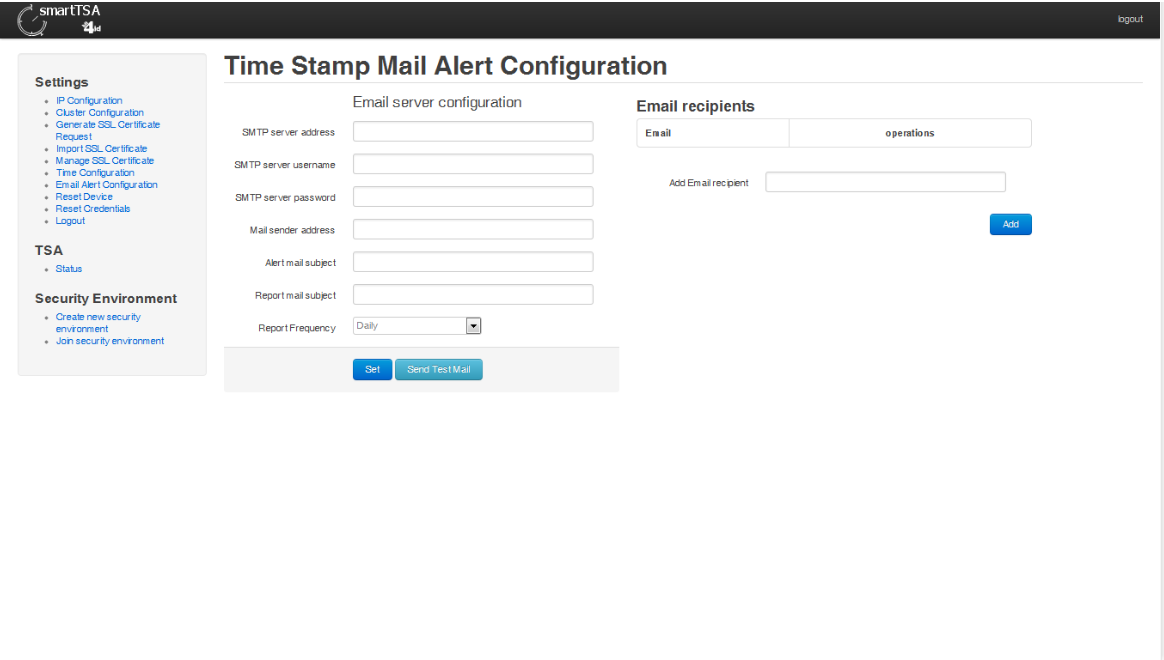
Before email notifications can be sent, the SMTP server must be configured.
The following parameters are required:
- SMTP server address
- SMTP authentication username
- SMTP authentication password
- Sender email address
Ensure that:
- The SMTP server is reachable from the SmartTSA appliance
- Firewall rules allow outbound SMTP traffic
- Authentication credentials are valid
SmartTSA allows customization of:
- Subject of alert email messages
- Subject of report email messages
Custom subjects help administrators easily identify message type and origin.
For report messages, administrators can define:
- Frequency of report generation
Typical configurations include:
- Daily reports
- Weekly reports
- Custom scheduled intervals
Choose a frequency aligned with internal monitoring policies.
SmartTSA supports multiple recipients.
To add a new recipient:
- Locate the field:
Add email recipient- Enter the recipient email address
- Click:
AddThe address is added to the recipient list.
To remove an existing recipient:
- Locate the recipient in the list
- Select:
DeleteThe address is removed from the notification list.
For enterprise deployments:
- Configure at least two recipients for redundancy
- Use a monitored mailbox or distribution group
- Periodically test email delivery
- Document SMTP credentials securely
- Avoid hardcoding credentials in unsecured documentation
If email messages are not received:
- Verify SMTP server address
- Check authentication credentials
- Confirm firewall allows SMTP traffic
- Validate sender email address format
- Review appliance logs for SMTP errors
To ensure reliable alerting:
- Use authenticated SMTP with encryption if available
- Monitor alert mailbox regularly
- Combine email alerts with SIEM integration if applicable
- Review report frequency periodically
- Keep recipient list updated