The dashboard enables users to upload, create, manage, and sign envelopes. Users can request signatures, track document statuses, and utilize pre-made templates to streamline contract management.
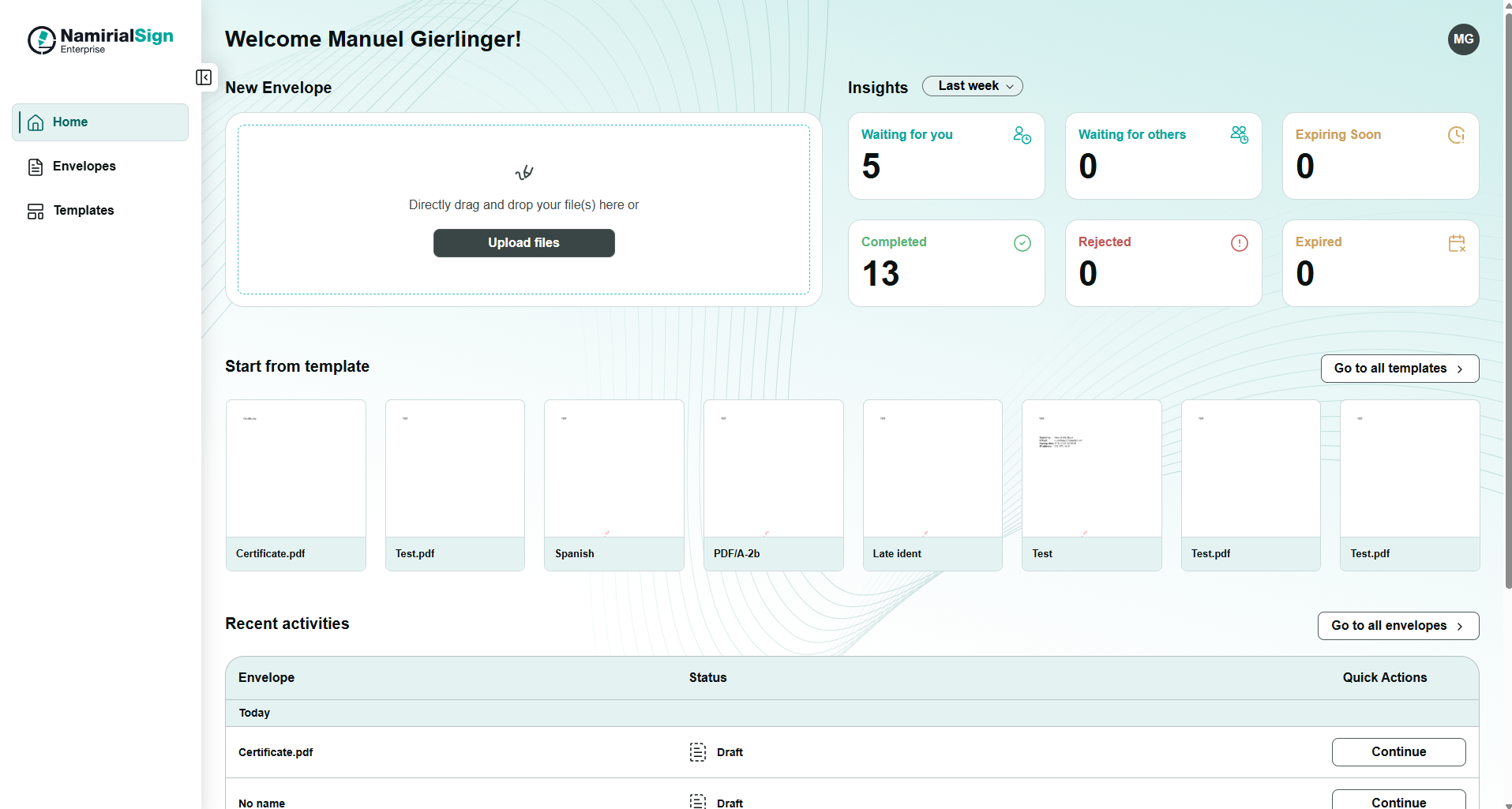
After log in, the user will be greeted with the main dashboard, which provides options to upload documents, start from a template, and track recent activity.
- Select the document from your computer or drag and drop it into the upload area.
- The document will be processed and prepared for sending.
For more information about the process after providing the document please see the Designer
- Navigate to the “Start from template” section.
- Click on a template to open it.
- Customize the envelope as needed.
For more information about the templates please see the Template-List
The “Recent activity” section helps you track envelopes that require action.
The recent activity list shows up to 7 envelopes sorted by the latest to oldest.
- Envelopes are listed with their status (e.g. “Waiting for you”).
- If a document is expiring soon, you will see a warning.
- You can take actions such as Sign or View directly from this section.
- To see all your documents, click “Go to all envelopes”.
For more information about all your envelopes please see the Envelope-List
Following quick actions are available depending on the status of the envelope:
- Sign
- Remind
- Download
- Delete
- Continue (draft)
Users can access personal settings directly from the dashboard.

For more information please see the User-Settings
- Locate the button at the top right corner of the dashboard - it displays the initials of the user.
- Click on the button to open a menu where you can find the following options:
- Settings
- From the menu, select “Settings” to access and customize user preferences
- Help
- Link to the corresponding documentation
- Go to eSignAnyWhere
- Documentation for eSignAnyWhere can be found here
- Manage Namirial User Account
- After clicking you will get redirected to the MyNamirial page

- Settings