Note that this section is only visible if the feature flag OrganizationWebhook is enabled for your organization.
A Webhook lets NSE notify an external system automatically when an event occurs in your organization. When the event is triggered, NSE sends an HTTP request to the URL you configure, so your systems can react in real time without polling the API.
Currently, the following event is supported:
| Event | Description |
|---|---|
| Envelope completed | Triggered when an envelope has been completed. |
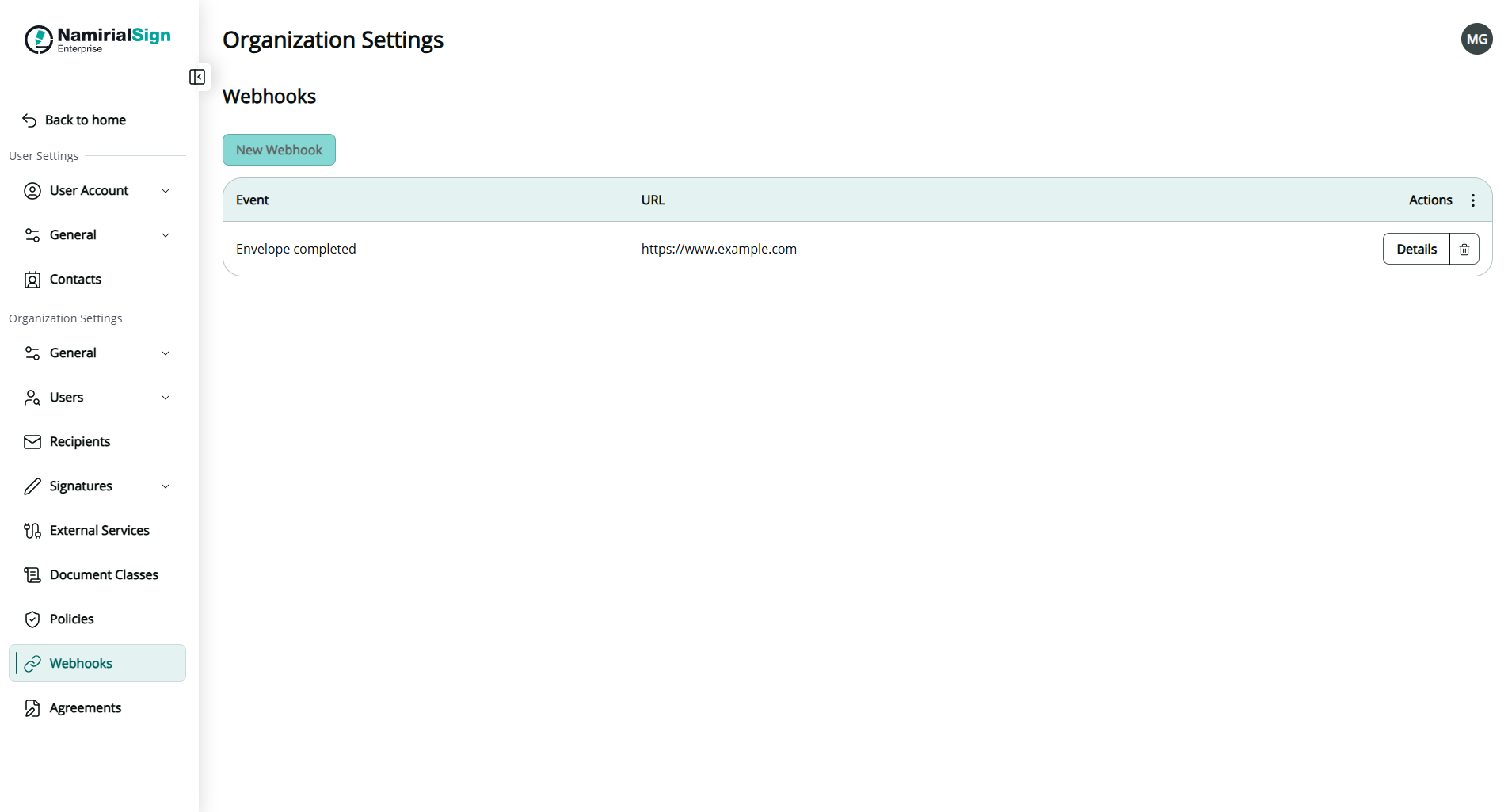
Only one organization webhook can be configured. Once a webhook exists, the New Webhook button is disabled. A webhook cannot be edited: to change its configuration, delete it and create a new one.
It is also possible to configure webhhooks via api (on organization level as well as on envelope level): Webhook Reference.
Organization Settings → Webhooks
Access to Webhooks under Organization Settings is restricted to organization administrators.
The list shows the configured webhook with the following columns:
| Column | Description |
|---|---|
| Event | The event that triggers the webhook. |
| URL | The endpoint that receives the notification. |
| Actions | Details to view the webhook configuration, or the trash icon to delete it. |
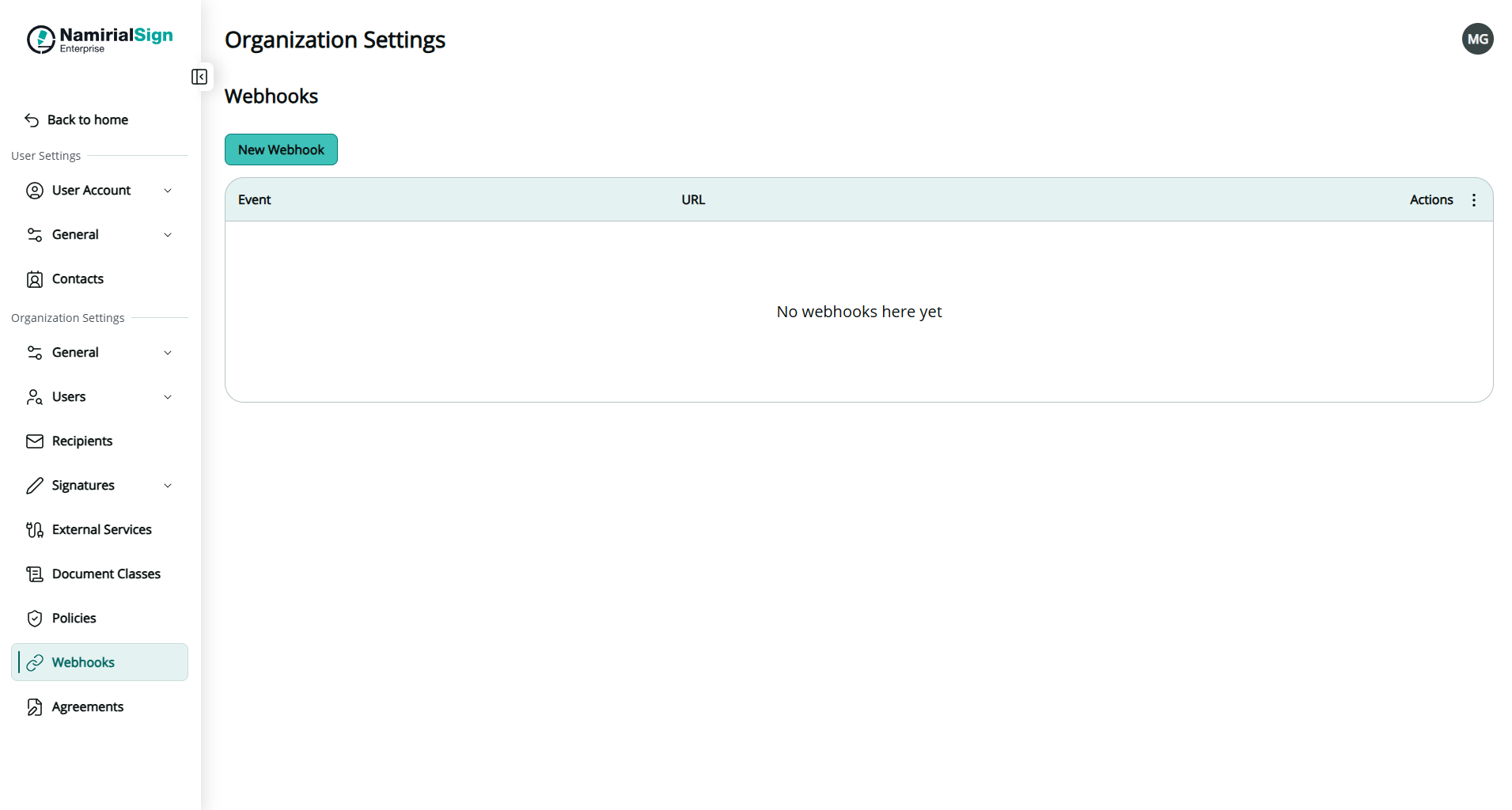
When no webhook is configured, the list shows No webhooks here yet.
Click New Webhook and fill in the form.
| Field | Required | Description |
|---|---|---|
| Event | Yes | The event that triggers the webhook. Only Envelope completed is available. |
| URL | Yes | The URL of your endpoint that receives the notification. |
| Headers | No | Custom headers sent with every request. Each header consists of a Name and a Value. |
| Client certificate | No | Client certificate (text) used to authenticate NSE to your endpoint. |
| Client key | No | Private key (text) matching the client certificate. |
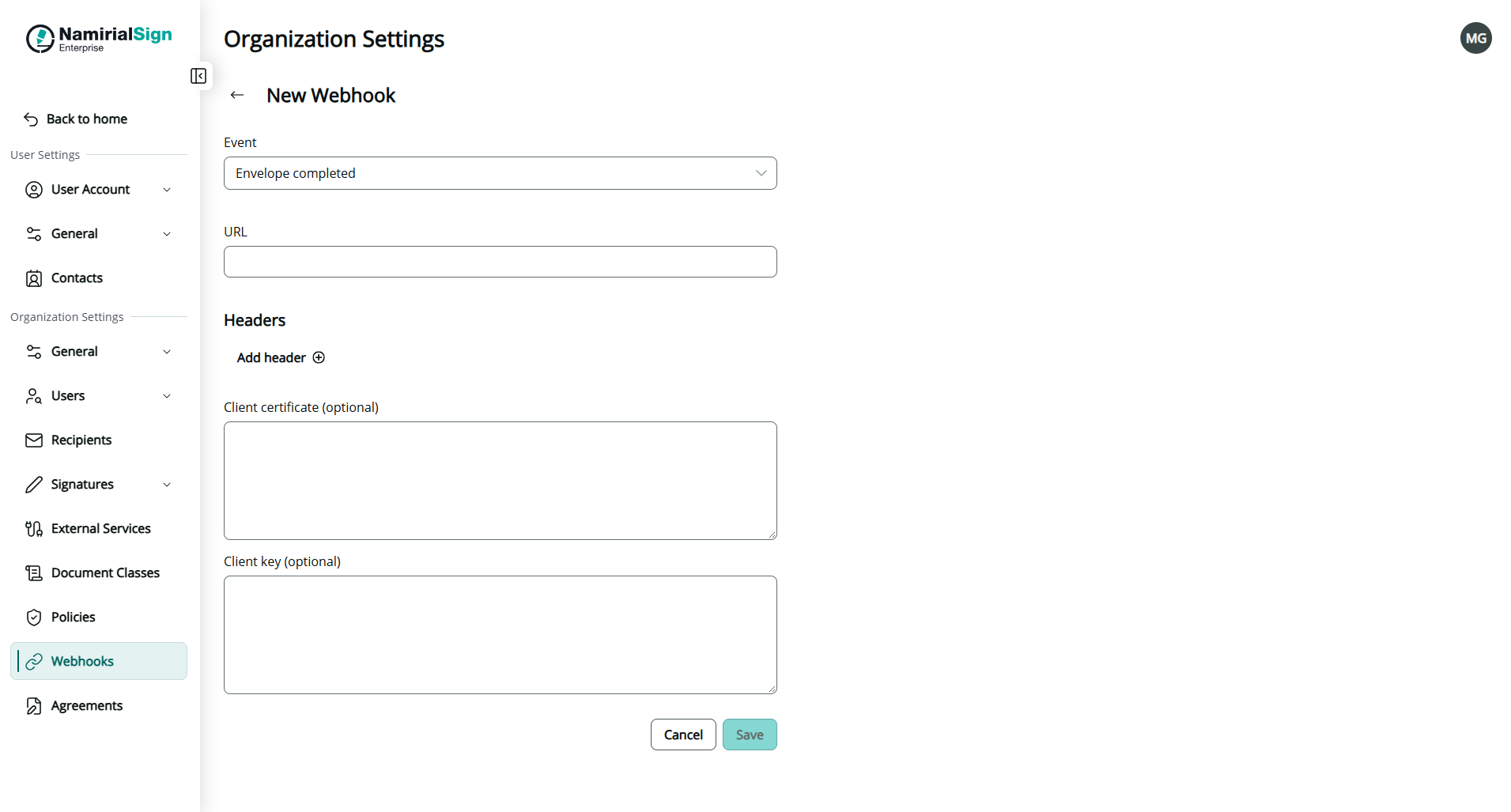
Use headers to pass static information to your endpoint, for example an authorization token.
- Click Add header (+).
- Enter the header Name and Value.
- Repeat for every additional header. Use the remove action to delete a header.
If your endpoint requires mutual TLS, paste the client certificate in Client certificate and the corresponding private key in Client key. Both fields are optional.
Click Save to create the webhook, or Cancel to discard your changes. The Save button is enabled once the required fields are filled in.
Webhooks cannot be edited after creation.
- Details — opens the webhook to view its configuration (event, URL, headers).
- Delete (trash icon) — removes the webhook. After deletion, New Webhook becomes available again, so you can create a new webhook with the updated configuration.