A Document Class is a named category that can be assigned to a document within an envelope. It acts as a label that links the document to a set of metadata fields and, indirectly, to one or more Policies.
Document Classes are a prerequisite for policy-based recipient automation: by classifying a document and filling in its metadata, the system can evaluate Policies and automatically add the right recipients to the envelope.
A Default Document Class is available out of the box.
Document Classes are part of a feature controlled by the DocumentalClass feature flag. When disabled, document classification is not available.
Document Metadata describes the specific document you are handling. These are the individual data points. The values change from one document to the next, even within the same class.
In short: the class is the template, and the metadata is the filled-in data of a single instance. For example, “Passport” is a Document Class. “Number: X1234567, Expiry: 2031-05-12, Country: IT” is the metadata of one particular passport.
Organization Settings → Document Classes
The list shows all defined Document Classes with the following columns:
| Column | Description |
|---|---|
| Document Class | Name of the class. |
| Associated Policies | Number of policies linked to this class. |
| Actions | Edit or delete the class. |
A search bar at the top allows filtering by name.
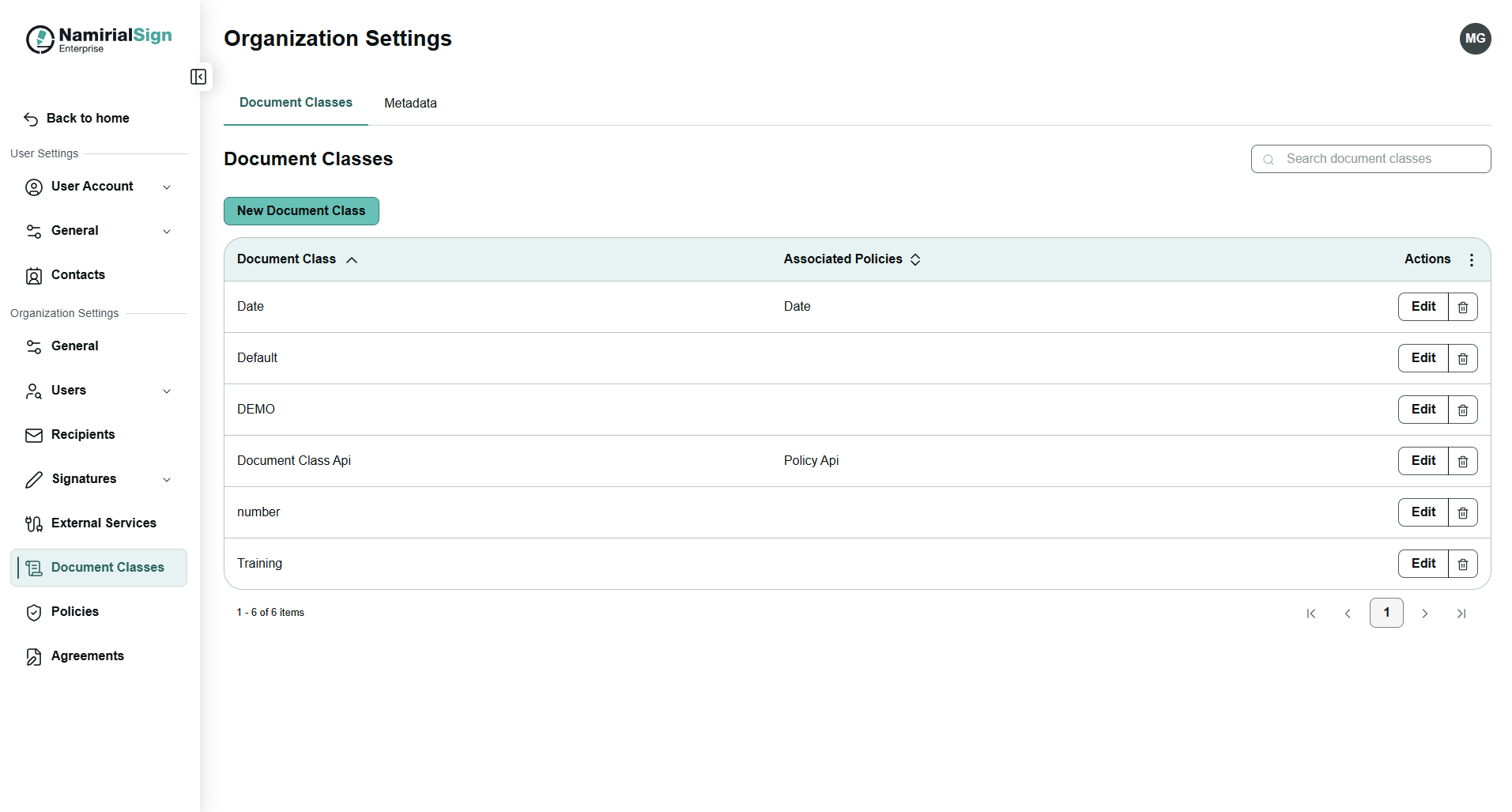
- Click New Document Class.
- Enter a Name (required).
- Optionally add a Description.
- Add Metadata fields to the document class:
- Select a metadata field from the dropdown list. It will automatically be added to the list of added fields. If the field was not yet defined, switch to tab "Metadata" and create the metadata field definitions first (see Metadata).
- Required — in the table, toggle on to make the field mandatory; required fields must be filled before policies can be applied to an envelope.
- Click Create.
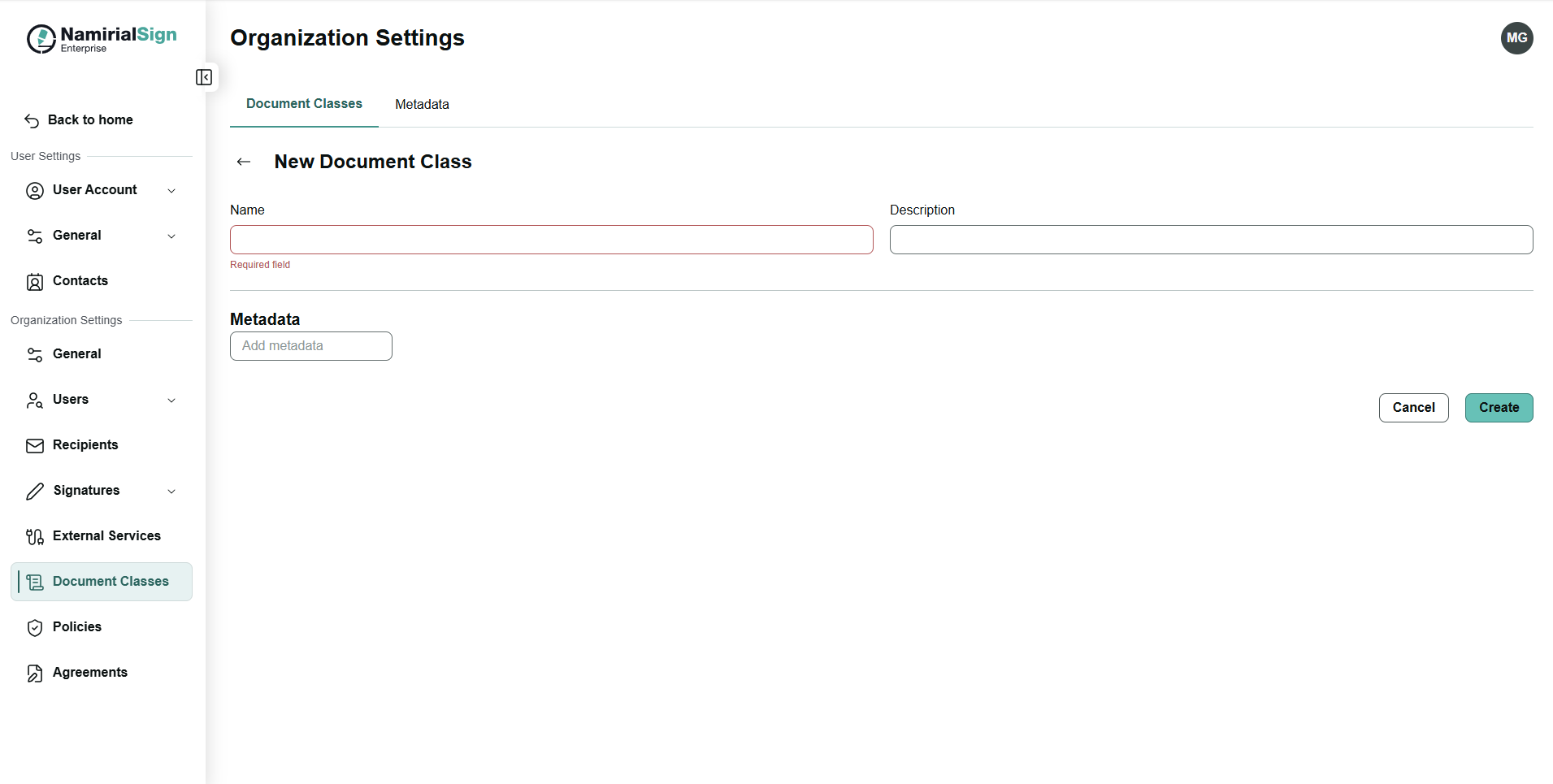
If Metadata are alredy defined you can add them by selecting the Metadata from the dropdown.
Click Edit in the Actions column. Name, description, and selected etadata fields can all be modified.
Click the delete icon in the Actions column and confirm.
Constraint: A Document Class that is associated with one or more Policies cannot be deleted. Remove the association from the relevant policies first. If the document class is associtated with policies and a click on delete is performed a dialog states clearly which policies are associated.
In tab 'Metadata' the fields are defined on an organization-global level. The global management ensures that the same metadata field is defined with identical properties across different document classes.
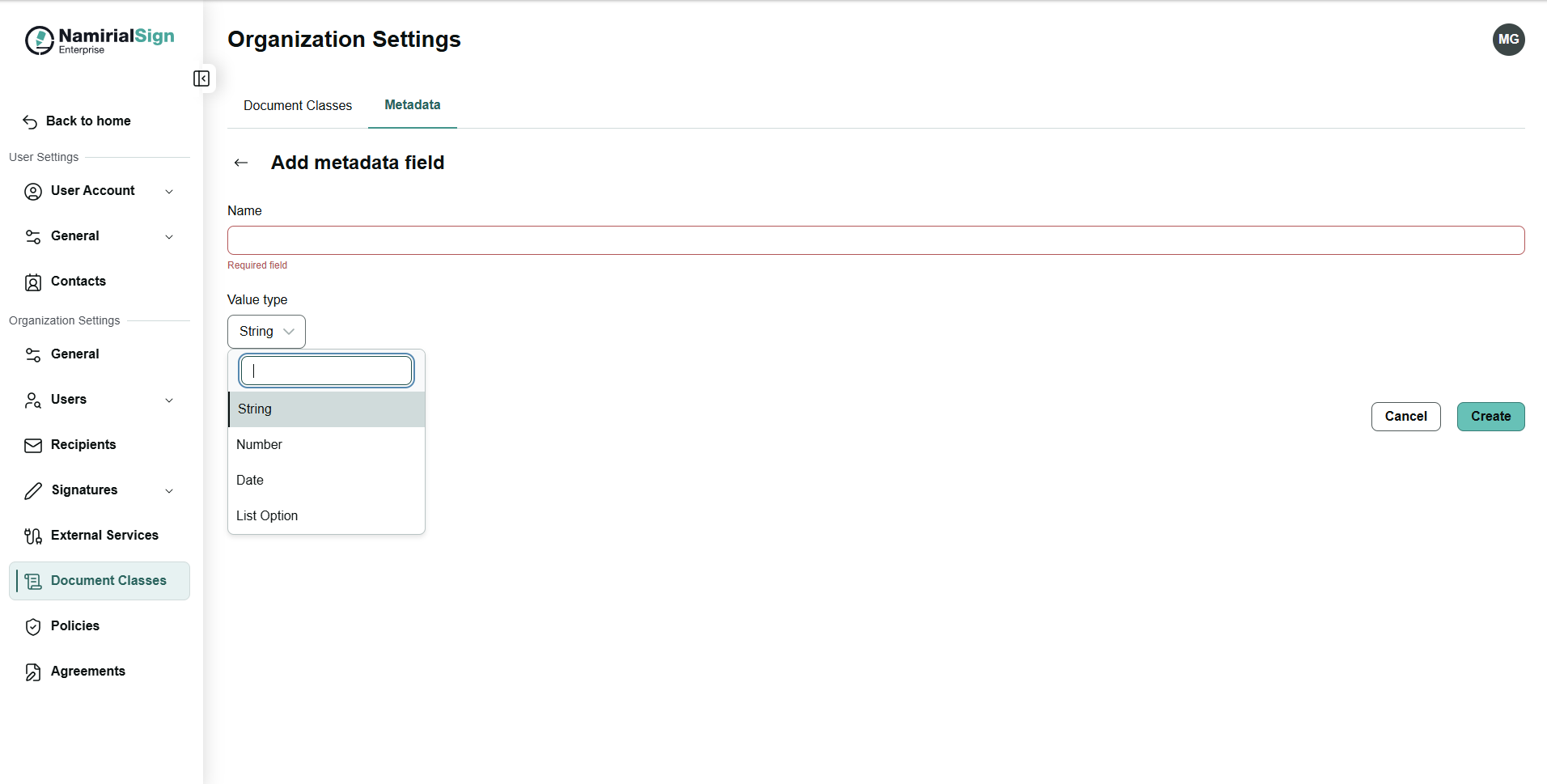
Each metadata field is assigned a type that determines the kind of value it accepts.
| Type | Internal identifier | Description |
|---|---|---|
| String | StringType | A free-text value. Suitable for labels, names, identifiers, or any unstructured text. |
| Number | NumberType | A numeric value (integer or decimal). Suitable for amounts, counts, or measurable quantities. |
| Date | DateType | A date value, displayed according to the date format configured in the account settings. Suitable for deadlines, reference dates, or document timestamps. |
| List Option | ListOptionType | A single value selected from a predefined set of options. Suitable for categories, statuses, or any field that must be constrained to a fixed list. |
Note the following limitations for the List Option:
- There must be at least one option
- Maxmimum 100 characters per value
- No duplicate values
- Maximum 25 options
- Click Add metadata.
- Enter a Name (required). The metadata name is used as field label and technical identifier (e.g.,
contract_value). - Select a data type
- Data Type —
String,Number,DateorList Option. (For a description of all available types and how to configure them, see Metadata types above.) (note that the mandatoryness is defined per document class, as it can be different)
- Data Type —
- Click Create.
Note: For the List option the options can be linked in a parent-child hierarchy, so selecting a value in one field automatically narrows the available options in a related field. This makes it easier to organize documents according to structured business logic, such as region, department, or contract type.
Afterwards, the newly created metadata can directly be used in document class definition (see above).
- Find the meta field you need to edit, either using the paginator or using the search box on top-right.
- Click Edit on the metadata field definition row you want to change.
- Update the Name or Data Type.
- Click Save
Constraint: A Metadata field definition that is in use in any Document Class cannot be modified. Remove the association from the relevant Document Classes first.
Click the delete icon in the Actions column and confirm.
Constraint: A Metadata field definition that is in use in any Document Class cannot be modified. Remove the association from the relevant Document Classes first.
After uploading a document, navigate to the three dots right to the file name. Click on Document Class and select one of the available classes.
Each Document Class can carry metadata fields. Once a class is assigned to a document, its metadata fields appear in the right panel and can be filled in. Changing the Document Class updates the metadata field list accordingly and clears any previously entered values.
Metadata and class assignment can be modified at any time while the envelope is in Draft status.
After selecting the document class and the filling in the meta data check the policies by clicking the Other actions -> Apply Policy Rules. If conditions for meta data are set and matching the filled metadata for the document the policies will be applied.
For more information about the policies please see: Policies
Access to Document Classes under Organization Settings is restricted to organization administrators.