Namirial Notify records evidence during certified communication and signature workflows so that relevant events and outcomes can be certified.
An affidavit is a PDF document that certifies one or more recorded evidence items. Namirial Notify electronically signs and timestamps the document, and it summarizes the relevant events and results according to the configured certification level. Users can independently validate an affidavit by using the QR code or signature certificate included in the document.
An evidence item is a recorded event or data point associated with a transaction, such as:
- a communication being processed
- a notification being delivered
- a recipient opening or rejecting a notice
- a signer completing a signature step
- a postal operator reporting delivery or failure
An affidavit is the formal PDF document generated from one or more of those recorded evidence items.
In practice:
- evidence is the recorded transaction data
- affidavits are the signed PDF documents that certify that data
Depending on the service and event type, an affidavit can include:
- identification of the evidence, such as the unique identifier, date, and service type
- issuer and recipient information
- content information, such as subject, size, attachments, or document references
- the certified events and timestamps associated with the transaction
- technical and contextual data, such as authentication method, IP address, browser, or geolocation when applicable
- validation information, including a QR code and signature certificate details
The first page of an affidavit is structured around the following sections and fields. Not all fields appear in every affidavit — availability depends on the service, certification level, and the event being certified.
| Field | Description |
|---|---|
| Identifier | Unique alphanumeric UUID that identifies the evidence within the platform (e.g. b70c6811-532c-4eb3-bebc-e47d5d2d3132). |
| Admission date | Date and time at which the communication was admitted for certification. |
| Type of evidence | The service that generated the evidence (EviNotice, EviMail, EviSMS, EviSign, or EviPost). |
| Field | Description |
|---|---|
| Issuer | The platform user or account that issued the communication. |
| Address of sender | The address (email, phone number, etc.) used to send the communication. |
| Field | Description |
|---|---|
| Recipient | Name or identifier of the person or organization receiving the communication. |
| Recipient's address | The email address, phone number, or other channel address of the recipient. |
| With copy to (CC) | Additional recipients who received a copy, when this feature was used. |
| Field | Description |
|---|---|
| Subject | Brief description of the content of the communication. |
| Size | Size of the message in bytes. |
| Number of attachments | Count of files attached to the communication. |
| Message authentication codes | SHA-256 cryptographic hash of the message content, used to verify integrity. |
Actor data is recorded for each event in the process and captures contextual information about who triggered it and from where.
| Field | Description |
|---|---|
| Authentication method | How the actor authenticated to the platform (e.g. username and password, PIN). |
| Actor identifier | Identity of the actor — for issuers, typically their email address. |
| IP address | IP address of the actor at the time of the event. |
| Geolocation | Coordinates derived from the IP address or browser geolocation, when available. |
| Operating system | Operating system details of the actor's device. |
| Browser ID | Browser name and version used by the actor. |
| Browser language | Language setting of the actor's browser. |
| Browser user agent | Full user-agent string of the actor's browser. |
| Field | Description |
|---|---|
| QR code | A QR code or data matrix printed on the affidavit. Scanning it gives access to the platform URL where the evidence can be verified. This allows the affidavit to retain its legal guarantee even when printed on paper. |
| Public key of the signing certificate | The public key of the X.509v3 certificate used to sign the affidavit, included so the signature can be independently verified. |
| Universal locator | A unique URL-based identifier generated following IETF RFC 4122 / ISO/IEC 9834-8. It allows issuer and recipient to access the evidence from the internet and appears on every page of the affidavit. |
If the communication included attachments, a dedicated page follows the first page with details and the cryptographic summary (SHA-256 hash) of each attached file.
Subsequent pages contain the content of the certified event — for example, the body of the certified email or the text of the certified notice.
Namirial Notify generates affidavits from specific events recorded during the transaction lifecycle.
Depending on the service, certification level, and selected affidavit options:
- a process can generate multiple affidavits, each linked to a relevant event
- a process can generate a summary affidavit when tracking ends
- some affidavit kinds are created only when a specific event occurs, such as opening, acceptance, rejection, or signature completion
In general:
- advanced certification can generate separate affidavits for multiple events
- standard certification can generate a summary affidavit at the end of the process
Namirial Notify typically generates a summary or closure affidavit when the transaction reaches its final state.
EviNotice records evidence for notification delivery and for recipient actions on the hosted notice.
Typical affidavit-triggering events can include:
- admission and content certification
- notification sending and delivery
- recipient access to the notice
- opening of the hosted content
- acceptance or rejection
- refusal without opening
- file download
- process closure or summary generation
EviMail records evidence for certified email delivery and, when configured, recipient interaction with the message.
Typical affidavit-triggering events can include:
- admission and content certification
- transmission result
- delivery result
- message opening
- acceptance or rejection
- closure or summary generation
EviSMS records evidence for certified SMS or RCS delivery.
Typical affidavit-triggering events can include:
- admission and content certification
- transmission result
- delivery result
- message opening, where supported by channel and configuration
- closure or summary generation
EviSMS does not generally use the same acceptance or rejection workflow as EviNotice or EviMail.
EviSign records evidence for the signature workflow rather than for message delivery alone.
Typical affidavit-triggering events can include:
- admission and content certification
- delivery of the signature request
- signer acceptance or rejection
- signature completion
- signed main document or attachments
- final notification after signing
- summary generation at the end of the workflow
EviPost records evidence for physical postal delivery.
Typical affidavit-triggering events can include:
- content submission
- postal processing
- printing and dispatch steps
- delivery
- delivery failure
- recipient rejection, where reported
- final outcome reported by the postal operator
Affidavit metadata and affidavit files are retrieved separately:
- Obtain an affidavit ID from an
AffidavitPublishedcallback or from a Query response that includes affidavit metadata. - Use the appropriate download endpoint to retrieve the signed PDF.
For EviMail, EviSMS, and EviPost, send one or more affidavit IDs to POST /AffidavitsDownload. The endpoint returns an application/zip archive containing the requested PDFs. Callbacks and the standard Query metadata options do not embed PDF content. The v1 Query contracts retain deprecated blob options that can return a Base64 PDF for one result, but /AffidavitsDownload is the recommended flow for new integrations. See Shared download APIs for an executable request and the error contract.
EviNotice provides dedicated endpoints: download all affidavits for a notice with GET /v2/EviNotice/{Id}/Affidavits, or download one affidavit PDF with GET /v2/EviNotice/Affidavits/{Id}. See the EviNotice API.
Do not use /AttachmentDownload for affidavit PDFs. That shared endpoint returns attachment metadata and Base64-encoded attachment content.
The available affidavit kinds depend on the service and configuration. Digital services generally expose defined affidavit kinds, while EviPost is more closely tied to postal workflow outcomes.
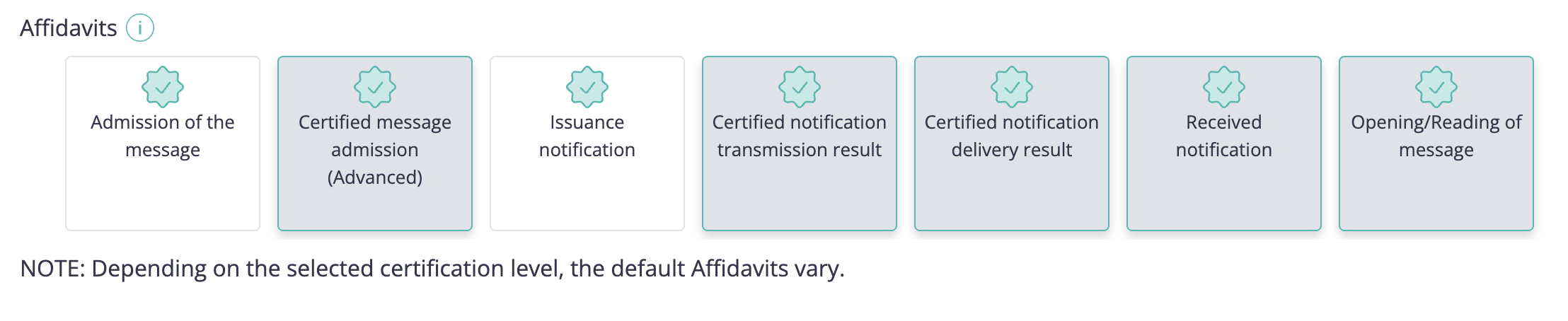
Submitted— admission of the message for certificationSubmittedAdvanced— admission with graphic representationTransmissionResult— result of sending the notification to the message center or mail serverDeliveryResult— result of delivery of the notification to the recipientReceived— acknowledgement of receipt before the content is readRead— acknowledgement of opening or reading of the noticeCommitted— formal acceptance or rejection by the recipientCommittedAdvanced— acceptance or rejection with graphic representationRefused— formal refusal without viewing the message (refusal without opening)Closed— end of tracking for the notificationClosedAdvanced— end of tracking with graphic representationEvent— certification of a relevant technical eventComplete— summary affidavit for the dossierCompleteAdvanced— summary affidavit with graphic representationOnDemand— auxiliary affidavit requested during the processFailed— processing failure that ends the workflowDispatched— certification of issuance content for the notificationContentDownload— certification that content or an attachment was downloaded
ContentDownload is a special EviNotice affidavit kind. When it is requested, the submission must also set EnforceTrackingUntilTimeToLive: true; the platform rejects requests that enable only one of those two options.
Submitted— admission and content certification of the certified emailSubmittedAdvanced— admission and content certification with graphic representationTransmissionResult— result of sending the message to the destination serverDeliveryResult— result of delivery to the recipientRead— confirmation that the recipient opened the messageCommitted— formal acceptance or rejection by the recipientCommittedAdvanced— acceptance or rejection with graphic representationClosed— end of tracking for the certified emailClosedAdvanced— end of tracking with graphic representationComplete— summary affidavit for the dossierCompleteAdvanced— summary affidavit with graphic representationOnDemand— auxiliary affidavit requested during the processEvent— certification of a relevant fact without a specific kindFailed— processing failure that ends the workflow
Submitted— admission and content certification of the certified SMSSubmittedAdvanced— admission and content certification with graphic representationTransmissionResult— result of sending the message to the destination serverDeliveryResult— result of delivery to the recipientRead— confirmation that the recipient opened or read the message, where supportedClosed— end of tracking for the certified SMSClosedAdvanced— end of tracking with graphic representationComplete— summary affidavit for the dossierCompleteAdvanced— summary affidavit with graphic representationEvent— certification of a relevant fact without a specific kind
Submitted— admission and content certification of the signature requestSubmittedAdvanced— admission and content certification with graphic representationSignatureRequestResult— result of sending the signature request to a specific signerFinalNotificationResult— result of sending the final notification after signingPartyCommitted— certification that a specific signer accepted or rejected the documentAttachment— certification of an attachment being signed or rejectedAttachmentMasked— certification of an attachment in masked or redacted formMain— certification of the main document being signed or rejectedOnDemand— auxiliary affidavit requested during the processSummary— summary affidavit issued at closing with recorded eventsEvent— certification of a relevant fact that does not map to a standard kindFailed— processing failure that ends the workflowSignatureRequestDispatched— certification of the issuance content for the signature requestFinalNotificationDispatched— certification of the issuance content for the final notification
EviPost affidavit generation is based on postal workflow events rather than the affidavit-kind model typically used by digital delivery and signature services.
Typical EviPost affidavits can certify:
- content submission
- postal processing
- printing and dispatch
- delivery
- delivery failure
- recipient rejection, where reported
- final outcome reported by the postal operator
When reviewing a transaction and its affidavits:
- Identify which service was used: EviNotice, EviMail, EviSMS, EviSign, or EviPost.
- Review the transaction history to see which events were recorded.
- Check which affidavits were generated for those events.
- Open the affidavit PDF to confirm the certified event, timestamp, participants, and supporting data.
- Use the transaction outcome together with the affidavit set to understand the full result.
Affidavits can be independently validated in two ways.
Every affidavit includes a QR code on its first page. Scanning the code with any QR reader opens the platform URL where the evidence can be reviewed online. This method works even with a printed copy of the affidavit and does not require any software installation.
Affidavits are digitally signed PDFs. Adobe Reader (version 9 or higher) can be used to verify the electronic signature:
- Open the affidavit PDF in Adobe Reader.
- A banner at the top of the document indicates whether the document is digitally signed.
- Open the Signature Panel (click the signature icon or use the View menu).
- Select the signature entry to view its properties.
- Click Certificate Details to inspect the signing certificate — you can confirm the issuing certification authority (CA), the certificate validity period, and the key usage.
Adobe Reader ships with a set of trusted root certificates from Adobe's Trusted Certificate List (AATL). European certification authorities (CAs) used by Namirial Notify may not be included in this list by default, which can cause the signature to appear as unknown.
To resolve this, you can:
- Add the CA via Adobe Trusted Identity Manager — open the Signature Panel, right-click the signature, and select Show signature properties. From there, navigate to the root certificate and use Add to Trusted Identities, marking it as a trusted root for certified documents. See Adobe: Managing trusted identities for detailed steps.
- Add the CA via the operating system certificate store — install the root certificate of the signing CA into your OS certificate store (Windows Certificate Store or macOS Keychain), then configure Adobe Reader to validate signatures using the operating system's certificates via Edit > Preferences > Security > Digital Signatures > Advanced Preferences > Windows Integration.
A similar issue can occur with the qualified timestamp included in advanced-certification affidavits. If Adobe Reader does not trust the root certificate of the Time Stamping Authority (TSA), it displays:
Signature is timestamped but the timestamp could not be verified.
The resolution is the same as for the signature: add the TSA root certificate to Adobe's trusted identities or to the OS certificate store and re-validate.