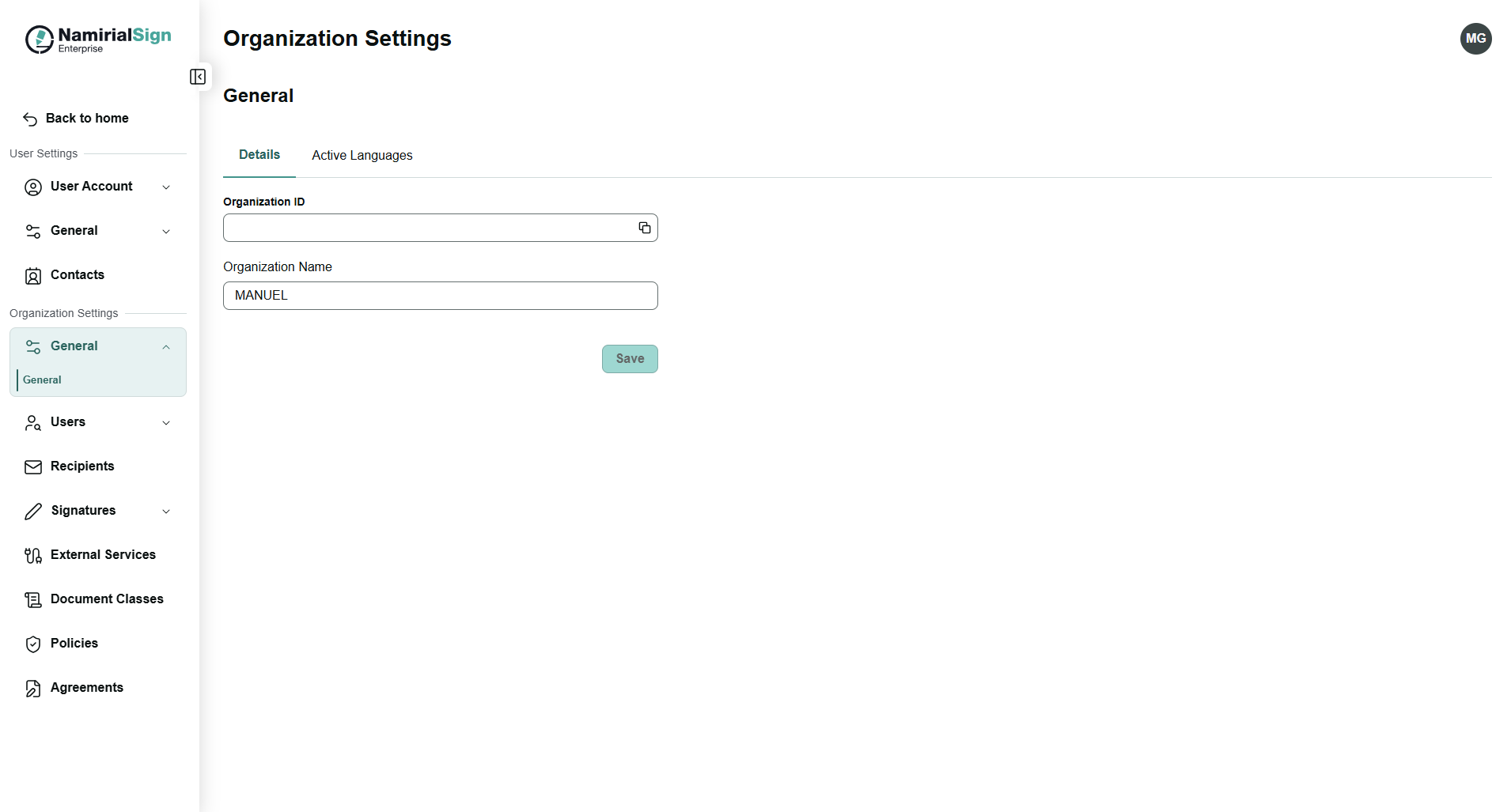
Navigate from the initials on the top right to Settings -> Organization Settings and to General settings.
In the first tab "Details" administrators can configure the organization name.
The Active Languages page controls which languages are available to users and signers across the platform. Each enabled culture determines the language in which the interface and signing experience are presented.
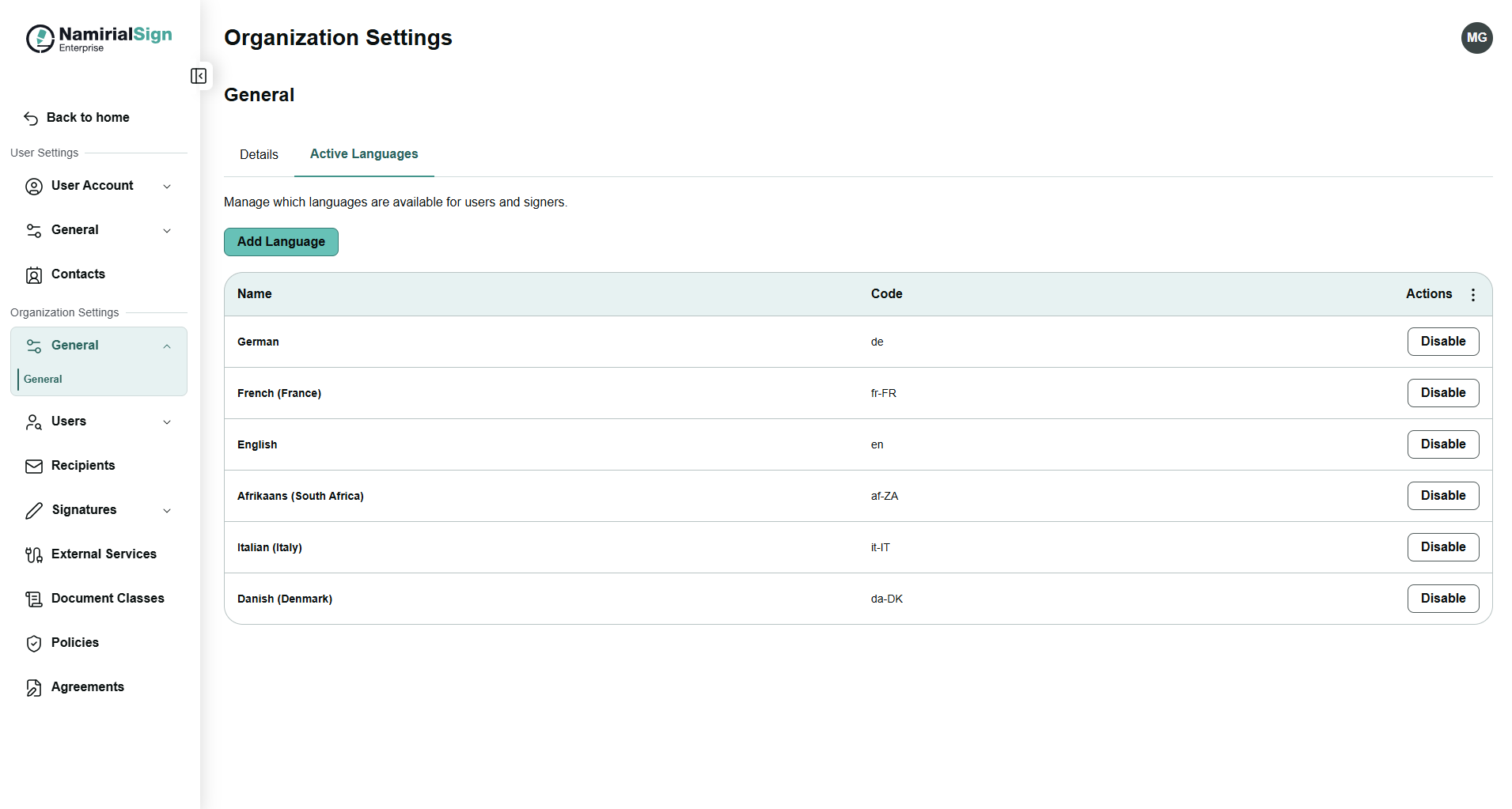
To add a language, press Add Language button. Instead of the button location, a search field together with a Cancel and an Add button will be shown.
Start entering the local (!) language name (e.g. for Croatian, "Cro" won't find anything - but "Hr" will find the entry for Croatian language because its local name is "Hrvatski").
Namirial Sign Enterprise supports in this language activation the same list of languages to which the user interface is translated.
By pressing Add, the language is appended to the list, which allows to start configuring other settings that use the language. After adding a language, the language will automatically be enabled. If you want to disable a certain language click on the Disable button in the row of the specific language.
By pressing Cancel, the search field and the Cancel and Add button get removed, and the Add Language button becomes visible again.
At least one language must remain active at all times. It is not possible to disable all languages simultaneously.
The active languages appear as options in the Recipient language dropdown in the Designer. When configuring a recipient, the sender can open the recipient's Settings tab and select the language in which that recipient will receive notifications and see the signing interface.
Only languages enabled on this page will appear in that dropdown.
For more information about the configuration on recipient level see: Define recipients