To collect application logs, simply click the icon at the top right of your user profile and select “Log collection”. A file named namirialsign_logs.YYYYMMDDHHMM.zip will be generated on your desktop. Its contents can be useful for detailed troubleshooting.
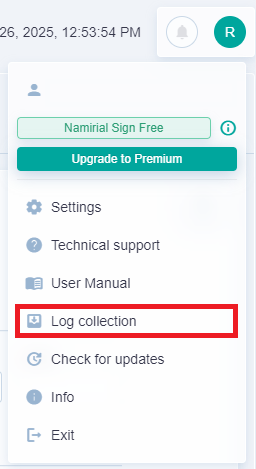
Alternatively, there is a manual procedure too.
This procedure is to be followed only if the software does not start correctly.
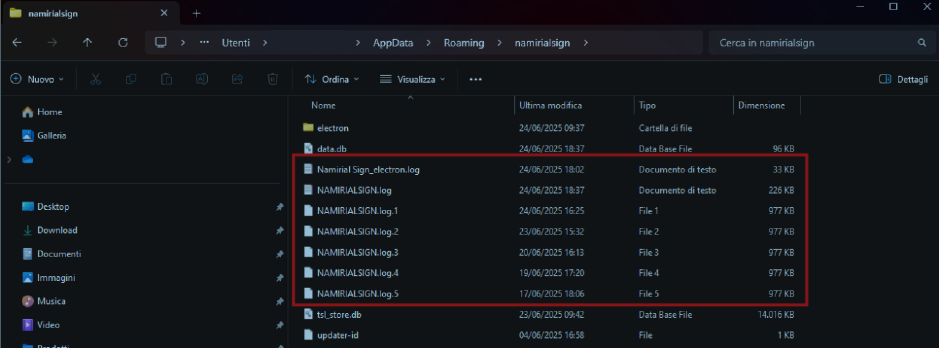
- Windows: Press the Windows key and search for %appdata%\namirialsign. A folder will open containing log files with the extension .log or .log.# (with progressive numbering).
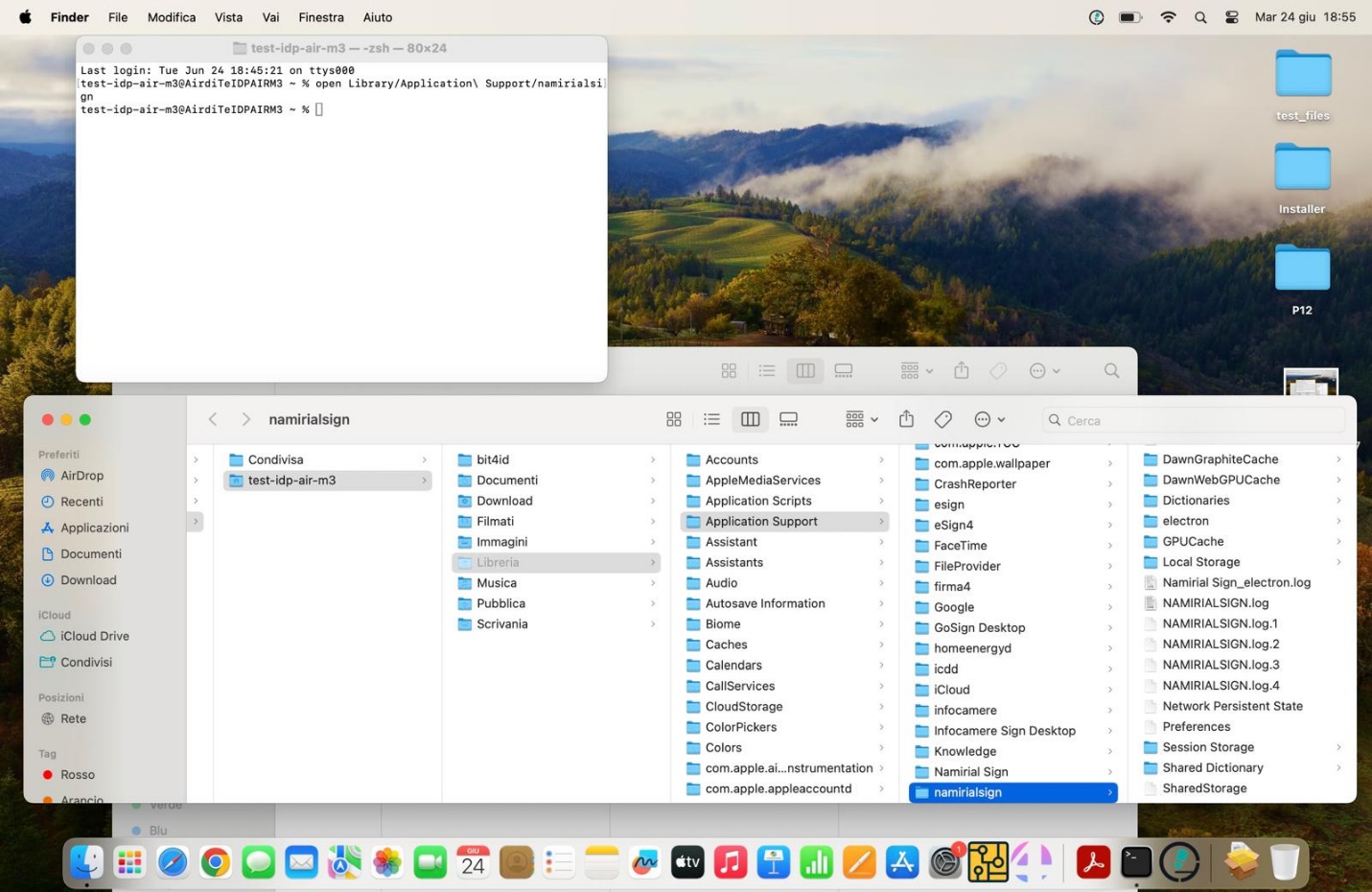
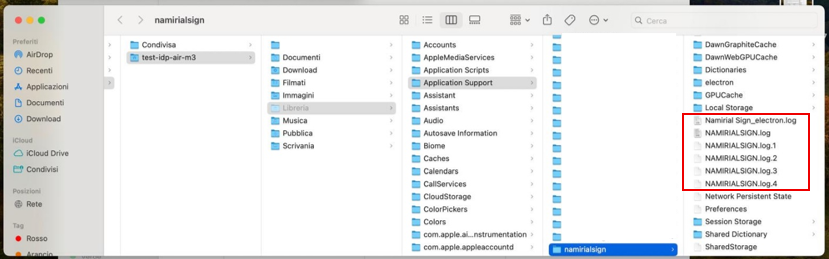
- macOS: Open a terminal and type: open Library/Application\ Support/namirialsign. Press Enter to open the folder containing logs. These files have the extension .log or .log.# with progressive numbering.

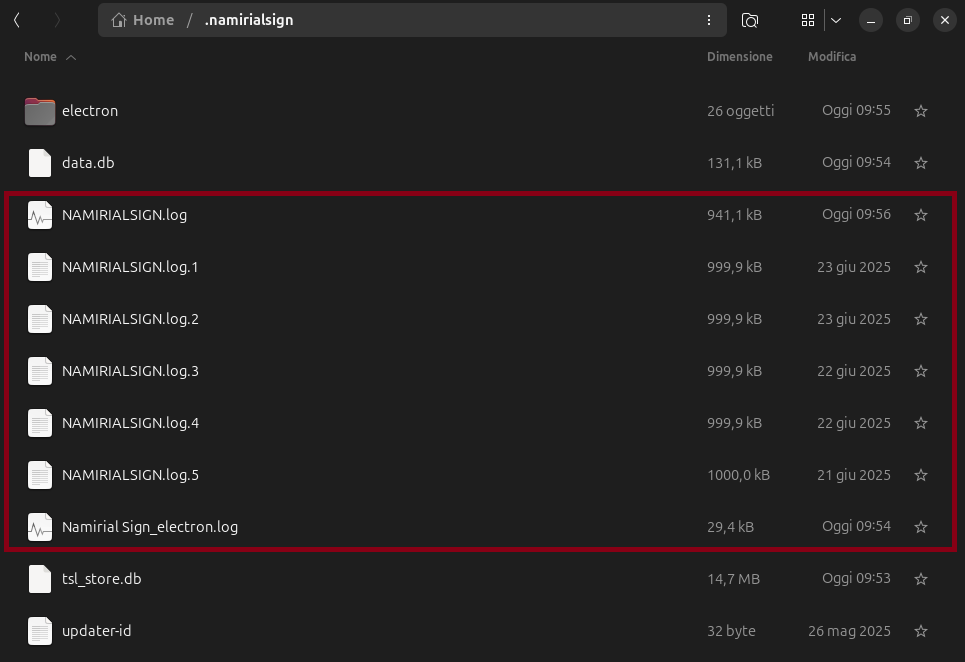
- Linux: Logs are available in the user’s home directory, in the hidden folder .namirialsign. These files have the extension .log or .log.# with progressive numbering.
To collect installer logs, follow these steps depending on your operating system (not available for Windows):
MacOS:
Open Finder
Click the Finder icon (blue and white face) in the Dock at the bottom of the screen.
Access “Go to Folder…”
From the top menu bar:
- Click Go
- Select Go to Folder…
- Or press Shift + Command (⌘) + G.
Enter the log folder path
In the window that appears, type: /var/log and press Enter or click Ok.
Locate the install.log file
Inside the log folder, look for the file named install.log. If it’s not immediately visible, use the search bar in the top-right corner of the Finder.
Copy the file to an accessible location
Once found, you can:
- Right-click on install.log and choose Copy "install.log"
- Navigate to a convenient folder (e.g., Desktop)
- Right-click and select Paste.
(Optional) Compress the file for sending
To facilitate sending the file via email or sharing platforms:
- Right-click the copied install.log file
- Select "Compress install.log"
- A file named install.log.zip will be created, easier to attach and share.
Linux:
- Logs are displayed on the console during installation.