If you need to reset a token due to issues, follow these steps:
Download the installation package here.
Connect the token to your PC.
Format the token as follows:
- Go to This PC, right-click on the token.
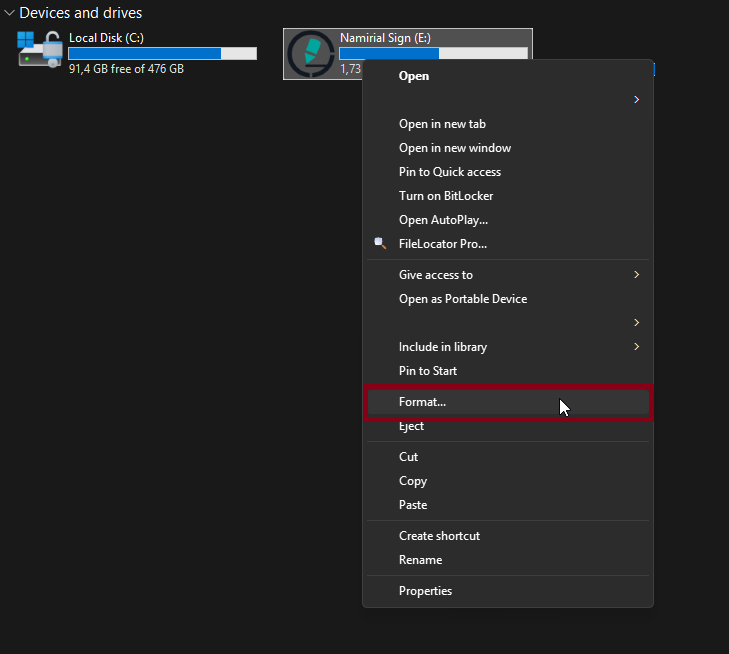
Click Format...
In the format configuration window, make sure to select:
- File system: FAT32
- Volume label: NAMIRIALSIG
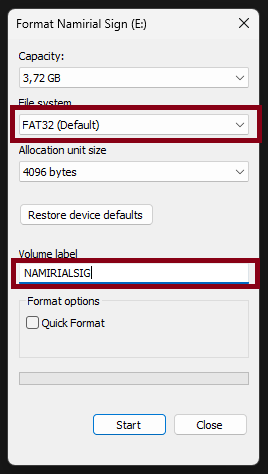
- Click Start to begin formatting.
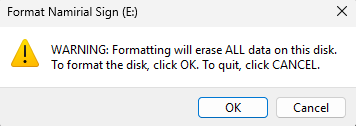
- Confirm any warning messages.
Once formatting is complete, extract the contents of the previously downloaded .zip file to the token:
- Right-click on the file namirialsign_portable_X.YY.ZZZ_release_portable.zip and select Extract All...
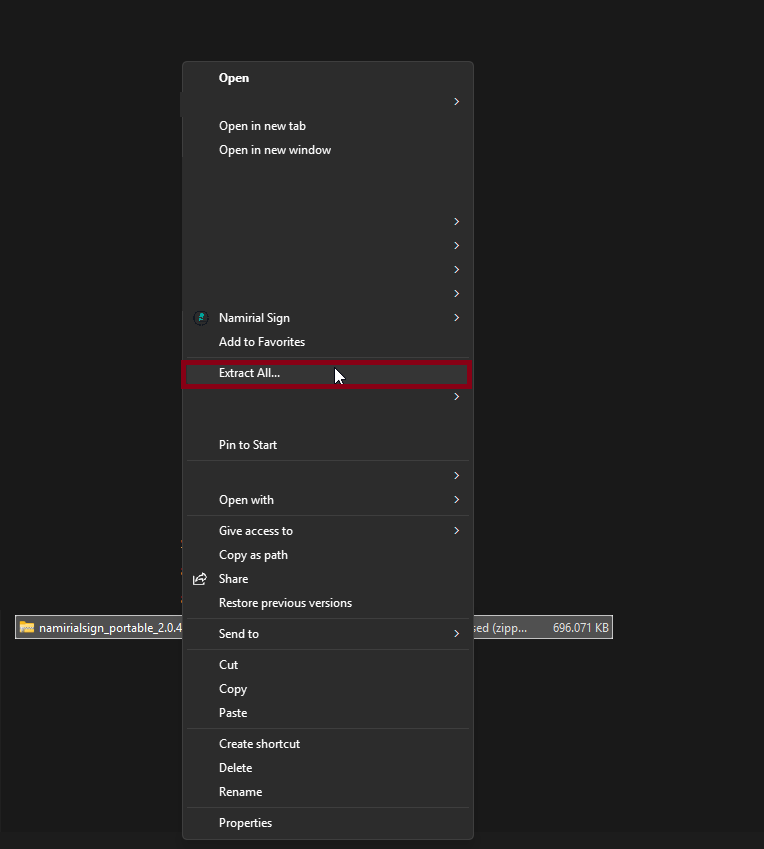
- Select the drive associated with the token as the destination.
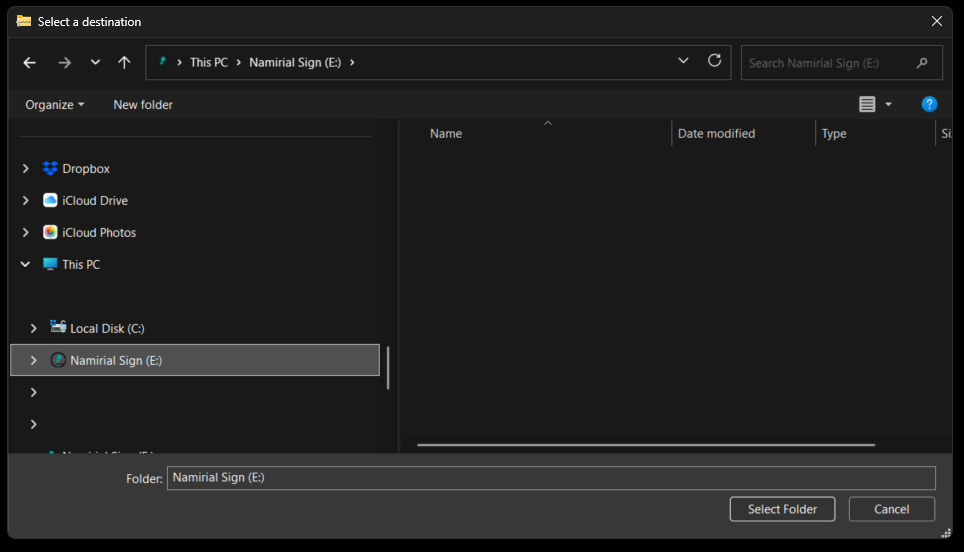
- Click Extract and wait for completion.
- Download the installation package here.
- Insert the token into your Mac and open Disk Utility (via Spotlight: ⌘ + Space and type “Disk Utility”).
- Select the physical device of the USB stick on the left and click "Erase".
- Set:
- Name: any name
- Format: MS-DOS (FAT32)
- Confirm the operation by clicking Erase.
- Drag the downloaded .zip file into the token and double-click it to extract (it will automatically create a folder).
- Delete the original .zip file and move all files from the extracted folder directly to the root of the token, ensuring the structure is "TOKEN/file" (not "TOKEN/folder/file").