Namirial Sign allows you to apply timestamps to your files.
Before starting, it is recommended you configure a timestamp, although this is not strictly required as it can be configured directly during the timestamping process too.
Namirial Sign allows you to apply a timestamp at the same time as the signing operation; in this section, however, we show how to proceed with standalone timestamping.
You can start the operation in one of the following ways:
- By tapping the "Timestamp" button in the top menu of the Home screen.
- By sharing the document available on the smartphone with Namirial Sign app and selecting "Timestamp".
File selection using the "Timestamp" button in the Home page can be done in two ways:
- By selecting a file from history "Choose from history".
- By selecting a file from device "Choose from device".
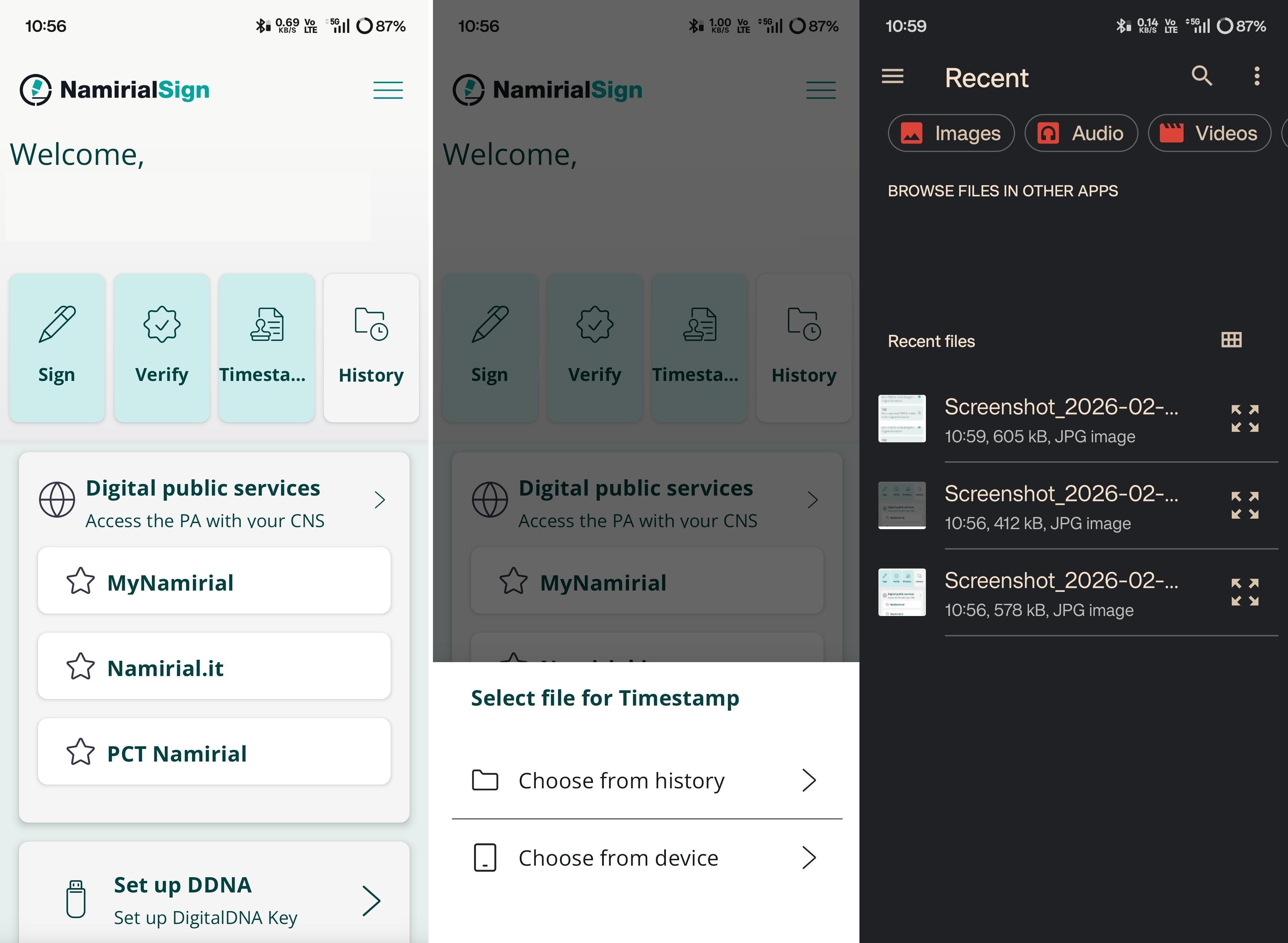
Once the file has been chosen, you will be requested to choose the extension.
There are two possibilities:
| Extension | Description |
|---|---|
| TSD | This is the latest format introduced to contain both the timestamp evidence (the file in tsr format) and the file itself being timestamped; therefore, when verifying a file in TSD format, nothing else is needed because the file itself contains both the original and the digital evidence of the timestamp. Unlike the M7M format, the TSD format follows a composition syntax that complies with standards widely recognized by the IT community. |
| TSR | This is the simplest format and contains only the file's fingerprint, NOT the entire file, and the digital evidence of the timestamp application. To verify a file in this format, you must also have the original file that was timestamped; otherwise, you can only check that the timestamp was correctly created but not verify if the tsr file matches the original file. The size of a tsr file is definitely smaller than the original file. |
In case you have not configured a timestamp, you will be required to do that too.
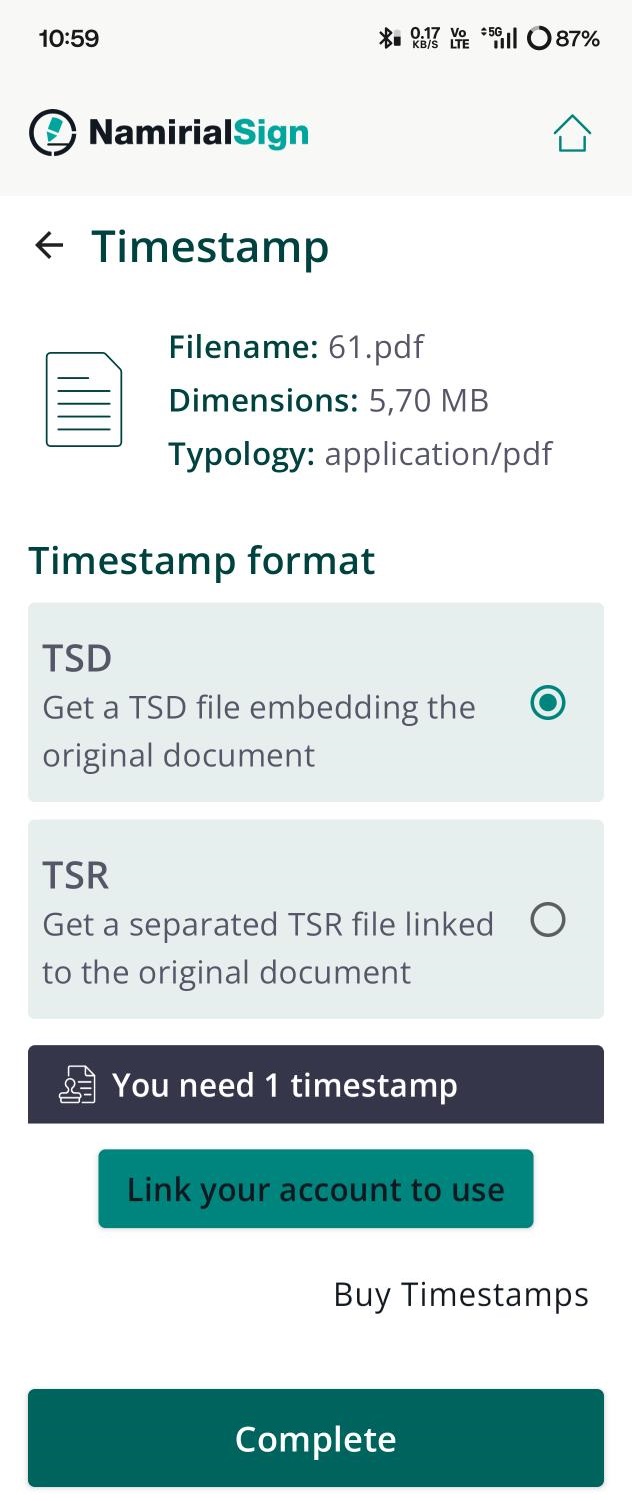
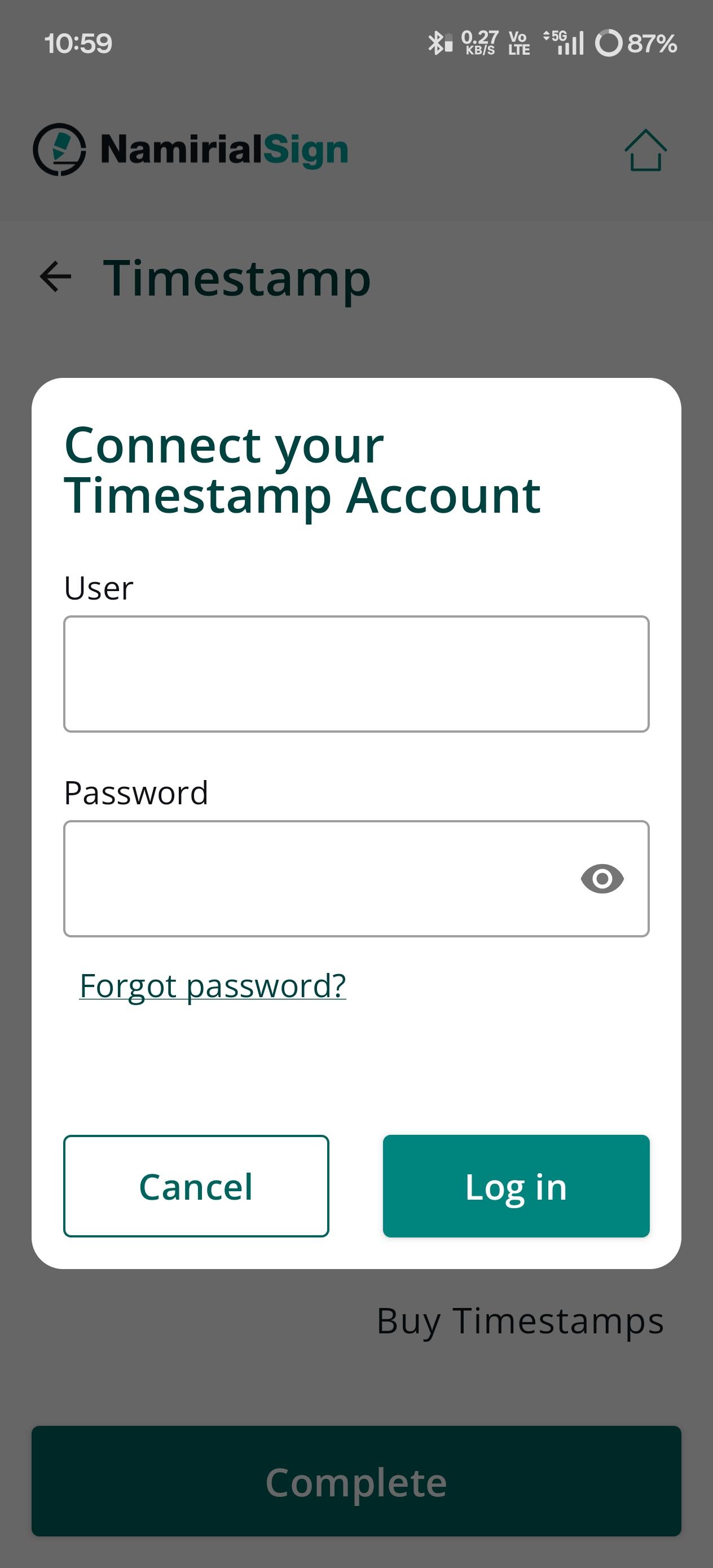
By tapping on "Link your account to use", you will be asked for your credentials.
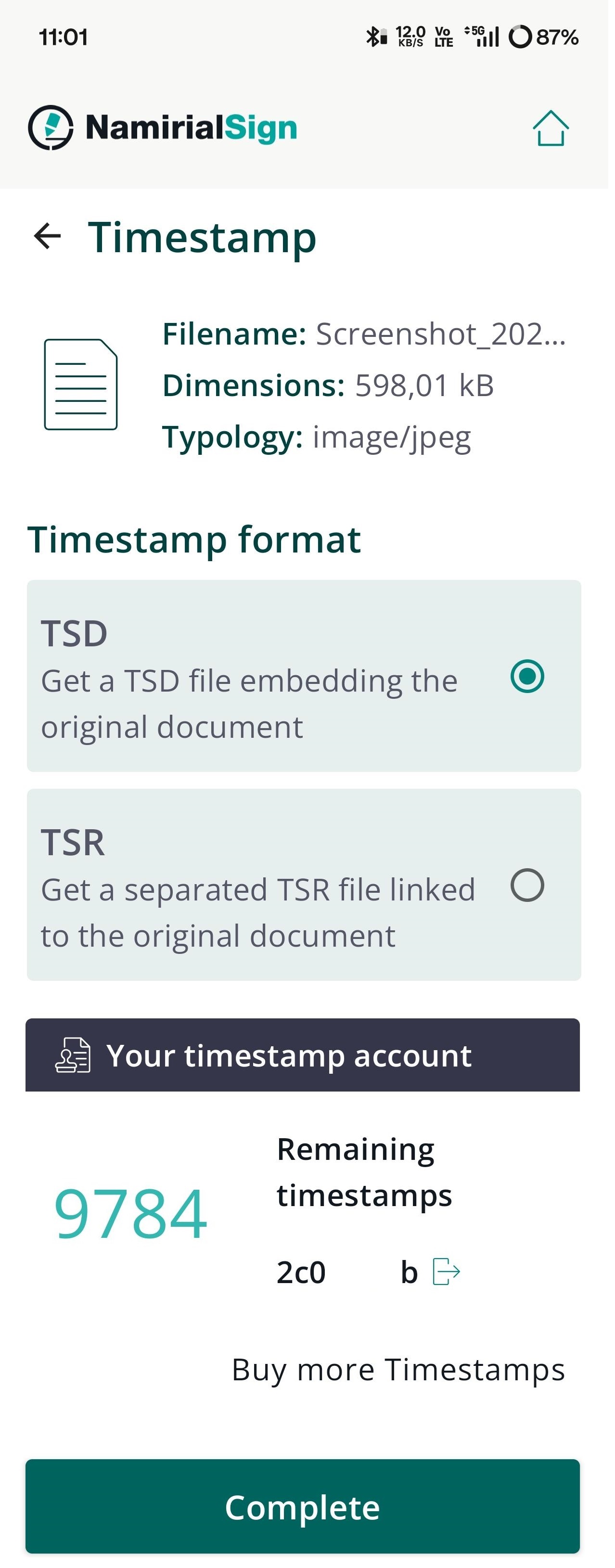
Once everything is completed, to proceed with the application, just tap "Complete".
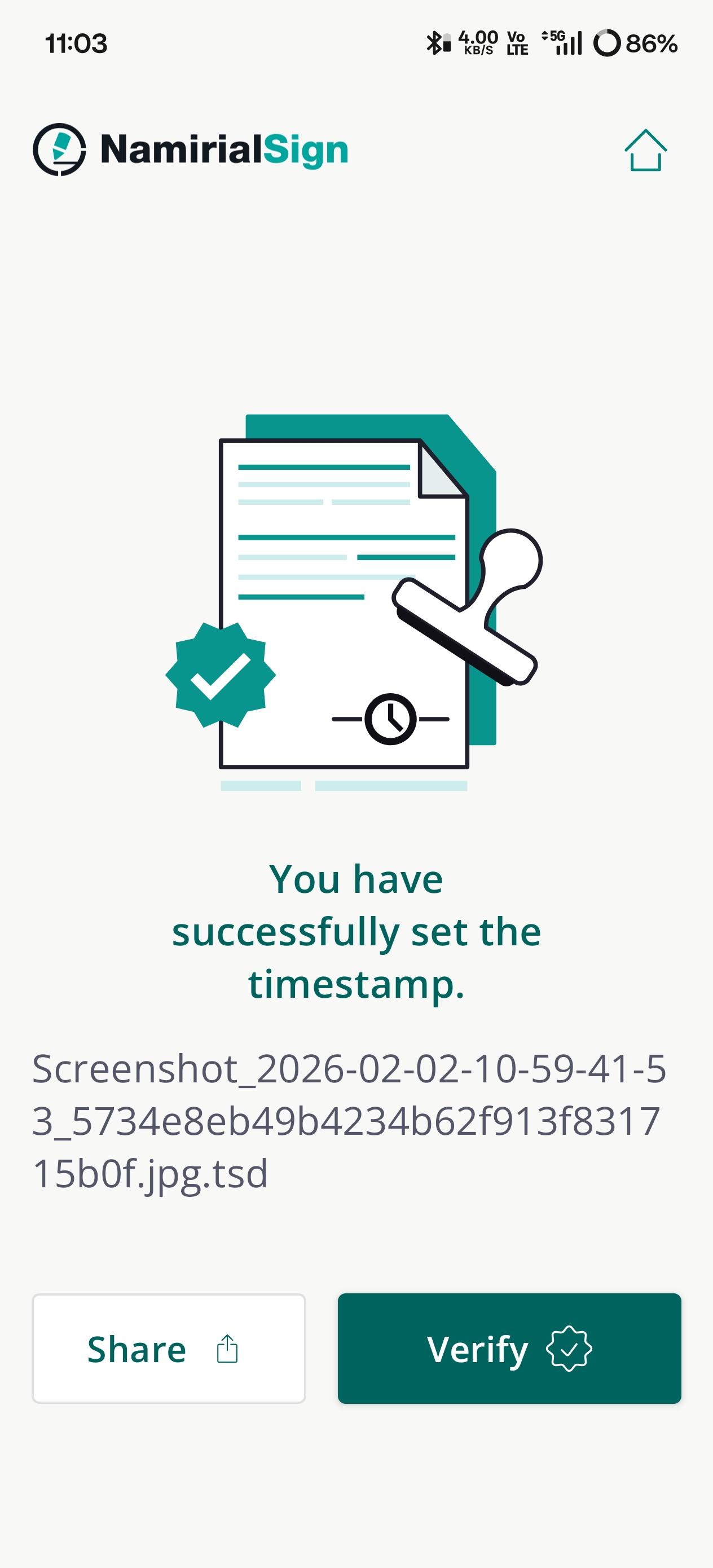
You can now share the file or verify it with the corresponding buttons.