Automatic Signature Profiles allow your organization to configure pre-authorized signing credentials that can be applied to recipients in an envelope. When a profile is assigned to a recipient, the signature is executed automatically using the stored credentials — no manual interaction from the signer is required.
This is useful for processes where a trusted, machine-driven signature should be applied on behalf of an authorized user.
To manage Automatic Signature Profiles, you need:
- The feature flag AutomaticRemoteSignature enabled for your organization.
- A valid signing certificate or remote signature service account for the credentials you want to store
To use a profile in an envelope, the user creating the envelope must have access to the Organization Settings profiles. The profiles are shared at the organization level and available to all users who can create envelopes.
Automatic Signature Profiles are managed in Organization Settings → Automatic Signature Profiles.
The profiles list shows all profiles configured for your organization. Each row displays the profile name and an Actions column with a Detail button and a delete (trash) icon.
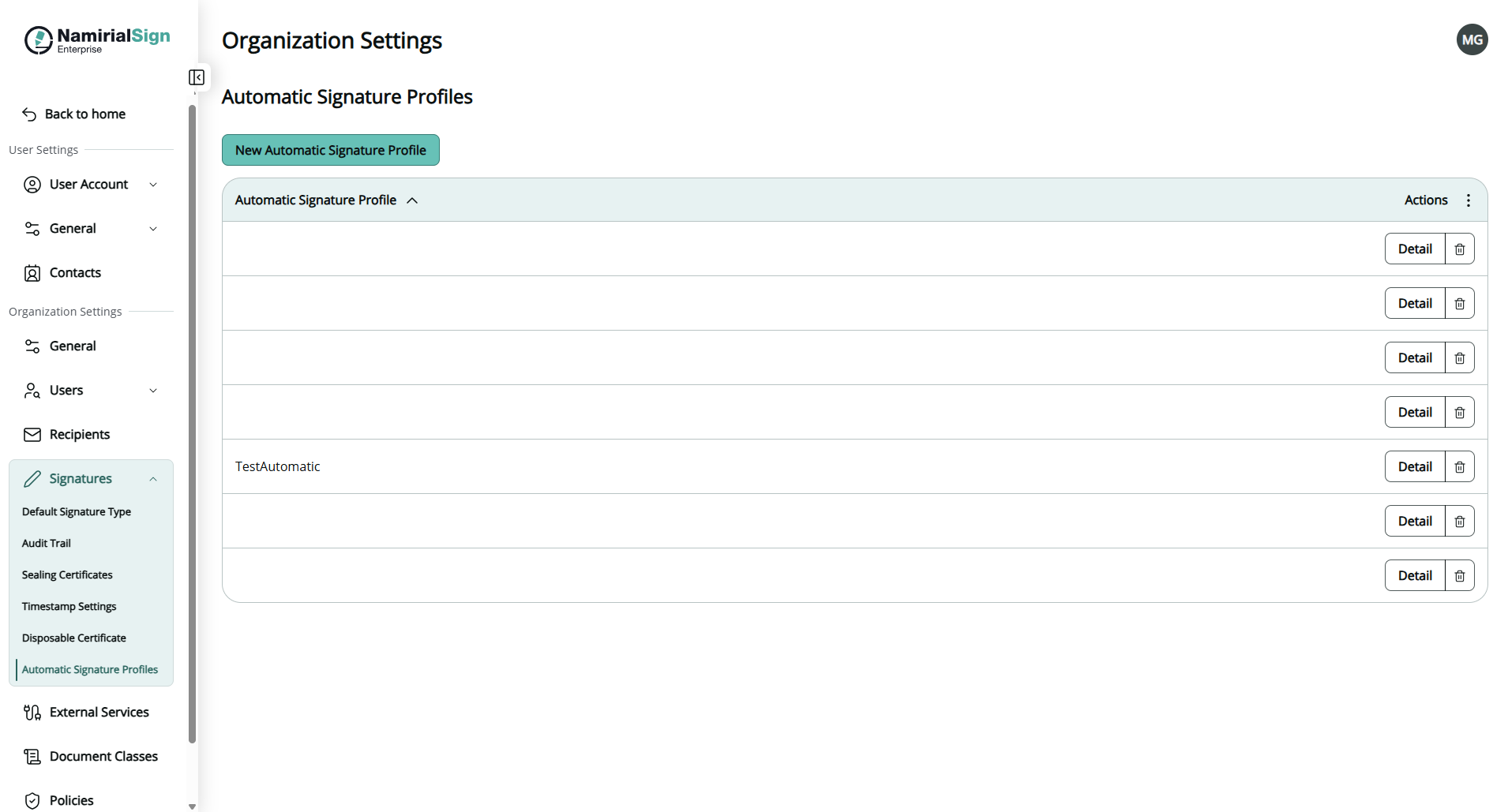
Click New Automatic Signature Profile.
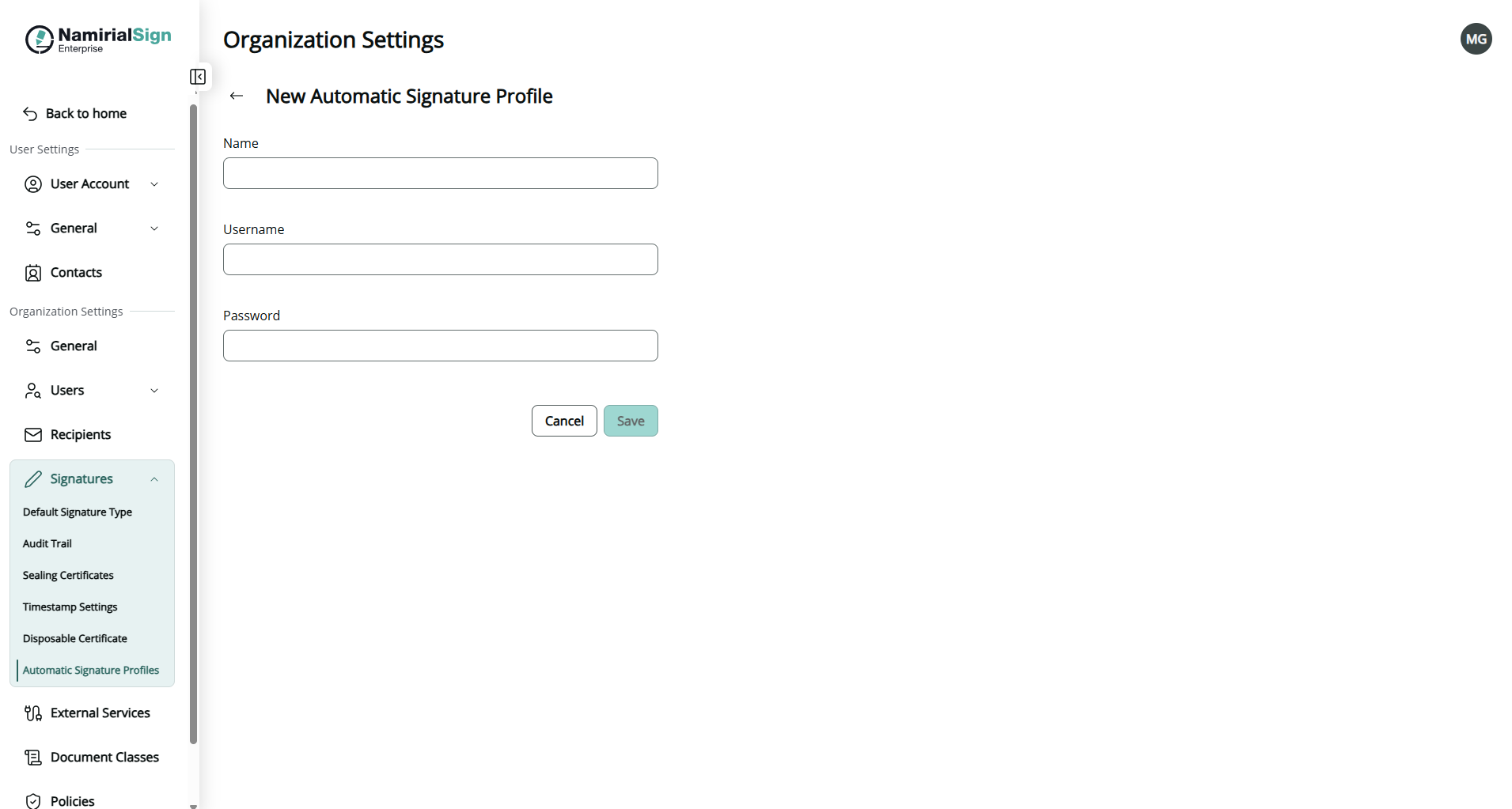
In the New Automatic Signature Profile form, fill in the following fields:
Field Description Name A descriptive label for the profile. This name appears in the envelope designer when assigning the profile to a recipient. Username The username for the remote signing service account. Password The password for the remote signing service account. Click Save to create the profile, or Cancel to discard.
Click the trash icon next to a profile in the list. Deleting a profile does not affect envelopes that have already been sent, but it will be unavailable for future envelopes.
Once profiles are configured, they can be assigned to individual recipients directly in the envelope designer.
- Open or create an envelope and navigate to the Define recipients step.
- For the recipient you want to sign automatically, change the reciient type to Sign automatically
- Use the Select a profile dropdown to choose one of the configured profiles.
- Add automatic signature field if an imprint should be visible on the document. If no signature field is added to the document the signature will be invisible.
The dropdown lists all profiles available in your organization. Once selected, the recipient's signature step will be executed automatically using the stored credentials when it is their turn in the signing workflow.
Note:
Automatic remote signature is configured per recipient. You can mix automatic and manual recipients within the same envelope — for example, an internal countersignature can be automatic while an external customer signer completes their step manually.