This is a GO and PREMIUM feature
Namirial Sign allows you to encrypt one or more documents using a procedure very similar to the signing operation.
If you want to encrypt documents for yourself, make sure you have inserted the smart card into the reader or connected the USB token to the PC before starting the operation. Only certificates enabled for encryption can be used. To encrypt files for other people, you need to obtain their public certificate (.cer).
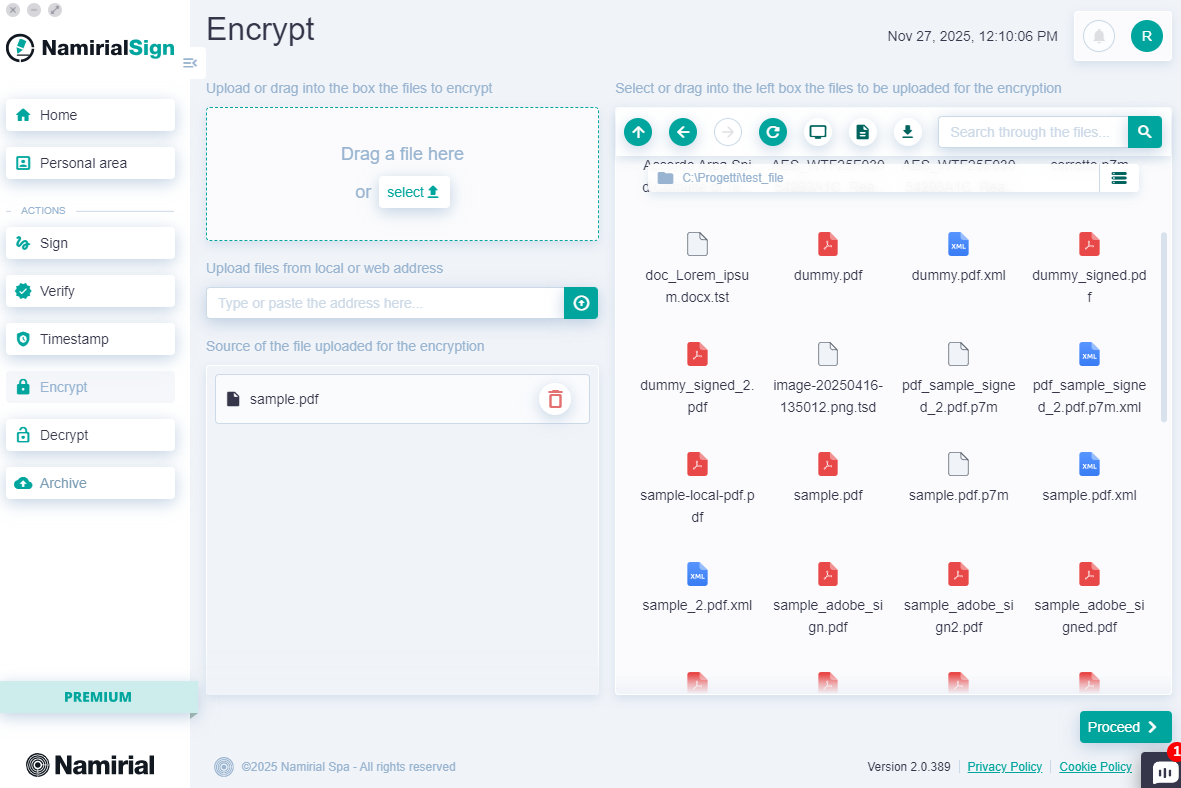
You can start the encryption operation in one of the following ways:
- By clicking the "Encrypt" button in the always-present left menu;
- By clicking the "New +" button on the Home page in the "ENCRYPTIONS" card;
- By dragging one or more files onto the "ENCRYPTIONS" card on the Home page.
File selection can be done in four ways:
- Dragging it into the top left section from the desktop or a folder;
- Clicking "select" and browsing files from the operating system;
- Entering the file link, which can be a local or web path;
- Using the integrated explorer on the right.
Once the documents are added to the encryption queue, press "Proceed".
On the next screen, you can select the certificate and choose the encryption algorithm.
"Available Certificates" Section
The list shows all encryption certificates present in the smartcard or token connected to the PC. However, you can also upload other certificates (.cer) by clicking "Certificate" or "Certificate from LDAP" so you can encrypt with the recipient's public key.
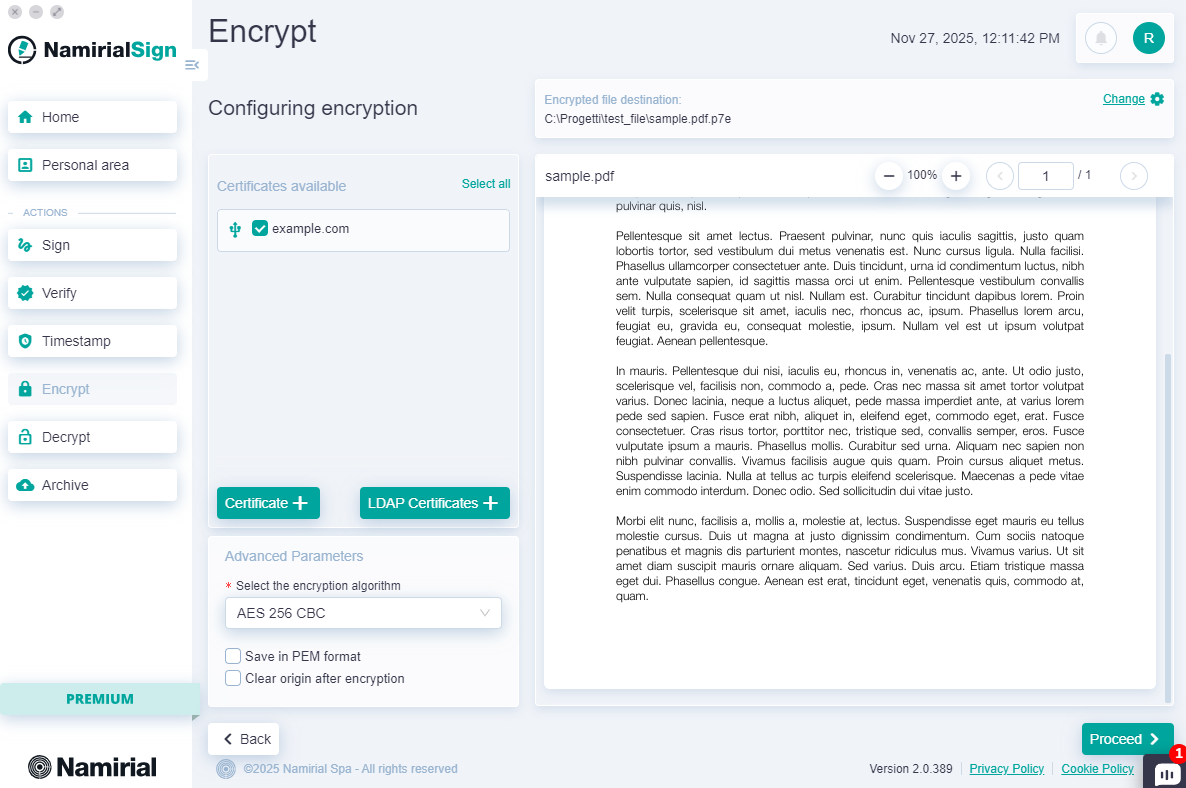
"Advanced Parameters" Section
In this section, there is a dropdown menu where you can select the type of algorithm to apply.
In addition to the algorithm, you can choose to save in PEM format and whether to delete the original file after successful encryption.
After configuring the encryption parameters, press "Proceed".
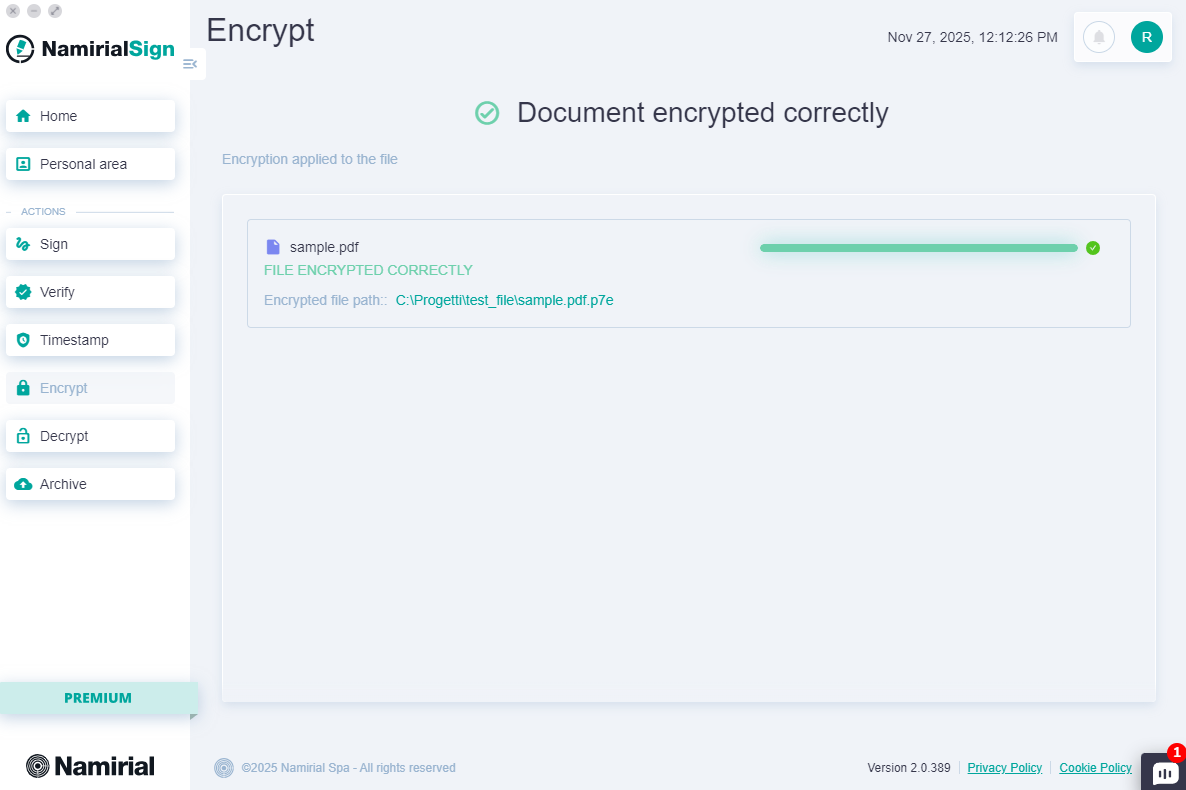
At this point, you need to wait for the encryption to be performed on all files; a report will be shown with the list of files being encrypted and their completion status.