Before starting, it is recommended you configure a timestamp in the personal area, although this is not strictly required as it can also be configured directly during the timestamping process too.
To apply a timestamp to a document, whether signed or not, click the "Timestamp" button in the application's left menu.
Namirial Sign allows you to apply a timestamp at the same time as the signing operation; in this section, however, we show how to proceed with standalone timestamping.
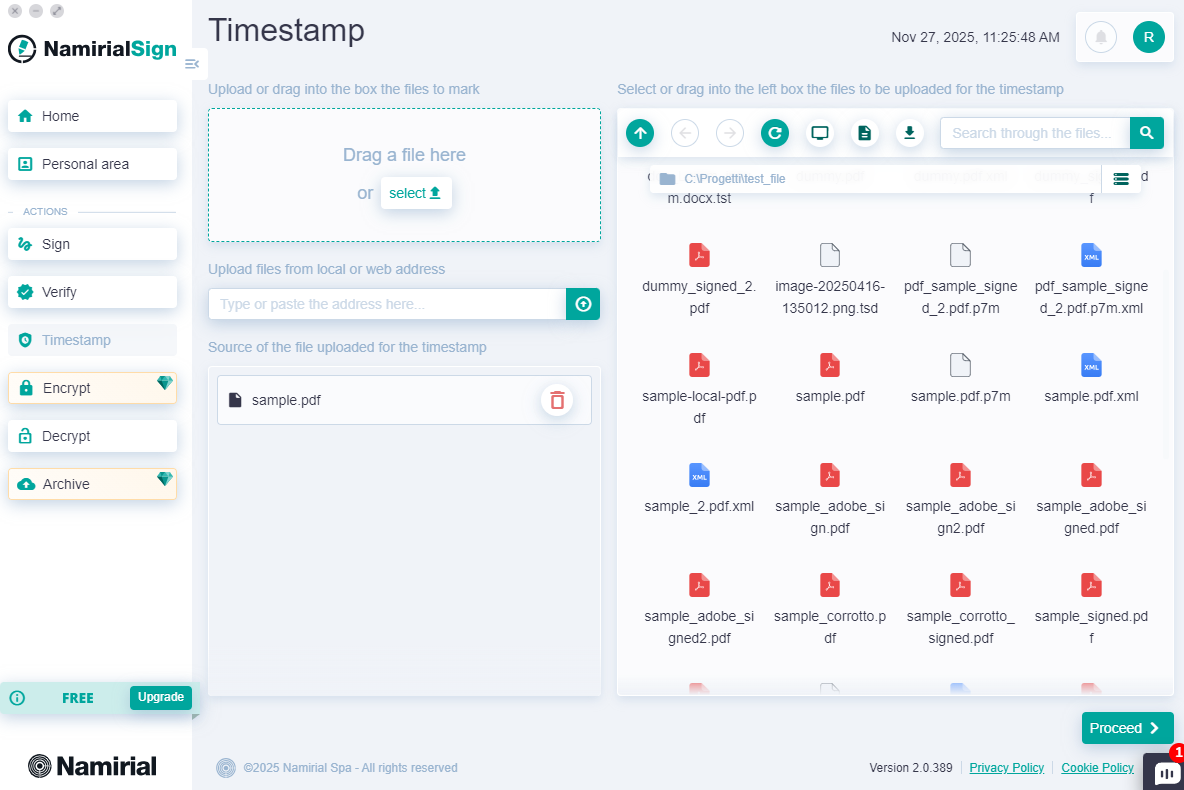
You can start the timestamping operation in one of the following ways:
- By clicking the "Timestamp" button in the always-present left menu;
- By clicking the "New +" button on the Home page in the "TIMESTAMPS" card;
- By dragging one or more files onto the "TIMESTAMPS" card on the Home page.
File selection can be done in four ways:
- Dragging it into the top left section from the desktop or a folder;
- Clicking "select" and browsing files from the operating system;
- Entering the file link, which can be a local or web path;
- Using the integrated explorer on the right.
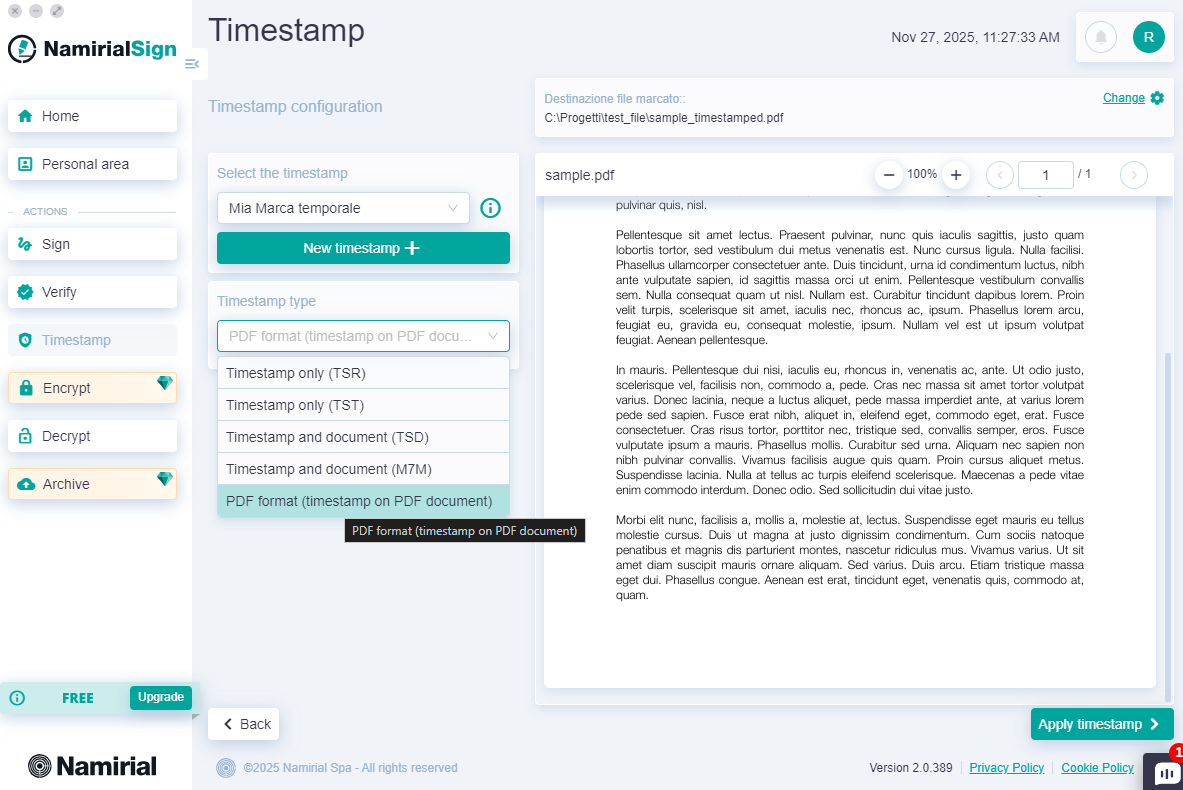
A window will open where you can select the timestamping service to use and the format in which to save the timestamp from those available in the dropdown list:
| Extension | Description |
|---|---|
| M7M | This is the first format historically introduced to contain both the timestamp evidence (the file in tsr format) and the file itself being timestamped; therefore, when verifying a file in M7M format, nothing else is needed because the file itself contains both the original and the digital evidence of the timestamp. Note that not all software recognize and are able to verify the M7M format. |
| TSD | This is the latest format introduced to contain both the timestamp evidence (the file in tsr format) and the file itself being timestamped; therefore, when verifying a file in TSD format, nothing else is needed because the file itself contains both the original and the digital evidence of the timestamp. Unlike the M7M format, the TSD format follows a composition syntax that complies with standards widely recognized by the IT community. |
| TSR / TST | This is the simplest format and contains only the file's fingerprint, NOT the entire file, and the digital evidence of the timestamp application. To verify a file in this format, you must also have the original file that was timestamped; otherwise, you can only check that the timestamp was correctly created but not verify if the tsr/tst file matches the original file. The size of a tsr/tst file is definitely smaller than the original file. |
| Equivalent to the M7M format, but applicable only to files in .pdf format. |
WARNING: The M7M format has been deprecated and is not compliant with CNIPA Resolution No. 45/2009 (art. 17, paragraph 4).
If a timestamping service has not already been configured, you can set one up by clicking "Add new +" and filling in the required fields. You can also save the newly configured service for future use; the configured service will automatically be visible in the personal area for timestamps.
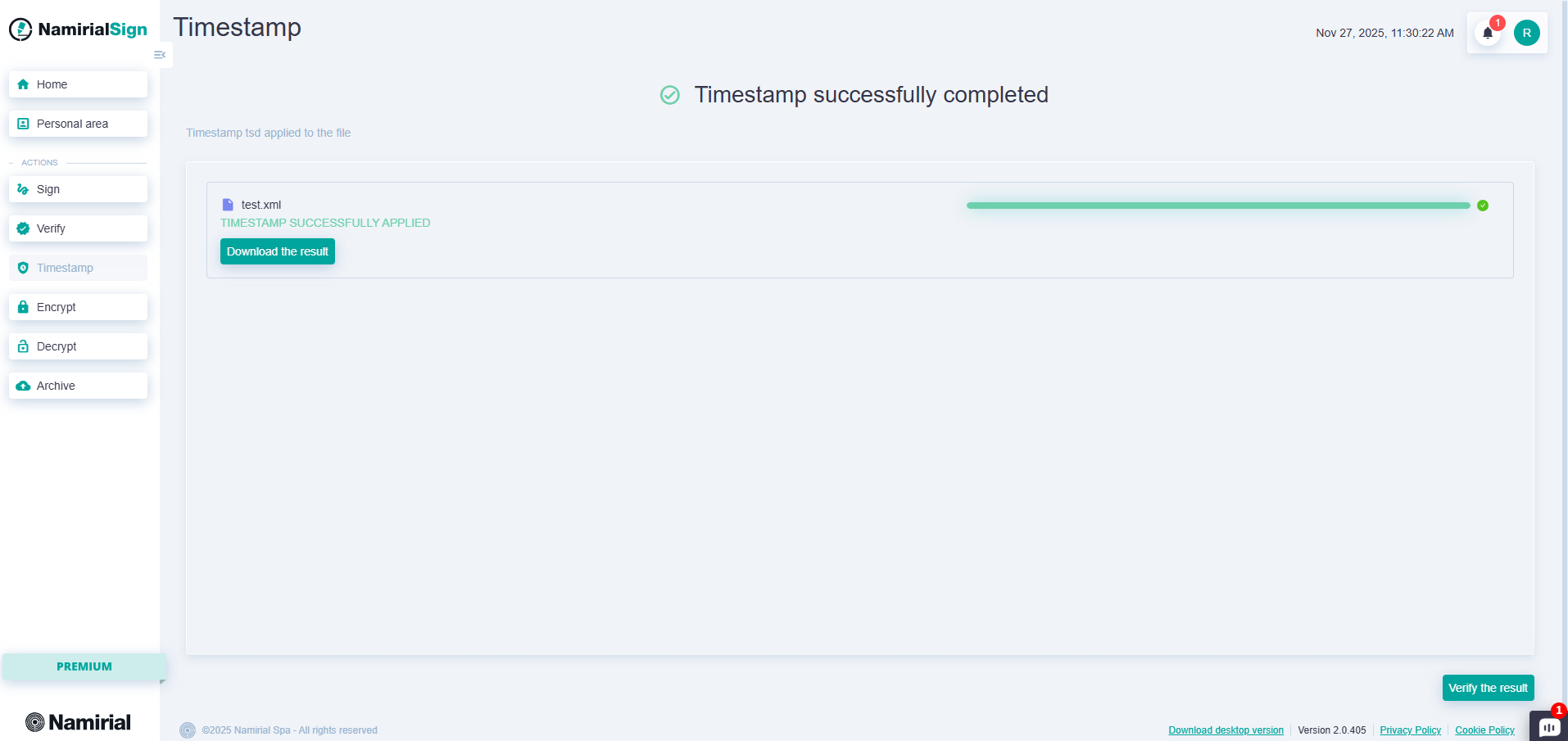
When ready, press "Apply timestamp," and Namirial Sign will timestamp the file.