Namirial Sign allows you to verify the validity of a signed and/or timestamped file. To start the verification, click on "Verify" in the left menu or on the Home page.
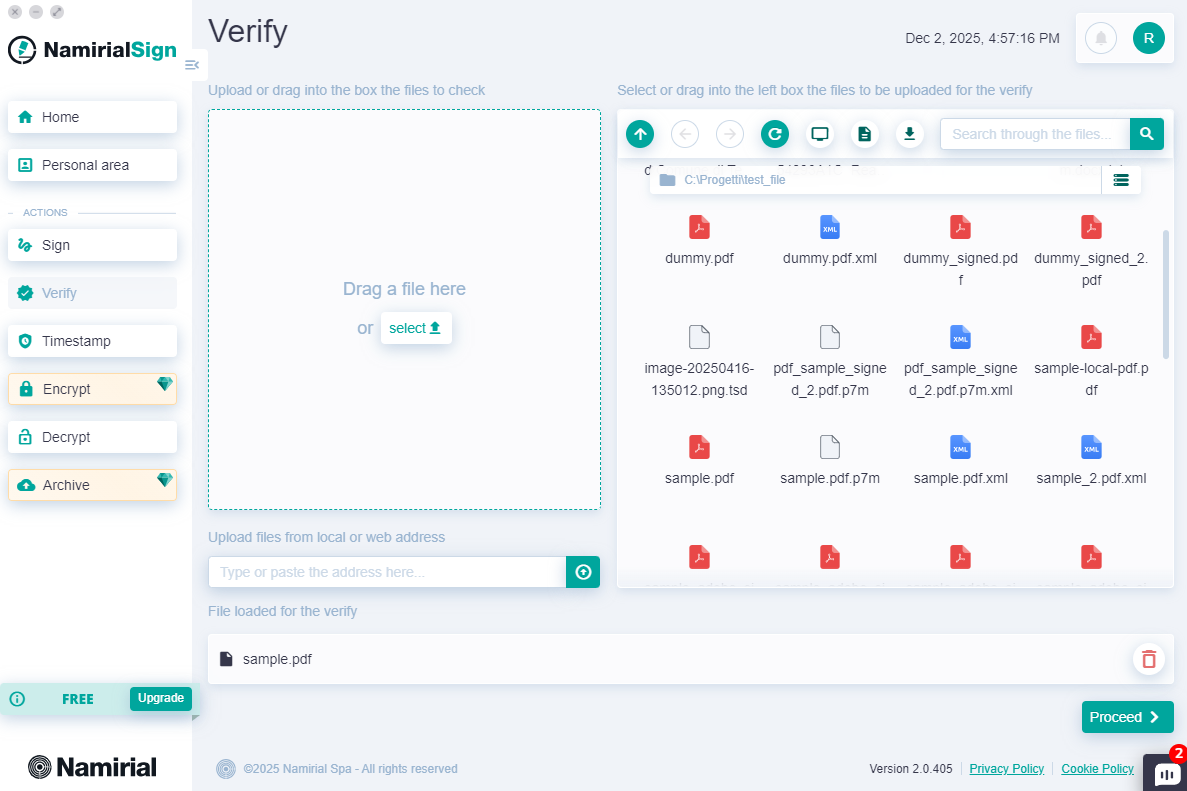
You can start the verification operation in one of the following ways:
- By clicking the "Verify" button in the always-present left menu;
- By clicking the "New +" button on the Home page in the "VERIFICATIONS" card;
- By dragging a file onto the "VERIFICATIONS" card on the Home page;
- By double-clicking on a .p7m file.
File selection can be done in four ways:
- Dragging it into the top left section from the desktop or a folder;
- Clicking "select" and browsing files from the operating system;
- Entering the file link, which can be a local or web path;
- Using the integrated explorer on the right.
The Verification screen is divided into two sections: on the left, signatures and timestamps, navigable with the mouse; on the right, the summary.
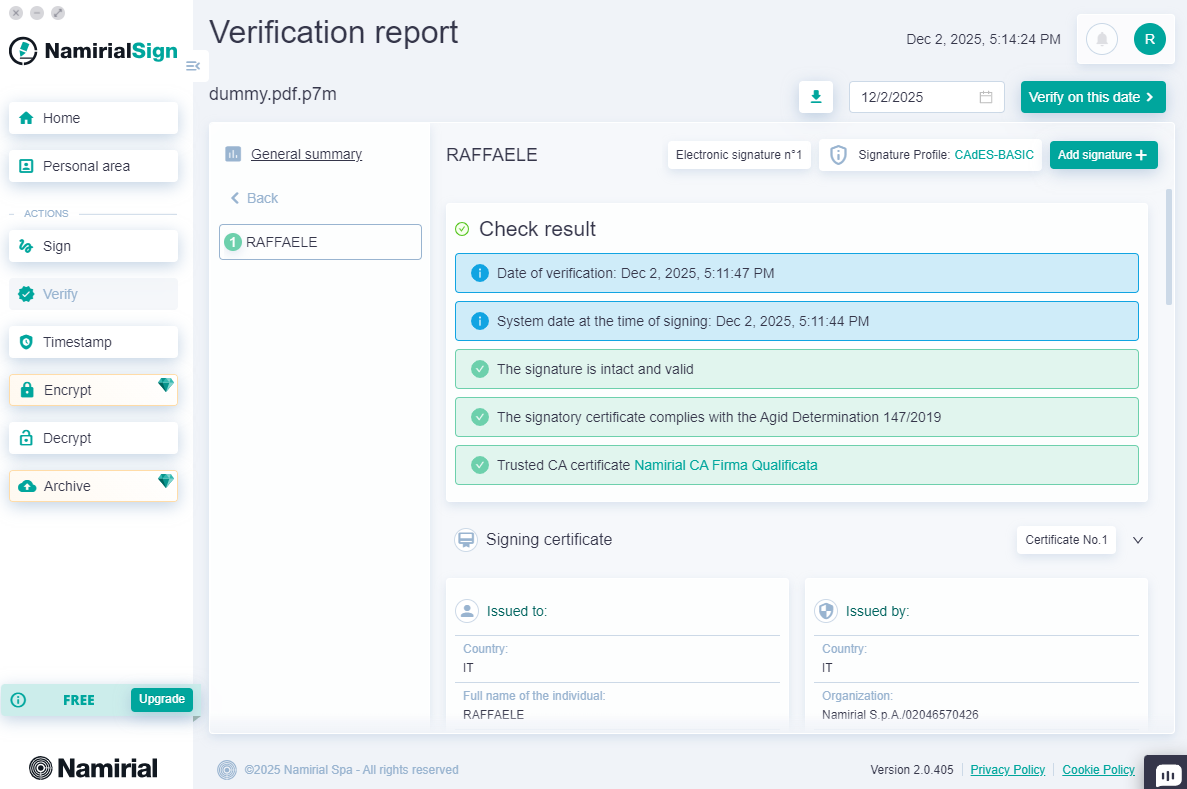
All certificates of the document signers are listed. You can view the details of a certificate by clicking on it and scrolling to read all information about the certificate used and the type of signature.
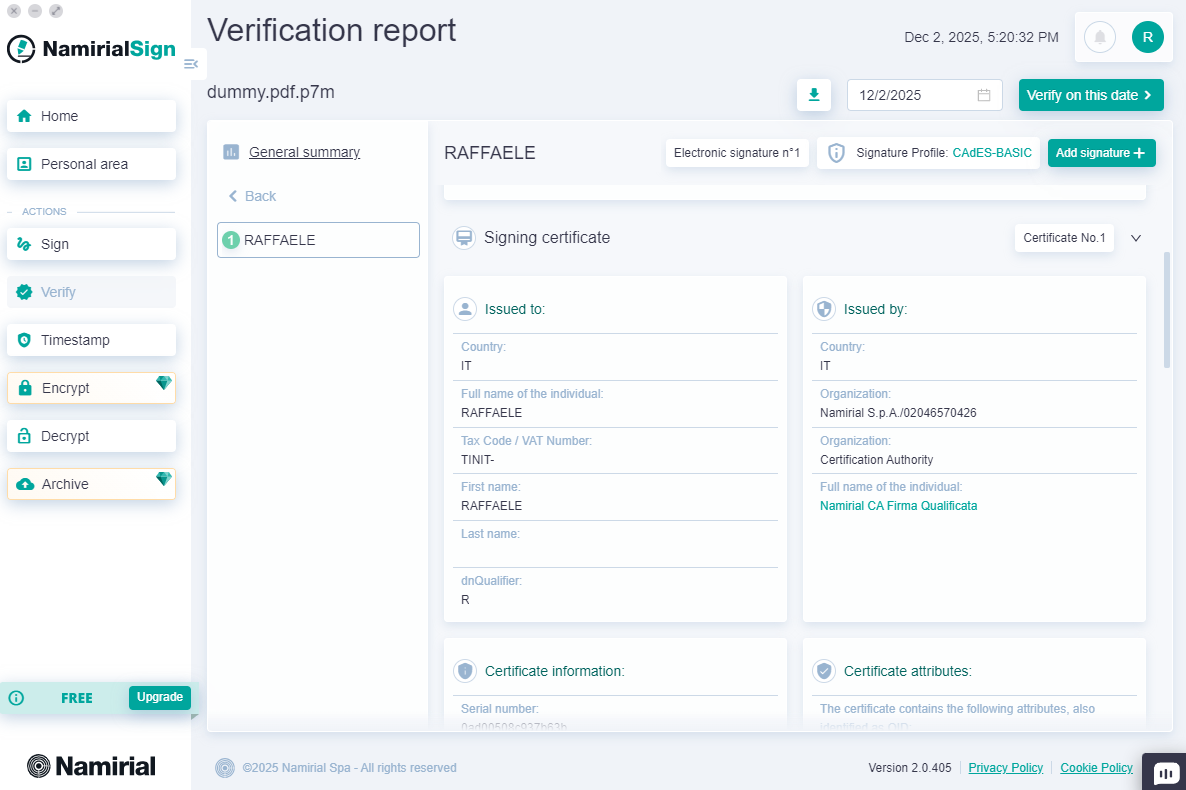
After selecting a signature or timestamp from the left menu, you can also see the verification result:
| Extension | Description |
|---|---|
| Integrated Verification | Shows the result of the integrity check of the signed document, to ensure it has not been altered after signing. Also displays details about the format of the signed/timestamped document (e.g.: CAdES-LT, CAdES-B, ...). If successful, the message “The signature is intact and valid” is shown. |
| Legal Validity | Shows the result of the check performed on the certificate attribute (Key Usage) that defines its use. For Italian regulations, the digital signature certificate must have Key Usage set to “Non Repudiation” only. If successful, the message “The signature is intact and valid” is shown. |
| Compliance with Technical Rules Required by Current Regulations | Shows the result of the check regarding compliance with and adherence to current regulations. If successful, the message “The signer's certificate complies with AgID Determination 147/2019” is shown. |
| Reliability | Shows the result of the check performed on the Certifier who issued the signer's certificate. If successful, i.e., if the issuing Certifier is present in the list of Certifiers Accredited by AgID (Agency for Digital Italy), the message “Reliable CA certificate” is shown. |
| Certificate Revocation/Suspension Status | Shows the result of the check on the certificate's validity status, to verify that it has not expired and, through CRLs (Certificate Revocation Lists), that it has not been suspended or revoked. If unsuccessful, the message “Certificate revoked” or “Certificate expired” is shown, depending on the case. |
Below are some examples of verification errors/warnings:
Suspended Certificate

Revoked Certificate

Certificate not issued by a qualified CA

Warning for certificate not compliant with AgID 147/2019

Similarly, the timestamp is also verified, showing both the verification results and certificate details.
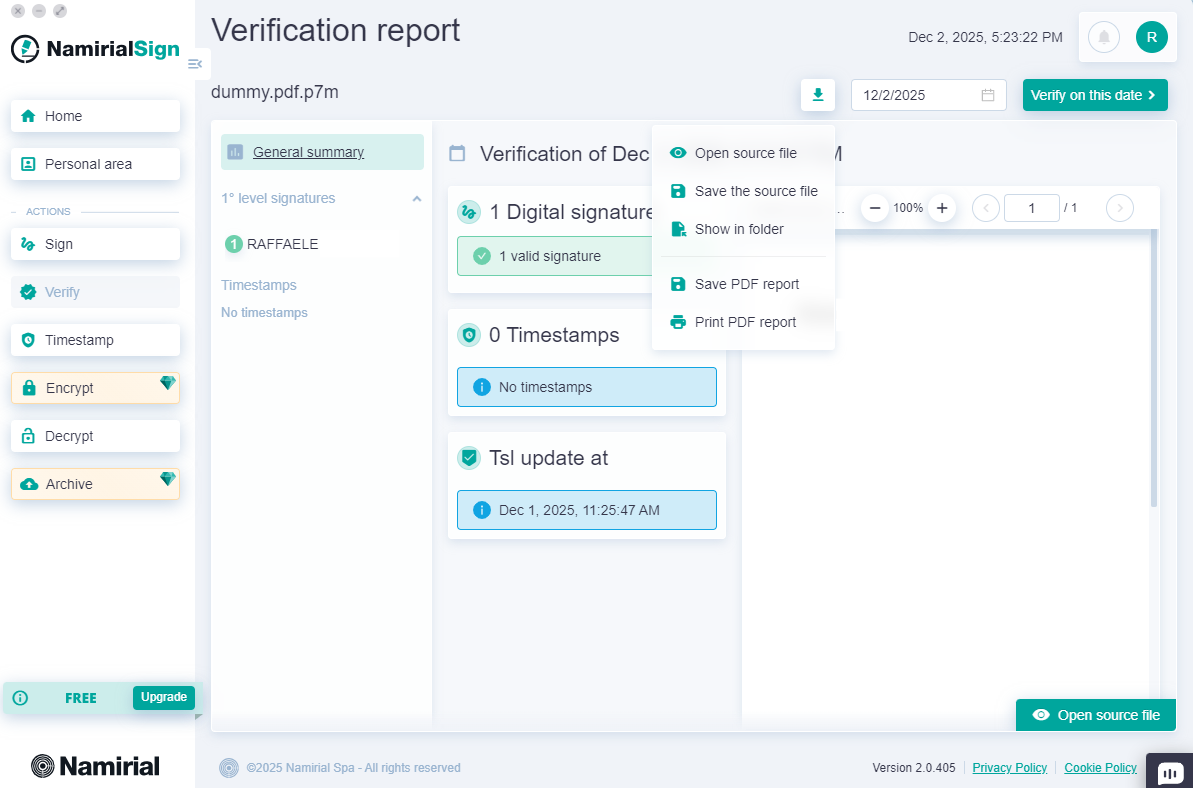
Once the report is displayed, a series of possible actions can be performed:
| Functionality | Description |
|---|---|
| Save PDF report | To save the report as a PDF, so it can be consulted and shared with anyone. |
| Show in folder | To open the folder containing the selected file, highlighting it for easier identification. |
| Save the source file | To save the original document being verified. If verifying a timestamp applied to the document, this function is available only if the timestamp format is ".tsd" or ".m7m". In the case of PAdES signature verification, this option is not available. |
| Print PDF report | To directly print the verification report without having to save it first to the filesystem. |
| Verify on this date | To check if the signature applied to the document was (or will be) valid on a specific date, past or future, by clicking the “Verify at this date” button. |
All buttons are present from the first level of verification, in the pop-up menu or via the buttons on the page.
By clicking on a signature and navigating to a specific one, you can start a new signing flow by clicking the signature button (shown on the right in the figure below):
