The Namirial Sign application is distributed in the following versions:
- Namirial Sign for Windows, installation available for Windows desktop environments (10, 11);
- Namirial Sign for macOS, installation available for macOS desktop environments (13, 14, 15, 26);
- Namirial Sign for Linux 64, distributed as a .zip archive for Linux desktop environments (latest LTS for Ubuntu).
- Namirial Sign Portable, on USB token, compatible with all previously mentioned operating systems
- Namirial Sign Web, available online and compatible with all major browsers: Chrome, Edge, Safari*, Firefox.
Depending on the version of interest, below are the different installation and startup methods for the application.
Some versions of Safari have a block on the use of local devices, so their use cannot be guaranteed, but remote signature and p12 usage remain valid.
Before using Namirial Sign, to ensure correct operation of the application, please verify:
- Availability of an Internet connection;
- Ability to establish http connections.
Additionally, for proper display, it is recommended to set a screen resolution of at least 1024x768.
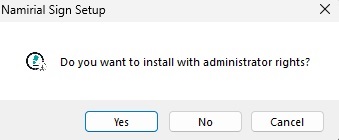
To install the application on Windows operating systems, start the installer (with ".exe" extension) by double-clicking and follow all steps. The application can be installed as Administrator (click "Yes") or as User (click "No"). Pressing "Cancel" will abort the installation.
You must accept the terms and conditions to proceed with the installation of Namirial Sign.
If using the Portable version, launch "Namirial Sign.exe" found on the USB token.
To install the application on macOS operating systems, start the installer identified by the ".pkg" extension and follow all steps.
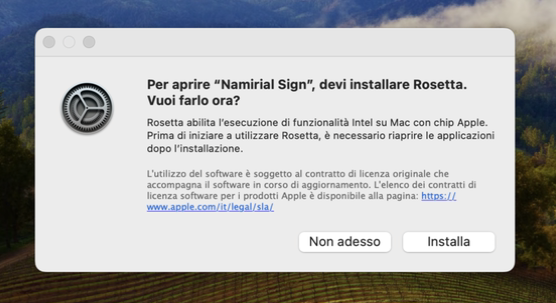
Note: Rosetta must be installed on M devices (non-Intel).
If using the Portable version, launch "Namirial Sign" found on the USB token.
To install the application on Linux operating systems, extract the contents of the archive identified by the ".zip" file into the user's home directory and run the install.sh script, following the on-screen options.
If using the Portable version, launch "launcher_linux.com" found on the USB token.
Once the software is installed, simply double-click the launch icon to open the digital signature program. The software performs a series of checks related to updates and license acceptance. The following paragraphs detail all checks performed before reaching the initial screen of Namirial Sign.
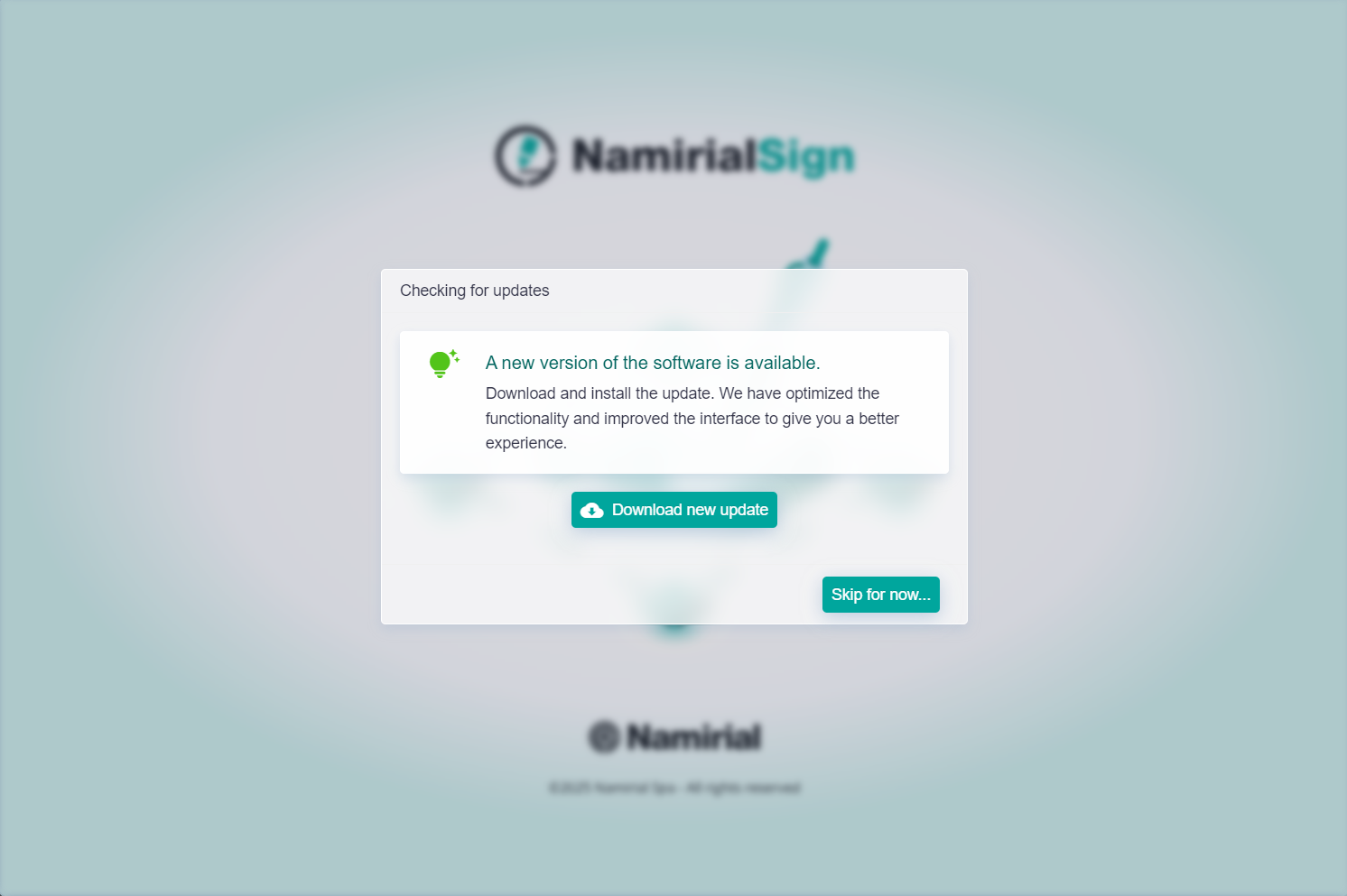
Namirial Sign has an update feature: at each startup, the application checks for new versions and, after user authorization, performs the update. If a mandatory update is present, the user must perform it to continue using the software.
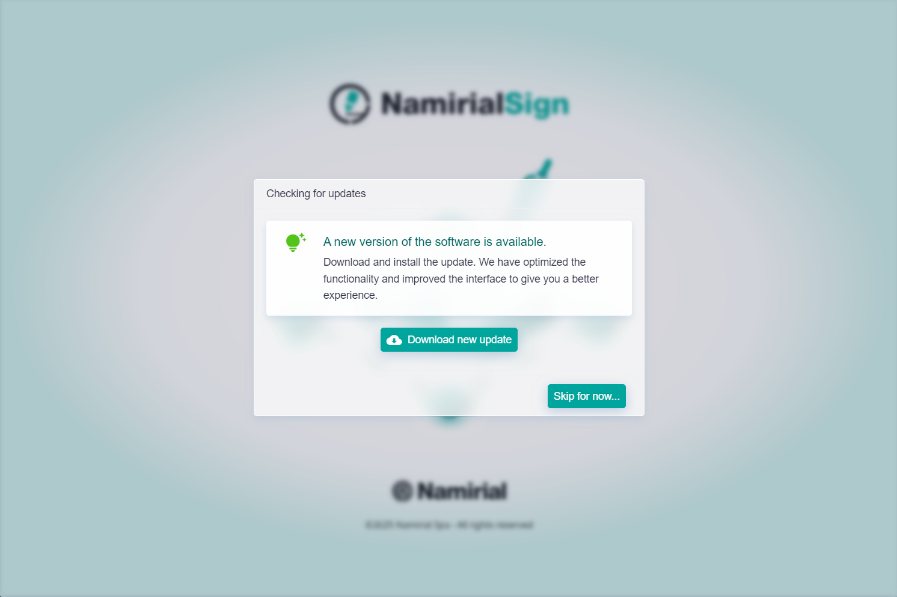
This feature is activated if the PC is connected to the Internet.
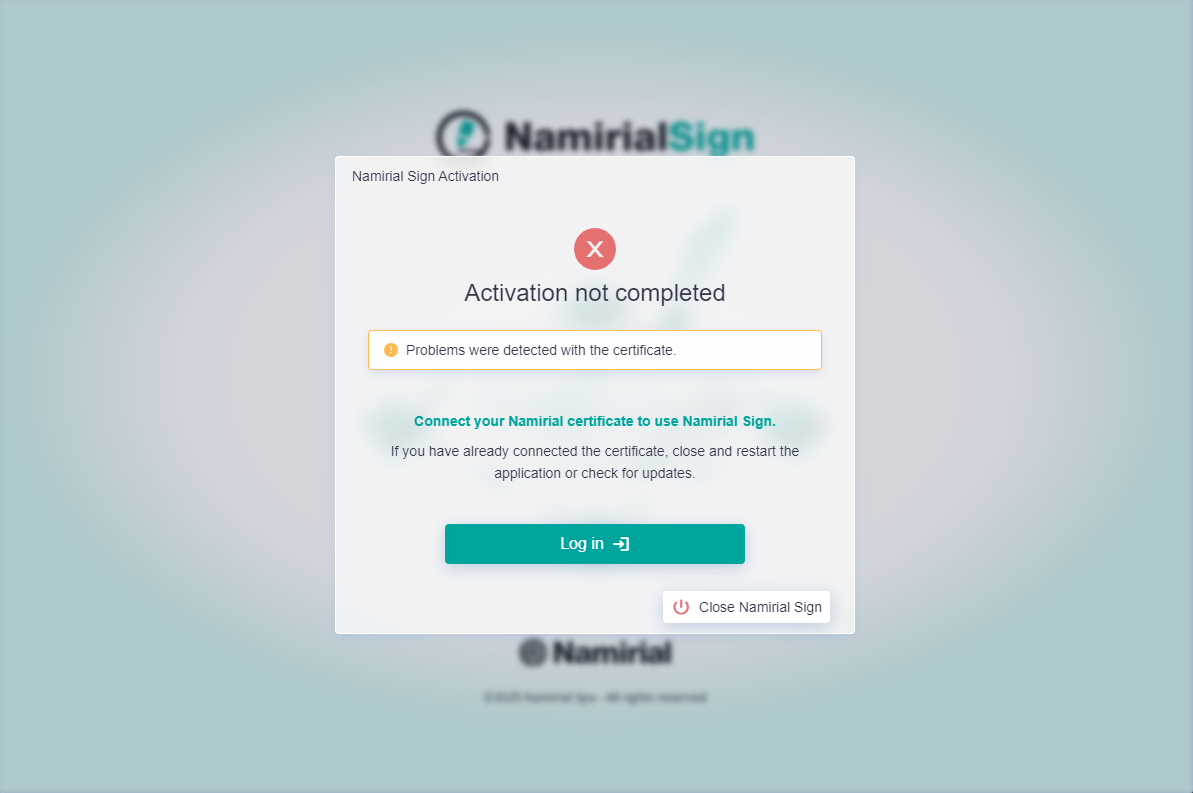
The portable version of Namirial Sign can be activated without logging into the system, if installed on a Namirial token with Namirial certificates onboard. During startup, this check is performed, and if certificates are found, it can be used without login but with some limitations detailed below. If the certificates are not found, activation of the portable version is not possible and login to MyNamirial is required as indicated in the "Login to MyNamirial" paragraph.
Portable active:
Portable not active:
Limitations of the portable version (GO) are as follows:
- No more than 10 signatures with device per day
- No more than 10 verifications per day
- No more than 10 timestamps per day
- No more than 10 encryptions per day
- No more than 10 decryptions per day
- Document archiving on Namirial Archive is not possible
To access the features of Namirial Sign, you must register and authenticate to MyNamirial. The software will prompt for authentication by opening a page where you can register (if not already done) or enter your credentials. Once logged in, Namirial Sign will validate the authentication and proceed to the next step.
In the basic version, the user has a FREE plan that allows all basic features with some limitations:
- Encryption is not possible
- Connection to Namirial Archive is not possible
- LT signature is not possible
- ASiC signature is not possible
- Countersignature or encapsulated signature is not possible
- Signing and timestamping more than 10 documents in queue is not possible
- Removal of advertising banners is not possible
- Individual configuration of files in multiple signature is not possible
- PDF/A conversion function cannot be used
All features of Namirial Sign will be unlocked for users with a PREMIUM plan.
This feature is activated if the PC is connected to the Internet.
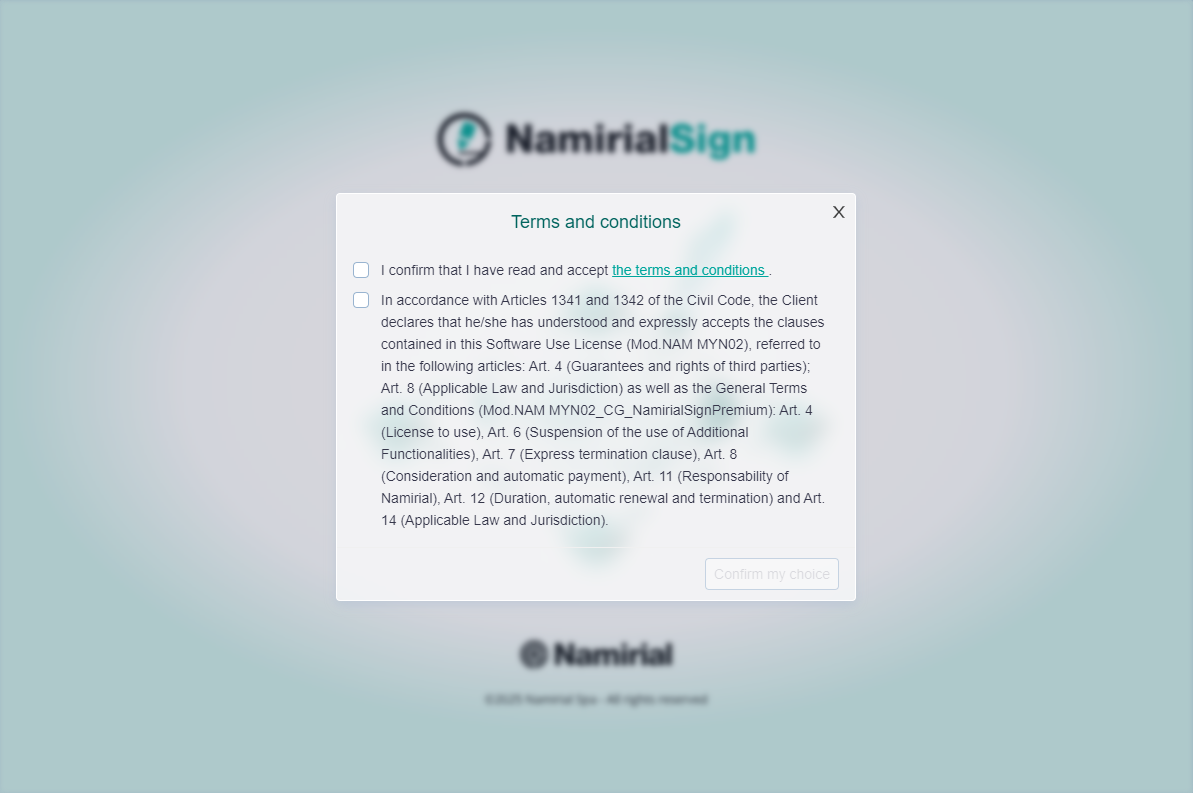
After activating the portable version or authenticating to MyNamirial, the license check for Namirial Sign will be performed. If the software is used for the first time, you will be asked to accept the license agreement and then the sharing of anonymous data to improve future development of the application.
License acceptance:
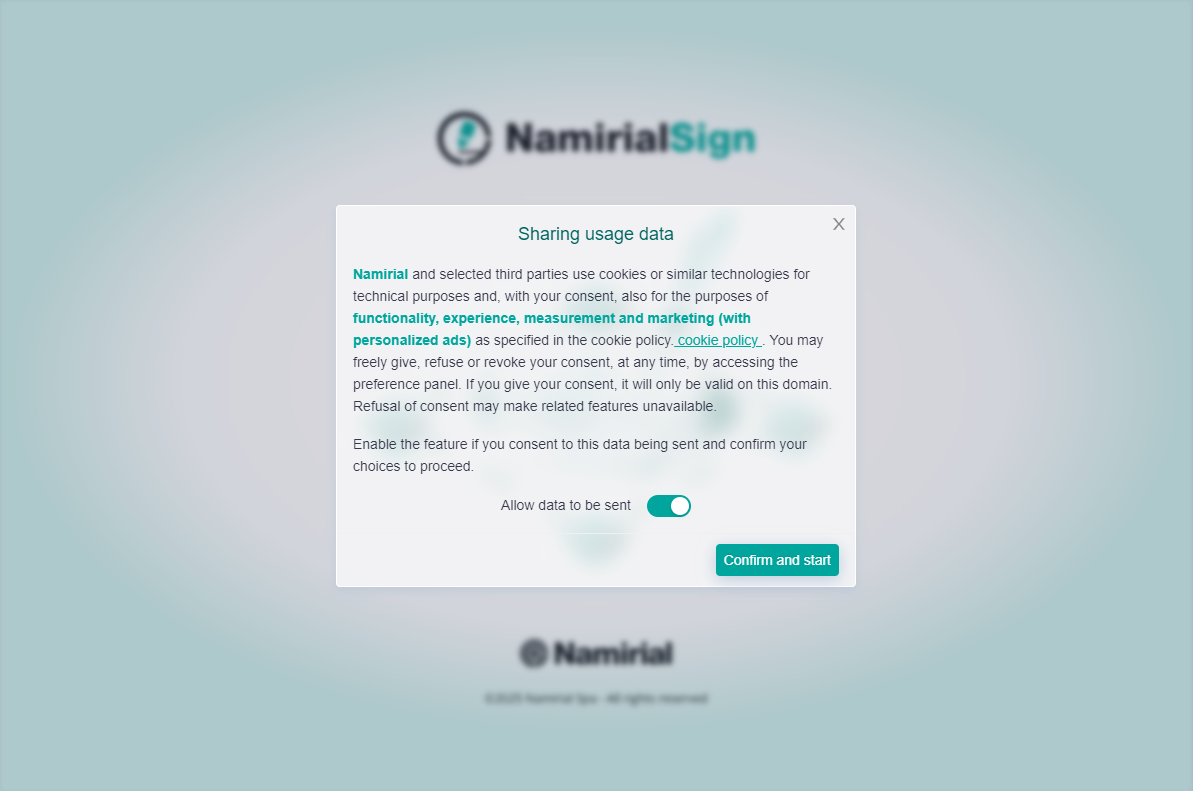
Sharing acceptance:
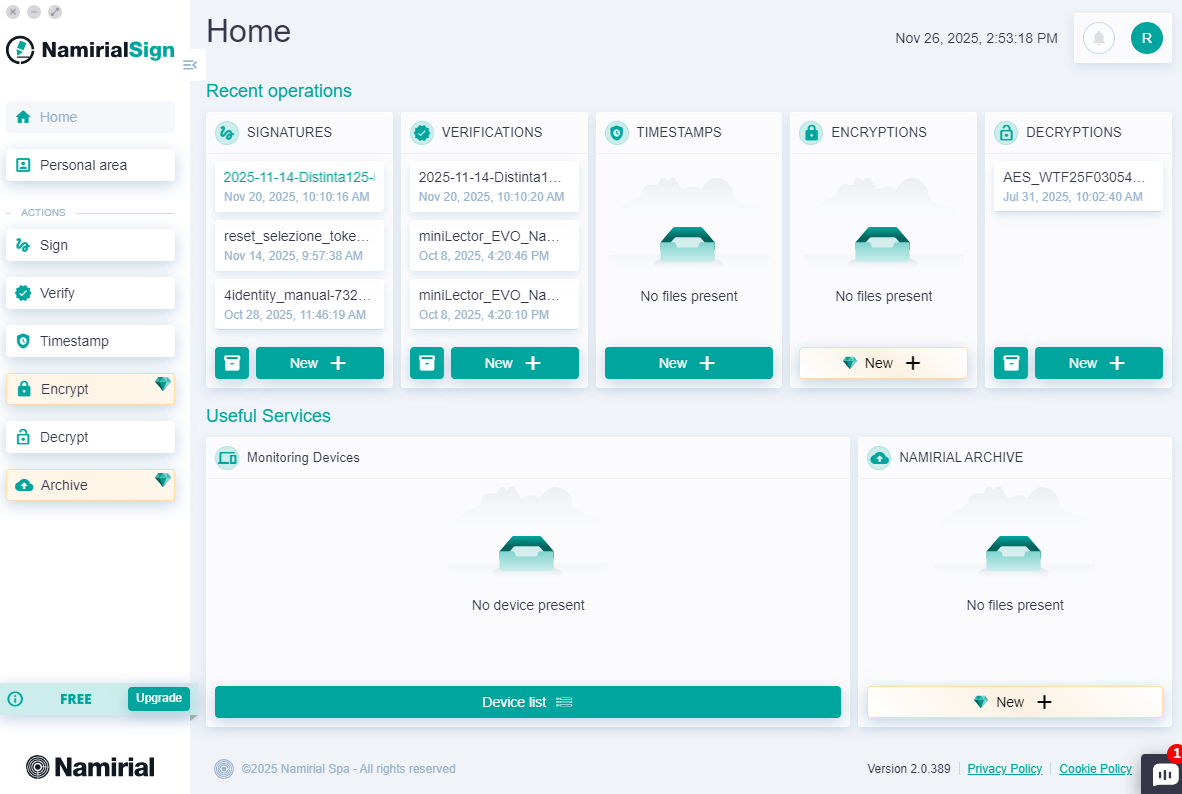
After all the checks indicated in the previous paragraphs, the main menu will appear on the screen, from which you can activate all the features provided for your plan:
- Sign a file by clicking the "New +" button or dragging a file into the SIGNATURES card, or by clicking the "Sign" button in the left menu;
- Verify the signature of files by clicking the "New +" button or dragging a file into the VERIFICATIONS card, or by clicking the "Verify" button in the left menu;
- Add a timestamp to a file by clicking the "New +" button or dragging a file into the TIMESTAMPS card, or by clicking the "Timestamp" button in the left menu;
- Encrypt a file by clicking the "New +" button or dragging a file into the ENCRYPTIONS card, or by clicking the "Encrypt" button in the left menu;
- Decrypt a file by clicking the "New +" button or dragging a file into the DECRYPTIONS card, or by clicking the "Decrypt" button in the left menu;
- Archive a file on Namirial Archive by clicking the "New +" button or dragging a file into the NAMIRIAL ARCHIVE card, or by clicking the "Archive" button in the left menu;
For each of these features just mentioned, there is a page detailing its use.
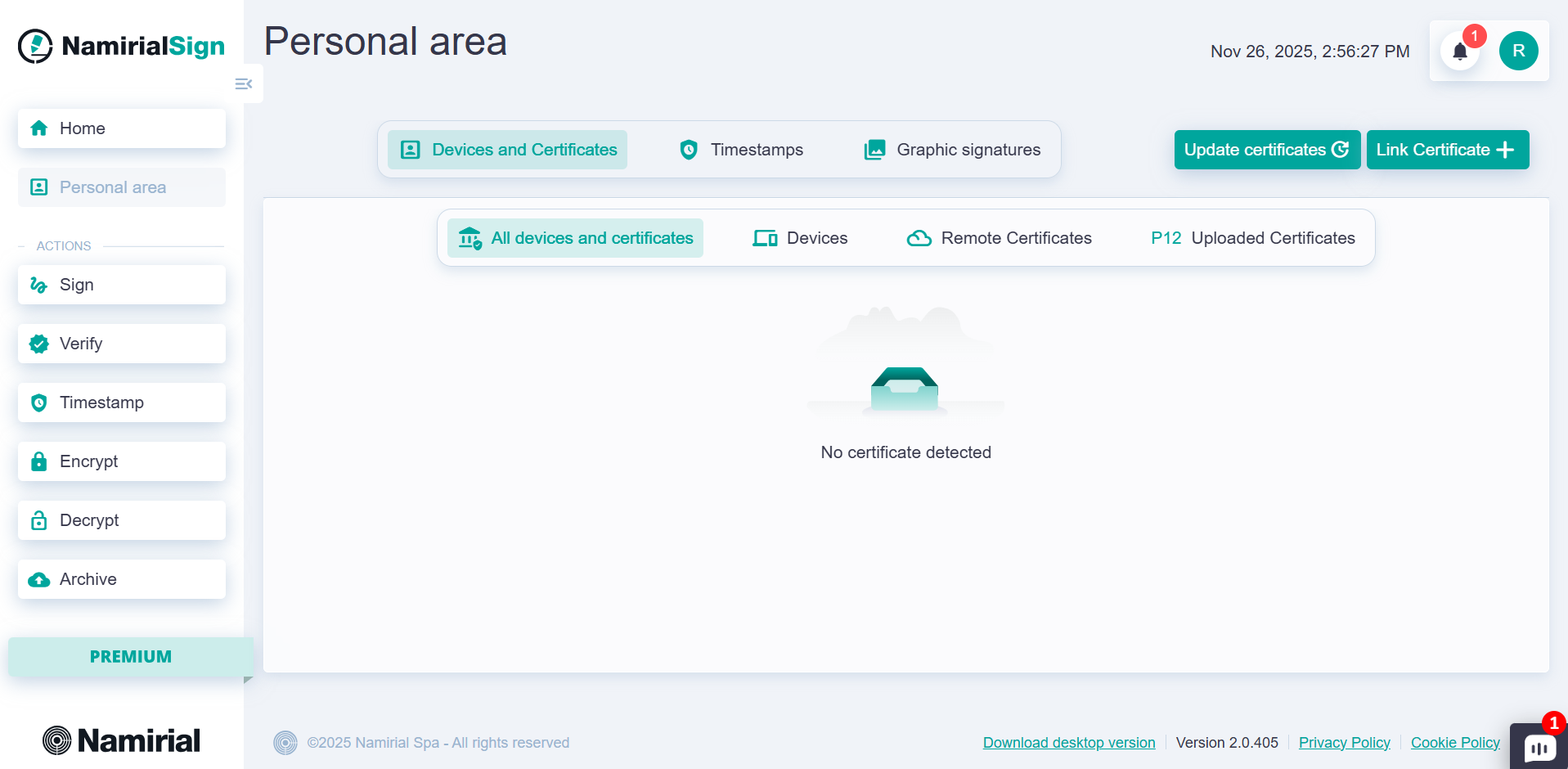
Accessing the Personal Area page, reachable by clicking the "Personal Area" button in the left menu, you can reach the section where all identities and configurations are present. In particular, on this page you can view and manage the following sections:
- "Devices and certificates", i.e., digital and remote signature certificates and devices
- "Timestamps", i.e., credentials and pointers to timestamps
- "Graphic signatures", which contains the configurations of the signature label that appears on the PDF
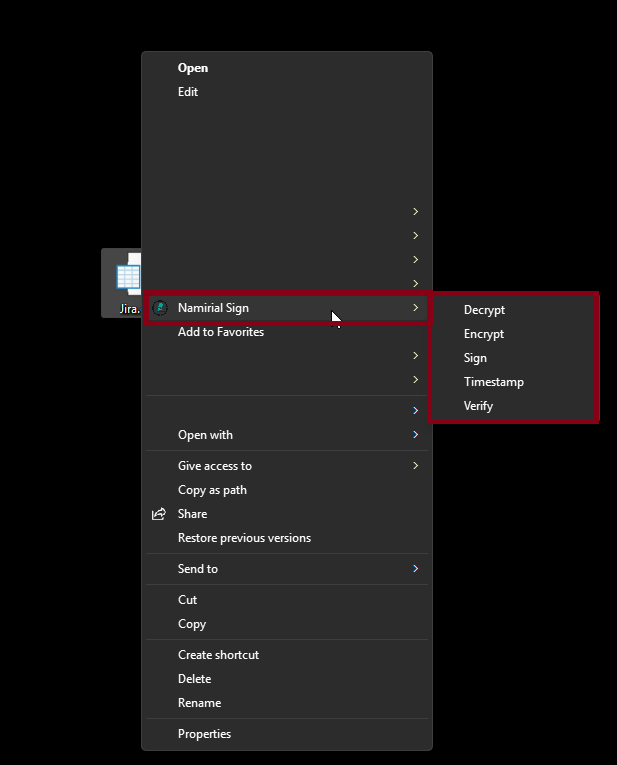
Namirial Sign allows you to perform signing, verification, timestamping, encryption, decryption, and archiving operations quickly directly from some shortcuts.
From a file on your PC, you can right-click to open the menu and select one of the quick actions of Namirial Sign.
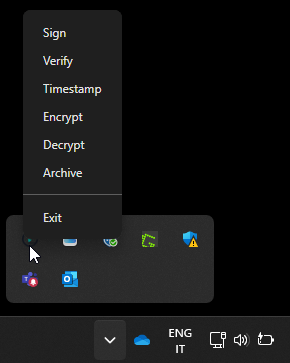
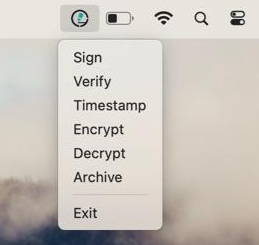
From the icon in the tray bar, you can right-click to open the menu and select one of the quick actions of Namirial Sign.