Link an external account from External links in your security settings. This guide follows the Namirial ID example shown in the screenshots.
Sign in to MyNamirial and open Security. You also need the credentials for the external account you want to link. Use a provider listed in your account.
The screenshots show the English interface in the demo environment. Select an image to view it at full size. Browser and device prompts may differ from the examples.
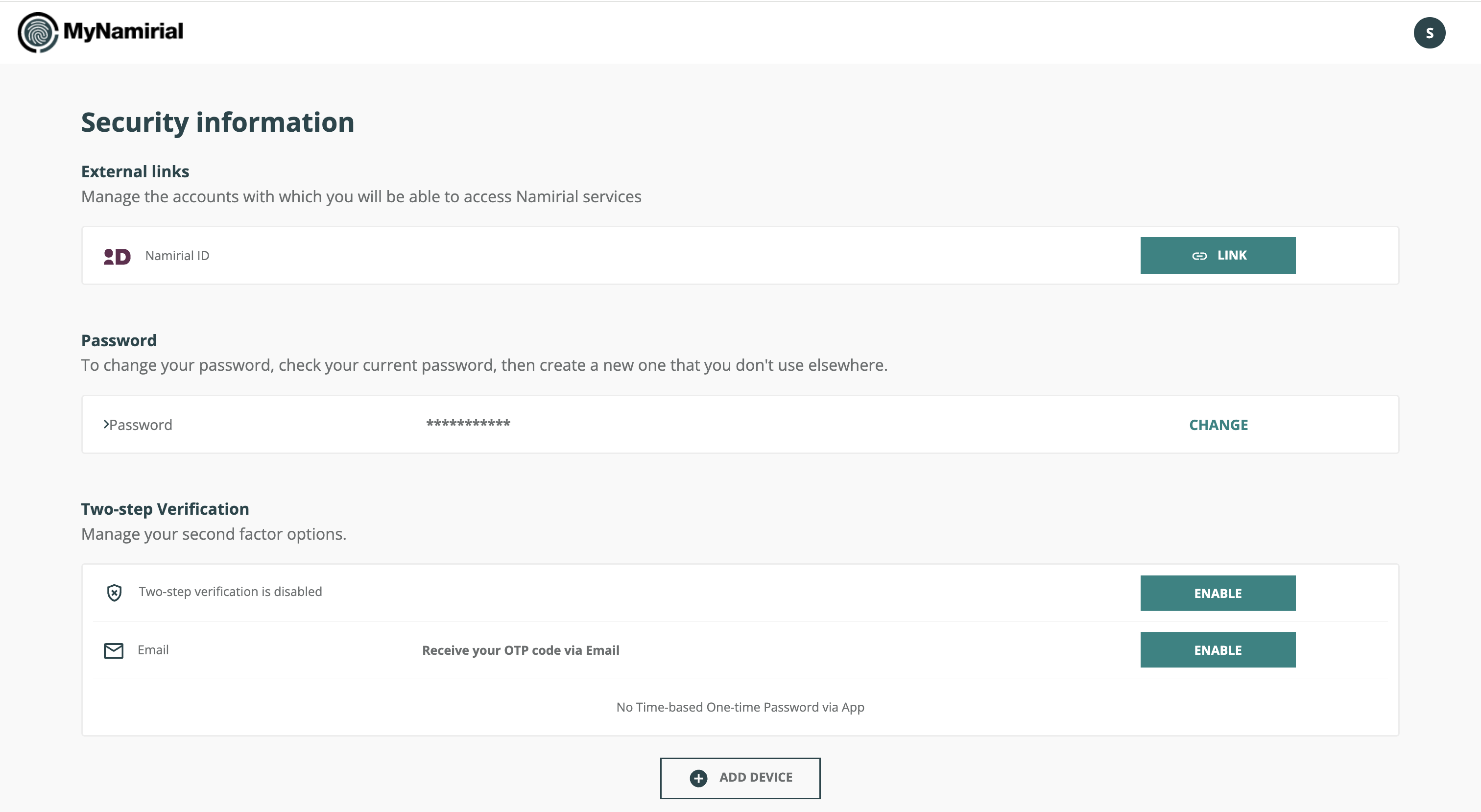
In External links, select LINK beside Namirial ID.
The provider’s sign-in page shows the service requesting access. Enter your Namirial ID Username and Password, then select Login. These are the credentials for the external account being linked. Complete any further verification requested by that provider.
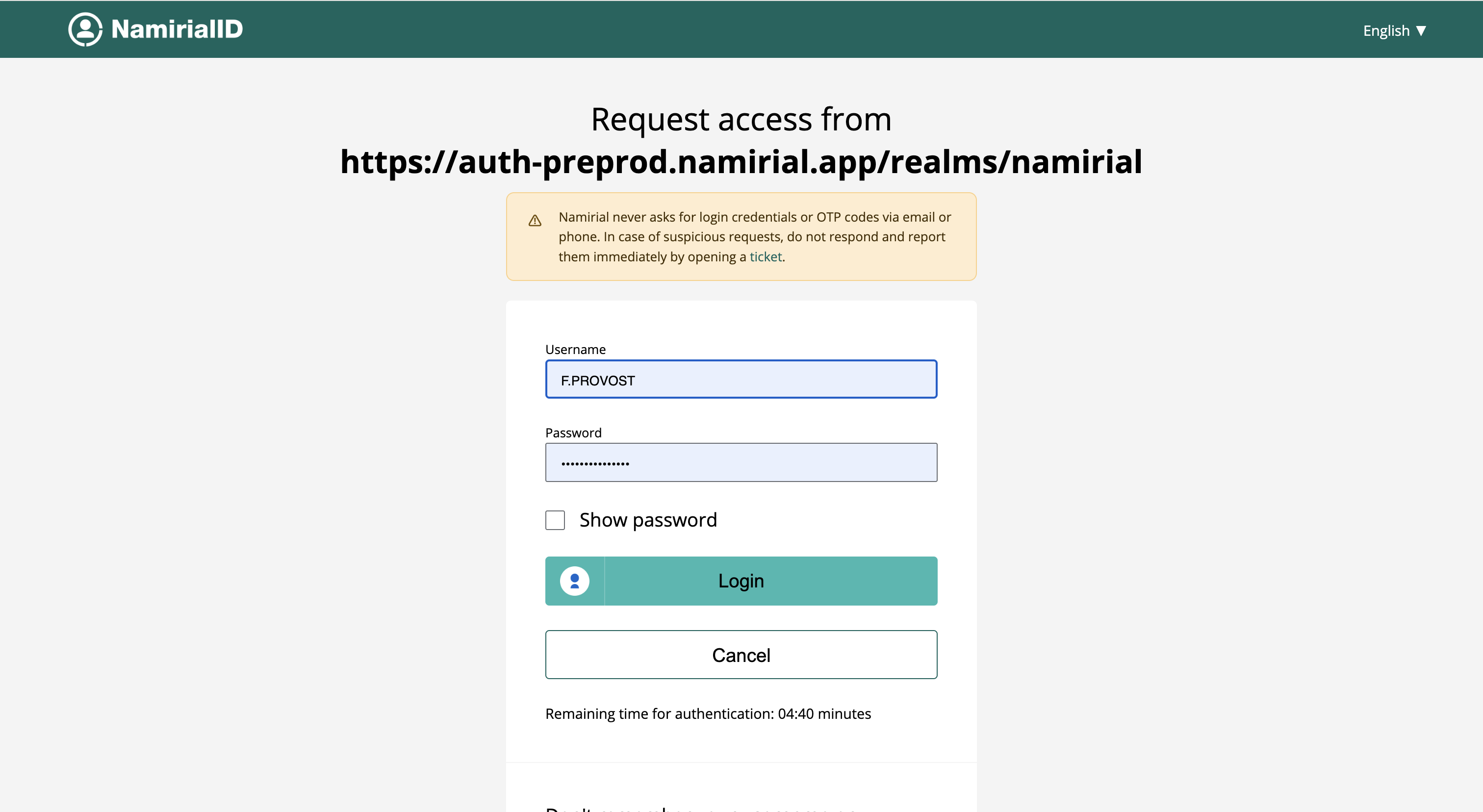
The example is a request from the MyNamirial demo authentication service. Use the environment appropriate to your account.
On returning to External links, check CONNECTED AS and the identifier shown beside Namirial ID. UNLINK replaces LINK when the connection is present.
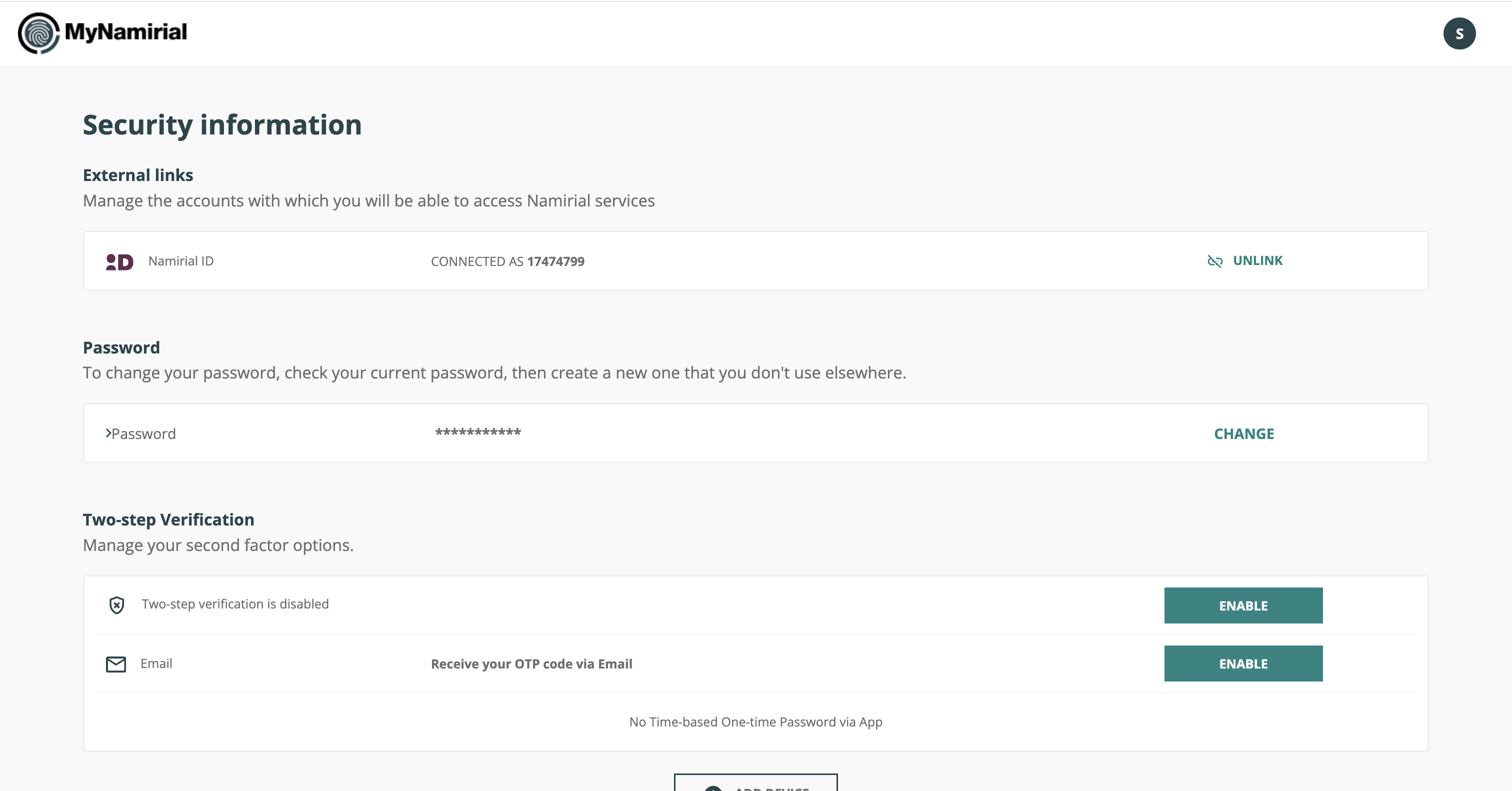
If the row still shows LINK, the connection has not been confirmed there. Check that you completed the provider’s authentication before trying again.
- In External links, identify the account to disconnect.
- Select UNLINK and complete any confirmation requested.
- Check that the connection is no longer shown and LINK is available again.
Keep another MyNamirial sign-in method available before unlinking the account.
Only use the providers actually listed in External links. Their authentication screens and required steps can differ from the Namirial ID example.