Use your email and password, or a passkey already registered for your account. Don’t have an account yet? Follow Create your account.
Open MyNamirial. Have your password and, if two-step verification is enabled, access to your email inbox or configured authenticator app. For passkey access, use the device or credential manager holding your registered passkey.
The screenshots show the English interface in the demo environment. Select an image to view it at full size. Browser and device prompts may differ from the examples.
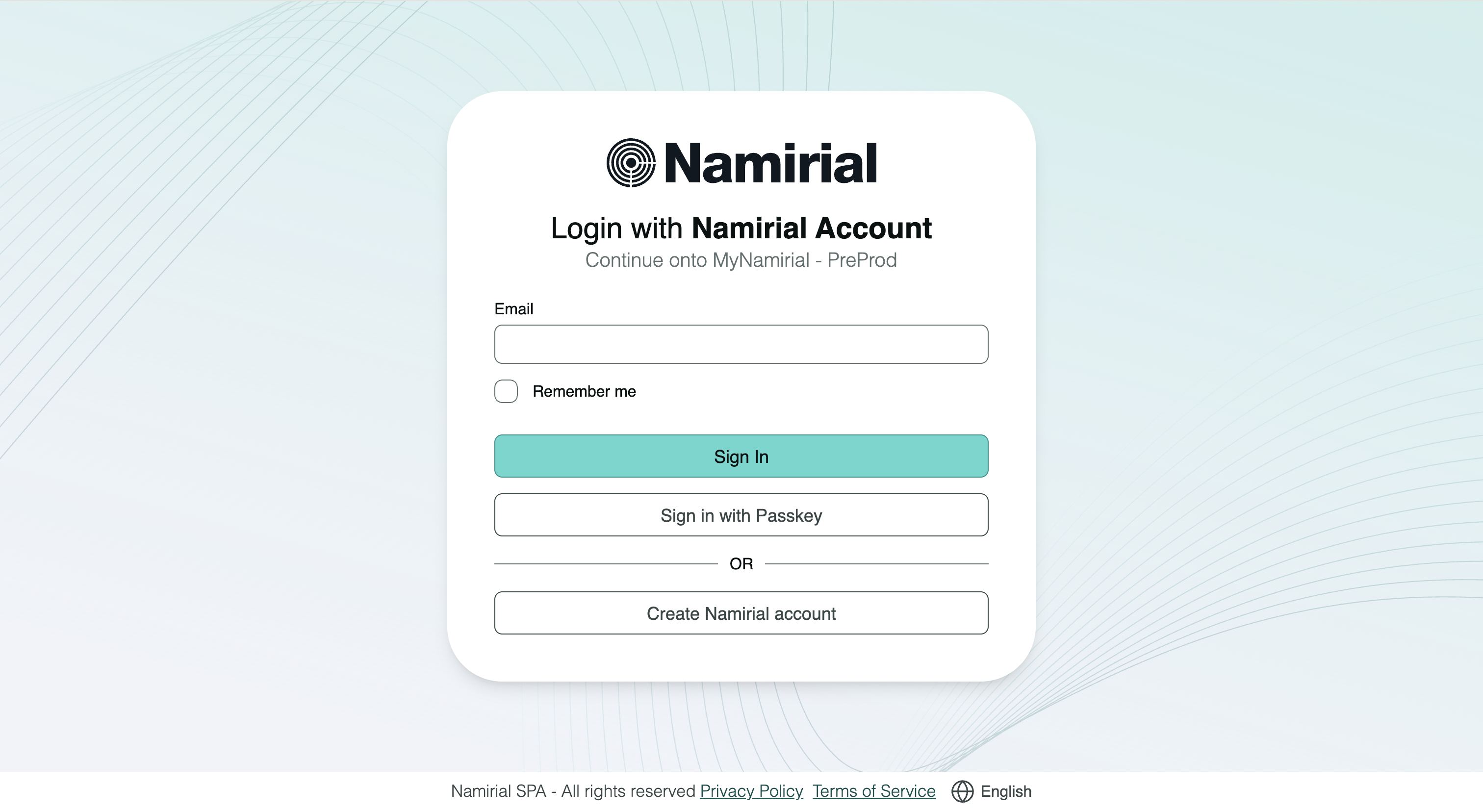
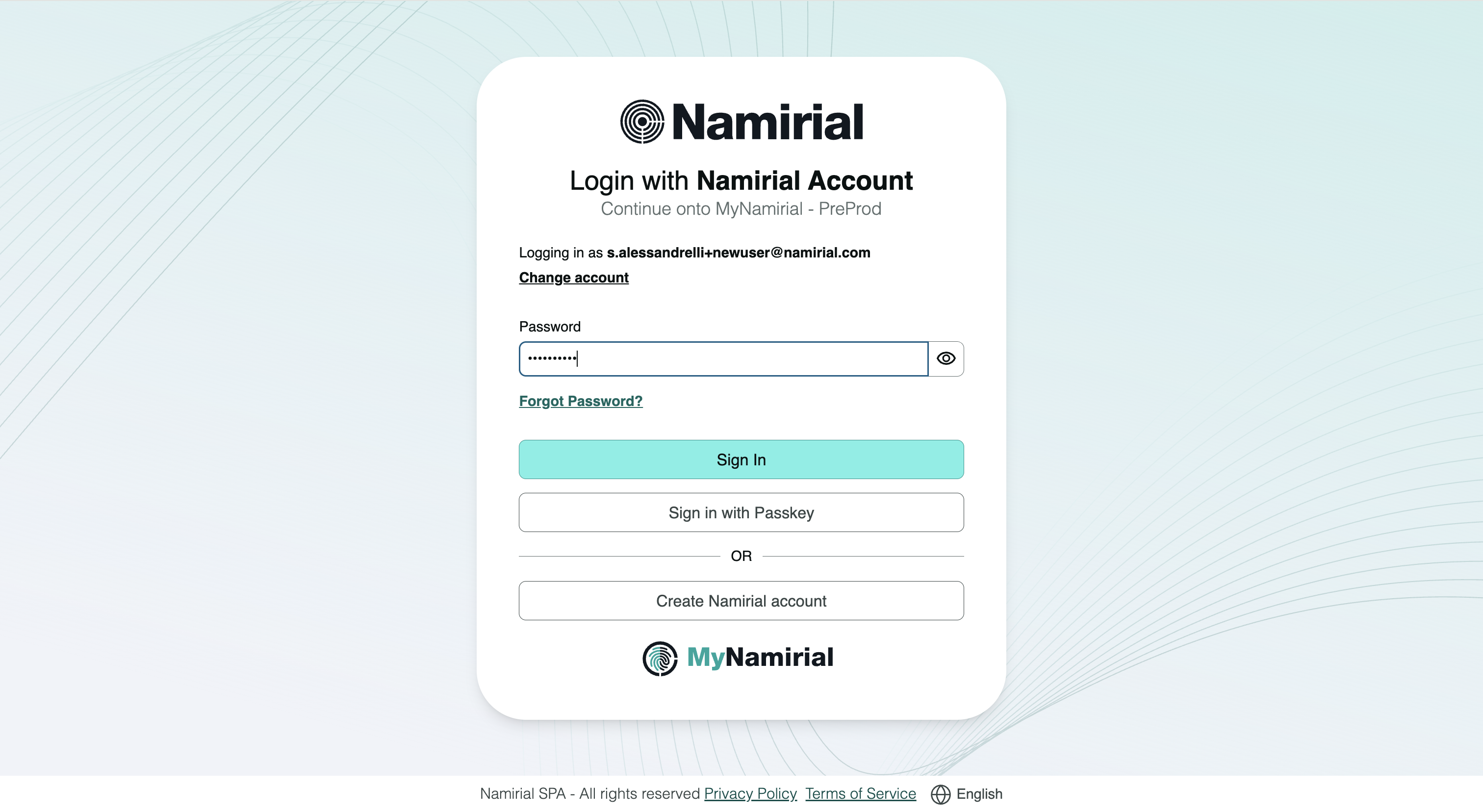
Password sign-in uses two separate screens: first the email identifying your account, then the password. The first Sign In opens the password screen; the second submits your password and continues to any additional verification.
Enter your account address in Email, then select Sign In to continue to the password screen.
Check the address shown beside Logging in as. Select Change account if you need to use a different account. Enter Password and select Sign In. Use Forgot Password? if you need to recover your credentials.
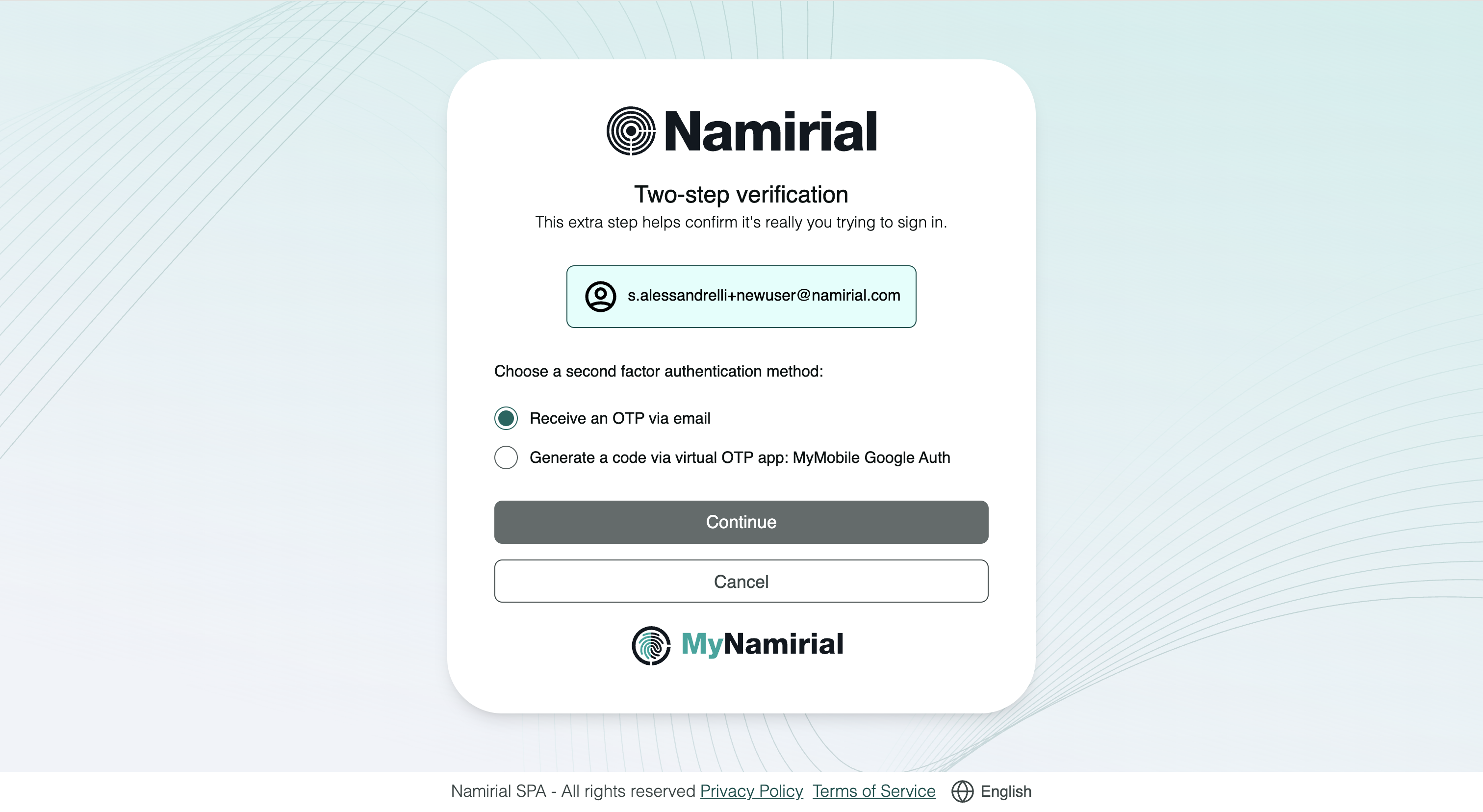
If Two-step verification appears, choose an available method and select Continue:
| Option | Where to get the code |
|---|---|
| Receive an OTP via email | Your account’s email inbox. |
| Generate a code via virtual OTP app | The authenticator app registered under the device name shown. |
Enter the code on the next screen and submit it using the action shown. Use the code for this sign-in request, before its displayed expiry. If only one method is offered, follow that method’s instructions.
The illustrated steps below use Google Chrome on macOS with Google Password Manager. Other browsers, operating systems or passkey providers may show different dialogs and control names. Choose the credential for your intended account and complete the verification requested by your device.
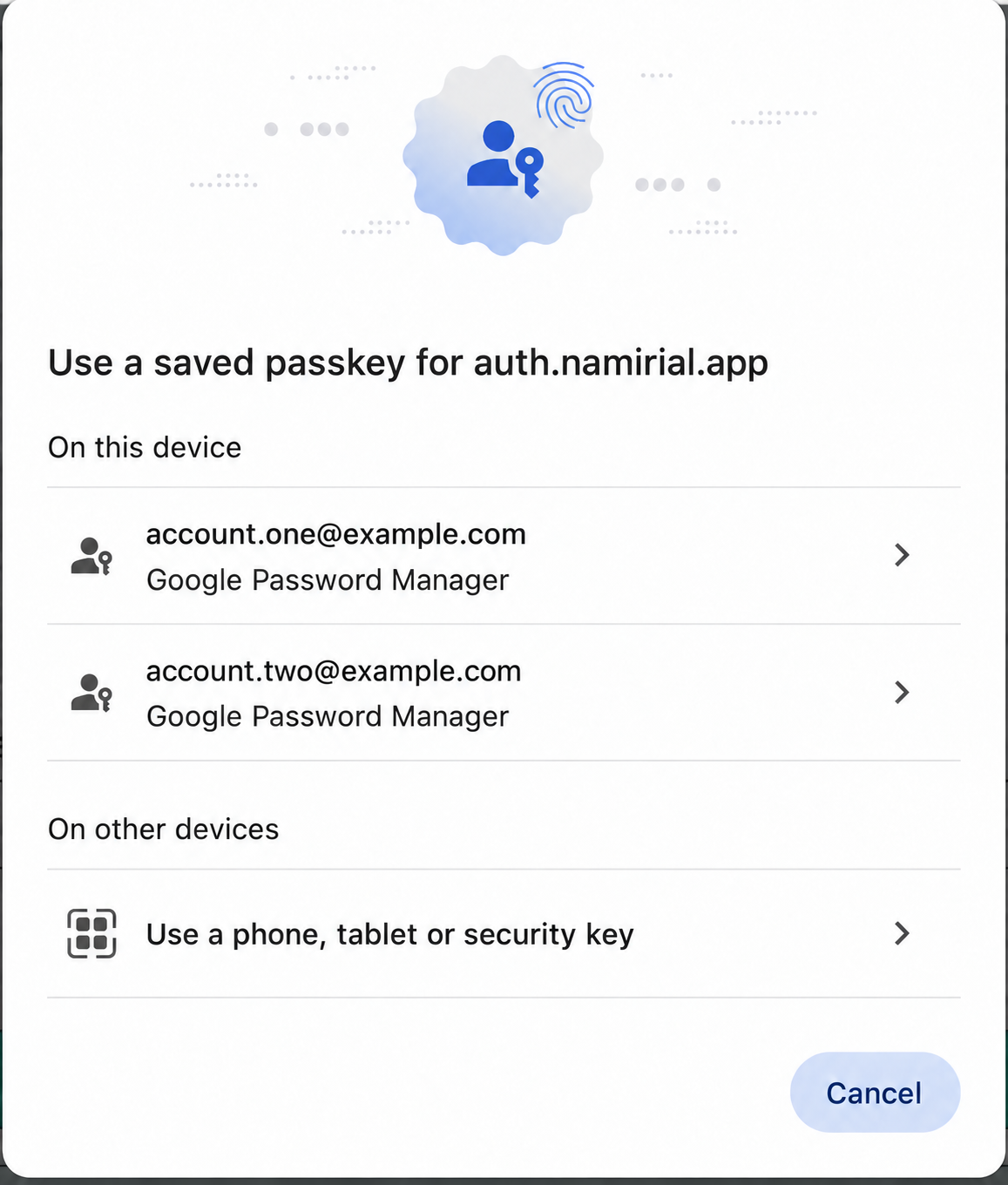
Select Sign in with Passkey on the sign-in page. Your browser may offer a saved passkey directly or display a list to choose from.
If a list appears, select the passkey for the account you want under On this device. Check the address associated with each entry: saved passkeys may belong to different accounts.
For a passkey on another device, select Use a phone, tablet or security key under On other devices and follow the browser’s instructions.
Check the account shown in the verification prompt. If the browser offered a different passkey from the one you intended, select Use a different passkey to choose another credential.
Complete the requested verification: the example shows Touch ID with Google Password Manager on macOS. The method depends on your device and credential manager.
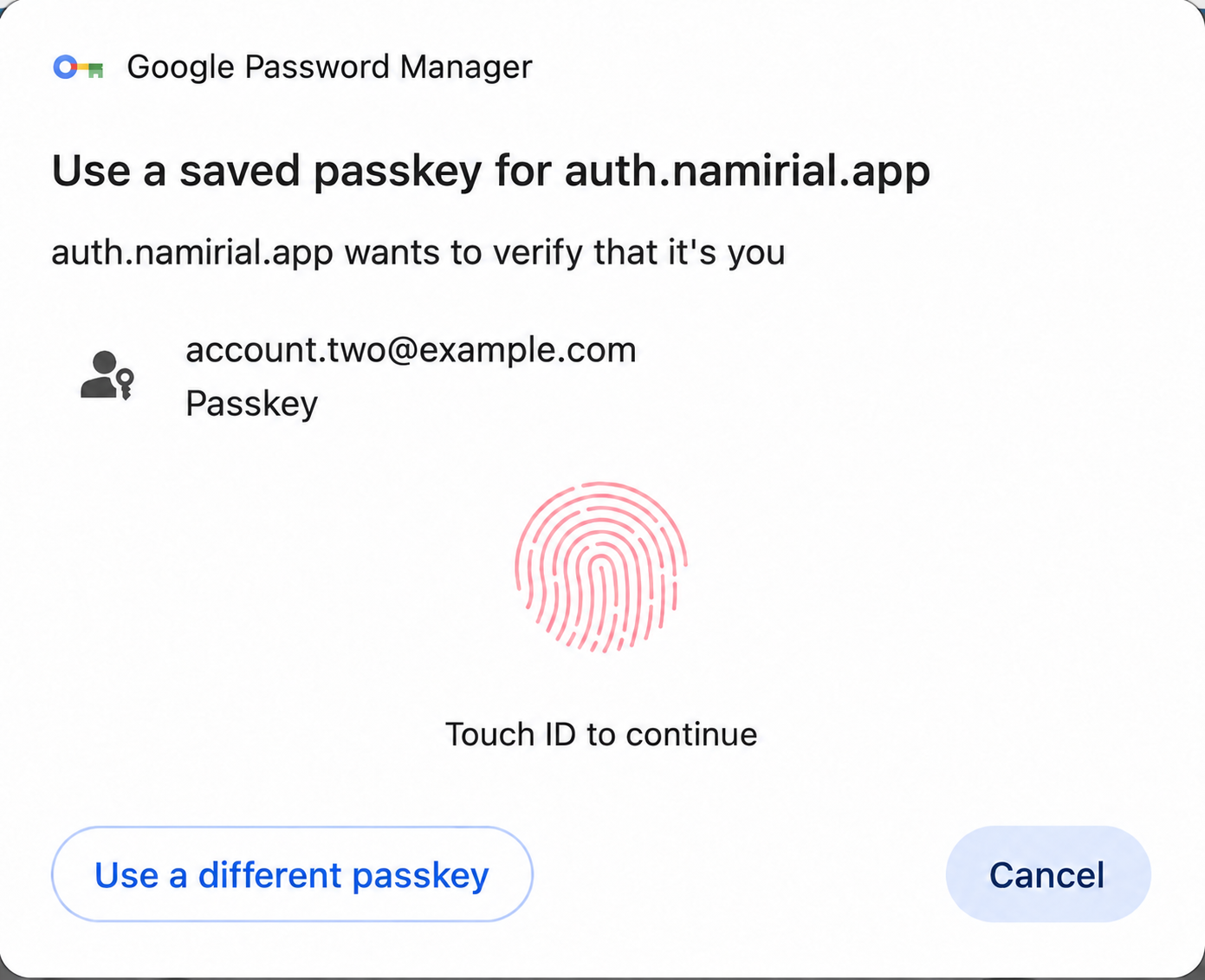
Continue to your account or the service you opened when authentication completes. Cancel dismisses the prompt without completing sign-in.
To register a new passkey, follow Manage passkeys.
Access is complete when you reach your account or the requested service. If another verification screen appears, complete it before continuing.
| Situation | What to check |
|---|---|
| Wrong account on the password screen | Select Change account. |
| Forgotten password | Follow Recover credentials. |
| Email code not received | Check the account inbox and spam folder. |
| App code rejected | Use the current code for the correct Namirial account in the configured app. |
| Passkey unavailable or for another account | Choose another saved passkey if offered, or return to email and password. |
Two-step verification · Manage passkeys · Sign in with your organisation's account · Frequently asked questions