This is the section where you can configure graphic signature labels to be placed on PDF documents when using PAdES signatures.
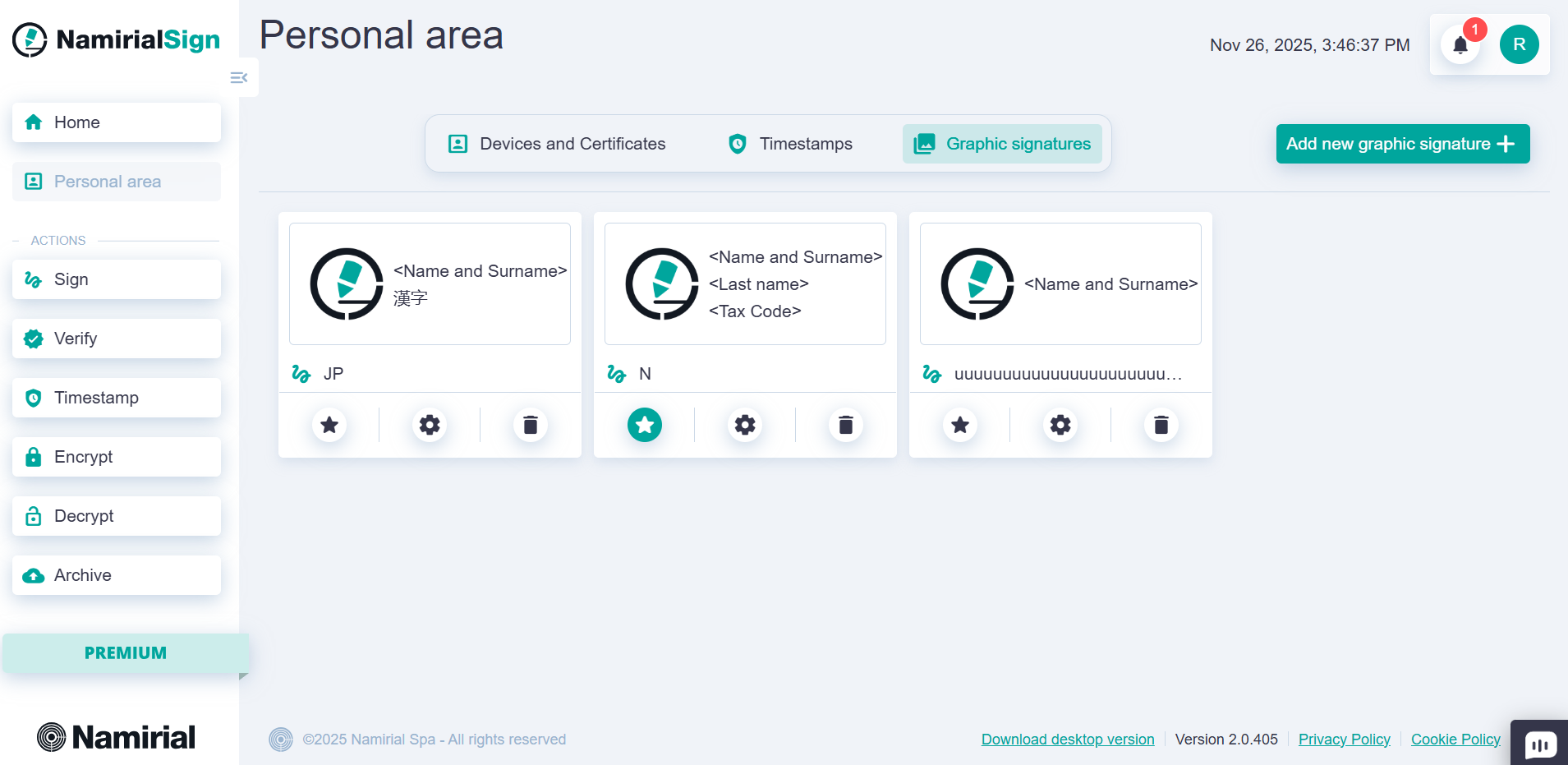
As with identities and timestamps, a graphic signature present in the Personal Area can also be marked as default, so it will be used by default when selected in the PAdES signing flow.
There are also options to edit and delete the selected graphic signature.
In this section, you can also add other graphic signatures.
To add a new graphic signature, click the "Add new graphic signature" button. A screen will appear where you can:
- choose whether to display text fields, an image, or both;
- select the fields to show in the signature label (Name and Surname, Tax Code, Date, Country, a free text field, ...);
- choose the image to include in the signature (it can be a logo or a scanned signature);
- choose whether to use drawing mode to sign using the pointer;
- position text and image in various combinations.
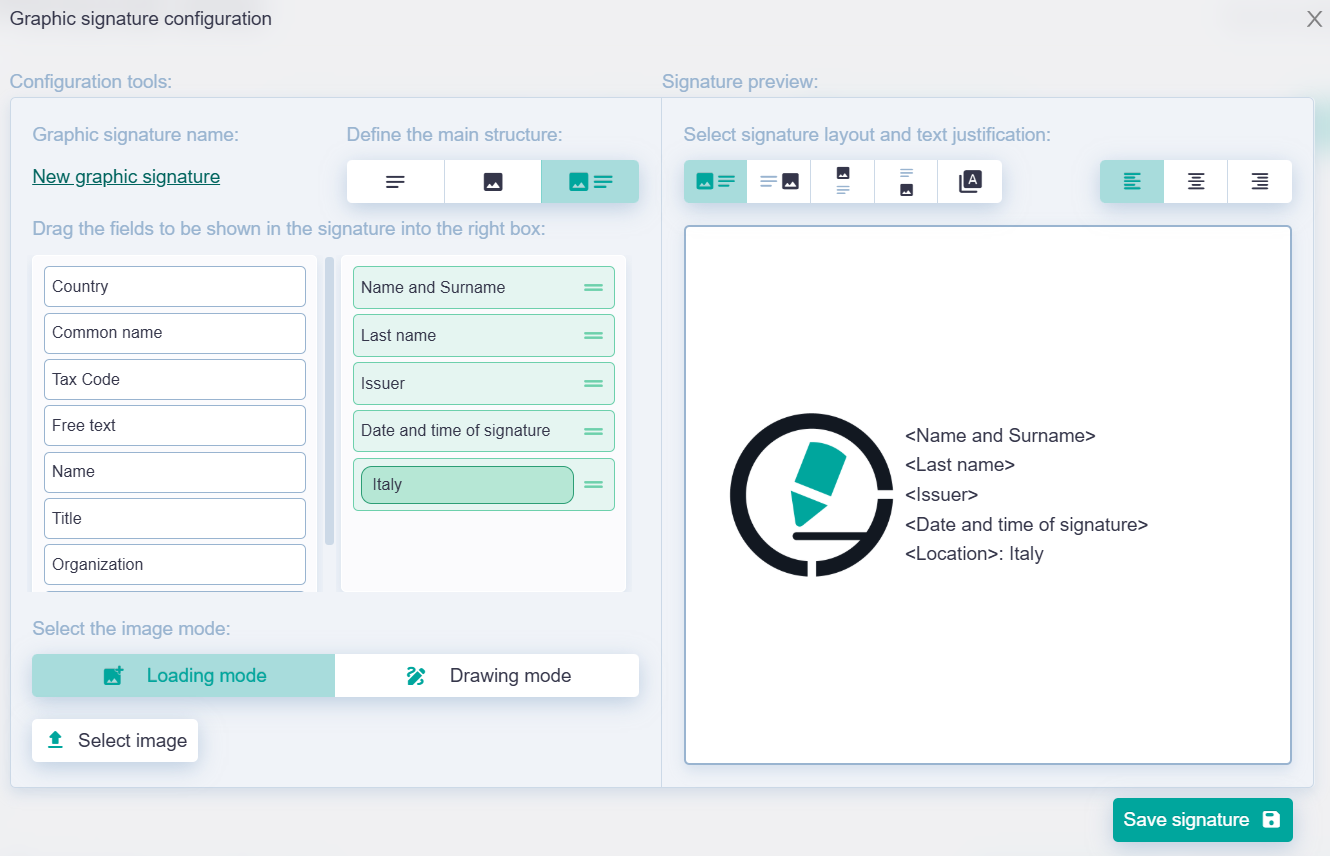
After selecting all the parameters to appear in the graphic signature label, press the "Save signature" button to save the configuration. You can now use the graphic signature in the PDF signing flow with PAdES format.