For this section, no additional authentication is required since the user is already authenticated to MyNamirial.
In the case of the portable version activated with Namirial certificates (profile GO), it is first necessary to log in to MyNamirial.
On Namirial Archive, it is possible to store documents with compliant preservation and encryption. You may need to decrypt files encrypted with the .ecrypto extension to view their contents. To do this, you must first download the .ecrypto file from Namirial Archive and then decrypt it with Namirial Sign.
You can start the decryption operation for an encrypted eCrypto file in one of the following ways:
- By clicking the "Decrypt" button in the always-present left menu;
- By clicking the "New +" button on the Home page in the "DECRYPTIONS" card;
- By dragging one or more files onto the "DECRYPTIONS" card on the Home page.
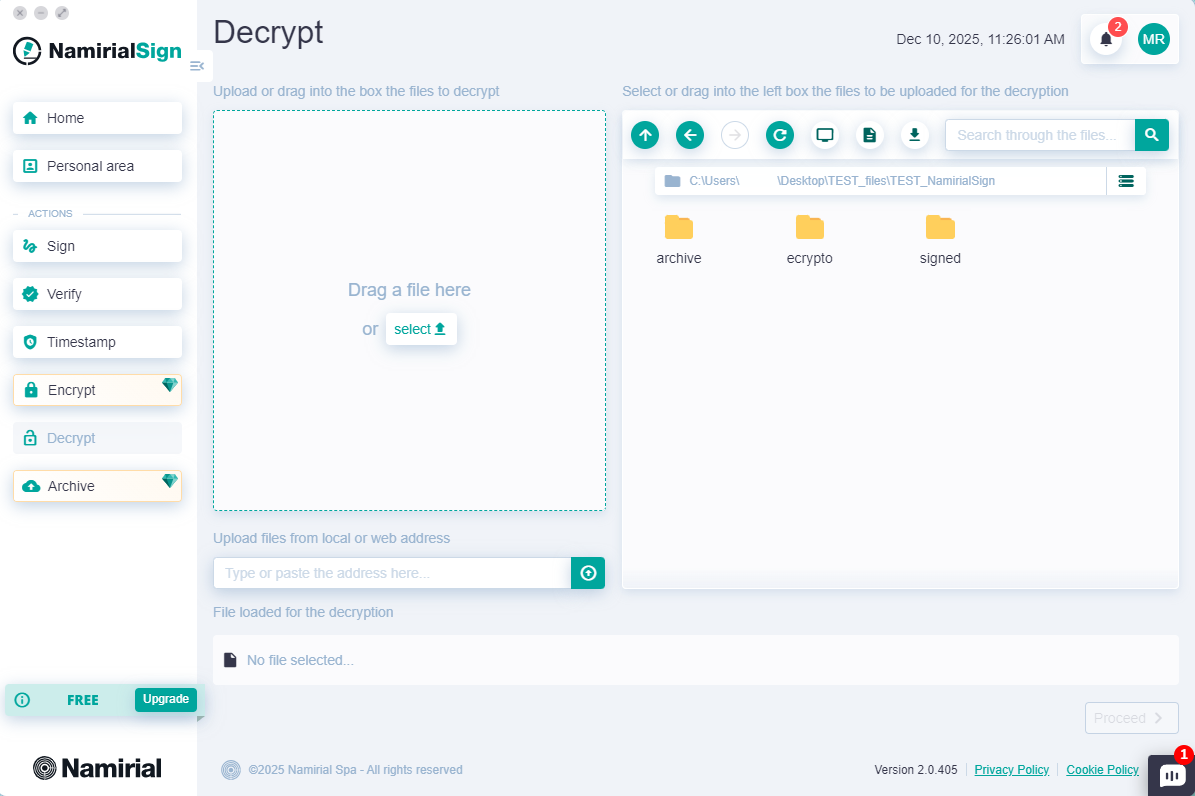
File selection can be done in four ways:
- Dragging it into the top left section from the desktop or a folder;
- Clicking "select" and browsing files from the operating system;
- Entering the file link, which can be a local or web path;
- Using the integrated explorer on the right.
Once the document is added to the decryption queue, press "Proceed".
On the next screen, the account with which the eCrypto file will be decrypted is shown, corresponding to the one already logged in to MyNamirial.
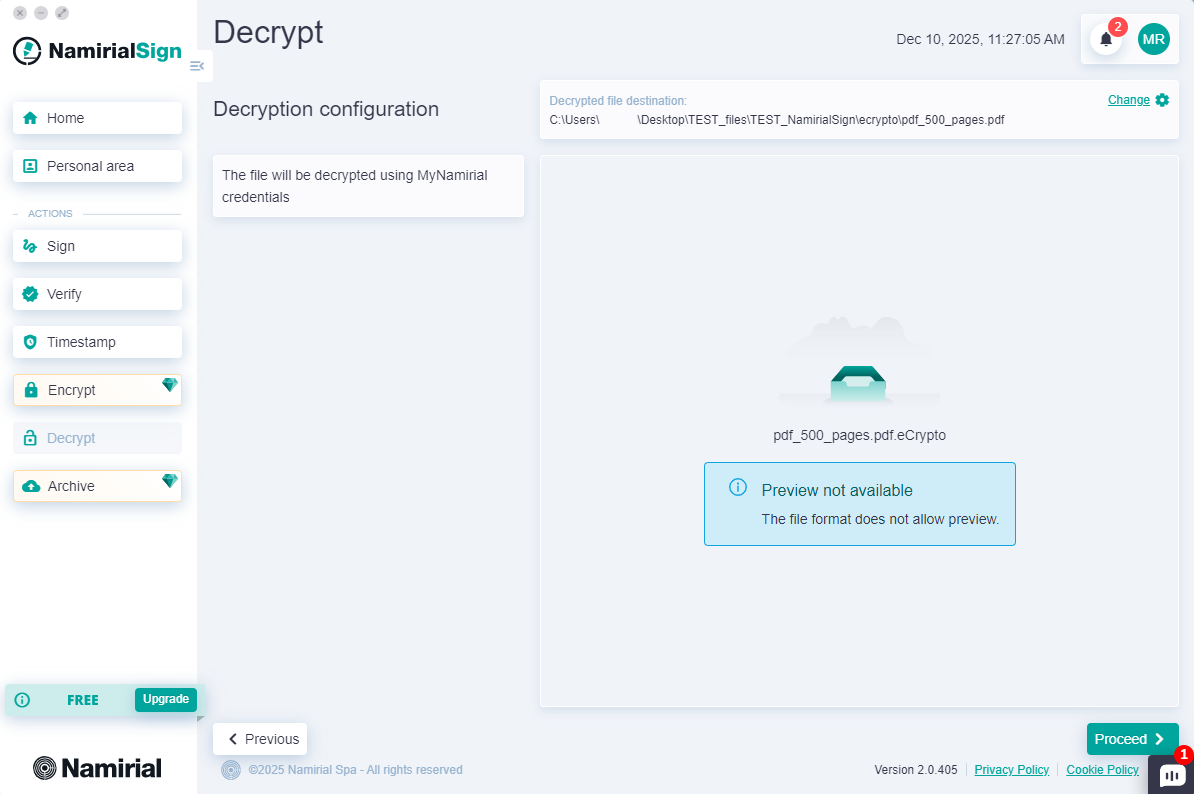
After entering the required information, press the "Proceed" button.
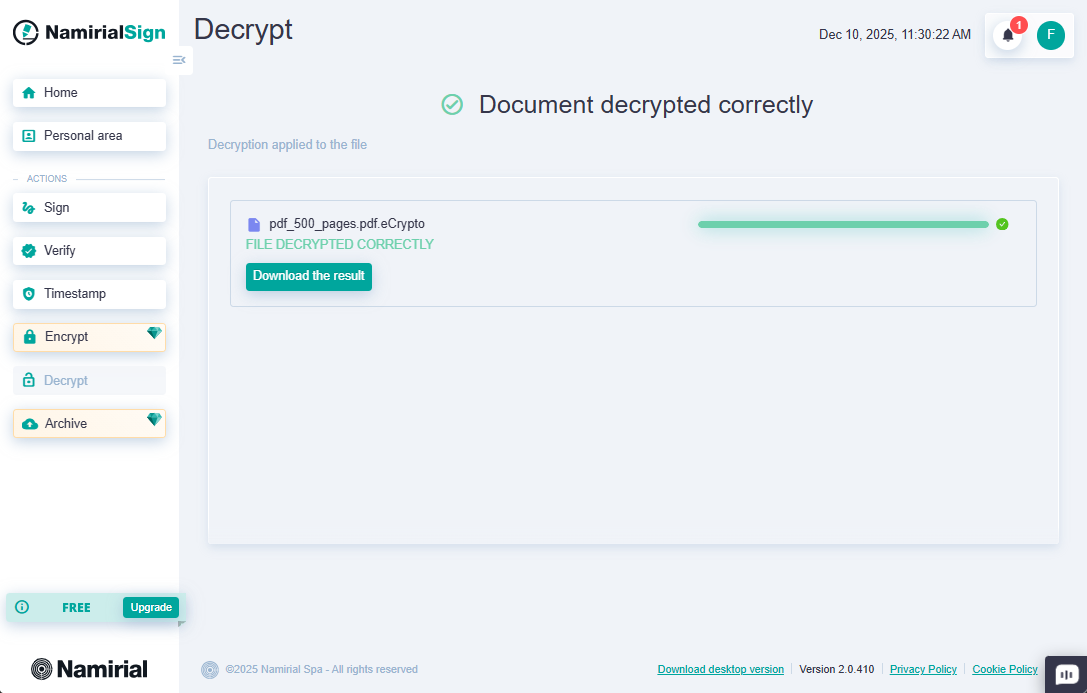
At this point, you need to wait for the selected file to be decrypted; a report will be shown with the file being decrypted and its completion status.